Windows 11 already knows what an MKV file is. So when one refuses to play, the container is almost never the problem - something inside it is.
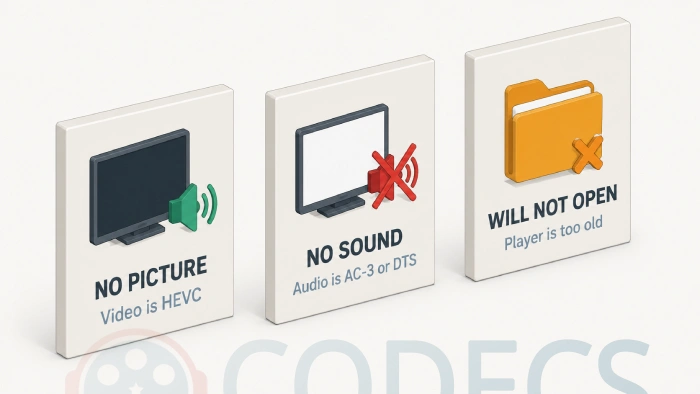
A black screen with sound, a perfect picture in total silence, or a player that just shrugs and does nothing.
Those three symptoms have three completely different causes.
Work out which one you have and the fix takes about two minutes.
First, the Thing Nobody Tells You
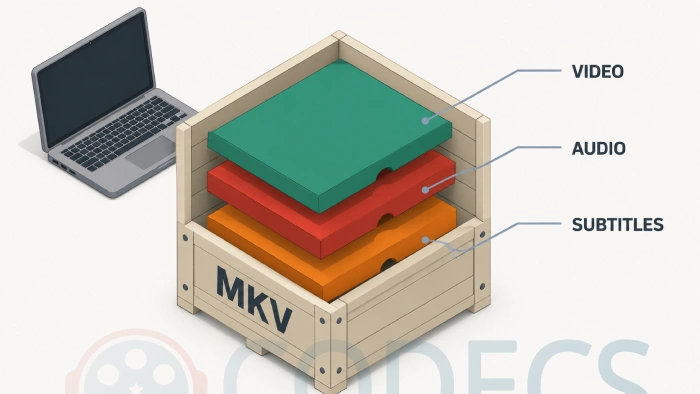
Windows 10 and Windows 11 support the MKV container natively. Media Player opens it, File Explorer reads it, and you do not need a special MKV codec to make that happen.
Most pages telling you to install an MKV codec are years out of date. The box opens fine - what fails is one of the tracks packed inside it.
Worth knowing. MKV is a container, like a box. It can hold video, several audio tracks and subtitles at once, each compressed differently, and any one of them can be the thing that breaks - see codecs and containers explained.
Three Symptoms, Three Different Faults
Match what you are seeing to the row below, then jump to that section. Installing the wrong thing is the most common waste of an evening here.
| What you see | What is wrong | What fixes it |
|---|---|---|
| Sound plays, screen stays black | The video track is HEVC and Windows cannot decode it | Install the HEVC extension, or use a player with its own decoder |
| Picture is perfect, no sound at all | The audio track is AC-3 or DTS | Install a decoder, or use a player that brings its own |
| The player does nothing, or errors instantly | An older program that never learned MKV | A modern player, or a Matroska splitter |
| It stutters or drops frames | 4K HEVC decoding in software rather than on the GPU | Hardware acceleration, covered in the HEVC guide |
Black Screen With Sound: the Video Is HEVC
This is the most common one by far, and it has nothing to do with MKV. Windows ships without an H.265 decoder because of patent licensing, so the audio plays and the picture never arrives.
The clean fix is the HEVC Video Extensions from Device Manufacturer, which teaches the whole system to read H.265 rather than just one player. Our guide covers how to download it for free.
Faster route. VLC Media Player carries its own decoders and opens HEVC in MKV without installing anything system-wide, which is the quickest answer if you only need this one file to play tonight.
If the picture is still wrong after that - green frames, artefacts, stuttering on 4K - the cause is the GPU rather than the container, and the seven fixes for HEVC playback guide takes it from there.
Perfect Picture, No Sound: It Is the Audio Track
MKV rips very often carry Dolby Digital or DTS audio, because that is what was on the disc. Neither is guaranteed to be on your PC.
Two separate things cause this, and they get mixed up constantly.
- AC-3 (Dolby Digital) - Windows 11 stopped including the decoder from version 24H2. Machines upgraded from an older Windows keep it, and many manufacturers pre-install it, which is why one PC in the house plays the file and another does not.
- DTS - never included in Windows, on any version. If the track is DTS, a clean Windows install has never been able to play it.
Both are solved the same two ways: install the decoders, or use a player that brings its own. The K-Lite Codec Pack covers AC-3, DTS and most other gaps in one setup.
For more on the audio side specifically, see how to play AC3 files and the best players for E-AC3 audio.
Check the obvious first. An MKV can hold several audio tracks, and the one your player picked by default may simply be a commentary track or a language you do not want - try switching tracks in the player's audio menu before installing anything.
Nothing Happens at All: the Player Is Too Old
Some programs never learned Matroska. Older DirectShow applications, the legacy Windows Media Player and a lot of video editors fall over on MKV regardless of what is inside it.
The easy answer is a player that handles it natively. VLC does, and so do the two Media Player Classic builds in MPC-BE and MPC-HC compared.
If you need a specific old program to open MKV rather than switching players, install LAV Filters or the Matroska Splitter, which add the missing support system-wide instead.
More options are in the media players category, and the best players for HEVC files roundup is the right list if your MKVs are mostly H.265.
Find Out What Is Inside Before Installing Anything
Thirty seconds of checking beats an evening of installing things you did not need.
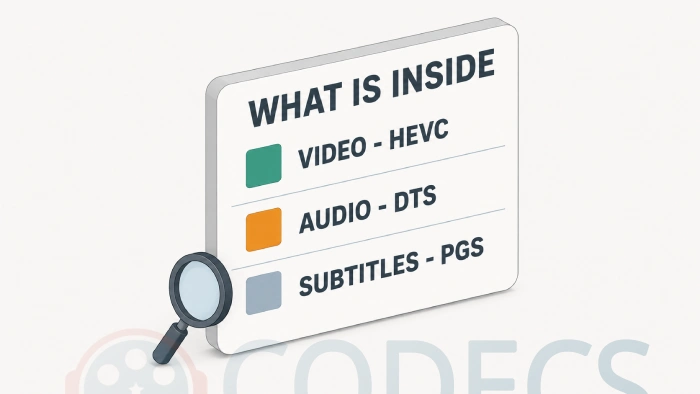
- Install MediaInfo and open the file. It names the video codec, every audio track and every subtitle track in one screen.
- Read the video line first. If it says HEVC or H.265, that is your black screen explained.
- Then read the audio line. AC-3, E-AC3, DTS or TrueHD all point at the silent-video section above.
- Take whatever you found to the Codec Finder, which points you at the one download you actually need.
If you would rather not install anything at all, drop the file into our web player. Playing there and not on your desktop is a clear sign the file is fine and your system is missing a decoder.
Two MKV Problems That Are Not Playback Problems
Subtitles are missing or out of step. MKV carries subtitles as their own track, so a file can play perfectly and still show nothing until you turn the track on in the player's subtitle menu. Timing drift is a separate job, covered in fix out-of-sync subtitles.
The file plays on the PC but not on the TV. That is usually the TV refusing the container or the audio track rather than the video, and the fix is to repackage the same streams into MP4 with MKVToolNix, which takes seconds and re-encodes nothing.
If you ripped it yourself with MakeMKV, both of these come up constantly, because a disc rip keeps every track the disc had.
Quick questions
Do I need an MKV codec for Windows 11?
No. Windows 10 and 11 read the MKV container on their own, and pages telling you to install an MKV codec are out of date. What you may need is a decoder for the video or audio track inside it.
Why does my MKV play with sound but no picture?
The video track is almost certainly HEVC, which Windows cannot decode without help. Install the HEVC Video Extension, or open the file in a player that carries its own decoders.
Why is there no sound on my MKV?
The audio is usually AC-3 or DTS. Windows 11 dropped the AC-3 decoder from clean installs at version 24H2, and DTS has never been included at all, so either one leaves you with a silent video.
Is MKV worse than MP4?
Neither is worse, they are built for different jobs. MKV holds more audio and subtitle tracks, MP4 plays on more devices, and a file can be moved between them without any loss of quality.
Will a codec pack fix everything at once?
Usually yes, and the K-Lite Codec Pack is the established one. Installing a single decoder is tidier if you know exactly what is missing, so check the file first.
Why does my MKV play on the PC but not on my TV?
Televisions are far pickier about containers and audio tracks than a PC is. Repackaging the same video and audio into an MP4 usually fixes it, and because nothing is re-encoded there is no quality loss and it takes seconds.


How to Stream With VLC: Open a Stream URL or ...
5/5This is amazing! I could no longer afford cable so I cut the cord and started watching Hulu, Youtube, ...
Read More →Don't Open a .xmpeg File Before Reading This
3/5It's never a good sign when the potential malware you downloaded has the EXACT same filename as the example. ...
Read More →Free Popular IPTV Playlist: Where to Get Fres...
3/5How can you create a DSTV channels on IPTV?
Read More →