Before you touch any setting, work out which of the two problems you actually have, because they need completely different fixes.
Subtitles that are wrong by the same amount all the way through are one problem.
Subtitles that start fine and drift further out as the film goes on are a different problem entirely.
Nearly every guide online only solves the first one.
Here is how to tell them apart, and how to fix both.
Which Problem Do You Have?
Jump to a line of dialogue near the start of the film and note how far off the subtitle is. Then jump to a line near the end and check again.
If the gap is about the same in both places, you have a constant offset. The subtitle file is simply shifted, and one adjustment fixes the whole film.
If the gap is small at the start and much larger at the end, you have drift. The subtitle file was timed for a different frame rate, and no amount of shifting will line it up.
The two-minute test. Check the sync at five minutes in and again at ninety minutes in. Same gap means shift it, growing gap means rebuild the timing.
Fix a Constant Offset While You Watch
This is the common case and it needs no extra software. Every current player has a subtitle delay control built in.
In VLC Media Player, press H to push subtitles later and G to pull them earlier. Each press moves them by 50 milliseconds, and VLC shows the running total on screen.
If you prefer typing an exact figure, VLC also has Tools then Track Synchronization, where a positive number delays the subtitles and a negative one advances them.
In MPC-HC, F1 and F2 step the delay in opposite directions and print the current value on screen. Press one, read the number, and you will know instantly which way you are going.
The step size is adjustable under View, Options, Subtitles if the default jumps are too coarse. MPC-BE works the same way, and pairs with MPC SubtitleSource if you want finer rendering control.
Worth knowing. Player delay is temporary. It applies to this playback session only, so if you plan to watch the film again, or on another device, fix the file itself instead.
Fix It Permanently in Subtitle Edit
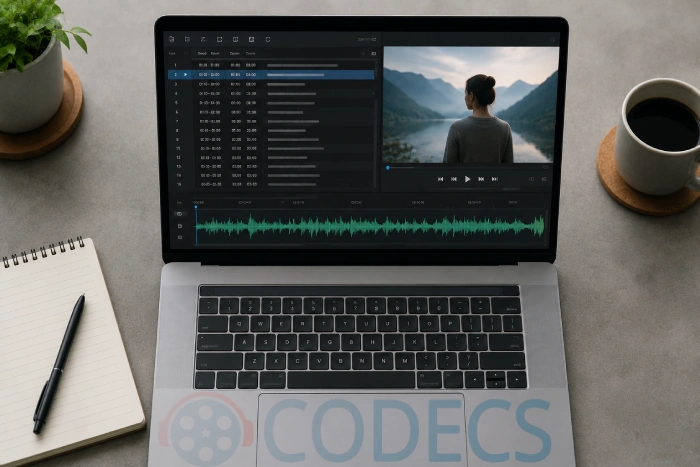
To correct the file once and be done with it, open the subtitle in Subtitle Edit. It is free, actively maintained, and handles both faults.
For a constant offset, use the Synchronization menu and choose to shift all times earlier or later by the amount you measured. Save, and the file is fixed for good.
For drift, the same menu has the two tools that matter. Change frame rate converts the timing between rates such as 23.976 and 25, which is what causes drift in the first place.
Point sync is the fallback when you do not know the rates. You mark one line near the start and one near the end, tell the program when each should appear, and it stretches everything in between to match.
Subtitle Workshop and Easy Subtitles Synchronizer do the same job if you get on better with their layout.
There are another thirty or so in our subtitle tools section if neither suits you.
Keep the original. Save the corrected subtitle under a new filename until you have watched enough of the film to be sure. Overwriting a working file with a worse one is easy and annoying.
If You Would Rather Not Do It Yourself
Subs Player takes a different approach and analyses the video against the subtitle file to align them automatically.
It will not rescue a badly mistimed file, but for the everyday case of subtitles grabbed for a slightly different release, it saves you the measuring step.
Getting the Subtitle to Load at All
One thing from the original version of this guide has not changed. Give the subtitle file the same name as the video file and keep them in the same folder.
So Movie.2019.1080p.mkv pairs with Movie.2019.1080p.srt. Every player picks it up automatically from there.
If nothing appears at all, the subtitle renderer is the problem rather than the timing, and our guide to the best player for subtitles covers that case.
Windows Media Player, As Promised
This guide has owed you this answer since 2013. Windows Media Player has no subtitle timing control of its own, so you have to add one.
Local Subtitles for WMP adds external subtitle support to Windows Media Player, including a delay adjustment.
Honestly though, if subtitles matter to you, switching player is the better move. VLC and MPC-HC both handle this properly and cost nothing.
The Old DirectVobSub Method
The original 2013 version of this guide used DirectVobSub, and it still works if you have it installed. It is no longer the route we would send anyone down first.
Two things have changed since. Modern players have their own delay controls, so switching off the internal renderer to hand the job to a filter is extra work for the same result.
And X Codec Pack no longer bundles DirectVobSub at all.
Version 3.0 ships xy-VSFilter instead, alongside LAV Filters, so the old first step no longer produces the tray icon shown in the screenshots below.
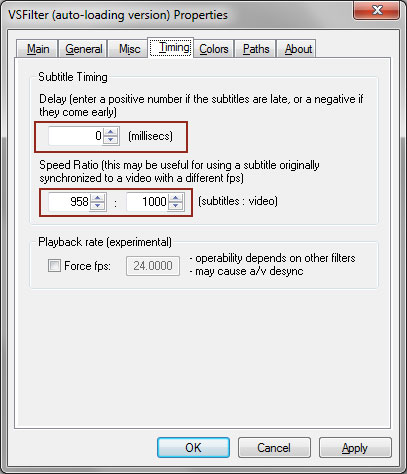
If you do still have DirectVobSub registered, the method runs like this. Turn off the player's internal subtitle renderer under View, Options, Playback.
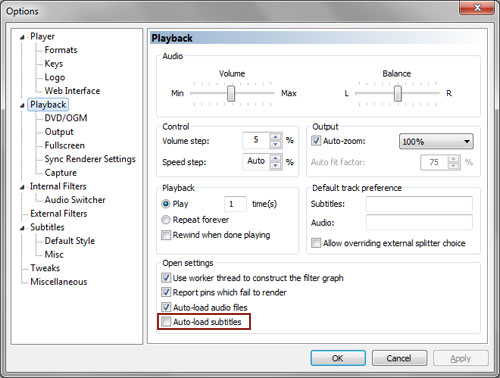
The DirectVobSub icon then appears in the notification area next to the clock during playback.
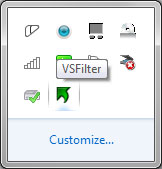
Click it to open the properties window, where the timing controls let you shift the subtitles until they line up.
Quick questions
Why do my subtitles drift out of sync over time?
The subtitle file was timed against a version of the film running at a different frame rate, usually 23.976 against 25. A small difference per second adds up to many seconds by the end.
Does adjusting the delay in VLC change the file?
No. It applies to that playback only and is forgotten when you close the file, which is why a badly timed subtitle is worth fixing properly in an editor.
My subtitles do not show up at all. Is that the same problem?
No, that is a loading or rendering issue rather than a timing one. Check that the subtitle file has the same name as the video and sits in the same folder.
Which player is easiest for fixing sync?
VLC, because the two keys work immediately with nothing to configure. MPC-HC gives you a finer step size once you have set it up.
Can I fix subtitles that are burned into the video?
Not by adjusting timing, because they are part of the picture rather than a separate track. You would need a different copy of the video or a separate subtitle file.
Do I still need a codec pack for subtitles?
Usually not, since current players render subtitles themselves. A pack such as K-Lite Codec Pack is worth it for format support rather than for subtitles specifically.


