A playlist that opens but plays nothing has not lost your music - it is still pointing at the folder where your music used to be.
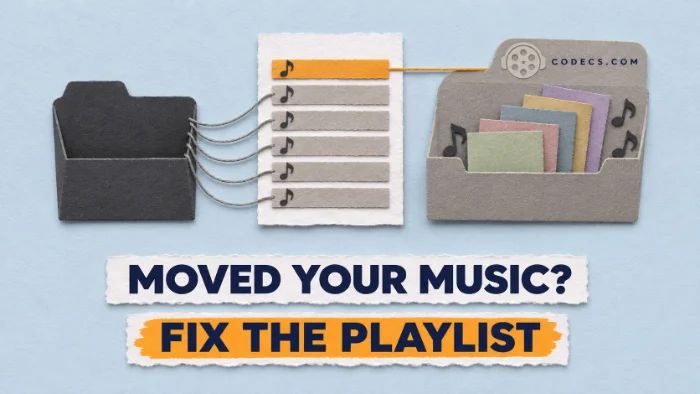
Playlist files do not hold any songs, only a list of where each song lives.
Move the folder, change drives or copy everything to a new PC, and every line in that list points at nothing.
The fix is to update the list, and it takes a couple of minutes even for a playlist with hundreds of tracks.
Why moving files breaks a playlist
An M3U file is plain text. Open one in Notepad and you see one line per song, sometimes with a title line above it:
#EXTM3U#EXTINF:215,Artist - Song OneC:\Music\Album\01 Song One.mp3That last line is an absolute path: it names the drive and every folder. It works only while the file stays exactly there, so moving C:\Music to D:\Music breaks every line at once.
The other kind is a relative path, such as Album\01 Song One.mp3. It means "start from the folder this playlist is in", so it keeps working as long as the playlist and the music move together.
PLS and WPL files store paths the same way. XSPF files write them as file:/// addresses, which break for the same reason. If you are not sure which format you have, the guide to M3U files explains each one.
First, check what broke
Right-click the playlist, choose Open with and pick Notepad. Look at a few path lines and compare them with where your music is now.
- Only the drive letter changed: the paths say E:\ but your USB drive now shows up as F:\.
- The whole folder moved: every path starts with the same old folder, and the songs sit together somewhere new.
- Files got scattered or renamed: tracks were sorted into new folders, or a tagger renamed them.
Each case has its own quick fix, below. Close Notepad without saving for now.
Fix 1: the drive letter changed
External drives often get a different letter when you plug them into another port or PC. Rather than editing the playlist, give the drive its old letter back.
- Open Disk Management. Right-click the Start button and choose Disk Management.
- Change the letter. Right-click the drive, choose Change Drive Letter and Paths, then Change, and pick the letter the playlist expects.
- Reopen the playlist. Windows keeps that letter for the drive on this PC, so it stays fixed next time.
Fix 2: the whole folder moved
If every path starts with the same old folder, swap that one part for the new folder. You can do it in Notepad for a single playlist.
- Make a copy first. Copy the playlist file so you can go back if something goes wrong.
- Press Ctrl+H. Type the old start of the path in Find what, such as C:\Music\, and the new one in Replace with, such as D:\Music\.
- Click Replace All and save. For an M3U8 file, keep the encoding on UTF-8 when you save, or accented song names break.
For several playlists at once, or if you would rather not edit text, X M3U Converter has a Find and replace in paths option that rewrites every entry in one pass. Its M3U online converter does the same in your browser without uploading the file.
Fix 3: the files got scattered
When songs ended up in different folders, there is no single path to replace. You need a tool that looks for each missing file by name.
In the Windows app of X M3U Converter, open the playlist and click Fix missing files. Point it at the top folder your music now lives in, and it finds each missing track by file name in that folder and every subfolder, then rewrites the path.
The tidy-up step.
Anything it cannot find was probably deleted or renamed. Untick missing drops those lines from the saved playlist without touching any file on your disk.
If a tagger such as Mp3tag renamed the files, matching by name will not work. Rebuild the playlist from the folder instead, or drag the songs into your player again and save a new one.
If you use foobar2000 or VLC
foobar2000 can drop dead entries from a playlist with Remove dead items. To relink them instead, a component such as Playlist Fix matches dead entries against your music library and updates them.
VLC Media Player has no built-in tool for dead entries, so it simply skips them. Fix the playlist file with one of the methods above, then open it in VLC again.
Library players such as MediaMonkey and MusicBee keep their own database. Rescan the new folder there first, then export a fresh playlist.
Stop it happening again
- Keep the playlist with the music. Save it in the top music folder with relative paths, and the two can move anywhere together.
- Use M3U8. It handles accented and non-Latin song names, which plain M3U often mangles on another PC.
- Use forward slashes for phones and TVs. A path like Album/01 Song.mp3 works on Windows and on Android, while backslashes often fail on Android.
X M3U Converter can switch a playlist to relative paths and save it as M3U8 in one go. A playlist saved this way also plays on a phone in VLC for Android once the folder is copied over.
IPTV list not working?
Channel playlists break because streams go offline, not because files moved. IPTV Checker finds the dead links, and our guide to free IPTV players covers the rest.
Quick questions
Why are all the songs in my playlist greyed out?
The playlist still points at the old location of the files. Update the paths with find and replace, or let a tool find the files by name.
Did moving the files delete my music?
No. A playlist only lists locations, so your songs are safe wherever you moved them. Only the list needs updating.
Can I fix a playlist in Notepad?
Yes, if the whole folder moved. Use Ctrl+H to replace the old folder path with the new one, and keep UTF-8 encoding when saving an M3U8.
What is the difference between absolute and relative paths?
An absolute path names the drive and every folder, so it breaks when anything moves. A relative path starts from the playlist's own folder, so it keeps working when the playlist and music move together.
Why does my playlist work on my PC but not on my phone?
Phones cannot use Windows paths like C:\Music. Save the playlist inside the music folder with relative paths and forward slashes, then copy the folder over.
The bottom line
Your music is fine - only the addresses in the playlist are out of date. Fix the drive letter, replace the old folder, or let a tool find the files, then save with relative paths so it does not happen again.
Fixed a stubborn playlist another way? Tell us how so the next reader can try it.





Latest comments
What readers are saying AllEac3 problem In mx player How to solve
Team replied Guide: EAC3 Audio Not Supported in MX Player? Fix It 21 commentsWhere do I get the peg url? I am new to iptv and not sure what to do for setup. Please assist ...
Team replied Guide: Free M3U Playlist for TiviMate: Legal Lists That Load Cleanly 2 commentsI was having the same error issue with the dead playlist link the other guy above did. Thank you so much for ...
Team replied News: Free USA IPTV Playlist: The American TV That Is Really Free 2 comments