Your Xvid file is right there. Modern player, modern PC. You double-click it - and get a black screen, silent audio, green frames, or a "codec not supported" error. The file isn't broken. The fix usually takes two minutes.
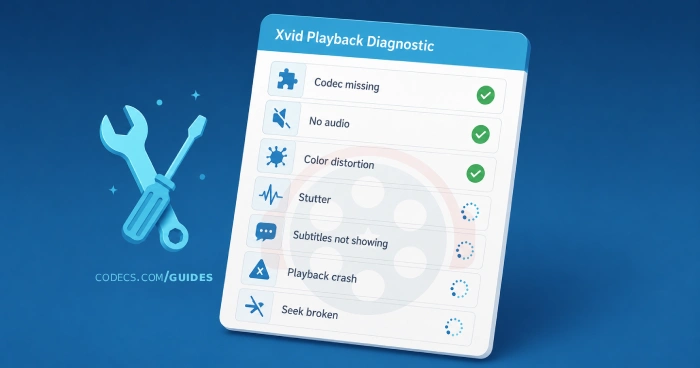
Below are the seven most common Xvid playback problems in 2026, ranked by how often they actually happen. Find your symptom, apply the matching fix, move on.
Skip ahead to the last section if nothing works - sometimes converting is the right answer.
If you don't already know which player you're using, your fix list shrinks fast. VLC bypasses most of these problems by ignoring system codecs entirely.
Windows Media Player, MPC-HC, MPC-BE, and PotPlayer all rely on the codecs installed on your system - which is where most Xvid issues actually live.
Diagnose First: What's Actually Inside the File
Most Xvid playback fixes are wasted effort because people guess at the problem instead of reading the file.
MediaInfo tells you exactly what's there in five seconds: video codec, audio codec, container, FourCC, frame rate, the works.
Install it, right-click your problem file, pick MediaInfo. Look for three things:
- Video codec. Should say "MPEG-4 Visual" with a FourCC of XVID, DX50, DIVX, or similar. If it says something else, you don't actually have an Xvid file.
- Audio codec. Most Xvid AVIs use MP3 or AC3. AC3 audio is what causes most "no sound" problems on stock Windows.
- Container. Almost always AVI. If it's MKV or MP4 with Xvid video, that's unusual and worth noting - some players handle Xvid in non-AVI containers poorly.
Now you know what you're dealing with. The right fix becomes obvious.
Fix 1: "No Codec" Errors or File Won't Open at All
This is the most common symptom. Player throws a codec error, or just shows a black window with audio playing (or silence).
What's wrong: Your system doesn't have an MPEG-4 Visual decoder registered for DirectShow. Modern Windows ships without one.
Quickest fix: Open the file in VLC Media Player. VLC bundles its own decoders and ignores the Windows codec layer entirely. If VLC plays it, the file is fine - your system is the problem.
System-wide fix: Install the K-Lite Codec Pack. The Standard variant covers Xvid, MP3, AC3, and most subtitles. After install, every DirectShow-based player on your system (Windows Media Player, MPC-HC, PotPlayer) will play Xvid correctly.
Codec-only fix: If you'd rather not install a full pack, install the Xvid Codec directly. Lighter footprint, but you may still need a separate audio decoder if your file uses AC3 or DTS.
If you've installed K-Lite, Shark007, CCCP, or another pack before, uninstall it completely before installing a new one. Stacked codec packs cause more problems than they solve. Reboot between uninstall and install.
Fix 2: Video Plays, But There's No Audio
The picture is moving. The audio meter is silent. This one has a specific cause 90% of the time.
What's wrong: The audio stream is AC3 (Dolby Digital), and your system has no AC3 decoder. Stock Windows doesn't include one, and many Xvid AVIs from the late 2000s use AC3 instead of MP3.
Confirm: Run MediaInfo on the file. Audio codec line will say "AC-3" or "Dolby Digital" if this is your problem.
Fix: Install the X Audio Codec Pack, which includes the LAV Audio decoder with AC3 support built in. Or open the file in VLC, which has its own AC3 decoder.
If MediaInfo shows MP3 audio and you still have no sound, the issue is usually a system-level audio output problem rather than the file. Check that your speakers are the default output device and that the player isn't muted at the per-application level (Windows Volume Mixer, Apple Sound preferences).
Fix 3: Green Screen, Pink Frames, or Color Distortion
Picture plays but looks wrong. Solid green tint, bright pink corruption, jagged blocks of mismatched color, or a checkerboard pattern.
What's wrong: Hardware-accelerated decoding is failing on your specific GPU and driver combination. This is especially common with older Xvid files (which weren't built for hardware decoders) on modern Intel and NVIDIA chips.
Fix in MPC-HC or MPC-BE: Open Options → Internal Filters → Video Decoder and change Hardware Decoder to None. Restart the player.
Fix in VLC: Open Tools → Preferences → Input/Codecs, set Hardware-accelerated decoding to Disable, click Save, restart VLC.
Fix in PotPlayer: Open Preferences → Filter Control → Video Decoder and set the codec to Built-in (FFmpeg) with hardware decoding off.
Software decoding uses more CPU, but Xvid is so light that even a 10-year-old laptop handles it without issue. Hardware acceleration provides almost no benefit on Xvid content - you're trading reliability for nothing.
Fix 4: Stuttering, Laggy, or Choppy Playback
Video plays but stalls every few seconds, audio crackles, or the picture jumps frames.
What's wrong: Three possible causes, in order of likelihood:
- The file is on a slow drive or network share. Streaming an AVI from an old USB 2.0 drive or weak wifi connection often stutters. Copy the file to your local SSD and play it from there.
- Hardware acceleration conflict. Same fix as Fix 3 - turn it off in your player.
- Background processes. Heavy CPU load (browser tabs, antivirus scan, Windows updates) can interrupt decoding. Close everything non-essential and try again.
If none of those help, the AVI's index may be damaged. Open the file in VLC - it forces an index rebuild on load and will play smoothly even when MPC-HC stutters.
Fix 5: Subtitles Don't Show Up
Xvid AVIs typically use external subtitle files (SRT, SUB, IDX/SUB) rather than embedded streams. Two common failure modes.
Symptom A: Player ignores subtitle file entirely. The subtitle file isn't named to match the video, or isn't in the same folder. Rename it: if the video is movie.avi, the subtitle must be movie.srt (same base name, in the same folder). Most players will then auto-load it.
Symptom B: Subtitle file loads but shows garbled characters. The SRT file uses an encoding your player doesn't auto-detect, usually for non-English text. Open the SRT in Notepad or VS Code, save as UTF-8, and reopen.
Symptom C: VobSub/IDX subtitles don't render. These need DirectVobSub (included in the K-Lite Codec Pack) on Windows Media Player. VLC, MPC-HC, and PotPlayer handle VobSub natively.
Fix 6: Media Player Crashes, Hangs, or Closes Itself
You double-click the file. Player opens, freezes, then either crashes back to desktop or hangs indefinitely.
What's wrong: Almost always codec conflicts. You've got two or more codec packs registering competing decoders, and the player can't pick one.
Fix: Uninstall every codec pack you've installed - K-Lite, Shark007, CCCP, ACE Mega, Combined Community Codec Pack. All of them. Reboot. Then install only the K-Lite Codec Pack Standard fresh.
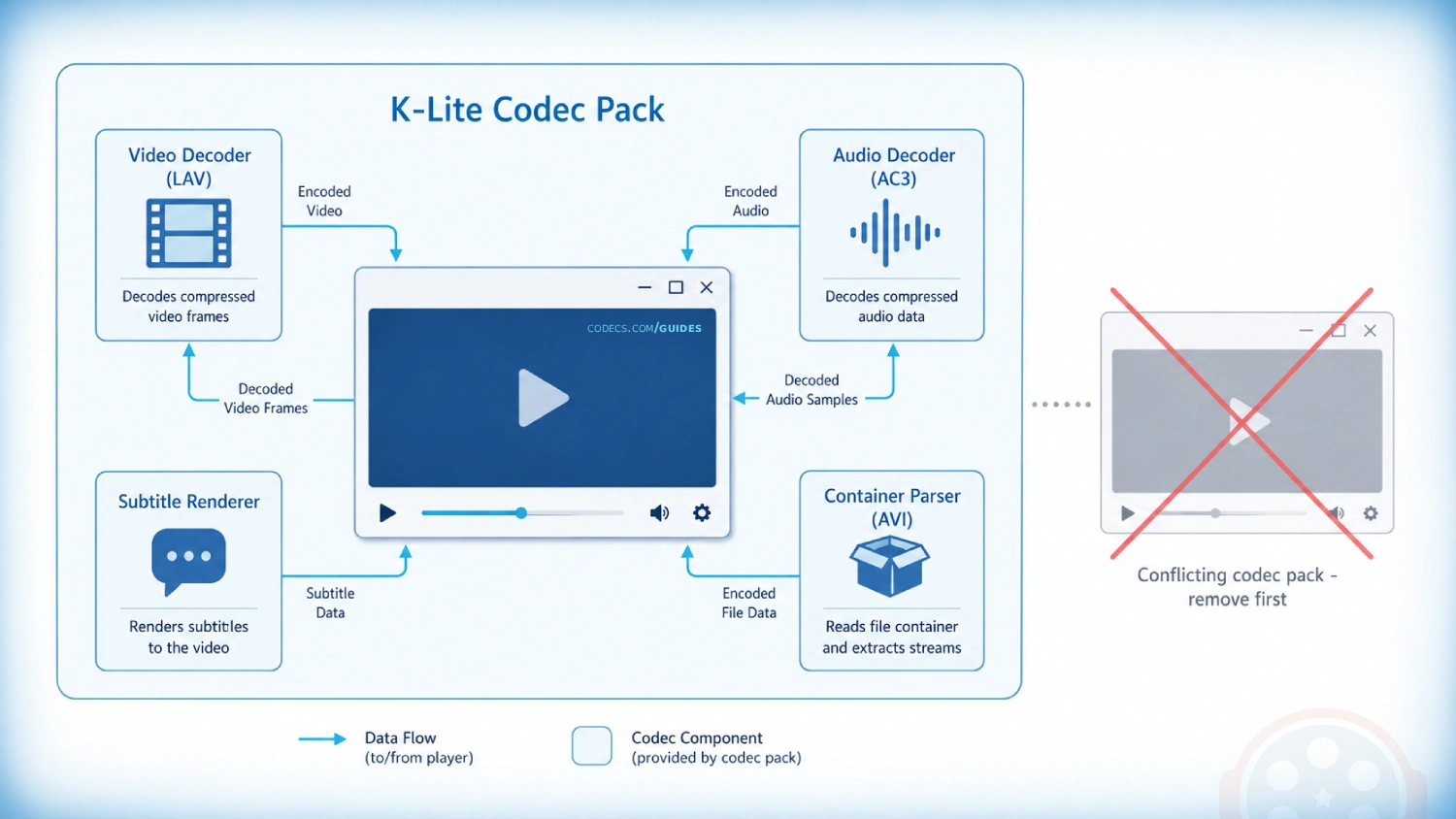
If you don't want to manage codec packs at all, switch to VLC. It's the cleanest option for users who'd rather never think about DirectShow filters again.
Fix 7: Fast-Forward or Seek Doesn't Work
Playback works fine, but you can't scrub through the timeline. Clicking the progress bar either does nothing or jumps you back to the start.
What's wrong: The AVI's index is damaged or missing. AVI files store seek information at the end of the file - if a download was incomplete, or the file was truncated, the index is gone.
Quick fix: Open in VLC. VLC rebuilds AVI indexes on the fly, and seeking will work even on damaged files.
Permanent fix: Open the file in VirtualDub or AVIDemux, save it as a new AVI without re-encoding (Direct Stream Copy / Stream Copy), and the new file will have a clean index. Or skip the workaround entirely and convert the file to MP4, which uses a different and more robust indexing scheme.
When to Stop Fighting It and Just Convert
Three situations where troubleshooting Xvid playback isn't worth the time:
- You have dozens of files with the same problem. Fixing them one by one is slower than batch-converting the whole library.
- You watch on phones, tablets, smart TVs, or browsers. Xvid will keep failing on at least some of these. Converting to MP4 once eliminates the entire category of problems forever.
- The file plays but has issues you can't fully resolve. Soft picture, slight desync, occasional artifacts - these often vanish after a clean re-encode.
Conversion takes minutes per file with the right tool. See our complete free guide to converting Xvid to MP4, covering HandBrake, XMedia Recode, FFmpeg, and VLC.
For broader context on whether Xvid is even worth maintaining in 2026, see our 2026 relevance breakdown.
Frequently Asked Questions
Why does VLC play my Xvid file but Windows Media Player doesn't?
VLC bundles its own decoders and bypasses the Windows DirectShow filter system entirely. Windows Media Player relies on whatever codecs are registered on your system, which by default doesn't include an Xvid decoder.
Installing K-Lite Codec Pack fixes this for Windows Media Player and every other DirectShow-based player.
Is the Xvid codec safe to install?
The official Xvid Codec from Xvid.org (mirrored on free-codecs.com) is safe and open-source.
Avoid generic "Xvid codec" downloads from random sites - those are frequently malware bundled with a real Xvid installer.
Why does my Xvid file have no audio on Windows but full audio on my old Windows 7 machine?
Windows 7 shipped with broader audio codec support, including basic AC3 decoding. Windows 10 and 11 stripped that out.
Install K-Lite Standard or VLC to get AC3 support back on modern Windows.
Can Xvid files be hardware-decoded on modern GPUs?
Technically yes, but support is unreliable across drivers and the performance benefit is negligible because Xvid is computationally light.
Software decoding is more reliable and uses minimal CPU on any machine made in the last 15 years.
My Xvid file plays in slow motion or fast motion. What's wrong?
Frame rate mismatch between the file and your player's output. Open the file in MediaInfo and check the actual frame rate (usually 23.976, 25, or 29.97).
If it's something unusual like 23 or 30 flat, the file was muxed incorrectly. Re-encoding to MP4 with HandBrake fixes the frame rate at the same time.
What's the difference between Xvid and DivX, and does it affect playback?
Both are MPEG-4 ASP variants with slightly different FourCC codes.
Any decoder that handles one handles the other - K-Lite, VLC, and the Xvid Codec all decode both transparently. The "DivX vs Xvid" question only matters for encoding, not playback.


How to Stream With VLC: Open a Stream URL or ...
5/5This is amazing! I could no longer afford cable so I cut the cord and started watching Hulu, Youtube, ...
Read More →Don't Open a .xmpeg File Before Reading This
3/5It's never a good sign when the potential malware you downloaded has the EXACT same filename as the example. ...
Read More →Free Popular IPTV Playlist: Where to Get Fres...
3/5How can you create a DSTV channels on IPTV?
Read More →