Windows refused a Store package you downloaded by hand. The error code is not random - it names what is wrong, once you know how to read it.
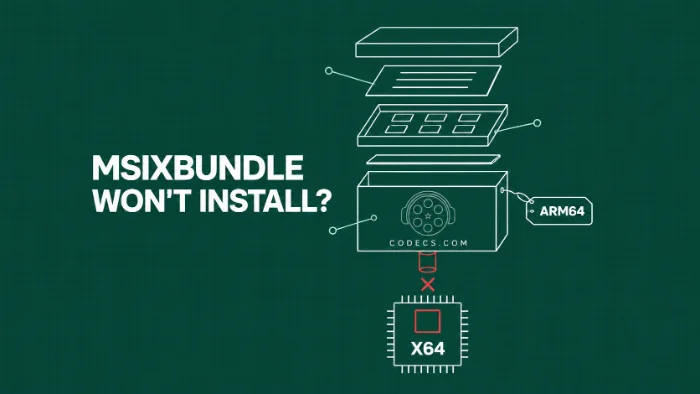
Store packages fail for a handful of reasons, and the message rarely says which one in plain words.
The fix is almost always to look inside the file before you run it.
That takes about thirty seconds and needs nothing you do not already have.
Copy the package, rename the copy to .zip, open it, and read AppxManifest.xml or AppxMetadata/AppxBundleManifest.xml. Two values decide everything: Architecture must match your CPU, and MinVersion must be at or below your Windows build.
If both match and it still fails, you are missing framework packages. Install them in the same command with -DependencyPath, shown below.
First, Work Out Which File You Have
The extension tells you more than the filename does. Some of these cannot be installed by hand at all, and knowing that up front saves an hour.
| Extension | What it holds | Can you install it by hand? |
|---|---|---|
| .msix / .appx | One app, built for one CPU type | Yes, if the CPU matches |
| .msixbundle / .appxbundle | One or more CPU builds, plus language and screen-size extras | Yes, if your CPU is one of them |
| .eappx / .emsixbundle | The same thing, encrypted for the Store | No. Dead end |
| .BlockMap | A checksum list Windows uses internally | No. Not an installer |
The trap is the word "bundle". A bundle can hold a single CPU build, so the name promises a choice the file may not have.
Look Inside Before You Install
A package is a zip file with a different name, so nothing special is needed to open it. Open Terminal or PowerShell in the folder that holds the file and run these three lines.
Copy-Item .\App.msixbundle .\App.zipExpand-Archive .\App.zip -DestinationPath .\Appnotepad .\App\AppxMetadata\AppxBundleManifest.xmlSwap App.msixbundle for your file's real name. A plain .msix or .appx has no AppxMetadata folder - open AppxManifest.xml in the top folder instead.
Find the lines carrying Architecture and MinVersion. A bundle lists one entry per CPU build it contains, so if you only see arm64, there is no Intel or AMD build in that file at all.
Copy rather than rename, as above. The original stays intact and ready to install while you poke at the copy.
Check Your Own PC Matches
Now compare those two values against your machine. Both commands run in any PowerShell window.
$env:PROCESSOR_ARCHITECTURE[System.Environment]::OSVersion.VersionThe first returns AMD64 on a normal Intel or AMD PC, x86 on an old 32-bit one, or ARM64 on a Snapdragon laptop. AMD64 means 64-bit, not "made by AMD" - Intel chips report it too, and packages call it x64.
The second shows your build number in the Build column. Windows 10 stops at 19045 and Windows 11 starts at 22000, so a package asking for 22000 can never install on a Windows 10 PC.
Two mismatches, two different errors. The wrong CPU gives 0x80073CF1 from a bundle or 0x80073D10 from a single package, and a build that is too old gives 0x80073CFD.
Do You Need to Turn On Sideloading?
Usually not. Windows 11 and up-to-date Windows 10 install properly signed packages from outside the Store without any switch.
Change the setting only if you get error 0x80073CFF, which is Windows saying outside packages are blocked.
- Open Settings, then System. On Windows 11 25H2 and later choose Advanced, and on older Windows 11 builds choose For developers.
- Turn on Developer Mode. Confirm the prompt, then try the install again.
- On Windows 10, look under Update and Security. Open For developers and choose Sideload apps.
On a work or school PC the switch may be locked by your organisation. Only your IT team can change that.
The Install Command
Right-click Start and choose Terminal or Windows PowerShell. The ordinary window is enough, because the app installs for your own account and needs no admin rights.
For a package with no dependencies, one line does it.
Add-AppxPackage -Path .\App.msixbundleMost real apps need framework packages alongside them, and this is where people get stuck. Pass them all in one go with -DependencyPath, separated by commas.
Add-AppxPackage -Path .\App.msix -DependencyPath .\vclibs.appx,.\netnative.appxWindows skips a framework it already has at the same or a newer version. So listing all of them is safe, even on a PC that only needs one.
The Framework Packages Almost Everything Needs
Store apps do not carry their own runtimes, the shared building blocks they run on. They name them, and Windows expects to find them already installed.
- Microsoft.VCLibs.140.00 - the C++ runtime, needed by nearly every Store app
- Microsoft.NET.Native.Framework and Microsoft.NET.Native.Runtime - needed by many older Store apps, always as a matching pair
- Microsoft.UI.Xaml - needed by newer apps with a modern interface
- Microsoft.Services.Store.Engagement - a common gap on LTSC editions, which ship without the Store
Each one comes in a separate file per CPU type, and it must match the app. An x64 app needs the x64 framework, not the ARM64 one sitting next to it in the same download list.
Read the exact names and minimum versions from the manifest you opened earlier, rather than trusting any list, including this one. A newer framework is fine and an older one is not.
Error Codes, Decoded
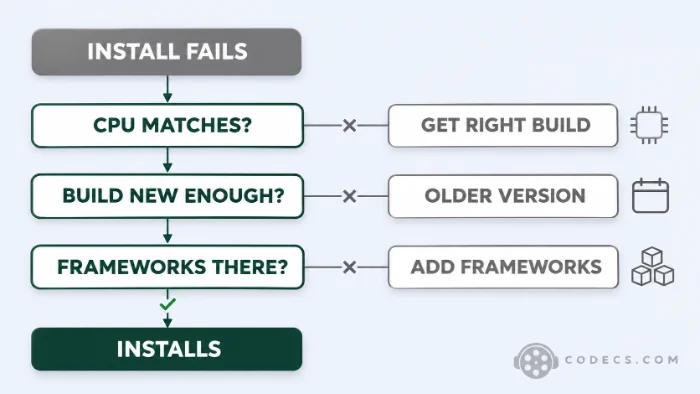
These seven cover nearly every failed install. The picture gives the order to check things in, and the table gives the exact meaning.
| Code | What it actually means | What to do |
|---|---|---|
| 0x80073CF1 | The bundle holds no build for your CPU | Get the package made for your CPU type |
| 0x80073D10 | A single package built for a different CPU | Find the x64, x86 or ARM64 file that matches |
| 0x80073CFD | The package needs a newer Windows build than yours | Take an older version, or update Windows |
| 0x80073CF3 | A framework is missing, or an installed copy conflicts | Add the frameworks, or remove the old version |
| 0x80073D02 | The app or its files are in use right now | Close the app, or restart and retry |
| 0x80073CFF | Windows is set to block packages from outside the Store | Turn on Developer Mode, as shown above |
| 0x800B0109 | The signing certificate is not trusted | Stop. See the warning below |
Microsoft's own wording for 0x80073CF1 is only "the package could not be found", which is why it confuses people. With a bundle it means Windows looked inside and found no build that fits your PC.
The 0x80073CFD message is more helpful, because it names the build it wants. The new Microsoft Photos on Windows 10 is the case most people meet, and no amount of dependency work will move it.
For the conflict case, removing the old copy first is usually quicker than fighting the upgrade. If your problem is that the HEVC extension will not install, that guide has the re-registration commands this one leaves out.
Got a code that is not in the table? Microsoft keeps the full list of deployment errors, in rather drier language.
Some sites hand out repackaged files dressed up as genuine Store packages. Before you install one, run Get-AuthenticodeSignature .\App.msixbundle and read the Status line.
Valid means the file is signed and has not been changed since. Anything else, including 0x800B0109 during the install, means delete it and find the package elsewhere.
What This Guide Deliberately Skips
Importing certificates to force an untrusted package to install. A genuine Store app never needs it, so needing it is the sign that the file is not what it claims.
Encrypted packages are the other omission, because there is no method to share. An .eappx or .emsixbundle is locked to the Store, which unlocks it on delivery.
If a download list offers only encrypted files for the version you want, that version is not available offline. Take an older plain package, or install from the Store.
Confirm It Worked
Silence usually means success, which is unnerving the first time. Check properly instead of guessing.
Get-AppxPackage -Name *Dolby* | Select Name, Version, Architecture, StatusSwap the name between the stars for whatever you installed. A working install reports Status Ok, and the Architecture column confirms which build landed.
Do not treat any version number as the target. Store packages update themselves in the background, so the figure you see today will not be the figure next month.
Where This Comes Up Most
Media extensions and audio apps are the usual suspects, because they ship as Store packages with no ordinary installer.
- HEVC Video Extension and the free HEVC Video Extensions from Device Manufacturer
- Dolby Access, whose newest offline package is ARM64 only - Intel and AMD PCs need the older x64 build on the same page
- DTS Sound Unbound, which is packaged the same way
Not sure the extension is even your problem? The free Codec Finder reads a media file and names the codec it needs, which beats installing things on a hunch.
Quick questions
What does error 0x80073CF1 mean?
With a bundle, it means the file holds no build for your processor. It is most common with ARM64-only packages on Intel and AMD PCs, and the only fix is a package built for your CPU type.
What does error 0x80073CFD mean?
The package needs a newer Windows build than the one you have. The message names the build it wants, so compare it with your own and take an older version of the app if yours is lower.
Can I install an ARM64 package on an Intel PC?
No. An ARM64-only file cannot be installed on Intel or AMD hardware, whatever version of Windows it runs.
How do I find out which dependencies a package needs?
Open the manifest inside the package and read the PackageDependency lines. Each one names a framework and the lowest version it will accept.
Why does double-clicking the file do nothing?
App Installer, the small Windows app that handles these files, is missing or broken. The PowerShell command works anyway, because it does not use App Installer.
Do I need to run PowerShell as administrator?
No. Add-AppxPackage installs the app for your own account, so an ordinary PowerShell window is enough.
Is sideloading safe?
It is as safe as the file you run, and no safer. Check that the signature is valid, and only take packages from a source you trust.
Will these commands work on Windows 10?
Yes, the commands are identical. Only the menu wording differs, since Windows 10 says Windows PowerShell where Windows 11 says Terminal.
The bottom line
The error code is the diagnosis, not the problem. Read the manifest first and a lost evening becomes a thirty-second check.




Latest comments
What readers are saying AllEac3 problem In mx player How to solve
Team replied Guide: EAC3 Audio Not Supported in MX Player? Fix It 21 commentsWhere do I get the peg url? I am new to iptv and not sure what to do for setup. Please assist ...
Team replied Guide: Free M3U Playlist for TiviMate: Legal Lists That Load Cleanly 2 commentsI was having the same error issue with the dead playlist link the other guy above did. Thank you so much for ...
Team replied News: Free USA IPTV Playlist: The American TV That Is Really Free 2 comments