MakeMKV is free while it stays in beta, and the only thing standing between you and a finished rip is the current registration key.
It is below, along with what to do on the day it stops working.
The Current MakeMKV Beta Key
Verified 01 September 2026.
T-vwvnrmF87JuRPLYYO8HnIrZR_LCAF7JXs9iJEm10moGpjEgkvmPTsf6Ox4BI@N5rPpThis key runs to the end of September 2026.
The developer posts a replacement on the official MakeMKV forum thread when it lapses, and we update this page when that happens.
- Open MakeMKV and click Help, then Register.
- Paste the key into the box. Copy and paste it rather than typing it, because one wrong character is the most common reason a key appears not to work.
- Click OK. A short thank-you message means you are done.
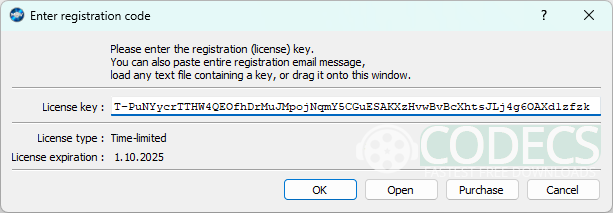
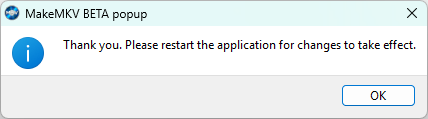
If you want to see what those windows look like before you start, there are screenshots of the registration window on the software page.
Is This Key Still Working?
A lot of people land here holding a key from a forum post or a comment somewhere and want to know whether it is the current one. There is a quick test.
The key above starts with T-vwvnrm. If yours starts with anything else, it is an older key and you should replace it with this one, whatever date was attached to it.
Two different clocks. MakeMKV has a key expiry and a separate build expiry, and they produce different messages. Knowing which one you are looking at saves a lot of guessing.
If the message mentions the evaluation period, the key has lapsed and a fresh one fixes it in ten seconds.
If it says the application version is too old, no key on earth will help. That is the build itself timing out, and the fix is a newer installer from the Windows download page.
Why MakeMKV Is Free in the First Place
This is not a crack or a workaround, which is worth saying plainly.
The developer has kept MakeMKV in permanent beta for years and publishes a free registration key openly, on his own forum, so that anyone can use the full program without paying. The key rotates every couple of months to keep people on current builds.
The part almost nobody mentions is that the licence is split. DVD ripping is free permanently and does not need a key at all, so if DVDs are all you own you can skip the whole cycle.
Short version. DVDs are free forever with no key. Blu-ray and 4K UHD are free for as long as the beta lasts, and that is what the key above unlocks.
Get the Right Build for Your Computer
The same key works everywhere, but the installer does not. Pick the one that matches your machine.
- Windows 10 and 11: MakeMKV 1.18.4 for Windows.
- macOS, including Apple Silicon: MakeMKV for Mac, or go straight to the Mac installer.
- Linux: the developer distributes it as source to be compiled, which is documented on the forum rather than here.
Installation has no configuration screens worth worrying about. Run it, accept the defaults, and register with the key above before you insert anything.
Rip Your First Disc
Once the key is in, the process is mechanical.
- Insert the disc and open MakeMKV. It usually detects the drive on its own.
- Click the disc icon to scan. This takes one to three minutes while it reads the title structure.
- Untick everything you do not want. The main film is almost always the longest title in the list.
- Untick the audio tracks and subtitles in languages you will never use, which is where most of the wasted space goes.
- Choose an output folder with room to spare, then click Make MKV.
Expect roughly 15 to 30 minutes for a DVD, 30 to 90 for a Blu-ray, and anything up to three hours for a 4K UHD disc. The speed is limited by how fast your drive can read, not by your processor.
Space to budget. A DVD lands at 4 to 8GB, a Blu-ray at 15 to 50GB, and a UHD disc can pass 60GB, because nothing is compressed on the way out.
4K UHD Discs Need More Than a Key
This is the point where most UHD attempts fail, and the key has nothing to do with it.
A standard Blu-ray drive physically cannot read a 4K UHD disc. Only certain drive models can, and MakeMKV's forum keeps a compatibility list naming them, so check your model against it before assuming the software is at fault.
If your drive is not on that list, no amount of reinstalling or re-registering will change the outcome. That is a hardware limit rather than a licensing one.
When the Key Is Not the Problem
Most failures after registration come down to three things.
The disc is not recognised. Clean it, check for fingerprints near the centre, and try it in a different drive if you have one. Rental and library discs are often scratched enough to stall a read that a player would have coped with.
It reads very slowly or stalls partway. That is usually the disc surface rather than your computer, and re-running the same title will often get further the second time. Older drives also slow down badly on damaged sectors.
The rip finishes but the file will not play properly. That is a playback problem, not a ripping one, and the Codec Troubleshooter will narrow down which track your player cannot decode.
What You End Up With
MakeMKV does not re-encode anything. The MKV it produces holds the original streams untouched, which is why the files are large and why the quality is identical to the disc.
- Full original resolution: 480p or 576p for DVD, 1080p for Blu-ray, 2160p for UHD.
- Every audio track you kept, in its original format, including lossless ones.
- Subtitles and chapter markers, so seeking still works the way it did on the disc.
Those files open in any modern media player without conversion.
- VLC Media Player - the safe default, and it plays practically anything MakeMKV produces.
- Kodi - the one to pick if these files are heading for a television.
- mpv player - minimal, fast, and comfortable with very large files.
- MPC-HC and PotPlayer - lightweight Windows options that handle MKV natively.
Should a lossless audio track refuse to decode on a minimal player, adding LAV Filters or the K-Lite Codec Pack gives Windows the decoders it is missing.
A 40GB film is not going on a phone, though. Rip with MakeMKV first, then shrink the result with HandBrake, which reads MakeMKV output directly.
To reorder tracks or strip out subtitles afterwards without touching quality, MKVToolNix does it in seconds.
When MakeMKV Is the Wrong Tool
The tell is simple: if you find yourself wishing the output were smaller, you wanted a converter, not a ripper. MakeMKV has no compression settings because it deliberately does not compress.
It also stops at discs it cannot decrypt. Some newer releases and some region-locked discs need a dedicated decrypter such as AnyDVD or DVDFab HD Decrypter, both of which are paid.
The rest of the maintained options are listed in the Media Backup category.
Is Ripping Your Own Discs Legal?
Worth knowing before you start. Copying a disc you own for your own use is treated very differently from one country to the next, and in several of them the copy protection is the sticking point rather than the copying.
In the United States, bypassing disc protection is restricted under the DMCA even when the disc is yours. In the United Kingdom the private copying exception was struck down in 2014 and never replaced.
Other countries are more permissive, and some explicitly allow personal backups. Check where you live rather than assuming, and either way, sharing the files is not covered anywhere.
Quick questions
Is MakeMKV free?
DVD ripping is free permanently and needs no key. Blu-ray and 4K UHD ripping is free while the program stays in beta, which is what the registration key on this page unlocks.
Does the MakeMKV beta key expire?
Yes. Each key carries an end date set by the developer, and a new one is posted every couple of months. The key on this page runs to the end of September 2026.
Why does the key not work for me?
Almost always because a character was lost in the copy, or because the build itself has expired rather than the key. If MakeMKV says the application version is too old, no key will fix it and you need a newer installer.
Do I need a key to rip DVDs?
No. DVD ripping works in the free version with no registration at all, so if DVDs are all you own you can ignore the key cycle completely.
Can MakeMKV rip 4K UHD discs?
It can, but only with a drive that is able to read UHD discs. A standard Blu-ray drive cannot read them at all, and that is a hardware limit rather than something the key changes.
Is there a Mac version?
Yes, and it runs natively on Apple Silicon. The same registration key works on the Mac build, and it is entered the same way.


How to Stream With VLC: Open a Stream URL or ...
5/5This is amazing! I could no longer afford cable so I cut the cord and started watching Hulu, Youtube, ...
Read More →Don't Open a .xmpeg File Before Reading This
3/5It's never a good sign when the potential malware you downloaded has the EXACT same filename as the example. ...
Read More →Free Popular IPTV Playlist: Where to Get Fres...
3/5How can you create a DSTV channels on IPTV?
Read More →