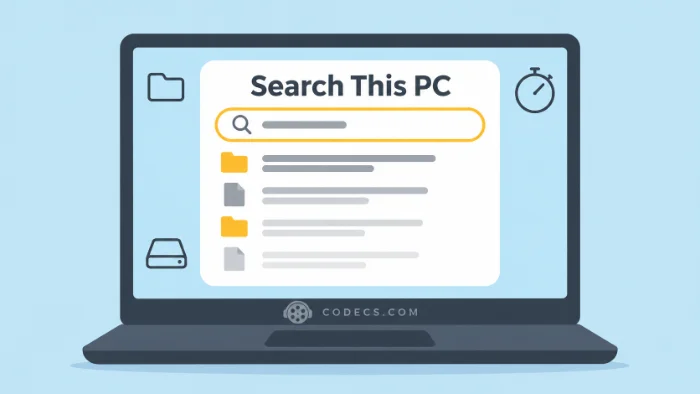
Searching This PC in File Explorer has always been the slow one. Windows 11 update KB5132057 fixes that, and it takes about ten minutes to install.
The update is optional, so Windows will not install it unless you ask.
The speed-up is also arriving in stages, so some PCs get it later than others.
Here is how to get it, why you may not see it yet, and how to make search faster today either way.
What Actually Changed
File Explorer has two ways to search. From Home it uses the index, a ready-made list of your files, so results come back almost at once.
From This PC it used to open every folder and look inside, one by one. That is the long green bar crawling across the top of the window.
With KB5132057, This PC uses the index too. Microsoft says this makes it much faster and gives the same results as Home, in its notes for the update.
Early reports agree. One Reddit user who searched folders holding thousands of files, including OneDrive and iCloud ones, says results now appear almost immediately.
That is one person's PC, not a lab test. We first saw the change in test builds, in our piece on the new taskbar list view.
How to Get the Update
- Check your version. Press Win + R, type winver and press Enter - you need version 25H2 or 26H2.
- Open Settings, then Windows Update. Click Check for updates.
- Find the 2026-11 Preview Update (KB5132057). Click Download and install, or look in Advanced options, then Optional updates, if it is not listed.
- Restart when Windows asks. Expect about ten minutes and one restart, though a few PCs restart a second time.
Run winver again afterwards. It should show build 26300.10075 on 26H2, or 26200.10075 on 25H2.
Still on 24H2 or older? Follow our guide to getting Windows 11 26H2 first, because this update is not offered there.
Would you rather wait?
That is fine. This is a preview update with no security fixes, and the same changes are due in the regular December update on the 8th.
Installed It, but Search Is Still Slow?
You have probably done nothing wrong. Microsoft lists the faster This PC search under gradual rollout, which means it switches on for a few more PCs each week.
There is no setting for it. Keep Windows updated and it will arrive on its own.
Some guides suggest forcing hidden features on with extra tools. We would skip that for a change that is already on its way.
Make Search Faster Today
This part works on any Windows 11 PC, with or without the update. Out of the box, the index only covers a few folders such as Documents, Pictures, Music and the Desktop.
Files kept anywhere else, like a second drive or a folder on C:, are not in it. Searches there are the slow ones, and the new search leans on the index even more.
- Open Settings, then Privacy and security, then Search. On older builds the page is called Searching Windows.
- Under Find my files, choose Enhanced. Windows will now index the whole PC, not just a few folders.
- Leave the PC plugged in for a while. The first pass can take an hour or more, and the page shows how many items are left.
Enhanced uses a little more battery and disk while it builds. If that worries you, stay on Classic and add only the folders you search, using the option to customise search locations on the same page.
The quick win:
If your files live on a second drive, add that drive to the index. For most people that one change does more than the update.
A Free Tool That Does It Too
Microsoft's free PowerToys includes Command Palette, a single search box for apps, files and settings. It works on any Windows 11 version, so it is a good stopgap while you wait.
The Reddit user above had been using it for exactly this, and says Windows itself now keeps up. Our guide to what PowerToys can do covers the rest of the kit.
What Else Is in KB5132057
- A new taskbar Search. One simple list of results with actions such as turning on Bluetooth, in English only at first - and you can still turn off web results.
- A new Run box. It is off by default, and our Run box guide shows where the switch is.
- Face sign-in in dark rooms. The screen can brighten for a moment so the camera sees you, one more fix for slow Windows Hello.
- An off switch for Sticky Keys. The pop-up you get after pressing Shift five times now lets you turn the shortcut off for good.
Quick questions
Why is File Explorer search so slow in Windows 11?
Searching from This PC used to open every folder and check it, instead of using the index. KB5132057 changes that, and adding your folders to the index speeds up search on any version.
Should I install KB5132057?
Only if you want the changes now. It is an optional preview with no security fixes, and the same changes are due in the December update.
I installed KB5132057 and nothing changed. Why?
The faster This PC search and the new taskbar Search are being switched on in stages. Your PC has the update, and the features will turn on by themselves later.
Does this work on Windows 11 24H2 or Windows 10?
No. The update is for Windows 11 25H2 and 26H2 only. The indexing tip above works on all of them.
Does Enhanced indexing slow my PC down?
Only while the first index is being built, and mostly on older PCs with hard drives. After that it runs quietly in the background.
The bottom line
Install the update if you want fast This PC search now, or wait for December and get it anyway. Either way, check what Windows is indexing, because that fixes slow search on any PC.










Latest comments
What readers are saying AllEac3 problem In mx player How to solve
Team replied Guide: EAC3 Audio Not Supported in MX Player? Fix It 21 commentsWhere do I get the peg url? I am new to iptv and not sure what to do for setup. Please assist ...
Team replied Guide: Free M3U Playlist for TiviMate: Legal Lists That Load Cleanly 2 commentsI was having the same error issue with the dead playlist link the other guy above did. Thank you so much for ...
Team replied News: Free USA IPTV Playlist: The American TV That Is Really Free 2 comments