Most USB tools wipe the drive every time you add an ISO, but YUMI exFAT just adds the next one to what is already there.
That single difference matters most for Windows 11, whose installer ISO is too big for the 4 GB per-file limit on a FAT32 drive.
Here is how to stack the second, third and fourth image onto a drive you have already prepared.
Adding Another ISO
This assumes the drive was already formatted as exFAT the first time you used YUMI on it.
If it was not, YUMI will offer to do it, and that first format erases everything on the stick.
- Pick the drive. Launch YUMI exFAT and choose your USB stick from the dropdown at the top.
- Choose the ISO. Point it at the next image you want - a Windows installer, a Linux distribution, or a rescue disc such as Kaspersky Rescue Disk.
- Set persistence, if you want it. Some Linux distributions can save your files and settings between sessions, and the slider decides how much space that gets.
- Click Create. YUMI writes the new image alongside the existing ones and leaves every earlier entry working.
- Repeat. Each image you add appears in the boot menu on its own, with no extra configuration.
Worth knowing. Persistence files are reserved up front, so a 20 GB persistence allocation eats 20 GB of the drive whether you fill it or not.
The Faster Way: Drag and Drop
YUMI exFAT is built on the Ventoy bootloader, which reads whatever ISO files it finds on the drive.
So you can skip the application entirely and copy an ISO straight into the YUMI folder on the stick. It shows up in the boot menu next time you start the machine.
That is the quickest way to drop in a diagnostic tool you only need once, and it works from any computer with a file manager.
What Belongs on a Rescue USB
A drive that has actually saved somebody usually holds four things:
- A Windows installer for reinstalls and for the repair options hidden behind Advanced.
- A light Linux distribution such as Ubuntu or Linux Mint, for reading files off a machine that will not start.
- An antivirus rescue disc, which scans the disk before Windows and any malware on it gets to load.
- A disk utility such as GParted for partitions, or Clonezilla if you want a full image of the drive before you touch anything.
Not sure which Linux ISO to grab first? Our beginner's guide to Linux distributions picks the ones that behave well from a USB stick.
How Many Will Fit
Fewer than the sticker says. A 64 GB drive formats to roughly 58 GB of usable space, and every persistence file you allocate comes out of that too.
As a rough plan, a Windows 11 ISO takes around 6 GB, a full Linux desktop image 3 to 5 GB, and a rescue disc 1 to 2 GB. A 64 GB stick comfortably holds a Windows installer, three Linux distributions and a couple of rescue tools.
Speed matters more than capacity here, though. A cheap USB 2.0 stick will boot a Linux desktop in several slow minutes, which is why some people build the same set on an external SSD instead - we weigh that up in USB stick against an external SSD.
If the Drive Does Not Boot
The drive is usually fine and the machine simply is not looking at it. Three causes cover nearly every case.
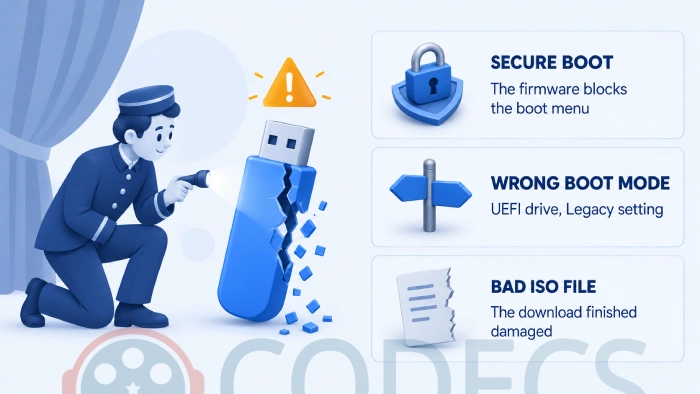
Secure Boot is switched on. It blocks the YUMI boot menu on many machines, and turning it off in the firmware setup screen is the fix. Turn it back on afterwards if you dual boot Windows.
The boot mode does not match. A machine set to Legacy or CSM will ignore a UEFI entry and the other way round, so try the opposite setting before assuming the drive is broken.
The ISO arrived damaged. A download that ends early still produces a file of the right name, and it fails at exactly this point - check the checksum the distribution publishes, or simply download it again.
One more thing worth trying: move the stick to a different port. Older firmware sometimes refuses to boot from the USB 3.0 sockets and is perfectly happy with a USB 2.0 one.
When Another Tool Suits You Better
If you only ever write one ISO at a time, Rufus is faster and simpler, and balenaEtcher verifies what it wrote afterwards.
If none of your images exceed 4 GB, the classic FAT32 build of YUMI still does the job, and MultiOS-USB is a lighter alternative built on GRUB 2.
Installing on a room full of machines at once is a different problem, and iVentoy solves it over the network instead of by USB.
Two specialists worth knowing about: WinToUSB builds a Windows system that runs from the stick rather than installing from it, and UltraISO edits ISO files before you ever put them on a drive.
Old hardware and Windows 11 is its own fight - FlyOOBE handles the TPM and CPU checks, and our dual boot guide covers keeping Windows and Linux on one SSD once you are past the installer.
There is more in the rest of our bootable-drive tools if none of those fits.
Quick questions
Do I have to reformat the drive for every ISO?
No. Formatting happens once, when you first set the drive up in YUMI exFAT, and every image after that is added alongside the ones already there.
Will a Windows 11 ISO work?
Yes, and that is the main reason to use this version. exFAT has no 4 GB per-file ceiling, so the oversized install.wim inside a modern Windows ISO is not a problem.
What is the difference between YUMI exFAT and plain YUMI?
The classic build formats the drive as FAT32, which cannot store a single file larger than 4 GB. The exFAT build removes that limit and keeps working with both BIOS and UEFI machines.
Can I still use the drive for ordinary files?
Yes. Whatever space the ISOs and persistence files do not take is normal storage, and Windows, macOS and Linux all read exFAT without extra software.
Does persistence work with every Linux ISO?
No, only with distributions that support it, and YUMI will show the slider only when it applies. Everything else runs as a fresh live session each time.
Why does my PC not list the USB drive at boot?
Nearly always Secure Boot, a mismatched UEFI or Legacy setting, or a damaged ISO download. Try a different USB port too, since some older firmware will not boot from a USB 3.0 socket.
One drive, every tool you need, and no reformatting between them.
Download YUMI exFAT and start stacking, or tell us what is on your rescue stick if you have already built one.


Latest reviews
AllThe New Fire TV Stick 4K Can't Run Kodi - Here's Which Fire ...
5/5Really interesting news - I had no idea Amazon was switching the new Fire TV Stick 4K over to ...
Free Popular IPTV Playlist: Where to Get Fresh, Legal M3U Li...
5/5Hi! Thanks for creating this list, and I have a small question: why do the channels I used to ...
How to Stream With VLC: Open a Stream URL or Send Your Own
5/5This is amazing! I could no longer afford cable so I cut the cord and started watching Hulu, Youtube, ...