Microsoft says Copilot will soon tidy your Downloads folder for you, sorting, moving and renaming files when you ask in plain words.
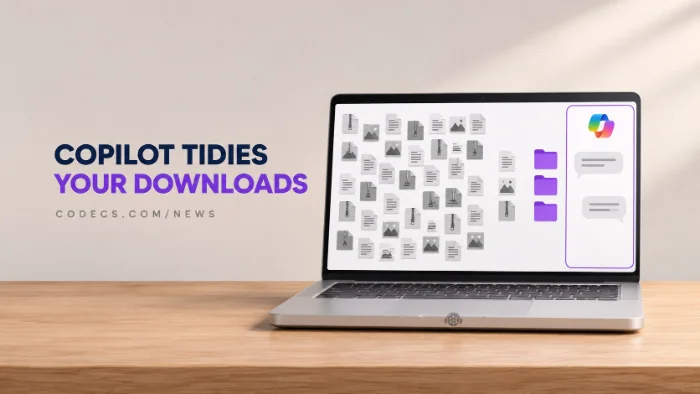
It is "coming soon" to Copilot+ PCs only, with no date yet.
The good news is that Windows already has most of what you need to clean up Downloads yourself, for free.
Here is what Copilot's new trick does, what it reads to do it, and five free ways to sort the mess today.
What Copilot's File Actions Actually Do
Microsoft calls it local file actions in Copilot. You ask in normal language - "put my invoices in one folder" - and Copilot can find, organize, move, copy or rename the files.
At Microsoft Ignite, the demo asked Copilot to move analyst reports from Downloads into a shared OneDrive folder. It created the folder and moved eight PDFs, even though none of the file names said "report".
That is the clever part, and the part worth thinking about. Copilot picked the files by reading what was inside them, then listed each move with an Undo button.
What It Reads, and What It Asks First
According to Windows Latest's report, Copilot asks before touching anything: "Allow Copilot to access and modify files on your PC". You can choose "Not now" or "Allow for this session" - there is no "always allow".
Access lasts for that one conversation, and in the demo Copilot asked twice. Microsoft has not said which parts run on your PC and which go to the cloud, only that Copilot will use local models and "reach to the cloud when a task calls for it".
Before you let it loose.
Downloads folders are full of bank statements, ID scans and tax forms. If you would rather an AI did not read those, sort that folder yourself - or point Copilot at a folder that holds nothing private.
5 Free Ways to Clean Up Downloads Today
- Group by date. In File Explorer, open Downloads, right-click empty space, choose Group by, then Date modified - everything older than a month is now in one block you can review and delete.
- Let Storage Sense empty it. Go to Settings, System, Storage, Storage Sense, turn it on and set "Delete files in my Downloads folder if they haven't been opened for more than" to 30 or 60 days.
- Rename in bulk. PowerRename in the free PowerToys renames hundreds of files at once from the right-click menu - and it never opens them.
- Pack old files away. Select last year's downloads and squeeze them into one archive with 7-Zip, then delete the originals.
- Stop the mess at the source. In Firefox or Chrome, turn on "Always ask you where to save files" so each download lands in the right folder from the start.
Find anything fast.
Windows 11's latest update made File Explorer search much quicker, and our guide to speeding up File Explorer search shows how to get it - handy when you only need one file, not a whole clean-up.
Who Will Actually Get Copilot's Version
For now, only owners of Copilot+ PCs - the newer laptops with a built-in AI chip, or NPU. If your PC does not say Copilot+ on the box or the maker's spec page, it is not on Microsoft's list.
It also runs inside the Copilot app, which is optional. And it arrives just as Microsoft is removing eight older Copilot actions from File Explorer, so the AI is moving from right-click menus into chat.
Quick questions
Can Copilot organize my files in Windows 11 now?
Not yet. Microsoft announced local file actions at Ignite in November 2026 as "coming soon" to Copilot+ PCs, without a date.
Does Copilot read my files to sort them?
Yes. In Microsoft's demo it identified reports by their contents, not their names, and renaming by content also means reading the file.
Will Copilot move files without asking?
No. It asks for permission first, the permission lasts for one conversation only, and each move can be undone.
How do I clean my Downloads folder automatically?
Turn on Storage Sense in Settings, System, Storage and set it to delete Downloads files you have not opened for 30 or 60 days. It only removes files, it does not sort them.
Is there a free way to bulk rename files?
Yes. PowerRename in Microsoft's free PowerToys renames many files at once by find and replace, without reading what is inside them.
The bottom line
Copilot's file clean-up looks handy, but it is Copilot+ only, it is not here yet, and it reads your files to work. Storage Sense, PowerToys and 7-Zip will clear the same mess today without an AI looking inside.







Latest news comments
What readers are saying AllI was having the same error issue with the dead playlist link the other guy above did. Thank you so much for ...
Team replied News: Free USA IPTV Playlist: The American TV That Is Really Free 2 commentsInteresting development with the Fire TV Stick 4K — losing Kodi sideloading is a big deal for a lot of users. For those ...
News: The New Fire TV Stick 4K Can't Run Kodi - Here's Which Fire Stick Still Can 3 commentsBrave just enabled it by default for stable users yesterday (1.97). Not specified is chromeOS will be passively gaining decode capability too, and ...
Team replied News: JPEG XL Is Back in Chrome: What It Means and How to Open JXL Files 1 comment