You have a .dll or .ax filter sitting in a folder and Windows will not touch it until you register it - here is the one command that does it, and the two things that stop it working.
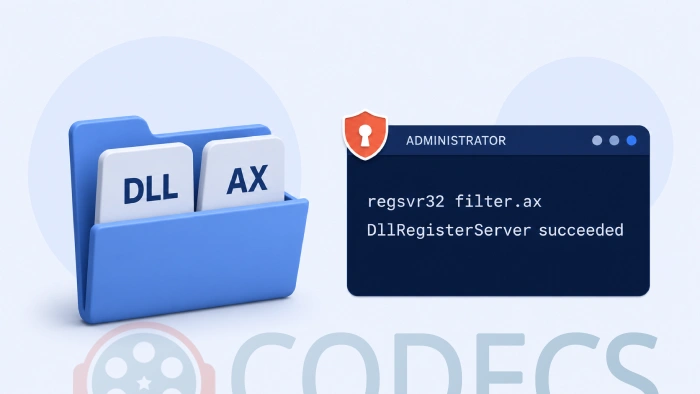
Registering a DirectShow filter is a single command, and most people still get it wrong on the first try.
The window you type it into has to be running as administrator, and on 64-bit Windows the file has to be matched to the right copy of the tool.
Get those two things right and the whole job takes about a minute.
The short version. Open Terminal or Command Prompt as administrator, then type regsvr32 followed by the full path to your file, in quotes.
What regsvr32 Actually Does
A DirectShow filter is a small program that teaches Windows how to open one kind of audio, video or subtitle stream. Copying it onto your drive does nothing on its own.
regsvr32 is the Windows tool that writes the filter's details into the registry so that players can find it. Unregistering does the reverse and leaves the file itself alone.
Filters usually arrive as .ax files, but plenty ship as ordinary .dll files instead. The extension makes no difference to the command.
Step 1 - Find Out Whether Your File Is 32-Bit or 64-Bit
This is the step that decides everything else, and most download packages tell you outright.
If the archive you unpacked contains x86 and x64 folders, x86 is the 32-bit build and x64 is the 64-bit one. Older packages sometimes label them Win32 and Win64 instead.
If there is only one file and no clue, open it in MediaInfo or any file-properties viewer that reports architecture. When in doubt, assume 32-bit - that is still what most filters ship as.
Which one do you actually want? Match the player, not the computer. A 64-bit player can only load 64-bit filters, and a 32-bit player can only load 32-bit ones, even on a 64-bit copy of Windows.
Step 2 - Decide Where the File Lives
The old advice was to copy everything into C:\Windows\System32. Skip that.
You can register a filter from any folder, and leaving it in its own folder makes it far easier to find, update or delete later. Somewhere like C:\Filters\ is fine.
If you would rather keep to the Windows folders anyway, put the file in the one that matches its architecture:
| Your file is | Folder | Use this folder when |
|---|---|---|
| 32-bit (x86) | C:\Windows\SysWOW64 | You want it available to every 32-bit player without keeping track of a path |
| 64-bit (x64) | C:\Windows\System32 | Same, but for 64-bit players |
| Either | Any folder you choose | You would like to be able to remove it cleanly later - recommended |
Why the Folder Names Look Backwards
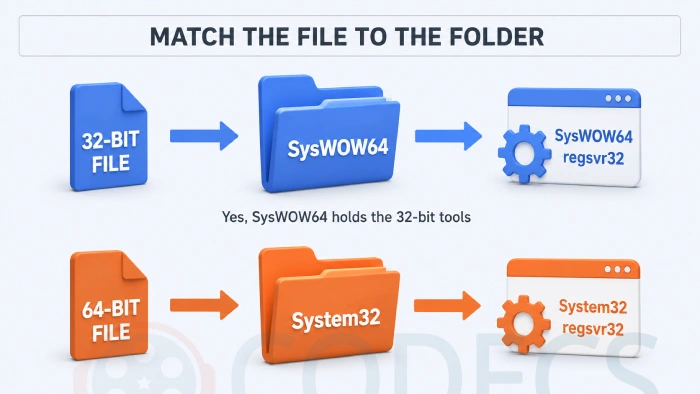
On 64-bit Windows, System32 holds the 64-bit files and SysWOW64 holds the 32-bit ones. Yes, that reads the wrong way round, and no, it is not a typo.
The name SysWOW64 means "Windows 32-bit on Windows 64-bit", and System32 kept its name so that decades of older software would keep working. Each folder has its own copy of regsvr32.exe, and each one only handles files of its own type.
The trap this creates. When a 32-bit program writes to System32, Windows quietly sends it to SysWOW64 instead, so the file can end up somewhere other than where you put it. Registering by full path avoids the whole thing.
Step 3 - Register the Filter
- Press the Windows key, type terminal, right-click the result and choose Run as administrator. On older builds, search for cmd and do the same.
- Click Yes on the User Account Control prompt.
- For a 32-bit filter, type this and press Enter: C:\Windows\SysWOW64\regsvr32.exe "C:\Filters\yourfile.ax"
- For a 64-bit filter, use this instead: C:\Windows\System32\regsvr32.exe "C:\Filters\yourfile.ax"
- A small box should appear saying DllRegisterServer succeeded - that is the confirmation you want.
Spelling out the full path to regsvr32.exe is what makes this reliable. Typing the command on its own lets Windows pick a copy for you, and it does not always pick the one you need.
Quotes around the file path only matter when the path contains a space, but there is no cost to always using them.
How to Unregister a Filter
Same command, same folder, with /u added:
C:\Windows\SysWOW64\regsvr32.exe /u "C:\Filters\yourfile.ax"
The older -u switch still works and does the same thing. Unregistering does not delete the file, so you can put it back later with the plain command.
Unregister before you delete. Deleting a registered filter leaves a dead entry behind, and some players will stall for several seconds trying to load something that is no longer there.
When regsvr32 Throws an Error
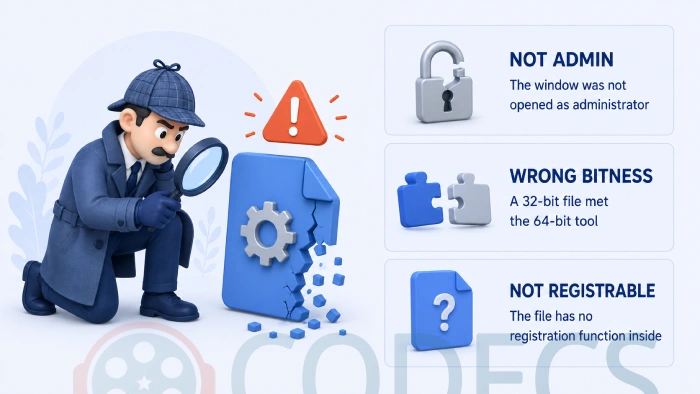
Nearly every failure is one of three things, and the message tells you which:
| What you see | What it means | What to do |
|---|---|---|
| Access is denied, or error 0x80070005 | The window is not running as administrator | Close it and reopen Terminal with Run as administrator |
| The module failed to load, or 0x800700c1 | Wrong bitness - a 32-bit file met the 64-bit tool, or the reverse | Swap to the regsvr32 in the other folder |
| Entry-point DllRegisterServer was not found | The file is not a registrable filter at all | See the next section - it probably needs an INF file instead |
| The module failed to load, or 0x8007007e | The filter needs another file that is missing | Unpack the whole archive to one folder and try again from there |
| The specified module could not be found | The path is wrong, or the file was moved | Drag the file into the Terminal window to paste its real path |
If a player still reports a problem after a successful registration, the error has moved on to a different stage. Our guide to the Class not registered and 80040154 errors covers what happens next.
You can also let the Codec Troubleshooter walk you through it, or check what your file actually needs with the Codec Checker.
When regsvr32 Is the Wrong Tool Entirely
Not every codec file registers this way, and this is the single biggest source of confusion.
Older Video for Windows codecs - the ones used by editors and capture tools rather than players - are not registered with regsvr32 at all. They are installed by right-clicking an included .inf file and choosing Install, which writes their entries into a separate part of the registry.
If you get the DllRegisterServer error and there is an INF file in the same folder, that is your answer. If there is no INF file either, the DLL is probably just a support library that the real filter loads, and it does not need registering on its own.
Modern packages usually spare you all of this. LAV Filters installs and registers its own filters, and K-Lite Codec Pack bundles the same thing with everything else most people need.
Easier Ways to Do the Same Job
If you would rather not type paths, several small tools wrap regsvr32 in a window:
- Codec Tweak Tool - the one to start with. It scans for broken registrations, removes dead entries and is still actively updated.
- DllRegSvr - registers and unregisters DLL and OCX files through a simple interface.
- RegShell - adds Register and Unregister to the right-click menu, so you never open a command window at all.
- Emsa DLL Register Tool - registers files and reports extended details about what is inside them.
- RadLight Filter Manager - lists every registered filter and lets you register or unregister from the list.
- DirectShow Filter Manager - sorts, searches, adds and removes DirectShow filters.
To see what is already registered before you change anything, X Codec Inspector and InstalledCodec both produce a full list.
There are more of both kinds under Fix and Repair Tools and Codec Identifiers.
If your problem is that Windows keeps choosing the wrong decoder rather than missing one, Win7DSFilterTweaker sets which filter wins.
Filters People Register Most Often
- iviaudio.ax and ivivideo.ax - the WinDVD audio and video decoders.
- claud.ax and clvsd.ax - the PowerDVD audio and video decoders.
- DSCinemAudioDecoder.dll and DSCinemVideoDecoder.dll - the CineMaster v4 decoders.
- VSFilter.dll - subtitle rendering, part of DirectVobSub.
Filters that ship inside a commercial player usually sit in that player's own folder, so give the full path rather than moving them. For WinDVD that is often something like C:\Program Files\InterVideo\Common\Bin\IVIAUDIO.AX.
Who Should Look Elsewhere
Open the folder you downloaded and look for a setup file. If there is an .exe or .msi in there, run it and close this page - it does the registration for you, and doing it by hand as well can leave duplicate entries.
If what you actually want is for a file to play and you do not care how, none of this is the shortest route. Install K-Lite Codec Pack and you are done.
And if you are not sure whether the problem is a missing filter at all, Codecs vs Containers explains what usually goes wrong, and What Codecs Should I Use covers what to install.
Quick questions
Do I really need to run this as administrator?
Yes. Registering writes to a protected part of the registry, and without administrator rights the command fails immediately with Access is denied.
Which folder holds the 64-bit regsvr32?
System32 does, despite the name. SysWOW64 holds the 32-bit one, and this catches almost everybody the first time.
Does this work on Windows 10 and Windows 11?
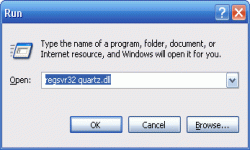
It does, and the command has not changed. The only difference is that you now open Terminal rather than the old Start menu Run box, which never ran as administrator anyway.
Can I register a filter without moving it into a Windows folder?
Yes, and it is the better habit. Give the full path to the file wherever it sits, and you can find and remove it cleanly later.
Why does my file say DllRegisterServer was not found?
Because that file is not a registrable filter. It is either a Video for Windows codec, which installs from an included INF file, or a support library the real filter loads on its own.
Is unregistering the same as uninstalling?
Not quite. Unregistering removes the registry entries but leaves the file on disk, so you can register it again later without downloading anything.
What if I am on Windows XP or 2000?
The command is the same, and there is no SysWOW64 folder to worry about on a 32-bit install. Our older guide to reinstalling the default codecs in Windows XP and 2000 covers the rest.



Free Popular IPTV Playlist: Where to Get Fres...
4/5Thanks Very Much
Read More →How to Download HEVC Video Extension for Free
5/5its works! thank you all!
Read More →How to Use Helium Audio Converter: Convert An...
5/5@levi Yes, it works offline, it's a desktop software.
Read More →