Helium Audio Converter turns any audio file into any format - MP3, FLAC, WAV and more - in seconds. Here is how to get clean results, whether it is one track or a thousand.
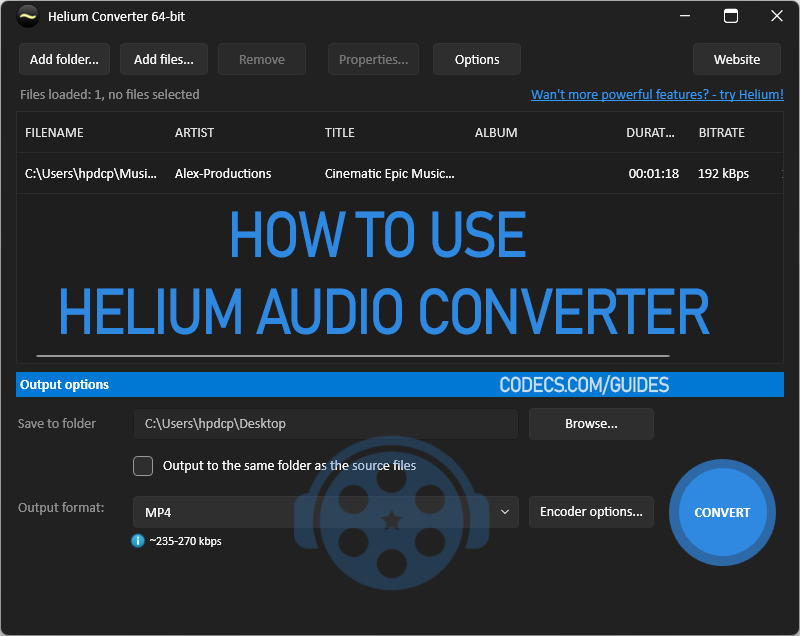
Got audio that will not play on your phone, your car stereo, or your editing app? The fix is almost always to convert it to a format that device actually supports.
Helium Audio Converter does exactly that, without the technical headaches. You can be done in under 8 minutes, and this guide walks you through every click.
Download Helium Audio Converter, click Add Files, pick an Output Format, and hit Convert. That is the whole job - the steps below just fill in the detail and the best-quality settings.
Formats it handles: AAC, FLAC, M4A, M4B, M4P, Monkey's Audio (APE), MP3, MP4, MPC, Ogg Vorbis, WavPack, WAV, and WMA. You can convert between any two of them.
Step 1: Install Helium Audio Converter
Download Helium Audio Converter and run the installer. Setup is automatic - there is nothing to configure.
Launch it once installation finishes. You will see a clean, simple interface built for getting straight to work.
Step 2: Add your audio files
Click Add Files in the upper left (or press Ctrl+Shift+W), then browse and select the tracks you want to convert.
Batch tip: use Add Folder (Ctrl+W) to load an entire album or podcast archive and convert it all in one pass.
Step 3: Choose your target format
Open the Output Format dropdown at the bottom of the window and pick the format that fits your goal.
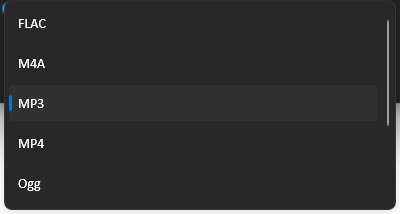
- MP3 - plays on everything, small files. The safe default.
- FLAC - lossless, best for archiving your music at full quality.
- WAV - uncompressed, for editing and pro audio work.
- AAC - efficient, ideal for Apple devices and streaming.
Step 4: Set where files are saved
Click Browse to choose the output folder. Making a dedicated "Converted Audio" folder keeps things tidy and easy to find later.

Step 5: Dial in the quality settings
Click Encoder Options next to the Output Format dropdown to fine-tune quality.
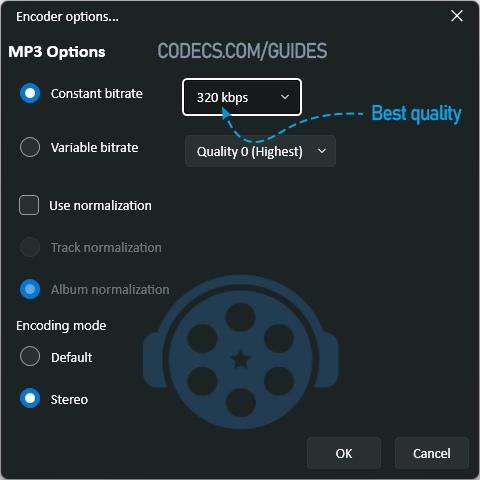
- MP3 - set the bitrate (128 to 320 kbps), normalization, and encoding mode.
- FLAC - pick a compression level to trade file size against speed.
- WAV - choose the sample rate and bit depth you need.
320 kbps for MP3, compression level 5 for FLAC, and 44.1 kHz / 16-bit for WAV. These give great quality for almost everyone - only change them if you have a specific reason.
Step 6: Start converting
Click Convert in the lower right. Most files finish in well under a minute, and large batches run on their own in the background while you watch the progress bar.
Step 7: Check your results
Open your output folder and play a converted file in your usual player - or in VLC Media Player, which plays every format going - to confirm it sounds right before you delete the originals.
Pick the right format (and avoid a common mistake)
The format matters more than the settings. Choose it by where the file needs to play, not by which sounds "highest quality" on paper.
Turning an MP3 into a FLAC or WAV will not restore any detail the MP3 already threw away - you just get a much bigger file that sounds the same. Only go lossless when your source is already lossless.
And check your target device first. Converting to FLAC is pointless if your car stereo only reads MP3 and WAV. When in doubt, MP3 is the format that plays almost anywhere.
Troubleshooting
Conversion feels slow Close other heavy apps to free up your processor. Big FLAC and WAV files simply take longer than small MP3s.
A file will not load Confirm the source actually opens in a player first. A corrupt or copy-protected file (such as older M4P) will not convert.
Buttons look different from the screenshots Newer versions may shift a label or shortcut. Go by what each button does - Add Files, Output Format, Encoder Options, Convert - rather than its exact position.
Quick questions
Does converting audio lose quality?
Only when you convert to a lossy format like MP3 or AAC, and even then a high bitrate keeps it hard to notice. Converting to FLAC or WAV keeps whatever quality the source had - it just cannot add quality that was never there.
Can I convert a whole folder at once?
Yes. Use Add Folder (Ctrl+W) to load an entire collection, pick one output format, and Helium converts the whole batch in one go.
Which format should I choose?
MP3 for everyday use and maximum compatibility, FLAC for archiving at full quality, WAV for editing. If you want to understand the trade-offs, our guide on codecs and file formats breaks it down in plain English.
Is there an alternative converter?
Yes. If you would rather try a different tool, the X Audio Converter is another simple drag-and-drop option that handles the same common formats.


@levi
Yes, it works offline, it's a desktop software.