A video that will not play is usually perfectly fine on the inside - it is the box around it your TV is refusing, and swapping that box takes seconds and costs you nothing in quality.
That swap has a name, and the name is remuxing.
It lifts the video and audio out of one container and drops them into another without decoding a single frame.
Nothing is recompressed, nothing is lost, and a two-hour film finishes in about the time it takes to copy the file.
What a Container Actually Is
Every video file is two separate things: the compressed picture and sound, and the wrapper holding them together. MKV, MP4, AVI, MOV and TS are wrappers. H.264, HEVC, AAC and AC3 are what is inside them.
The wrapper decides which players will list the file, how chapters and subtitles are stored, and which device shrugs at it. It has almost nothing to do with how the video looks.
So when a file plays on your laptop and not on your television, the picture is rarely the problem. Our guide on what remuxing means next to encoding and transcoding covers the vocabulary properly if the words keep tripping you up.
Remuxing or Re-Encoding, and Why It Matters
These are the two ways to change a video file, and they are not close relatives.
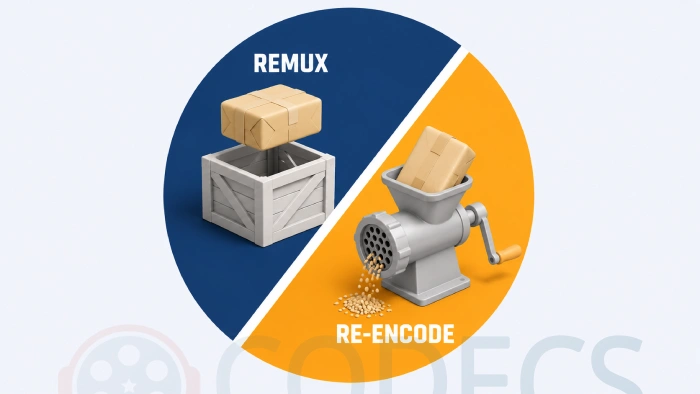
| Remuxing | Re-encoding |
|---|---|
| Copies the streams across untouched | Decodes and compresses everything again |
| Finishes at the speed of your hard drive | Takes minutes to hours, depending on the machine |
| Quality is identical, bit for bit | Loses a little quality on every pass |
| File size barely changes | You choose the size, within reason |
| Cannot change the codec | Changing the codec is the whole point |
Remuxing is what you want when the wrapper is wrong. Re-encoding is what you want when the contents are wrong, or when the file simply has to be smaller.
How to Remux to MKV
MKV is the forgiving target. It accepts almost any combination of video, audio and subtitle tracks, which is why MKVToolNix is the tool most people end up with.
- Install MKVToolNix and open the GUI. It lands on the Multiplexer tab by itself.
- Drag your video file into the Source files panel at the top left.
- Look at the track list beneath it and untick anything you do not want - the commentary track, the six subtitle languages you cannot read.
- Set the output filename on the right, then click Start multiplexing.
It finishes in seconds. While you are in there, it is worth setting the language tag on each audio track and marking one as default, which is the fix for films that keep starting in the wrong language.
Coming from a disc. MakeMKV pulls a DVD or Blu-ray onto your drive intact but hands you every track on it, so MKVToolNix is the natural second pass for trimming it down.
How to Remux to MP4
MP4 is the fussier target, and it is the one upload forms and older televisions usually want. MKVToolNix cannot write it, so this needs a different tool.
MP4Box is the specialist. Drop your file in and it rebuilds the container as MP4 with a single instruction, and MP4Forge does the same job through a plainer interface if you would rather click than type.
The catch is what MP4 will accept. It is happy with H.264, HEVC and AAC, awkward about older audio formats, and it cannot hold Blu-ray or ASS subtitles at all - so those either convert to a simpler format with Subtitle Edit or get dropped.
One Line If You Prefer the Keyboard
FFmpeg remuxes anything into anything it supports, and the whole trick is two characters.
ffmpeg -i input.mkv -c copy output.mp4
-c copy is the instruction that says copy the streams rather than re-encode them. Change the two filenames and that line handles MKV to MP4, MP4 to MKV, TS to MP4 and most other combinations you will meet.
If it complains about subtitles, add -c:s mov_text to convert simple ones, or -sn to leave them out entirely.
Just trimming, not converting. If all you want is to cut the adverts out and keep the quality, LosslessCut and Avidemux both cut on the same copy-only principle, in seconds rather than hours.
When Remuxing Will Not Help
This is the part people find out the hard way, so it is worth being blunt about it.
Remuxing never changes the codec. If your device could not decode that video or audio inside the old container, it still cannot decode it inside the new one, because the stream is byte for byte the same. Re-encoding is the only real fix for that.
The way to tell them apart before you waste an evening is to look inside the file. MediaInfo reports exactly which codecs are in there, and our Codec Finder will tell you what a given file needs to play.
If the codec is the problem, HandBrake is the usual answer, and expect a wait and a small quality cost, which is the trade you are making.
VidCoder and Shutter Encoder do the same job with different interfaces if HandBrake does not suit you.
Who Should Look Elsewhere
The tell is simple: open the file in VLC Media Player, which plays almost everything.
- VLC plays it fine, your TV does not. That is a container or a codec problem, and remuxing is worth trying first.
- VLC will not play it either. The file is damaged or the codec is genuinely exotic, and a new wrapper will not rescue it.
- You need the file smaller. Remuxing barely changes size, so you want a re-encode instead.
- It plays but stutters. That is decoding performance, usually fixed with the K-Lite Codec Pack rather than a new container.
For Blu-ray structures and transport streams specifically, tsMuxeR handles the formats the general-purpose tools find awkward, and the guide on why some MKV files still refuse to play works through the rest.
Quick questions
Does remuxing reduce quality?
No. The compressed video and audio are copied across unchanged, so the output is identical to the input and you can remux the same file as many times as you like.
Is remuxing the same as converting?
Not quite. Converting normally means re-encoding, which rebuilds the video and costs time and a little quality, while remuxing only rewrites the wrapper around it.
Can I remux MKV to MP4 for free?
Yes. MP4Box, MP4Forge and FFmpeg all do it at no cost, and none of them touches the video itself.
Why does my file still not play after remuxing?
Because the codec did not change. Check what is actually inside the file with MediaInfo, and if the codec is unsupported you need a re-encode rather than another container.
Which container should I choose?
MKV if you want to keep every track and subtitle, MP4 if a device or an upload form is asking for it. MKV is the safer default when you are unsure.
Do I need a fast computer?
No. Nothing is being compressed, so the job is limited by how quickly your drive copies the file rather than by your processor.
The wrapper is the cheapest thing to change, so try that before you spend an evening re-encoding.
Get MKVToolNix and see how fast it turns your file around, or tell us how you got on if this fixed something for you.


Latest comments
AllTo view major football league live
Guide: Free Popular IPTV Playlist: Where to Get Fresh, Legal M3U Links in 2026 20 commentsThe link isn't working. [link]
Guide: Free M3U Playlist for TiviMate: Legal Lists That Load Cleanly 1 commentThe Vega OS shift is the biggest Firestick story of 2026. Anyone buying now needs to know: 4K Max = sideloading works, plain 4K = ...
News: The New Fire TV Stick 4K Can't Run Kodi - Here's Which Fire Stick Still Can 3 comments