The image is fine. Your screen is being told to show it wrong, and only some apps are listening.
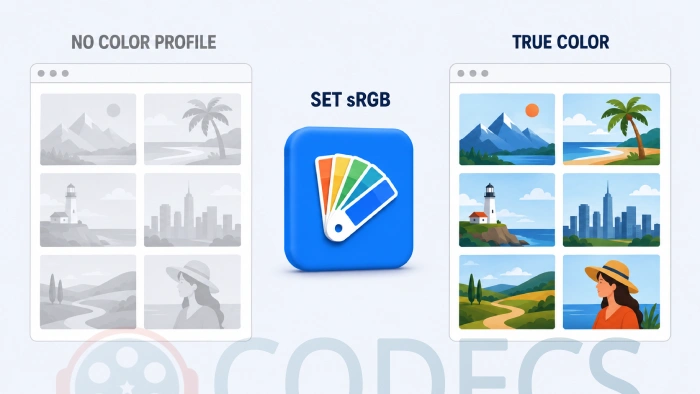
You open a picture in Microsoft Photos and the colour has drained out of it.
Nothing is wrong with the file, and nothing is wrong with your screen.
Windows is handing Photos the wrong instructions about what your monitor can display, and Photos is dutifully following them.
The Thirty-Second Test
Before you change any setting, find out whether the fade is in the file or in the app. Right-click the image, choose Open with, and open it in Paint.
What the test means. Paint ignores colour profiles completely and sends the raw pixels straight to your screen. Photos does not - it converts every image into whatever colour space Windows says your monitor uses.
If the picture looks rich in Paint and faded in Photos, the file is perfect and you have a colour profile problem. Carry on reading.
If it looks equally faded in both, the fade is baked into the file itself and no Windows setting will bring it back.
Why Photos Fades Images When Other Apps Do Not
Microsoft Photos is colour-managed. Every time it draws an image it performs a conversion, from the colour space the image was made in into the colour space your display claims to use.
That conversion is the whole point of colour management, and when the profile is right it is what makes colours accurate. When the profile is wrong, the same machinery quietly wrings the saturation out of everything you open.
Paint, most simple viewers and a lot of older software skip that step entirely. They are not being more accurate - they are just not doing the conversion, which is why they look correct when your profile is broken and would look wrong on a properly calibrated wide-gamut screen.
This is also why the thumbnails in the Photos gallery can look normal while the full-size view looks washed out. The thumbnail pipeline and the viewer do not handle colour the same way.
Three Things That Drain the Colour
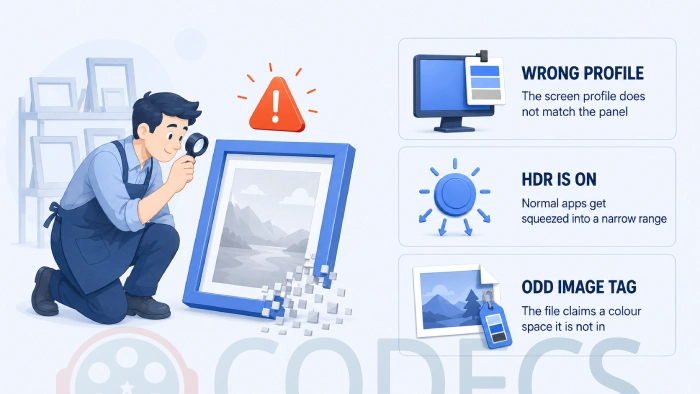
- The wrong profile is set as your display default. This is by far the most common cause and the one almost nobody writes about - see the fix below.
- HDR is switched on. Ordinary apps get squeezed into a narrow slice of an enormous range, and everything on the desktop looks flat.
- The image carries an unusual embedded profile. Photos honours it, and if the tag disagrees with the actual pixel data you get a bad conversion.
Fix 1: Point Windows at the Right Profile
Here is the part that catches people out. Windows keeps two separate profile lists for every monitor, and the fix is almost always in the first one.
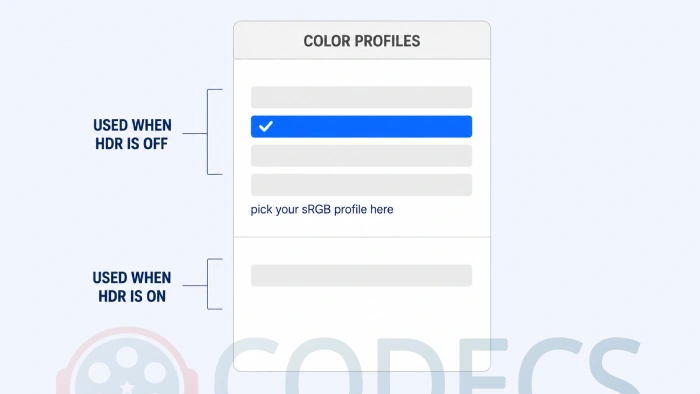
The upper list is what Windows uses with HDR switched off, which is how most people run most of the time. The lower advanced colour list only comes into play once HDR is on.
Monitor utilities from the big display makers install several profiles at once, and they sometimes leave an HDR profile sitting at the top of the upper list. Your desktop is not in HDR, so every colour-managed app converts into a colour space your screen is not currently using, and the result is exactly the fade you are looking at.
- Press the Windows key together with R, type colorcpl and press Enter.
- On the Devices tab, pick your monitor from the Device list.
- Tick the box marked Use my settings for this device.
- In the upper profile list, look at which entry is marked as the default - if it has HDR in its name, that is your culprit.
- Click the sRGB profile for your monitor, then click Set as Default Profile.
- Close the window and reopen Photos.
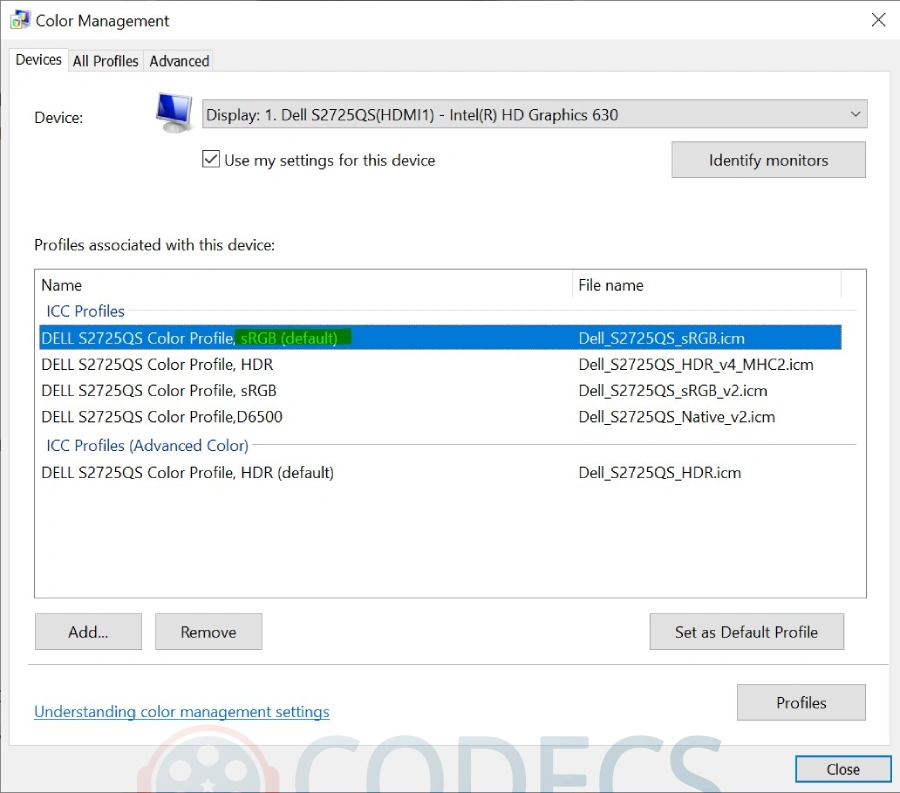
If your monitor has no sRGB profile listed, click Add and choose sRGB IEC61966-2.1 from the list Windows supplies. It is a safe, neutral default that matches what almost every image on the internet was made for.
You will find plenty of advice telling you to delete the monitor profile. Do not - changing which profile is default takes one click and undoes in one click, while removing means hunting down the file and adding it back by hand. Leave the advanced colour list alone as well, because that entry is correct and only gets used when you actually turn HDR on.
Fix 2: If HDR Is Actually Switched On
Open Settings, go to System and then Display, and look for the HDR entry. If it is on and you did not deliberately turn it on for a game or a film, the simplest fix is to turn it off.
If you want to keep it on, open the HDR page and find the SDR content brightness slider. That slider controls how bright ordinary windows and images look while HDR is running, and it usually arrives set far too low.
Nudge it up until the desktop stops looking grey. This is the fix that most articles on the subject lead with, and it is the right one only when HDR is genuinely on.
Fix 3: When It Is Only Some Images
If most of your pictures look fine and only a handful look faded, the profile is not the problem - those particular files are.
Images exported from phones, from AI image generators and from some editing apps can carry a wide-gamut tag. Photos honours the tag and converts accordingly, and if the tag does not match what is actually in the file the conversion pulls the saturation down.
The quickest workaround is to open those files in a viewer that lets you choose how profiles are handled. XnView MP and IrfanView both expose that setting, and both will happily re-save the image with a plain sRGB profile.
Viewers Worth Keeping Alongside Photos
None of these are a substitute for fixing the profile, because a wrong display profile affects your browser and your editor too. They are useful because they give you a second opinion whenever you are not sure whether a file or a setting is at fault.
- Fast and familiar. FastStone Image Viewer and JPEGView both open instantly and stay out of the way.
- Modern formats without extra codecs. ImageGlass, PicView and JarkViewer handle HEIC, AVIF and JPEG XL on their own.
- Photographers and RAW files. nomacs and ACDSee Free read camera RAW without plugins.
There are more in the full list of free image viewers for Windows, and the graphics and editing tools category if you need to actually change the file rather than just look at it.
Worth saying plainly: Microsoft Photos is not the villain here. It is doing colour management correctly and the other apps are cutting the corner.
When the Fade Is Not Photos At All
The same washed-out look turns up in three neighbouring places, and the causes are different enough to be worth naming.
Screenshots taken on an HDR display come out pale in almost every capture tool, which is why Screenpresso added specific handling for it.
Video that looks grey and flat is usually a renderer problem rather than a profile one, and MPC Video Renderer or the tone-mapping options in K-Lite Codec Pack Full are where that gets solved.
And if a picture will not open at all rather than opening pale, that is a missing decoder instead - our guide on how to open AVIF images on Windows covers the commonest version, and there is a separate walkthrough on picking a Nikon RAW tool if your camera files are the problem.
Quick questions
Why does the image look fine in Paint but faded in Photos?
Paint sends pixels straight to the screen without any colour conversion. Photos converts every image into your display's colour profile first, so a wrong profile shows up in Photos and stays invisible in Paint.
Should I delete my monitor's colour profile?
No. Set the correct one as default instead, which takes one click and undoes in one click. Removing a profile means finding the file and adding it back by hand if you change your mind.
Which profile should I pick if I am not sure?
Your monitor's own sRGB profile if it has one, and sRGB IEC61966-2.1 if it does not. Both match what nearly every image on the internet was made for.
Do I need to turn HDR off?
Only if it is on and you are not using it. If you want HDR for games or films, raise the SDR content brightness slider on the HDR settings page instead.
Why do the small thumbnails look right and the big picture look wrong?
The gallery thumbnails and the full-size viewer do not handle colour the same way. That mismatch is a strong hint that the problem is your display profile rather than the file.
Will this fix my browser and my editor too?
Yes, and that is the reason to fix the profile rather than just switching viewers. Every colour-managed application on the machine reads the same display profile.
Two minutes in one settings window gets your colours back, and it fixes every other app at the same time.
Grab IrfanView if you want a second opinion on a suspect file, or tell us how you got on if this one caught you out too.


Best Way to Get VidMate APK - Fast, Free, and...
5/5The demand for feature-rich video editing applications continues to grow across the digital content industry. Filmora Mod APK is ...
Read More →Free Popular IPTV Playlist: Where to Get Fres...
2/5where can i goet fox news M3u* link please someone post here
Read More →How to Download HEVC Video Extension for Free
5/5its works! thank you all!
Read More →