Plug a portable SSD into your Android phone and you can carry a 4K movie library, your full photo archive, and a Steam-sized game backup in your pocket - no cloud subscription, no full storage warnings, no tradeoffs.
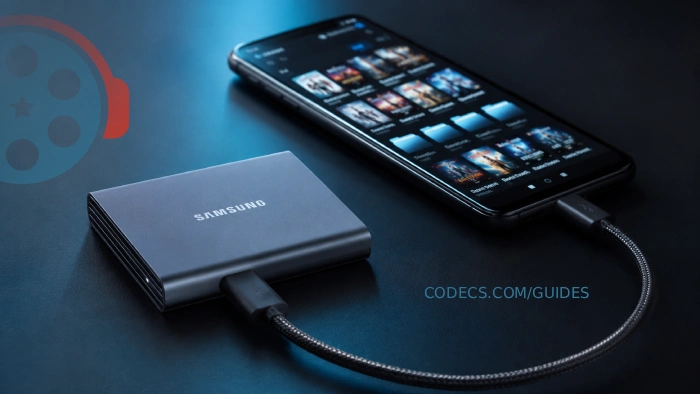
Phones got powerful. Phone storage did not get cheaper.
A 1TB phone costs more than a 4TB portable SSD, and the SSD plugs into anything with a USB-C port - your phone, tablet, laptop, console, even your TV.
This guide walks through every step: what hardware actually works, how to format the drive so Android reads it, the apps that play files directly off the SSD, and the fixes for the "drive not detected" issues people run into.
Why a Portable SSD Beats Internal Storage
A 256GB phone fills up fast once you start shooting 4K video, downloading offline Spotify libraries, and saving Netflix episodes for flights.
Buying the 1TB version of the same phone often costs $200-300 more.
A modern portable SSD - Samsung T7, SanDisk Extreme, Crucial X9 - delivers 1TB to 4TB for $80-300 with read speeds north of 1000 MB/s.
It plugs into any USB-C device, survives drops, and outlives the phone you bought it for.
The use cases that drive most people to this setup:
- Massive video libraries - 4K movies are 15-40GB each. An SSD holds hundreds. Your phone holds three.
- Photo and video offload - Dump your entire camera roll to the SSD before vacations to free up phone storage without losing anything.
- Game and ROM storage - Emulator users carry libraries that exceed any phone's internal capacity.
- Cross-device file sharing - Same drive, same files, on phone, laptop, and tablet without uploading anything.
- Privacy - Files live on a drive you physically own, not a server you rent.
What You Actually Need
The hardware checklist is short, but every piece matters. Get one wrong and the drive won't mount.
An Android phone with USB OTG support. Almost every phone made after 2018 has it. Check by plugging in any USB stick - if it appears in your file manager, OTG works.
A USB-C to USB-C cable rated for data. This is the trap. Many cables that ship with chargers are power-only and will charge the SSD without ever transferring data. Look for "USB 3.1" or "USB 3.2" cables - data-rated cables are usually labeled, charge-only cables almost never are.
A portable SSD with USB-C. Samsung T7/T9, SanDisk Extreme/Pro, Crucial X9/X10, Kingston XS2000, Lexar SL500. Any of these work. Samsung T7 is the most-tested option on Android.
A drive formatted as exFAT. NTFS is read-only on most Android devices. APFS and HFS+ are unreadable. exFAT is the universal sweet spot - works on Android, Windows, macOS, Linux, and most TVs.
Step 1: Format the SSD as exFAT
New SSDs ship pre-formatted, but the format depends on the manufacturer's target audience. Samsung T7 ships exFAT. SanDisk Extreme often ships exFAT too. WD My Passport drives sometimes ship NTFS or HFS+.
Format on a computer first - it's faster and more reliable than formatting on the phone.
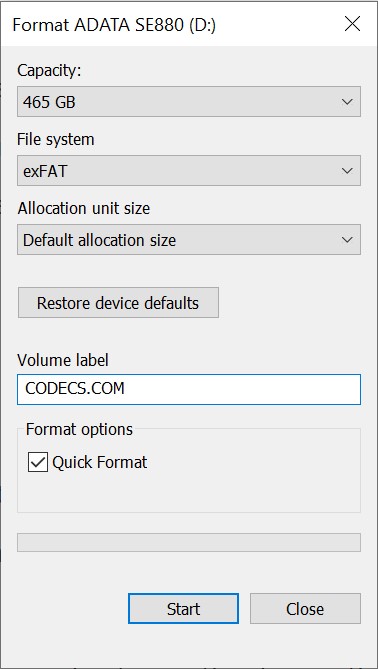
On Windows
- Plug the SSD into your PC.
- Open File Explorer, right-click the drive, choose Format.
- File system: exFAT. Allocation unit size: default. Volume label: anything you want.
- Uncheck Quick Format if the drive is brand new and you want a full surface check, otherwise leave it checked.
- Click Start.
On macOS
- Plug the SSD in. Open Disk Utility.
- Select the drive in the sidebar (the device, not the volume).
- Click Erase. Format: ExFAT. Scheme: GUID Partition Map.
- Click Erase, wait for it to complete.
Skip APFS and Mac OS Extended unless you only ever plan to use the drive with Apple devices - Android cannot read either.
Step 2: Connect the SSD to Android
Once formatted, connecting is genuinely plug-and-play on most phones. Plug the USB-C cable into the SSD, then into the phone.
Within a few seconds you should see one of these:
- A notification: "USB drive detected" or "External storage connected".
- The drive name appearing in your file manager under "External storage" or "USB drives".
- Some phones (Samsung, Xiaomi) show a popup asking which app should handle the drive.
If nothing happens within 10 seconds, jump to the troubleshooting section below before assuming something is wrong.
Step 3: Browse Files Directly From the SSD
Your phone's default file manager handles basic browsing. Tap into the USB drive, navigate folders, copy files, paste files - all the same gestures as internal storage.
For more capable browsing, Solid Explorer, FX File Explorer, and X-plore File Manager all handle external drives well and add features like archive support, network shares, and dual-pane views.
Files copy from SSD to phone storage at full USB speed - usually 200-400 MB/s on modern phones, which translates to a 4K movie copying in about 30 seconds.
Step 4: Play Video Directly From the SSD
Most people set up an SSD specifically for media playback - and this is where Android's stock video player falls flat.
It chokes on MKV files, refuses anything beyond H.264, and has no concept of an external drive as a media library.
Three free players solve this completely.
VLC for Android - The Universal Choice
VLC plays everything. HEVC, AV1, MKV with multiple audio tracks, MP4, MOV, AVI, WMV - any container, any codec, no configuration required. Point it at the SSD and it scans automatically.
Download VLC for Android and add your SSD as a media folder. The app indexes the entire drive and presents a clean library view with thumbnails and resume-from-position.
For a step-by-step setup walkthrough, see our Getting Started with VLC for Android guide.
Kodi for Android - The Media Center
If you have a real movie library - organized folders, ripped Blu-rays, TV show seasons - Kodi turns the SSD into a proper home theater system. It pulls metadata, cover art, episode info, and trailer previews automatically.
Plug the SSD into a phone connected to a TV, launch Kodi, and you have a Plex-grade library without paying for a subscription. Download Kodi for Android here.
MX Player - Best for Older Phones
MX Player wins on hardware decoding efficiency, which matters on older or budget Android devices that struggle with 4K HEVC. If your phone stutters in VLC, try MX Player.
For HEVC, AC3, EAC3, and DTS audio in MKV files, you'll also need the MX Player Custom Codec - it's the most-downloaded file on this site every week for a reason.
When Files Won't Play - Convert Them
Some files refuse to play no matter which player you use - usually exotic encodes, HEVC 10-bit content, or DTS-HD MA audio tracks that mobile hardware can't decode in real time.
The cleanest fix is converting them once on a computer to a universally compatible format, then storing the converted files on the SSD.
HandBrake is free, runs on Windows/Mac/Linux, and handles batch conversion well.
Use the "Fast 1080p30" preset for phone-friendly output - the resulting MP4 with H.264 video and AAC audio plays on every Android device ever made.
See our full guide on fixing codec not supported errors on Android for the targeted fix per error type.
Samsung T7 / T9 Owners - Use Samsung Magician
Samsung's portable SSDs (T5, T7, T7 Shield, T9) get an extra perk: an Android version of Samsung Magician that monitors drive health, runs firmware updates, and manages the drive's built-in security features.
The mobile app pairs with the desktop version, so firmware updates installed on your laptop sync to the drive automatically. Download Samsung Magician here - the Android APK is on the same page as the Windows and Mac builds.
For non-Samsung drives, the desktop tool from your manufacturer (Crucial Storage Executive, SanDisk Dashboard, WD Discovery) handles firmware updates from a PC. There's no Android equivalent for most brands yet.
Troubleshooting - When the SSD Won't Mount
About 1 in 5 first-time setups fails on the first try. The fix is almost always one of these.
Drive Doesn't Appear at All
Cable is power-only. Try a different USB-C cable - one that you know transfers data (the cable that came with your phone is usually fine, the one that came with a charger usually isn't).
Phone is too old. Some Android 8 and earlier phones have OTG disabled by default. Check Settings, search "OTG", enable it.
Drive needs more power than the phone provides. Rare with modern SSDs, but some older drives (especially 2.5" external HDDs) need a powered USB hub. SSDs almost never have this problem - HDDs frequently do.
Drive Mounts but Shows as Empty
Drive is formatted NTFS. Android can read some NTFS drives but reliability varies. Reformat as exFAT on a computer.
Drive is APFS or HFS+ (Mac format). Android cannot read either. Reformat as exFAT.
Files Copy Slowly or Disconnect Mid-Transfer
Cable is USB 2.0. Data-rated cables aren't all created equal - USB 2.0 cables transfer at 30-40 MB/s instead of 400+ MB/s. Use a USB 3.1 or 3.2 rated cable.
Phone is throttling. Heavy file transfers heat phones up, and modern phones throttle USB speed when temperatures rise. Let it cool, transfer in smaller batches.
Pro Workflow - Build a Phone Media Library
The setup that beats any cloud subscription:
- Buy a 2TB portable SSD ($120-150 range).
- Format exFAT on your PC.
- Organize a folder structure: /Movies, /TV Shows, /Music, /Photos, /Audiobooks.
- Convert 4K files to 1080p H.264 with HandBrake to fit more content and cut decode load.
- Install VLC for Android on the phone, point it at the SSD folders.
- Carry one cable in your bag. Plug in anywhere - phone, laptop, hotel TV's USB port - same library follows you.
The total cost: SSD + cable + free apps. The recurring cost: zero.


Don't Open a .xmpeg File Before Reading This
3/5It's never a good sign when the potential malware you downloaded has the EXACT same filename as the example. ...
Read More →Free Popular IPTV Playlist: Where to Get Fres...
3/5How can you create a DSTV channels on IPTV?
Read More →How to Download HEVC Video Extension for Free
5/5Does anyone have the HEVC Video Extensions as an .exe file and can provide a download link?
Read More →