Downloaded an H.265 file and got a black screen, or sound with no picture? The file is almost certainly fine - Windows just cannot read it, and LAV Filters is the free fix.
LAV Filters is a free, open-source set of DirectShow decoders, and adding it is usually a five-minute job.
HEVC, also written H.265, is what phones and 4K releases use because it roughly halves the file size, and not every Windows player can decode it.
Start with the check below, because a good number of readers do not need the install at all.
First: Do You Actually Need LAV Filters?
Open the file in the online HEVC player first. It runs in your browser and installs nothing.
If it plays there, the file is healthy and the problem is on your PC. If it fails there too, the download is damaged and no decoder will save it.
Which app are you in? VLC, MPC-HC and PotPlayer carry their own HEVC decoders and usually play H.265 on a clean Windows install, as our roundup of the best players for HEVC files covers. If one of those is failing, LAV is still worth adding, but read the fixes at the end first.
If the black screen is in Photos, Media Player, Movies and TV or File Explorer thumbnails, LAV will not reach those. Install the free HEVC Video Extensions from Device Manufacturer instead, which is Microsoft's own decoder at no cost.
LAV Filters is the answer for DirectShow players - MPC-HC, MPC-BE, PotPlayer and a good deal of older and editing software. It gives them a current decoder and puts hardware acceleration under your control.
Step 1: Install LAV Filters
- Remove Haali Media Splitter if you have it. It takes priority over other splitters and will make the LAV install look like it did nothing at all.
- Run the installer. Download LAV Filters and use the installer rather than the zip, so the filters register themselves.
- Keep all three components ticked. LAV Splitter opens the container, LAV Video decodes the picture and LAV Audio decodes the sound - untick the third and you will be fixing the audio next.
- Restart your media player. Filters registered while it is running are not picked up until it reopens.
Step 2: Point LAV at Your GPU
Open LAV Video Configuration - type "LAV Video" into Windows Search, it installs alongside the filters. The first thing on the Video Settings tab is the Hardware Decoder dropdown.
Set it to D3D11, then check that HEVC is ticked in the hardware codec list beside it. That list decides which formats get handed to the graphics card.
Leave Hardware Device, the dropdown underneath, on "Automatic (Native)". LAV decodes straight to the screen with madVR or MPC Video Renderer and switches to copy-back mode by itself with anything else, so pick your graphics card by name only if you have two GPUs or still get a black screen.
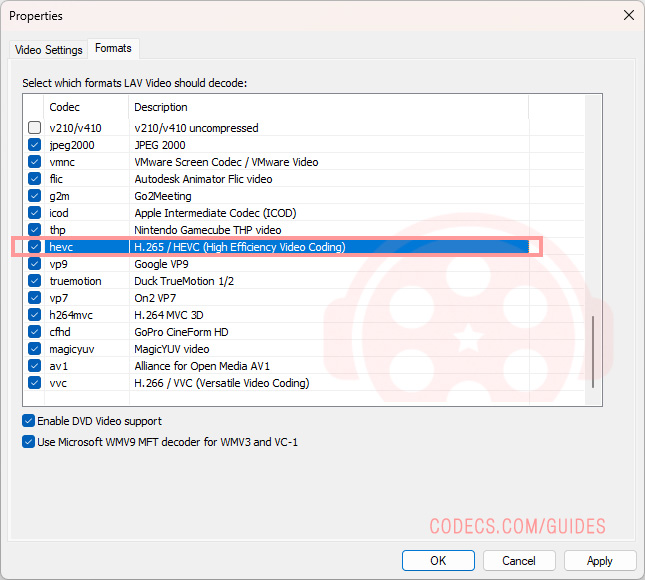
Then open the Formats tab and make sure hevc is ticked there too. That is the switch for whether LAV decodes HEVC at all, in hardware or in software.
Older PC? 4K HEVC is usually 10-bit, and 10-bit hardware decoding needs roughly an NVIDIA GTX 950 or any GTX 10-series card, an AMD RX 400 or an Intel 7th-generation chip or newer. Below that, LAV falls back to software decoding on its own - fine at 1080p, choppy at 4K.
Our guide on whether your PC can play H.265 tells you where yours stands.
Step 3: Make the Player Use LAV
MPC-HC ships its own internal copy of LAV and prefers it, and PotPlayer prefers its own built-in decoders. Your new install is ignored until you say otherwise, which is why "I installed it and nothing changed" is the most common outcome of Step 1.
In MPC-HC, go to View, then Options, then External Filters. Click Add Filter, add LAV Splitter Source, LAV Video Decoder and LAV Audio Decoder, and set each one to Prefer.
In PotPlayer, press F5 and open Filter Control, then Video Decoder, and pick LAV Video Decoder in the H.265 and HEVC rows - if it is not listed, add it with Filter Management. PotPlayer's built-in decoder is fine for most people, as our PotPlayer HEVC guide explains.
Check It Worked
Play an HEVC file, then open LAV Video Configuration again and click the Status tab. The active decoder should read d3d11, not avcodec - avcodec means it is decoding in software.
In MPC-HC you can also right-click during playback, open the Filters menu, and confirm LAV Video Decoder is in the chain rather than the internal one.
If It Still Will Not Play
Black screen, audio fine. Another decoder is winning the filter chain. Set LAV Video Decoder to Prefer as in Step 3, and remove old decoders such as ffdshow, the usual culprit on machines that once had a codec pack.
Stutters on 4K. Check the Status tab first - if it says avcodec, the hardware path is not engaged, so revisit the Hardware Decoder setting. If it says d3d11 and still stutters, the file is likely 10-bit on a GPU that cannot hardware-decode it.
Picture but no sound. Open LAV Audio Configuration and confirm the file's audio format is enabled - AAC and AC3 cover most HEVC files. If you play through an AV receiver, the LAV setup guide covers bitstreaming properly.
File opens then closes immediately. The container is not being handled. Make sure LAV Splitter Source is added and set to Prefer, for MKV and MP4 especially.
Anything not covered here is in the full HEVC troubleshooting guide, which works through the causes in order.
Quick questions
Is LAV Filters free?
Yes, open source under the GPL, with no paid tier and nothing bundled.
Do I have to pay Microsoft for HEVC?
No. The Store sells one edition, but the Device Manufacturer edition is the same Microsoft-signed decoder for free, and it is the one to install for HEVC in Photos, Media Player, Movies and TV or File Explorer thumbnails.
LAV Filters or the HEVC extension - which do I need?
LAV covers DirectShow players. The extension covers Windows' own apps and File Explorer. They do not conflict, and plenty of people end up with both.
Will this help HEVC playback in VLC?
No. VLC uses its own decoders and ignores anything installed on the system, as do mpv and Kodi. VLC already plays HEVC, so a failure there is usually the file, not the codec.
Does LAV handle 10-bit and HDR HEVC?
Yes for 10-bit, in hardware on a recent GPU and in software otherwise. HDR needs a renderer and display that support it, which is a separate piece of setup.
Is a codec pack easier?
K-Lite Codec Pack bundles LAV with MPC-HC and pre-configures it, which is the shortest route if you are starting from nothing. If you already have a player you like, installing LAV on its own is cleaner.
The bottom line
Install it, set D3D11, tell your player to use it - and the file that showed you a black screen plays like any other. If it worked, tell us which player you were in - it helps the next person.


Latest comments
Allالبروتوكول (http:// أو [link] بعنوان الـ IP أو الدومين، ورقم المنفذ (مثل :8080 أو :80).• مثال لشكل الرابط: [link]
Guide: Xtream Codes Explained: How They Work and Differ From M3U 1 commentHola cuando descargo un video con mpc-hc lo descarga en formato webm en vez de mp4 o mp3
Team replied Guide: How to Stream Videos with MPC-HC 1 commentInteresting development with the Fire TV Stick 4K — losing Kodi sideloading is a big deal for a lot of users. For those ...
News: The New Fire TV Stick 4K Can't Run Kodi - Here's Which Fire Stick Still Can 3 comments