MPC-HC will open a YouTube link the same way it opens a file on your drive, and it will save that video for offline too - once you add one small helper file.
MPC-HC is a fast, lightweight Windows player, but it cannot talk to YouTube on its own.
The helper that fixes that is yt-dlp, a free tool that knows how to read more than a thousand video sites.
Drop it into the MPC-HC folder and the player does the rest.
Put yt-dlp.exe and ffmpeg.exe in your MPC-HC folder, then open any YouTube link with File > Open File/URL. To keep the video, use File > Save a Copy.
What yt-dlp Actually Does
YouTube does not hand a video to your player as one neat file. Behind the scenes it splits the picture and the sound into separate streams, which is why pasting a YouTube address into a normal player gets you nothing.
yt-dlp works out where those streams are and feeds them to MPC-HC, so the video simply plays. It is a command-line program, but you will never type a command - the player runs it quietly in the background.
If you would rather drive yt-dlp yourself with buttons and a queue, YTDLP-Interface wraps the same tool in a window. This guide sticks to the player.
What You Need First
- MPC-HC - the player itself. MPC-HC 2.8.0 is free and still actively maintained.
- yt-dlp.exe - the helper that does the actual work, rebuilt almost daily on the yt-dlp page.
- ffmpeg.exe - technically optional, but skip it and you will be stuck at low quality or silent video. FFmpeg 9.0.1 is a free download.
64-bit only, in practice. The standard yt-dlp and FFmpeg builds are 64-bit, and no current FFmpeg build for Windows ships in 32-bit at all. On a 32-bit machine you can still run yt-dlp_x86.exe renamed to yt-dlp.exe, but you will be limited to whatever quality plays without FFmpeg.
Step 1: Put Both Files in the MPC-HC Folder
Find where MPC-HC is installed. A normal install puts it at C:\Program Files\MPC-HC\, and a portable copy lives wherever you unzipped it.
Copy yt-dlp.exe and ffmpeg.exe into that folder. There is no installer to run and nothing to configure, because MPC-HC checks its own folder first and finds them on its own.
Why FFmpeg earns its place. Anything above roughly 720p arrives as two separate streams, and FFmpeg is the piece that joins them back together. Two seconds of copying saves a lot of head-scratching about missing sound.
Step 2: Open a YouTube Link
Open MPC-HC, go to File > Open File/URL, paste the address and press OK. Dailymotion, Vimeo and a long list of other sites work here too.
There is a short pause while yt-dlp does its work, then the video plays inside the player. Full controls, no browser tab, and none of the interruptions you get on the site itself.
Step 3: Save a Copy for Offline
With the link open, go to File > Save a Copy, choose a folder and give the file a name. MPC-HC hands the job to yt-dlp and writes out an .mp4 or .webm file.
That file plays in MPC-HC or anything else that handles the format, with no connection needed afterwards. Keep it to videos you have the right to keep - that part is on you, not the tool.
Pick the Quality Before You Save
Capping the resolution saves both disk space and waiting. Go to View > Options > Advanced and look for the settings whose names start with YDL.
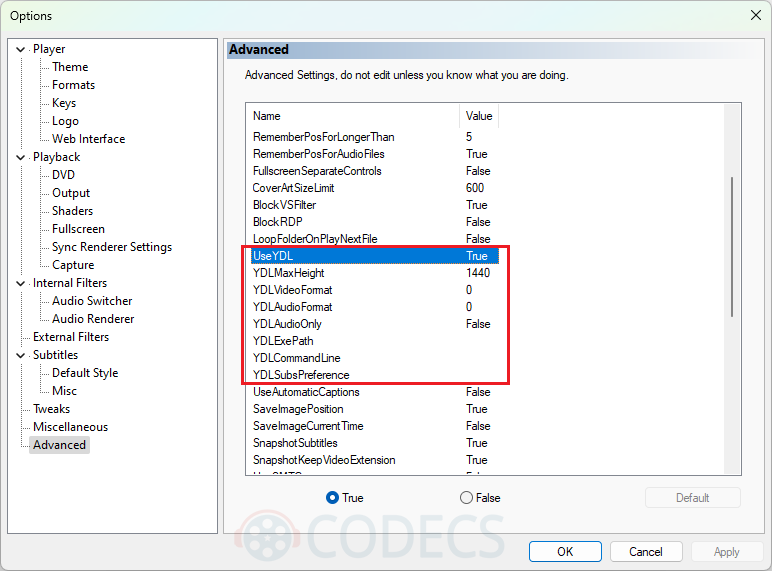
Set YDLMaxHeight to 720 for 720p, 1080 for 1080p and so on. YDLExePath lets you keep yt-dlp somewhere other than the player folder, and YDLSubsPreference pulls subtitles down with the video - handy if you also deal with subtitles that drift out of sync.
When It Stops Working
YouTube changes things constantly, so a setup that worked last month can break without you touching it. Four things cause almost every failure.
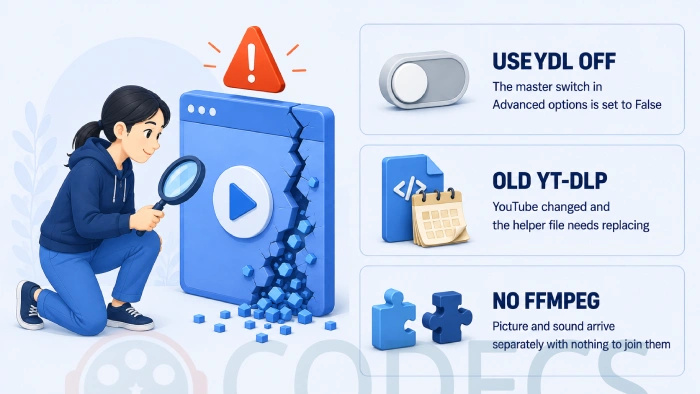
- UseYDL is set to False. This is the master switch in View > Options > Advanced - with it off, nothing else in this guide works.
- yt-dlp is out of date. Download a fresh copy and overwrite the old one, which fixes this the overwhelming majority of the time.
- FFmpeg is missing. The usual symptoms are video with no sound, or quality that refuses to go above 720p.
- The files are in the wrong folder. They belong beside mpc-hc64.exe, not in a subfolder next to it.
If a link still refuses to open, the Stream Extractor will tell you whether there is a playable stream at that address at all. That separates a broken page from a broken setup.
Streaming That Is Not YouTube
"Streaming" covers two quite different jobs, and the same menu item handles both. File > Open File/URL also accepts a direct stream address, so an http, rtsp or m3u8 link opens exactly the way a YouTube link does.
For live TV, MPC-HC will open an M3U playlist the same way. Our free IPTV playlist guide covers where to get working lists, and what an M3U file actually is explains the format if you have never opened one.
You can also turn a YouTube playlist into an M3U with the site's YouTube playlist to M3U tool, then open that list in the player. If you would rather test a stream before committing, the online web player does it in a browser tab.
MPC-HC cannot cast to a TV. There is no Chromecast support and no built-in casting of any kind, so nothing in the options screen will add it. If sending video to a television is what you actually need, VLC has renderer output built in and our VLC streaming guide walks through it.
Does This Work in MPC-BE?
Yes, and the steps are the same. MPC-BE is the other maintained fork of Media Player Classic, and it looks for yt-dlp in its own program folder exactly like MPC-HC does.
Which one you should be running is a separate question, and our MPC-BE against MPC-HC comparison answers it properly. The rest of the media players section is there if neither fits.
Quick questions
Is any of this free?
All of it. MPC-HC, yt-dlp and FFmpeg are open source with no paid tier, no trial and nothing to unlock.
Do I have to use the command line?
No. yt-dlp is a command-line tool, but MPC-HC runs it for you in the background, so you only ever touch the player's menus.
Why does the video play but with no sound?
FFmpeg is missing from the MPC-HC folder. Higher-quality YouTube video arrives as separate picture and sound streams, and FFmpeg is what joins them.
It worked last week and now it does not. What changed?
Almost certainly YouTube, not you. Replace yt-dlp.exe with a current build and check that UseYDL is still set to True under View, Options, Advanced.
Can MPC-HC cast to my TV or Chromecast?
No, it has no casting support at all. Use VLC for that, or a DLNA server if your television already reads shared folders.
Does this work on Windows 7?
Increasingly not. Current yt-dlp builds are moving to a Windows 10 minimum, so an older machine will need an archived release and will stop getting fixes.



How to Stream With VLC: Open a Stream URL or ...
5/5This is amazing! I could no longer afford cable so I cut the cord and started watching Hulu, Youtube, ...
Read More →Don't Open a .xmpeg File Before Reading This
3/5It's never a good sign when the potential malware you downloaded has the EXACT same filename as the example. ...
Read More →Free Popular IPTV Playlist: Where to Get Fres...
3/5How can you create a DSTV channels on IPTV?
Read More →