You already have a free video converter installed - you just didn't know it. VLC Media Player hides a surprisingly capable format converter behind its Media menu, and most users never find it.
No subscriptions. No watermarks. No shady "free trial" software.
Just open VLC, press a few buttons, and your file comes out in a completely different format.
This guide walks you through every step - from opening the converter to picking the right output format and fixing the most common problems.
Step 1 - Download and Install VLC
If you don't have VLC yet, grab the latest version below. It's free, open-source, and available for Windows, Mac, and Linux.
Download VLC Media Player (free) | Download VLC for Mac
Run the installer and follow the on-screen instructions. The whole process takes under two minutes.
Step 2 - Open the Media Conversion Window
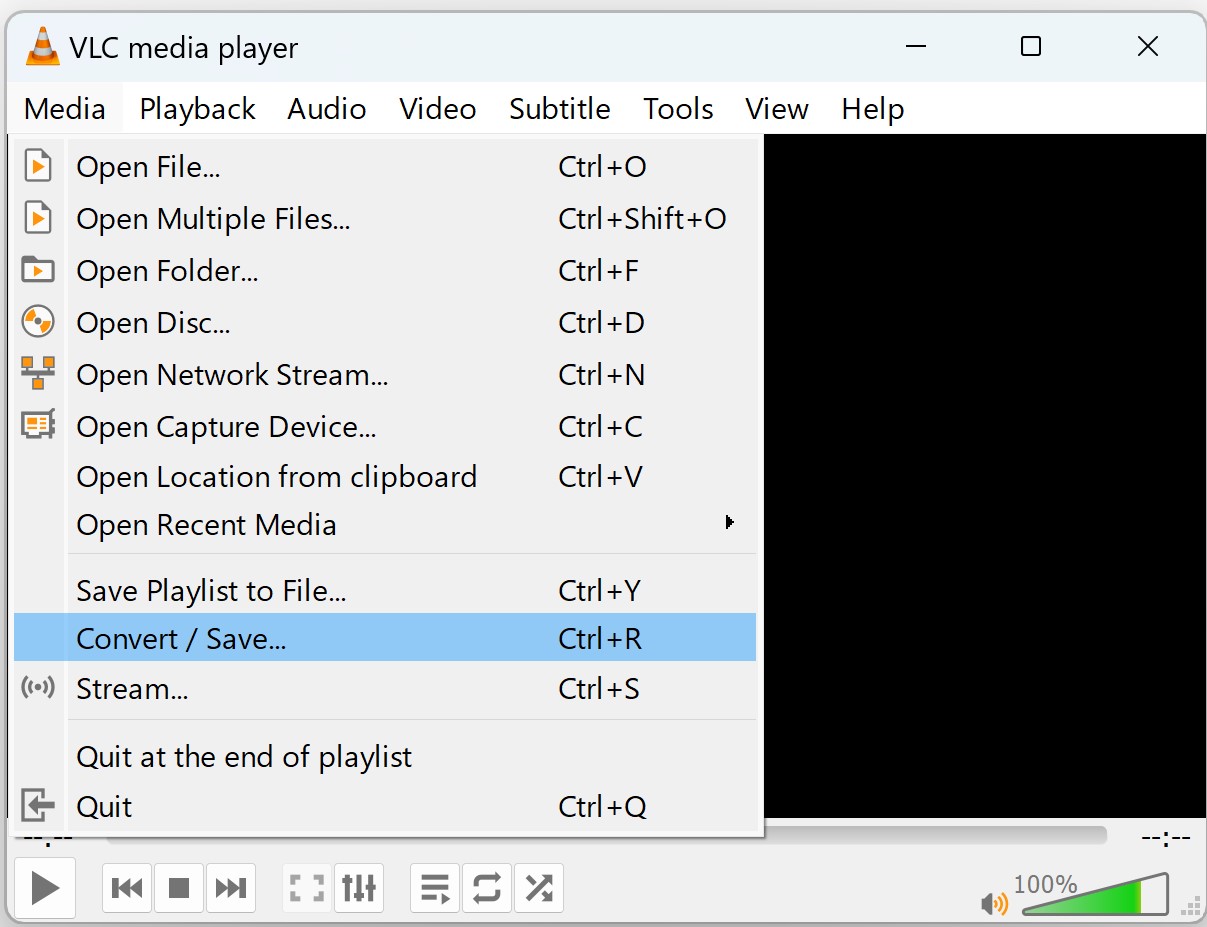
Launch VLC. At the top of the screen, click Media, then select Convert / Save from the dropdown.
You can also press Ctrl + R on Windows (or Cmd + R on Mac) to jump straight there.
Step 3 - Add Your Source File
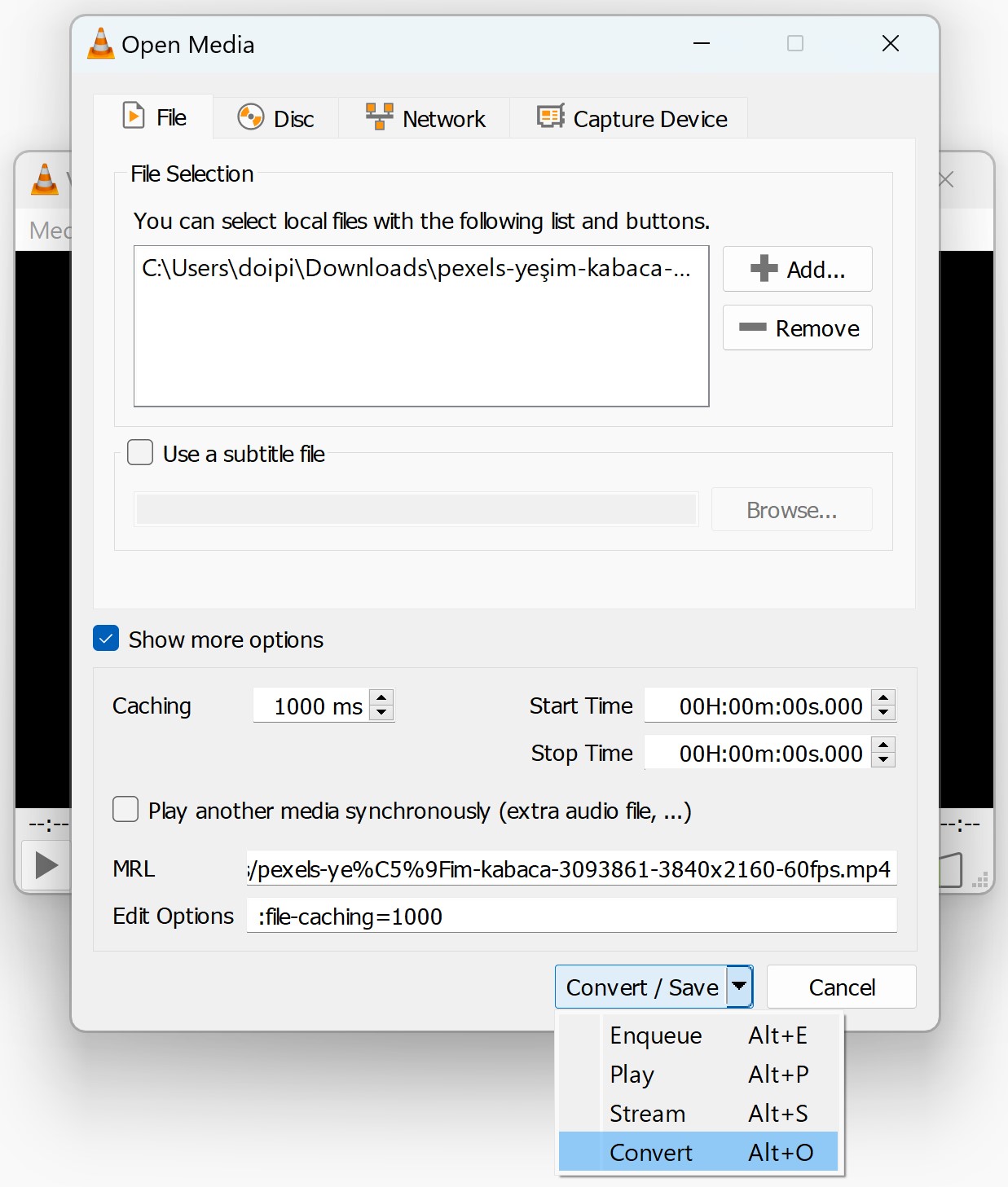
In the Open Media window, stay on the File tab. Click Add, browse to the video or audio file you want to convert, and select it.
You can add multiple files to convert them one after another. Once your file appears in the list, click Convert / Save at the bottom.
Step 4 - Choose Your Output Format
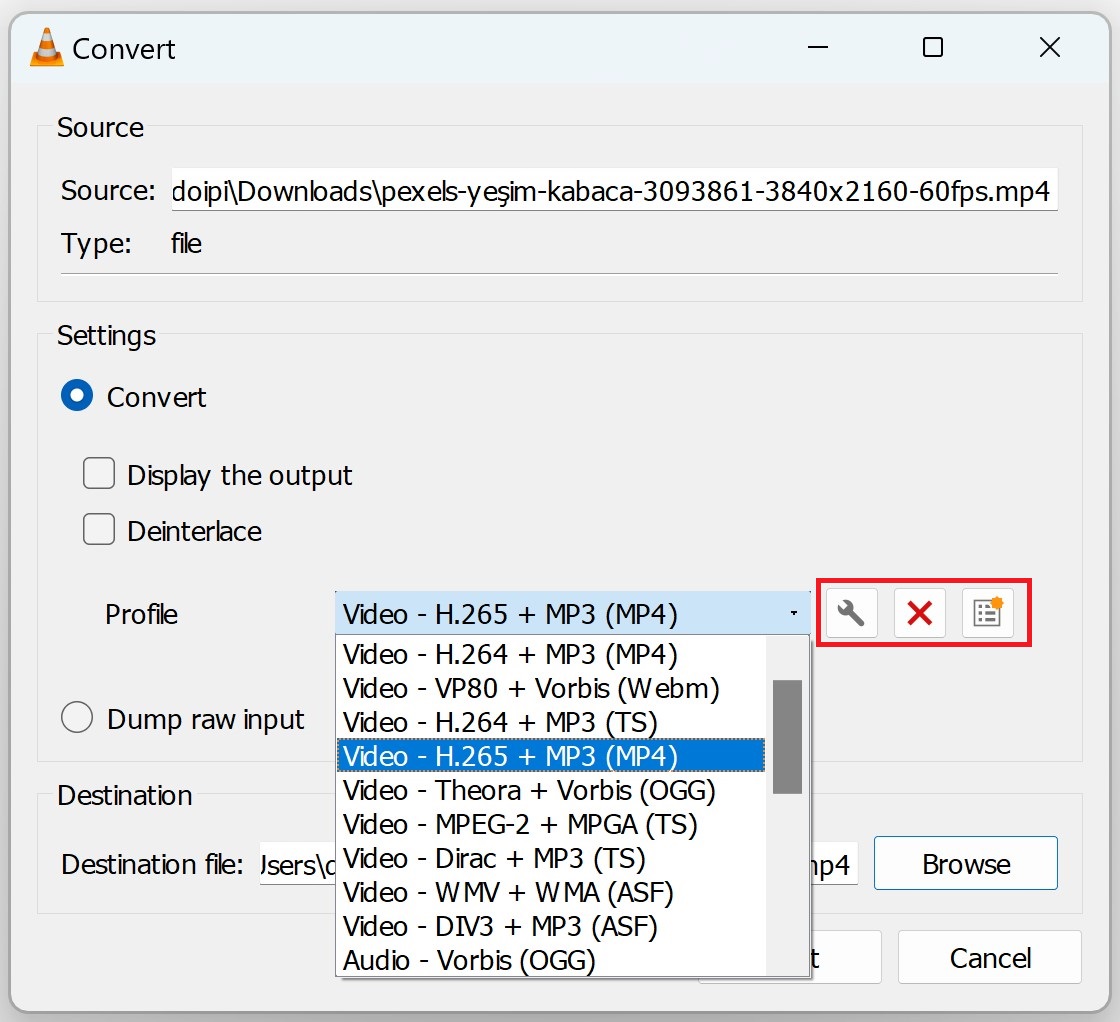
The Convert window shows a Profile dropdown. This is where you pick your output format.
VLC includes profiles for the most common use cases right out of the box:
- Video - H.264 + MP3 (MP4) - best all-round compatibility, plays everywhere.
- Video - VP80 + Vorbis (WebM) - good for web use.
- Audio - MP3 - extracts and converts audio only.
- Audio - FLAC - lossless audio, larger file size.
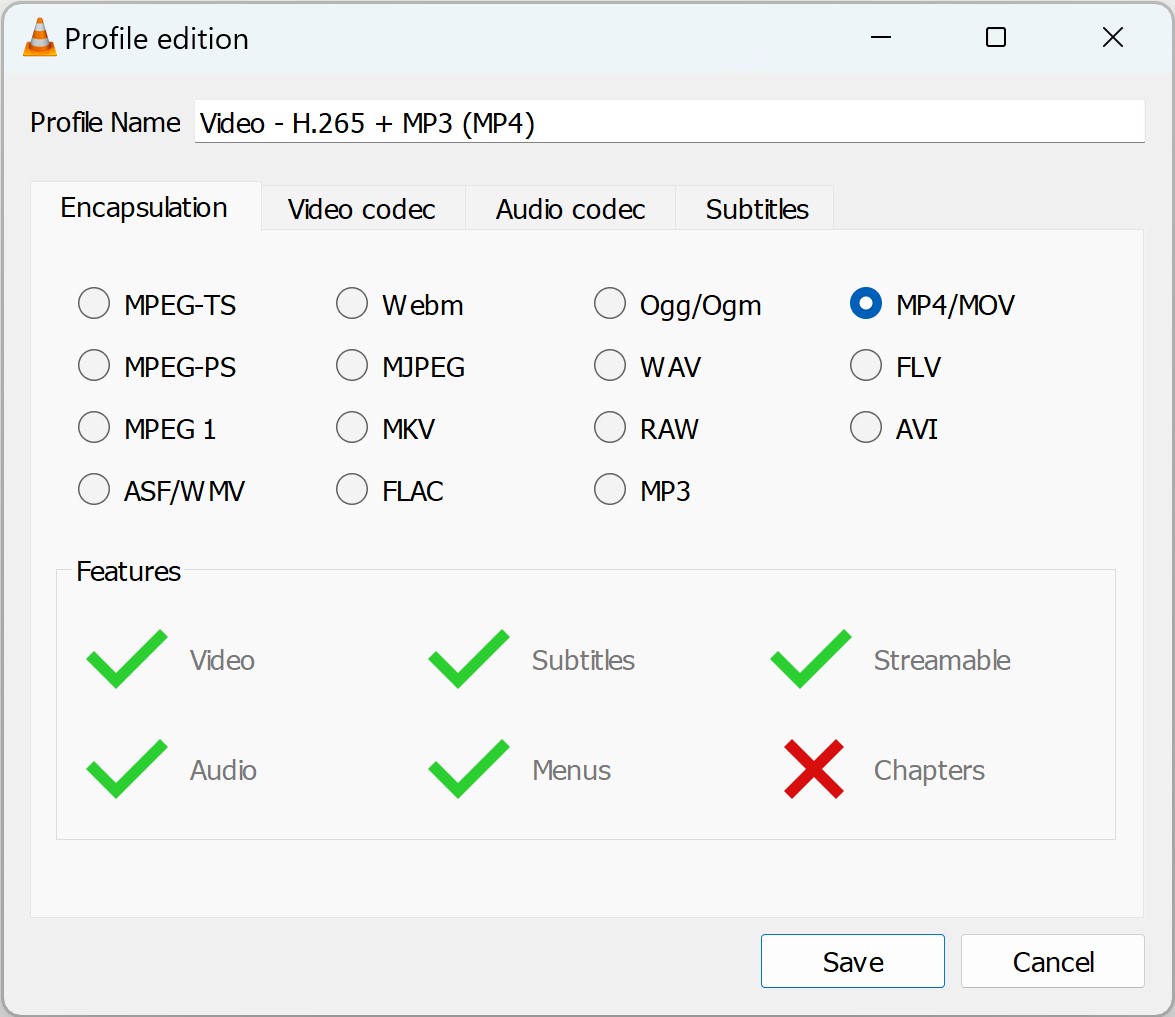
- Video - H.265 + MP3 (MP4) - smaller files, needs a modern device.
It works on virtually every device and platform, from older TVs to modern phones. If you're converting for a specific device, check its supported formats first.
Step 5 - Tweak the Settings (Optional)
Next to the Profile dropdown, click the wrench / settings icon to open advanced codec options.
Here you can adjust video resolution, bitrate, frame rate, and audio codec. Most users can skip this step entirely - the default profile settings produce good results.
Step 6 - Set the Destination File
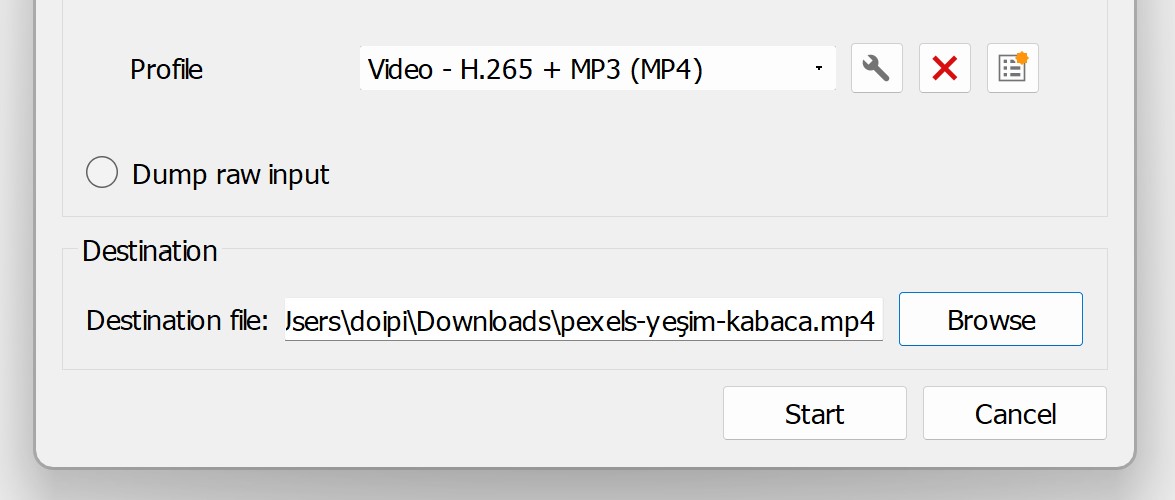
Under Destination, click Browse. Choose a folder and give your output file a name - and make sure it has the right file extension.
For example, if you chose the MP4 profile, name the file output.mp4. VLC won't add the extension automatically - so this step matters.
Step 7 - Start the Conversion
Click Start. VLC's playback bar will act as a progress indicator. Don't panic - VLC won't play the video. It will silently work through the conversion.
Conversion speed depends on file size, output format, and your CPU. A 1 GB video typically takes 5-15 minutes on a modern machine.
When the progress bar reaches the end and VLC returns to its normal state, the conversion is complete. Find your file in the destination folder you chose.
Common Problems and How to Fix Them
Output file plays with no video (black screen)
This usually means the video codec in your chosen profile doesn't match the container. Try switching to the Video - H.264 + MP3 (MP4) profile, which is the most compatible option.
Output file has no audio
Open the Profile settings and check the audio codec tab. Make sure the audio codec is enabled and set to MP3 or AAC.
Conversion finishes instantly with a tiny file
This happens when VLC can't read the source file's codec. Install the K-Lite Codec Pack first - it gives VLC access to a much wider range of codecs.
Source file is DRM-protected
VLC cannot convert DRM-locked files (e.g. some purchased downloads or rental streams). This is a legal and technical limitation that applies to all free converters.
When VLC Isn't Enough - The Next Step Up
VLC's converter is great for quick jobs. But for heavy-duty or batch conversion work, you'll want a dedicated tool.
HandBrake is the go-to free alternative. It gives you precise quality control, GPU-accelerated encoding, batch queue support, and device-specific presets.
It handles almost anything VLC struggles with - and it's still completely free.
Need online conversion?
If you need to convert a file quickly without installing anything, check out Convertico.com - a free online converter with support for video, audio, and image formats. No sign-up required.
Frequently Asked Questions
Can VLC convert video files for free?
Yes - VLC includes a fully functional converter under Media > Convert / Save.
It supports MP4, MKV, AVI, MP3, FLAC, and many more formats at zero cost.
What formats can VLC convert to?
VLC converts to MP4 (H.264/H.265), MKV, WebM, OGG, TS, ASF, MP3, FLAC, and OGG Audio, using its built-in profile list.
Is VLC conversion good quality?
It's solid for everyday use - good enough for format compatibility fixes and audio extraction.
If you need precise quality control or high-resolution encodes, HandBrake delivers better results.
Why does VLC show a progress bar but produce a broken file?
Usually a profile mismatch or an unrecognized source codec.
Try the H.264 + MP3 (MP4) profile first, and install K-Lite Codec Pack if VLC still can't read the source.




Don't Open a .xmpeg File Before Reading This
3/5It's never a good sign when the potential malware you downloaded has the EXACT same filename as the example. ...
Read More →Free Popular IPTV Playlist: Where to Get Fres...
3/5How can you create a DSTV channels on IPTV?
Read More →How to Download HEVC Video Extension for Free
5/5Does anyone have the HEVC Video Extensions as an .exe file and can provide a download link?
Read More →