ChromeOS Flex runs straight from a USB stick, so you can try Google's operating system on an old laptop without touching what is already on the drive.
What this actually gets you
A full working ChromeOS desktop, booted from the stick, with your Windows installation left exactly as it was.
It is a test drive rather than a move.
The whole job is three things: download Google's image, write it to a stick with Rufus, and tell your PC to boot from it.
Nothing you do in this mode is saved. Google is explicit that downloads and settings collected while live booting do not persist, so treat the session as a demo and keep anything you care about somewhere else.
What you need
- A 64-bit Intel or AMD PC or Mac, with full access to its BIOS settings.
- 4GB of memory and 16GB of internal storage, which is Google's stated floor.
- A USB stick of 8GB or more, with nothing on it you want to keep.
- About 20 minutes, most of it waiting for a download.
Google does not support processors from 2012 or earlier, or Nvidia graphics from 2014 or earlier. Older machines than that may still boot, but you are on your own if they misbehave.
Check your model against Google's certified models list before you plan around this. Certified models are tested against every update; decertified and never-certified ones still get updates, but Google stops checking them against your hardware first.
Step 1: get the ChromeOS Flex image
Google ships ChromeOS Flex as a compressed BIN file, not an ISO. There are two ways to get it and they suit different people.
The Chromebook Recovery Utility is Google's own recommended route and the easier one. It is a Chrome extension that downloads the image and writes the stick in a single pass, so there is nothing to extract and no tool to configure.
The manual download is the one to pick if you want Rufus to do the writing. Grab the latest recovery image from Google's ChromeOS Flex build list, then unpack the .bin.zip with 7-Zip to get at the BIN file inside.
Step 2: write the stick with Rufus
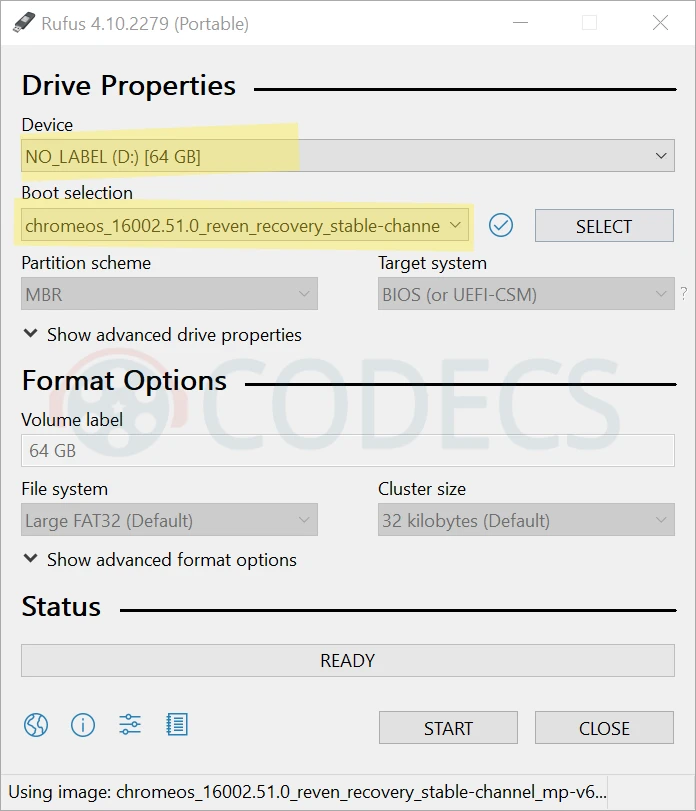
- Open Rufus. The portable build runs from the file you downloaded, with nothing to install.
- Pick your stick under Device. Everything on it will be erased.
- Click SELECT. In the file browser, change the filter in the bottom-right corner from 'ISO Image' to 'All files'.
- Choose your unpacked BIN file. Without that filter change it will not appear in the list at all.
- Leave every other setting alone and click START. Rufus reads the image and sets the rest itself.
- Confirm the erase warning and wait. Five to ten minutes on a USB 3 drive, longer on an old one.
If Rufus cannot see your BIN file, the filter is the reason nine times out of ten. It defaults to ISO images and hides everything else.
Step 3: boot from the stick
Restart and tap the boot menu key as the logo appears. It is F12 on most Dell, Lenovo and Toshiba machines, Esc or F9 on HP, F12 or F2 on Acer, Esc or F8 on ASUS, F11 on MSI, and the Option key on a Mac.
Pick the USB drive from the list. If it is not offered, look in the BIOS for Secure Boot and turn it off, and check whether the machine is set to UEFI or Legacy.
Either boot mode can be the right one here. Google notes that some devices only install ChromeOS Flex with the boot mode set to Legacy, so if UEFI refuses, switching is a legitimate fix rather than a bodge.
Step 4: choose 'Try it first'
The welcome screen offers two paths, and the one you want is Try it first. The other one installs to your hard disk and erases Windows.
After that it is a normal setup: language, keyboard, network, then sign in with a Google account or carry on as a guest. Wired ethernet connects on its own.
Everything you do from here is temporary. Live booting also has no automatic updates, and it runs at the speed of your USB stick rather than your disk, so judge the experience generously.
What it is like to use
ChromeOS Flex is a browser with an operating system wrapped around it. Google Docs, Sheets, Gmail, YouTube and the web version of Office all work exactly as they do in Chrome on Windows.
What it does not do is run Windows programs. There is no Photoshop, no desktop Office, no games beyond what streams or runs in a browser tab, and Linux app support is a settings toggle rather than a solution for most people.
Speed depends almost entirely on the stick. A USB 3 drive reading above 100MB/s feels like a slow laptop; a cheap USB 2 stick feels like a broken one, and that is the drive's fault rather than the operating system's.
If you decide to keep it
Installing to the internal disk fixes the speed, restores automatic updates and takes about 20 minutes. It also erases the disk completely, so back up first.
From the login screen, click the clock in the corner, choose Install ChromeOS Flex and follow the prompts. Remove the stick when it finishes.
Worth thinking about before you do: a machine that fails Windows 11's checks has another option, and the case for and against upgrading unsupported hardware lays out how the two compare.
If Rufus is not your tool
Ventoy is the better answer if you test operating systems often. You copy image files onto the stick and it boots any of them, so ChromeOS Flex can sit alongside Ubuntu and a Windows installer without reformatting.
balenaEtcher is the one to use on a Mac or a Linux box, where Rufus does not run. It verifies what it wrote, which is worth having on a flaky stick.
The rest of the bootable-USB tools live on the SSD and USB tools page if neither of those fits.
Getting back to Windows
If you only ran it from the stick, there is nothing to undo. Shut down, pull the drive out, restart, and Windows is exactly where you left it.
If you installed over Windows and changed your mind, you need installation media to put it back, and the guide on creating a bootable Windows recovery drive covers that with the same tool you used here.
Quick questions
Will running it from USB touch my Windows installation?
No, as long as you choose 'Try it first' and not 'Install'. The stick boots on its own and the hard disk is left alone.
Are my files saved when I shut down?
No. Google states plainly that downloads and settings from a live-booted session do not persist, so save anything you make to Google Drive or another drive before you shut down.
Why can Rufus not see the file I downloaded?
Because the file browser is filtering for ISO images and the ChromeOS Flex image is a BIN. Change the filter in the bottom-right corner to 'All files' and it appears.
Do I have to use Rufus at all?
No. Google's own Chromebook Recovery Utility downloads and writes the stick in one step, and it is the simpler route if you have no reason to do it by hand.
My PC is not on the certified list. Does that matter?
It will probably still boot. What you lose is Google testing updates against your hardware, so an update can break something specific to your machine without anyone catching it first.
Can I run Windows programs on it?
Not directly. ChromeOS Flex runs web apps and, optionally, Linux apps - anything that needs Windows has to stay on the machine you are testing this on.


Latest reviews
AllHow to Stream With VLC: Open a Stream URL or Send Your Own
5/5This is amazing! I could no longer afford cable so I cut the cord and started watching Hulu, Youtube, ...
Don't Open a .xmpeg File Before Reading This
3/5It's never a good sign when the potential malware you downloaded has the EXACT same filename as the example. ...
Free Popular IPTV Playlist: Where to Get Fresh, Legal M3U Li...
3/5How can you create a DSTV channels on IPTV?