Microsoft has confirmed that its November hotpatch for Windows 11 can stop apps, Office among them, from installing or opening.
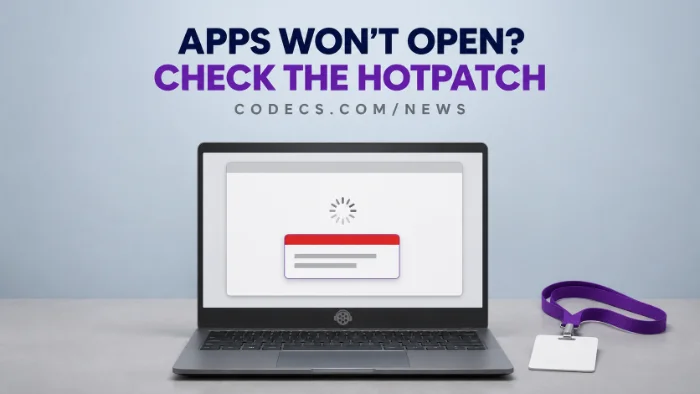
The good news for most readers: Windows 11 Home and Pro PCs do not get hotpatches, so this bug is very unlikely to be yours.
It hits work and school PCs that an IT team manages.
Here is how to tell in a minute, what to do if it is your PC, and what to try if your apps are failing for some other reason.
What Went Wrong
The update is hotpatch KB5132043, released on 10 November 2026 for Windows 11 24H2, 25H2 and 26H2. It moves those PCs to builds 26100.9911, 26200.9911 and 26300.9911, according to Microsoft's notes for the update.
After it, some apps refuse to install or fail to start, and reports quote the error code 0xC0000099. Microsoft named Office among the apps hit and listed the problem as a known issue on 19 November.
It also shared a registry change as a temporary workaround. That change is meant for IT staff, not for you to type in yourself.
What a Hotpatch Is, and Who Gets One
A hotpatch is a small security update that fixes Windows while it is running, so the PC does not need to restart. A full update with a restart still arrives every few months.
Only business and school editions get them, such as Windows 11 Enterprise and Education, and only when an IT team has switched hotpatching on through Microsoft's management tools. Microsoft lists the full rules on its hotpatch page.
Home and Pro PCs got the normal November update instead, which needs a restart and is not part of this bug.
Is Your PC Affected?
- Check your edition. Open Settings, then System, then About, and read the Edition line - if it says Home or Pro, you are not affected.
- Check your build. Press Win + R, type winver and press Enter - a build ending in .9911 means the hotpatch is installed.
- Check your update history. In Settings, open Windows Update, then Update history, and look for a hotpatch entry carrying KB5132043.
PCs on the normal November update show a different build, for example 26300.9974 on 26H2.
If It Is Your Work PC
Tell your IT team, and give them two things: the update number KB5132043 and the error code your app showed. They can apply Microsoft's workaround to every affected PC at once.
Microsoft is also asking affected businesses to contact its business support for help. Managed PCs get other IT-only features too, such as the new remote lock screen.
Leave the registry alone:
On a work PC, editing the registry yourself can break company policy and make the problem harder for IT to fix. Wait for them, or for Microsoft's permanent fix.
Apps Not Opening on a Home PC? Try These
If your PC runs Home or Pro, something else is going on. These steps fix most apps that stopped opening after an update, in this order:
- Restart, do not shut down. A restart finishes any update that was waiting, while shutting down can leave it half done.
- Finish Windows Update. Open Settings, then Windows Update, click Check for updates and install whatever is waiting.
- Update the app itself. An old app version can clash with new Windows files, and our guide shows how to update all your apps at once.
- Repair the app. Go to Settings, then Apps, then Installed apps, click the three dots next to the app and choose Advanced options or Modify, then Repair.
- Reinstall it. Uninstall the app, restart, and install a fresh copy from the maker's own site or the Microsoft Store.
- Remove the latest update as a last resort. Settings, Windows Update, Update history, then Uninstall updates - but put it back once a fix is out, because it carries security patches.
Video player will not start?
Keep a second player on hand while you sort it out. VLC Media Player carries its own codecs, so it usually plays your files even when another player will not open.
Quick questions
Does the hotpatch bug affect Windows 11 Home or Pro?
No. Hotpatches only go to business and school editions such as Enterprise and Education, managed by an IT team. Home and Pro PCs got the normal November update instead.
What is KB5132043?
It is the November 2026 security hotpatch for Windows 11 24H2, 25H2 and 26H2, released on 10 November. It installs without a restart, and Microsoft has confirmed it can stop some apps from installing or opening.
What does error 0xC0000099 mean?
It is the code reported when an app fails to start on a PC with this hotpatch. On a work PC, pass it to your IT team along with the update number.
Should I use the registry workaround myself?
Not on a work PC - leave it to IT, who can apply it properly. On a Home or Pro PC it does not apply, because you do not have the hotpatch.
When will Microsoft fix it for good?
Microsoft has not given a date. A fix is likely in a later update, and managed PCs will receive it automatically.
The bottom line
If you are on Windows 11 Home or Pro, this bug is not yours, so work through the home fixes above. If it is a work PC with build .9911, tell IT about KB5132043 and let them apply Microsoft's workaround.







Latest news comments
What readers are saying AllI was having the same error issue with the dead playlist link the other guy above did. Thank you so much for ...
Team replied News: Free USA IPTV Playlist: The American TV That Is Really Free 2 commentsInteresting development with the Fire TV Stick 4K — losing Kodi sideloading is a big deal for a lot of users. For those ...
News: The New Fire TV Stick 4K Can't Run Kodi - Here's Which Fire Stick Still Can 3 commentsBrave just enabled it by default for stable users yesterday (1.97). Not specified is chromeOS will be passively gaining decode capability too, and ...
Team replied News: JPEG XL Is Back in Chrome: What It Means and How to Open JXL Files 1 comment