Windows 11 is testing Remote Lock, which lets a company lock a lost work laptop from anywhere without wiping a single file.
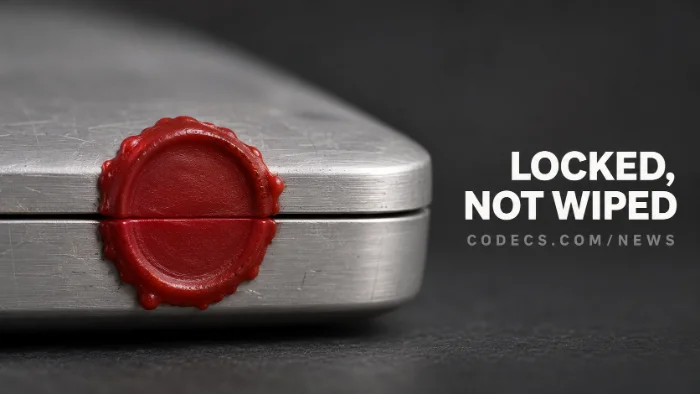
Once it's on, no password, PIN or admin account gets you back in.
If your screen says "Your organization has locked this device", only your IT team can open it again.
Here is what Remote Lock does, what to do if it happens to you, and how to protect your own laptop at home.
What Remote Lock Does
Until now, IT teams had two bad options for a missing Windows laptop. They could hope nobody guessed the password, or wipe it, even if it turned up at reception the next morning.
Remote Lock is the middle ground. When IT sends it from Microsoft Intune, the company's device management service, Windows does this:
- Signs everyone out. Every open session closes and the sign-in options disappear.
- Shows a locked screen. By default it reads "Your organization has locked this device", and IT can add a reason and a help desk contact.
- Keeps your files. Nothing is erased or moved, and BitLocker drive encryption stays on.
- Stays locked. Restarting the laptop or taking it offline doesn't lift the lock.
Seeing "Your Organization Has Locked This Device"?
This is not a virus, and it's not something you can fix yourself. No password reset, PIN or local admin account works, by design.
- Read the screen. IT can add a reason and a phone number or email for the help desk there.
- Contact your IT team. Use another device, and tell them the laptop's name if you know it.
- Connect to the internet. Once IT lifts the lock, the laptop has to check in before it opens again.
Your work account itself still works, so you can keep using it on another PC or your phone in the meantime. IT blocks the account separately if that's what was compromised.
Watch out for fakes:
A real Remote Lock screen never asks you to pay, call a premium number or install anything. If a "locked" message in a web browser does, it's a scam - close the browser.
Who Gets It, and When
Remote Lock is in preview build 29708, released on 13 November to the Experimental (Future Platforms) Insider channel. Microsoft hasn't said when regular PCs get it.
It's for company devices only. The PC needs Windows 11 Pro, Enterprise or Education and has to be managed through Intune, so a personal laptop at home will never see this screen.
There are limits, and Microsoft names them itself. A laptop that is offline only locks when it next connects, and the lock doesn't block Safe Mode, the recovery screen or booting from a USB stick, which is why BitLocker matters.
The Same Build Also Changes PINs and Recovery
- Simpler PINs. On personal accounts, setting up a Windows Hello PIN now asks for at least six digits, with an option for four, and drops the rules about letters and banned number patterns.
- Cloud rebuild. A recovery option that reinstalls Windows and its drivers from Windows Update, even when Windows won't start.
- WebP tags. File Explorer can now add tags and other details to WebP images.
Cloud rebuild is already rolling out on some PCs, and our guide to reinstalling Windows 11 without a USB stick shows where to find it. Face unlock feeling slow? See our Windows Hello fixes.
How to Protect Your Own Laptop at Home
Home PCs don't get Remote Lock, but Windows 11 already has two free features that do most of the same job. Both take a minute to switch on.
- Turn on Find my device. Go to Settings > Privacy & security > Find my device, sign in with a Microsoft account and switch it on.
- Turn on encryption. In the same section, open Device encryption (or BitLocker on Pro) and switch it on, so your files stay unreadable if the drive is taken out.
- Lock it if it goes missing. On another device, sign in at account.microsoft.com/devices, choose the laptop, select Find my device and then Lock.
Save your recovery key:
With encryption on, Windows sometimes asks for a recovery key after a big update or a hardware change. It's stored in your Microsoft account, so check you can find it before you need it.
Running Windows 11 23H2 on a work or school PC? It has just had its final security update, so it's worth checking your version.
Quick questions
What does "Your organization has locked this device" mean?
Your company's IT team has locked the laptop remotely, usually because it was reported lost or stolen. Only they can unlock it.
Can I unlock it with my password or PIN?
No. No password, PIN, local admin account or web sign-in works on a remotely locked PC. The unlock has to come from IT.
Does Remote Lock delete my files?
No. Files stay where they are and the drive stays encrypted. You pick up where you left off once IT unlocks it.
Can I use Remote Lock on my home PC?
No, it needs a business edition of Windows managed through Intune. At home, use Find my device to locate and lock a lost laptop.
When will Remote Lock reach everyone?
Microsoft hasn't said. It's in an early Insider preview for now, and features there can still change before release.
The bottom line
Remote Lock means a lost work laptop no longer has to be wiped to be safe, and only IT holds the key. At home, Find my device plus encryption gets you most of the way there today.









Latest news comments
What readers are saying AllI was having the same error issue with the dead playlist link the other guy above did. Thank you so much for ...
Team replied News: Free USA IPTV Playlist: The American TV That Is Really Free 2 commentsInteresting development with the Fire TV Stick 4K — losing Kodi sideloading is a big deal for a lot of users. For those ...
News: The New Fire TV Stick 4K Can't Run Kodi - Here's Which Fire Stick Still Can 3 commentsBrave just enabled it by default for stable users yesterday (1.97). Not specified is chromeOS will be passively gaining decode capability too, and ...
Team replied News: JPEG XL Is Back in Chrome: What It Means and How to Open JXL Files 1 comment