If your Bluetooth headphones sound like an old phone line the moment you join a call in Windows 11, it is not broken hardware - it is the microphone switching the connection into a low-quality mode.
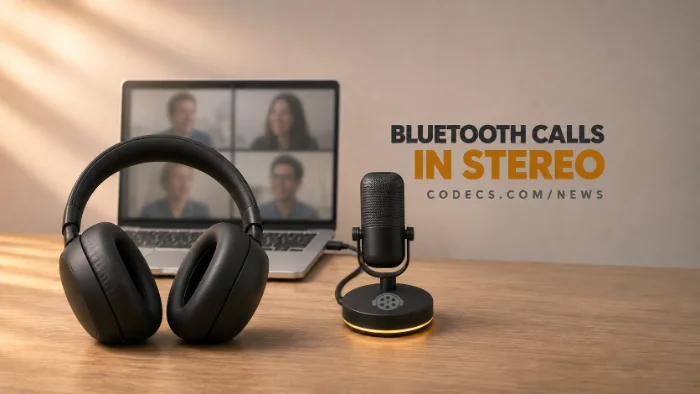
You can fix it today on most PCs, usually in under a minute.
And Microsoft's 20 November Insider build goes further, with full 48 kHz stereo while the mic is on.
Here is why it happens, the fixes that work now, and how to tell if your PC will get the upgrade.
Why Your Headphones Go Muffled When the Mic Turns On
Classic Bluetooth headphones have two modes. One plays rich stereo music, the other carries your voice both ways, and it can only do that by squeezing the sound down to a thin mono signal.
As soon as Discord, Teams, Zoom or a game turns on the headset microphone, Windows has to use the second mode. Music, game audio and voices all drop to that phone-call quality until the mic is released.
Newer headphones that support Bluetooth LE Audio do not have this problem in the same way. On a PC that supports it too, Windows 11 can keep stereo playing while the mic is open.
Fix 1: Use a Different Microphone
The quickest fix is to stop using the headset mic. If the headset is only playing sound, it stays in its good stereo mode.
- Open Sound settings. Press Win + I, then go to System and Sound.
- Pick another input. Under Input, choose your laptop's built-in microphone, a webcam mic or a USB mic.
- Check the app too. In Discord, Teams or Zoom, open the audio settings and set the microphone to the same device - apps often ignore the Windows default.
Want to hear how that mic sounds before a call? Record ten seconds in the free Audacity and play it back.
Fix 2: Switch Off the Headset Mic Completely
If an app keeps grabbing the headset mic anyway, you can hide it from Windows. You lose the headset mic, but music and game sound stay in stereo every time.
- Open the old Control Panel. Press Win + R, type control printers and press Enter.
- Open the headset's properties. Right-click your headphones, choose Properties, then open the Services tab.
- Untick Hands-free Telephony. Click OK - to undo it later, tick the box again.
Fix 3: Turn On LE Audio, If Both Sides Support It
If your headphones and your PC both support Bluetooth LE Audio, Windows 11 version 24H2 and newer can already keep stereo while the mic is on. It only works on PCs that shipped with LE Audio support and have up-to-date Bluetooth drivers from the maker.
- Check the LE Audio switch. In Settings, go to Bluetooth & devices, then Devices, and look for "Use LE Audio when available" - turn it on if you see it.
- Open the headset's output settings. Go to System, Sound, click the arrow next to your headphones under Output, then Output settings.
- Look for "Format when microphone is active". Set it to Stereo (2 channels) - if the option is missing, your PC does not support stereo with the mic on.
Crackling or dropouts?
Microsoft's own advice is to switch that same setting back to Mono (1 channel). Updating the Bluetooth driver from your PC maker's support page is worth a try first.
What the New Insider Build Adds
Today's LE Audio stereo uses "super wideband" quality, a big step up from a phone call but still trimmed at the top end. The 20 November Experimental build, 26340.10032, adds a new choice in the same menu: "2 channels, 16 bit, 48000Hz".
That is full-range stereo, the same sample rate most music and game audio uses, while you talk. Microsoft lists game chat, calls, voice typing and Copilot voice chat as the uses.
The fine print.
It needs LE Audio headphones that support 48 kHz playback and a PC that supports super wideband stereo. It is rolling out gradually to Experimental Insiders only, and Microsoft has not said when it reaches everyone.
Who Should Look Elsewhere
If your headphones make no sound at all, this is the wrong fix - our guide to fixing silent Bluetooth headphones covers that. If it is the microphone that apps cannot find, start with the 2-minute mic and webcam fix.
And if the sound is stereo but still flat, it may simply be the headphones. A system-wide equaliser such as Equalizer APO can add back bass and clarity for every app.
Quick questions
Why do my Bluetooth headphones sound bad when I use the mic?
Classic Bluetooth switches to a hands-free mode to carry your voice, and that mode only sends low-quality mono sound. Using a different microphone keeps the headphones in stereo.
How do I know if my headphones support LE Audio?
Check the box or the maker's spec page for "LE Audio" or "LC3". On the PC side, a "Use LE Audio when available" switch in Bluetooth settings means Windows can use it.
Why is "Format when microphone is active" missing?
Windows hides it when your PC, driver or headphones do not support stereo with the mic on. A Bluetooth driver update from your PC maker sometimes adds it.
Can I get the 48 kHz option now?
Only on Windows Insider Experimental build 26340.10032 or later, and even then it rolls out gradually. Most people should wait for it to reach normal updates.
Does disabling Hands-free Telephony break anything?
It removes the headset microphone from Windows, so calls need another mic. Music and game sound work as normal, and you can tick the box again any time.
The bottom line
Use another mic for calls and your headphones stay in stereo. If your PC and headphones both support LE Audio, switch on stereo in Output settings today - the 48 kHz upgrade will follow in a later update.






Latest news comments
What readers are saying AllI was having the same error issue with the dead playlist link the other guy above did. Thank you so much for ...
Team replied News: Free USA IPTV Playlist: The American TV That Is Really Free 2 commentsInteresting development with the Fire TV Stick 4K — losing Kodi sideloading is a big deal for a lot of users. For those ...
News: The New Fire TV Stick 4K Can't Run Kodi - Here's Which Fire Stick Still Can 3 commentsBrave just enabled it by default for stable users yesterday (1.97). Not specified is chromeOS will be passively gaining decode capability too, and ...
Team replied News: JPEG XL Is Back in Chrome: What It Means and How to Open JXL Files 1 comment