PowerPoint will not take your video and it is asking for a 'necessary (64-bit) codec' you have never heard of.
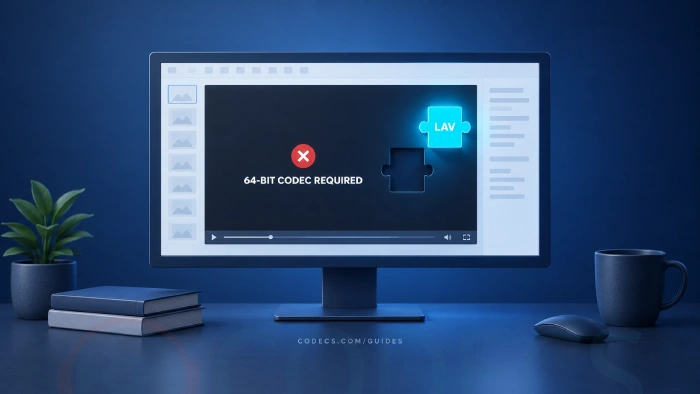
You do not need a mystery download from a search result.
You need one free decoder set, and it installs in about 90 seconds.
This page is the specific fix.
If your error does not mention 64-bit at all, start with our full PowerPoint video error guide instead, which covers the whole insert-video error.
"PowerPoint cannot insert a video from the selected file. Verify that the necessary (64-bit) codec for this media format is installed, and then try again."
What '64-bit Codec' Actually Means Here
Modern PowerPoint - 2016, 2019, 2021, 2024 and Microsoft 365 - installs as a 64-bit program by default.
When you insert a video, PowerPoint does not decode it itself. It asks Windows for a decoder, and that decoder has to be 64-bit to match.
If Windows only has 32-bit decoders, or none at all for that format, you get the error. It is not asking for a "PowerPoint codec" - there is no such thing. It is asking Windows for something Windows does not currently have.
Windows keeps decoders in two separate places, and this is the part most guides get wrong. Knowing which one you need is the difference between a 90-second fix and an afternoon.
- DirectShow is the older, broader layer that most desktop media software uses. LAV Filters is the standard free decoder set for it, and it covers the widest range of formats in one install.
- Media Foundation is the newer layer, and Microsoft fills its gaps with small free packages from the Store. These are the ones Microsoft itself points at for WebM and for H.265.
Most people are missing something on the DirectShow side, which is why one install fixes it for the majority. Start there, and use the Store packages if your file is WebM or H.265.
The Fastest Fix: LAV Filters
LAV Filters is the free decoder set that most Windows media software already relies on under the hood. It is built on the same FFmpeg libraries behind VLC and MPC-HC.
It ships native 64-bit builds, which is exactly what PowerPoint is asking for, and the installer puts the 32-bit ones in as well so you do not have to work out which you need.
One install covers H.264, HEVC, VP9, AV1, MPEG-2, MPEG-4, AAC, AC3, EAC3, DTS, FLAC and most other things you would reasonably put on a slide.
Step by Step: Installing the Decoder PowerPoint Wants
- Close PowerPoint completely. Check Task Manager and end any leftover POWERPNT.EXE process, because an open file locks the codec registration.
- Download it from the LAV Filters page. Take the installer rather than the ZIP archive - the ZIP needs registering by hand.
- Run the installer as Administrator. Right-click the file and choose "Run as administrator", or the 64-bit filters will not register properly.
- Leave the default components ticked. LAV Splitter, LAV Audio Decoder and LAV Video Decoder are the three pieces PowerPoint will go looking for.
- Leave everything checked on the formats screen. The defaults are correct, and you want LAV registered as the preferred decoder for whatever your video turns out to be.
- Restart the PC once. Not strictly required, but it clears the DirectShow filter cache properly - skip it and you may still see the error until your next sign-in.
- Reopen PowerPoint and insert the video again with Insert > Video > This Device. The error should be gone.
Old filters get in the way. If you ever installed Haali Media Splitter or Apple QuickTime, uninstall them first - both leave DirectShow filters behind that outrank LAV and will keep the error alive after a clean install.
When Microsoft's Own Free Packages Are the Right Answer
Two formats are the exception, and for both of them Microsoft publishes the fix itself. These are Store packages, not codec packs, and they are free.
If your file is WebM, install Web Media Extensions. Microsoft's supported-formats page says in plain words that this is what WebM with Vorbis audio needs before PowerPoint will take it.
If your file is H.265 or HEVC, install the free HEVC Video Extensions. Microsoft charges for one build of this and gives away another; the device-manufacturer one is the free build and it decodes the same files.
Neither of these replaces LAV Filters and neither conflicts with it. They fill different gaps, so installing both is fine.
The One-Click Alternative: K-Lite Codec Pack
If you would rather install a bundle than a single component, K-Lite Codec Pack is built around LAV Filters and adds a configuration interface, MPC-HC and the Codec Tweak Tool.
The Standard variant is enough for this job. Install it, accept the defaults, restart, and PowerPoint will find the 64-bit decoder it was looking for.
It is worth choosing over plain LAV for two reasons. You get MPC-HC to test whether the decoder actually took, and the Codec Tweak Tool can find and clear broken filters left behind by older codec packs.
If You Cannot Install Anything, Convert Instead
On a managed work laptop you may not have the rights to install a decoder at all. Converting the video sidesteps the whole problem.
Microsoft's own recommended format is MP4 with H.264 video and AAC audio, and PowerPoint accepts that combination with no extra codecs on any machine.
Open HandBrake, drag your file in, choose the Fast 1080p30 preset and press Start Encode. The MP4 that comes out will insert on any PC, including the one you are presenting from.
Still Getting the Error? Three Things to Check
These are the three that trip people up after a clean install.
- Your Office is 32-bit on 64-bit Windows. Check File > Account > About PowerPoint - if it says 32-bit, install the 32-bit LAV binaries alongside the 64-bit ones.
- The container is one PowerPoint refuses whatever you install. MKV and FLV are not on Microsoft's supported list, and no decoder changes that - remux or convert them to MP4.
- You are on Windows 10 or 11 N or KN. Those editions ship with the media components removed, so install Microsoft's free Media Feature Pack before anything else.
Why 'PowerPoint Codec Pack' Downloads Are Usually a Trap
Search for this error and you will find pages selling a "PowerPoint codec pack". PowerPoint has no codec of its own and never has - it borrows whatever Windows already has installed, the same as every other program on the machine.
So a product sold specifically for PowerPoint is one of two things. It is LAV Filters repackaged, often with adware bolted on, or it is a video converter charging you for what HandBrake does free.
The legitimate free options are the ones on this page: LAV Filters, K-Lite, and Microsoft's own two Store packages. Everything else advertised for this error is a middleman.
Quick questions
What is the best 64-bit codec to download for PowerPoint?
LAV Filters. It is free, ships native 64-bit builds, and is the same decoder layer sitting inside K-Lite and most Windows media players. One install clears this error for the large majority of formats.
Can I fix it without installing anything?
Yes. Convert the video to MP4 with H.264 video and AAC audio using HandBrake. PowerPoint accepts that combination natively, so no decoder is needed on the machine you present from.
Is there an official Microsoft codec download for PowerPoint?
Not a general one, but there are two specific ones. Microsoft publishes Web Media Extensions for WebM and HEVC Video Extensions for H.265, and its own supported-formats page names the first of those as a requirement. For everything else you need a third-party decoder set.
Why do I still get the error after installing codecs?
Usually one of three things: your Office is 32-bit while your codecs are 64-bit, the file is in a container PowerPoint refuses outright such as MKV or FLV, or an old splitter is outranking the new decoder. Check the bitness first, in File then Account then About PowerPoint.
Will installing LAV Filters break my other media players?
No. Most of them already use it internally, so a system-wide install tends to make playback more reliable rather than less. If you do hit a conflict, the Codec Tweak Tool that ships with K-Lite Codec Pack will find it.
One decoder set, one restart, and every video you try after this one goes in without an argument. If a specific file still fails afterwards, the file is the problem rather than the codec - convert it and move on.
Download LAV Filters and get your clip onto the slide, or tell us which file was refusing if it still will not go.


Latest comments
AllHola cuando descargo un video con mpc-hc lo descarga en formato webm en vez de mp4 o mp3
Team replied Guide: How to Stream Videos with MPC-HC 1 commentInteresting development with the Fire TV Stick 4K — losing Kodi sideloading is a big deal for a lot of users. For those ...
News: The New Fire TV Stick 4K Can't Run Kodi - Here's Which Fire Stick Still Can 3 commentsThanks genius, it worked for me. v2.4.149.0 on windows 10
Guide: How to Download HEVC Video Extension for Free 181 comments