YouTube Music streams at just 128kbps by default - that's lower quality than a basic MP3 from 2005. Most users never touch the hidden audio settings, leaving significant sound quality on the table.
Here's exactly how to unlock the full 256kbps streaming that Premium subscribers pay for but rarely use.
Why Your YouTube Music Sounds Worse Than It Should
YouTube Music uses two modern audio codecs - AAC and OPUS - that technically outperform older formats like MP3.
The problem isn't the codec. It's the default bitrate setting buried in your app's data saving menu.
At the default "Normal" setting, you're streaming at 128kbps.
That's fine for podcasts or background music, but audiophiles and anyone with decent headphones will notice the difference.
Bumping to "High" doubles your bitrate to 256kbps, delivering noticeably richer bass, clearer vocals, and better instrument separation.
Change Streaming Quality on WiFi
YouTube Music Premium gives you full control over audio bitrates.
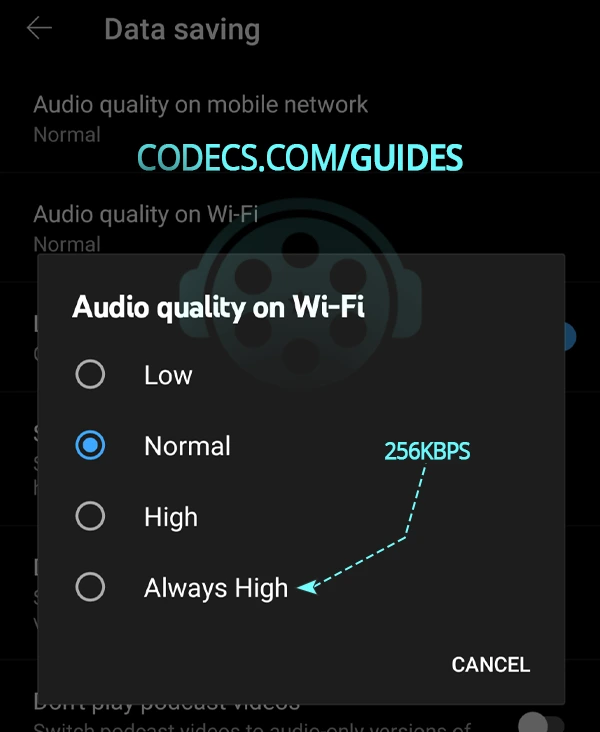
Here's how to maximize quality on WiFi:
- Open the YouTube Music app and tap your profile picture in the top right corner.
- Navigate to Settings → Data saving → Audio quality on Wi-Fi.
- Select your preferred streaming quality from the available options.
Available quality settings:
- Low: 48kbps AAC & OPUS - minimal data usage, suitable for slow connections.
- Normal: 128kbps AAC & OPUS - the default setting most users unknowingly accept.
- High: 256kbps AAC & OPUS - premium quality you're paying for.
- Always High: 256kbps AAC & OPUS even with poor connection (Premium only, regional availability varies).
Optimize Mobile Network Settings
Mobile streaming requires balancing quality against data consumption. Follow the same path but select Audio quality on mobile network instead:
- Tap profile picture → Settings → Data saving.
- Select Audio quality on mobile network.
- Choose your setting based on your data plan.
For users with limited data plans, consider enabling "Stream via Wi-Fi only" in the same menu. This prevents accidental mobile streaming while ensuring maximum quality when connected to WiFi.
Set Download Audio Quality for Offline Listening
Downloaded music stays at your selected quality permanently - there's no retroactive upgrade.
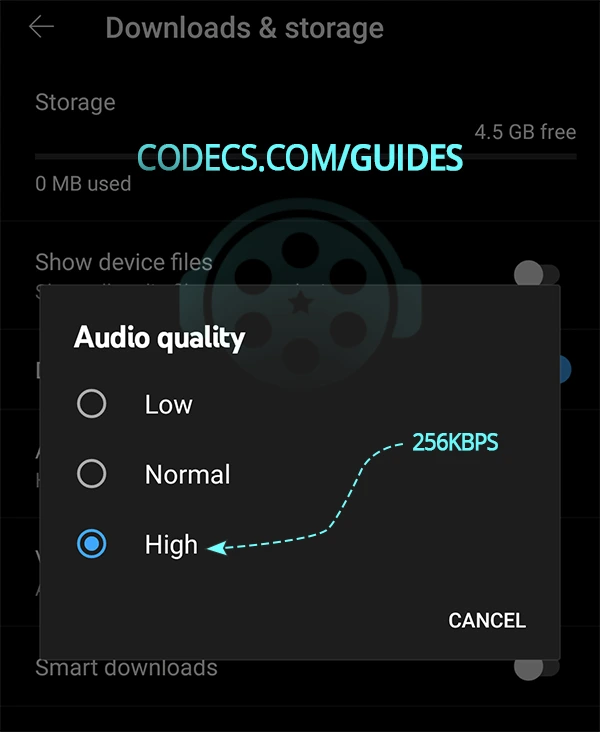
Choose wisely before building your offline library:
- Go to Settings → Download & storage → Audio quality.
- Select your preferred download bitrate before downloading any tracks.
Download quality options:
- Low: 48kbps - saves device storage but noticeably compressed.
- Normal: 128kbps - balanced option for casual listeners.
- High: 256kbps - maximum quality for critical listening.
Understanding AAC and OPUS Codecs
YouTube Music doesn't use MP3. Instead, it streams using AAC (Advanced Audio Coding) and OPUS - both significantly more efficient than legacy formats.
At equivalent bitrates, these codecs retain more musical detail. Even at 128kbps, AAC and OPUS deliver audio fidelity that MP3 only achieves at higher bitrates.
At 256kbps, you're approaching CD-quality transparency for most listeners.
OPUS particularly excels at lower bitrates, making it ideal for mobile streaming where every kilobit matters. The codec automatically adapts its compression strategy based on content type - applying different algorithms for speech versus music.
Boost Your Audio Further on Desktop
Streaming settings only go so far. For desktop listeners wanting even better sound, system-wide audio enhancement tools can push quality further.
FxSound (formerly DFX Audio Enhancer) works with any Windows audio source - including YouTube Music in your browser.
It rebuilds high-frequency information lost during compression, adds spatial depth, and enhances bass response without distortion.
For more granular control, Equalizer APO with Peace Equalizer provides professional-grade frequency adjustment.
You can compensate for headphone characteristics, boost specific frequency ranges, or apply preset profiles for different music genres.
Quick Settings Reference
Here's the optimal configuration for Premium subscribers who want the best possible sound:
- WiFi Streaming: High (256kbps) or Always High.
- Mobile Streaming: High if unlimited data, Normal otherwise.
- Download Quality: High (set before downloading).
- Data Saving Mode: Off (overrides quality settings).
These settings apply immediately - no app restart required. Open your favorite track and listen for the difference, particularly in complex passages with multiple instruments or deep bass content.
Start Listening in Higher Quality
The difference between 128kbps and 256kbps streaming won't revolutionize your listening experience, but it's a noticeable upgrade - especially through quality headphones or speakers.
Since Premium subscribers are already paying for access, there's no reason to leave audio quality on the table.
Open YouTube Music now, navigate to Settings → Data saving, and set all quality options to High. Your ears will thank you.



Free Popular IPTV Playlist: Where to Get Fres...
3/5How can you create a DSTV channels on IPTV?
Read More →EAC3 Audio Not Supported in MX Player? Fix It
4/5EAC3 Audio Not Supported in MX Player? Fix It
Read More →Best Way to Get VidMate APK - Fast, Free, and...
5/5The demand for feature-rich video editing applications continues to grow across the digital content industry. Filmora Mod APK is ...
Read More →