The iPhone 18 Pro reaches buyers on 18 September, and the first thing a lot of them will discover is that Windows will not open the videos it makes.
You copy the file across, double-click it, and get a black window, a silent player or an error about a missing codec.
Nothing is wrong with your phone, your cable or your PC.
Windows simply never shipped the decoder your new camera records with.
The short version. Your iPhone records video in HEVC, also called H.265. Windows needs a small free add-on to play it, and once that add-on is installed every one of those files opens normally, including the ones already sitting on your drive.
What Your New iPhone Actually Records
Apple's own iPhone 18 Pro specifications list four video formats and three photo formats, and the ones the camera reaches for by default are the two Windows struggles with most.
Here is what comes out of the phone, and what a stock Windows 11 PC does with each one.
| What the camera records | What lands on your PC | What Windows does with it |
|---|---|---|
| HEVC video, the default | A .mov file | Nothing, until you add the decoder |
| H.264 video | A .mov file | Plays straight away |
| HEIF photos, the default | A .heic file | No thumbnail and no preview |
| JPEG photos | A .jpg file | Opens normally |
| ProRes and ProRes RAW | A very large .mov file | No free decoder exists |
| Spatial video | A .mov file | Plays flat, without the depth |
The bottom two rows are new territory for most people, and they are covered further down. The top four are where nearly everybody gets stuck.
Why Windows Shows You Nothing
HEVC is patented, and the licensing is expensive enough that Microsoft never built free decoding into Windows the way it did for the older H.264.
You may have read that recent versions of Windows 11 include HEVC anyway. That is not quite true - whether it works without help depends on your graphics chip and on what your PC maker chose to license, which is why the same file plays on one laptop and not on another.
So it is worth knowing which side of that line your machine falls on before you assume the file is broken.
There are two versions in the Microsoft Store, and one of them costs money. The listing called HEVC Video Extensions is paid. The one called HEVC Video Extensions from Device Manufacturer does exactly the same job and is free, and that is the one linked below.
The Free Fix, In About Two Minutes
Before installing anything, you can settle the question in a few seconds by dropping one of the files into our browser-based HEVC player, which plays the file locally without uploading it anywhere.
If it plays there and not in Windows, the decoder is the whole problem. Here is how to fix it properly.
- Open the free HEVC Video Extensions from Device Manufacturer page and follow it through to the Microsoft Store.
- Install it. There is no setup wizard and nothing to configure - it registers itself with Windows.
- Double-click your video again. It plays, thumbnails appear in File Explorer, and the Photos app stops refusing them.
The download is around 10MB and it takes effect immediately, with no restart.
If you would rather not add anything to Windows itself, VLC Media Player carries its own HEVC decoder and opens the files without touching your system at all. The trade-off is that only VLC gains the ability - File Explorer thumbnails and the Photos app stay blank.
The Setting That Stops It Happening Again
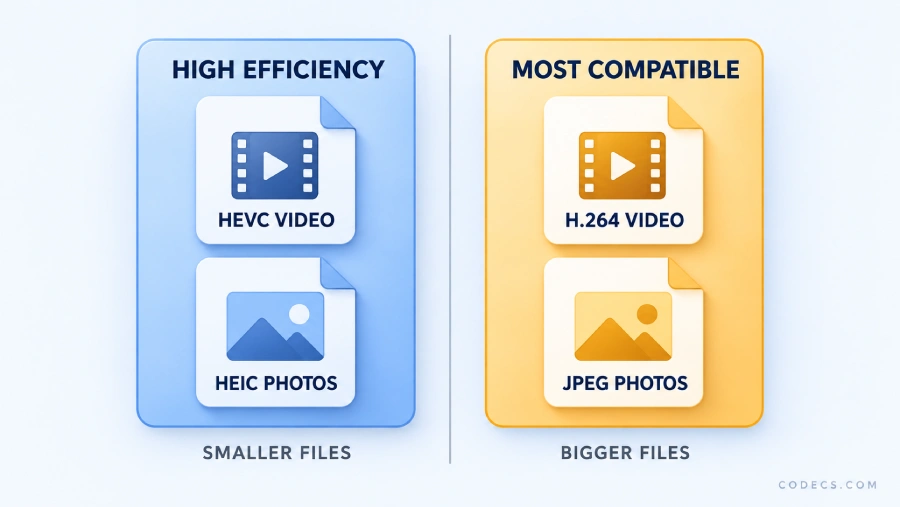
If most of your footage ends up on a Windows PC anyway, you can tell the phone to stop using the efficient formats altogether.
Go to Settings > Camera > Formats and switch from High Efficiency to Most Compatible. From then on the camera records H.264 video and JPEG photos, both of which Windows has opened without help for well over a decade.
The cost is size. The same clip takes noticeably more space, which is why Apple ships the phone the other way round in the first place.
This setting only governs the everyday camera. The Pro formats - ProRes, ProRes RAW and Apple Log 2 - are chosen separately when you shoot, and switching to Most Compatible does not turn them off or convert anything you have already recorded.
Your Photos Have the Same Problem
The photo half of this is HEIC, and it is more annoying than the video half because the failure is quieter - the files copy across perfectly and then sit in the folder as blank grey rectangles with no thumbnail.
CopyTrans HEIC is the simplest answer. It is free, it does not need a Microsoft Store account, and it teaches File Explorer to show HEIC thumbnails and previews the way it does for JPEGs.
It also adds a right-click option to convert to JPG, in batches, keeping the original date and camera information intact.
The Pro Formats Need More Than a Decoder
ProRes and ProRes RAW are a different matter, and they split in two. Ordinary ProRes plays in VLC already, and for ProRes RAW there is now a free Apple component for Windows - though it only works inside Adobe's editors, so the decoder is free and the editor is not.
Our guide to opening ProRes and ProRes RAW files on Windows walks through all three routes, including one that needs no editor at all.
They are also enormous. Apple's own guidance puts ProRes files at up to thirty times the size of the equivalent HEVC, which is why the phone will only record the highest settings straight to an external drive rather than to its own storage.
Spatial video is the other one worth knowing about. It copies to Windows and plays, but as an ordinary flat clip - the depth information needs a headset to mean anything.
Installing the decoder fixes playback, not colour. The iPhone records in Dolby Vision HDR, and once the file opens on Windows the picture can still look washed out and grey, because Windows and most players ignore the HDR information the phone wrote into it. That is a display problem rather than a codec problem, and it is worst in video editors.
Quick questions
Is the HEVC extension really free?
Yes, as long as you install the one called HEVC Video Extensions from Device Manufacturer. There is a paid listing with a nearly identical name that does the same job, and it is easy to land on by accident.
Does this work on Windows 10?
It does. Windows 10 machines are served an older build of the same component, which installs and plays HEVC exactly the same way.
Why do some of my iPhone videos play and others do not?
Because how you moved the file decides what you get. AirDrop, email and some sharing routes quietly convert to the older formats on the way out, while a direct USB copy or an iCloud download hands you the original HEVC file untouched.
Will switching to Most Compatible make my videos look worse?
No. The picture quality is the same, the files are simply bigger, because H.264 is less efficient at packing the same image into fewer megabytes.
Can I just convert everything to MP4 instead?
You can, but it is the slower answer and it costs a little quality every time. Installing the decoder once is quicker than converting every clip you ever shoot.
Does any of this apply to the iPhone Duo?
Yes. The foldable ships in October and records the same everyday formats, so the same decoder and the same camera setting apply to it.
One small free download turns every iPhone video on your drive back into something you can watch.
If you want the longer reference covering HEVC, HEIC and HEIF together, our guide to opening HEVC, HEIC and HEIF files on Windows goes through every case.
Download HEVC Video Extensions and try one of your files again, or tell us how you got on if your PC was one of the ones that played them all along.


Latest news comments
AllInteresting development with the Fire TV Stick 4K — losing Kodi sideloading is a big deal for a lot of users. For those ...
News: The New Fire TV Stick 4K Can't Run Kodi - Here's Which Fire Stick Still Can 3 commentsBrave just enabled it by default for stable users yesterday (1.97). Not specified is chromeOS will be passively gaining decode capability too, and ...
Team replied News: JPEG XL Is Back in Chrome: What It Means and How to Open JXL Files 1 commentI didn't know it was EU, AND france. That doesn't sound like a good idea. Related to coding or privacy.
News: Meet Qwant: The Private, EU-Built Alternative to Google 1 comment