The codecs Windows shipped with are still on your disk. When video stops playing after an update or a codec pack, you put them back rather than download them - here is how on Windows 11 and 10, with the original XP method kept at the end.
If a file that used to play now fails with a codec error, the decoder is usually still there and Windows has simply lost track of it.
This guide resets the built-in codecs on Windows 11 and 10 in order of least effort, so start at Fix 1 and stop when the file plays.
Nothing here costs money, and only one step involves a download.
First, check which codec is actually missing
The error text tells you a lot. Media Player and Movies & TV show 0xc00d5212 or "This item was encoded in a format that's not supported", and Windows Media Player Legacy shows codes starting 0xC00D11, such as C00D11B1.
All of those mean the same thing: Windows opened the file but could not find a decoder for one of the streams inside it. Sound with a black picture means the video codec is the problem; picture with silence means the audio codec is.
Before resetting anything, make sure the codec was ever there. On a clean install, HEVC, AV1 and MPEG-2 are optional extras, and if the file is one of those you want the free setup in Codecs for Windows 11 rather than this page.
Not sure what is inside the file? The Codec Troubleshooter asks three questions and tells you which decoder the file needs and where to get it.
Why default codecs stop working
Windows registers each decoder in the registry, and playback breaks when that registration disappears or something else grabs it first. Three causes cover almost every case.
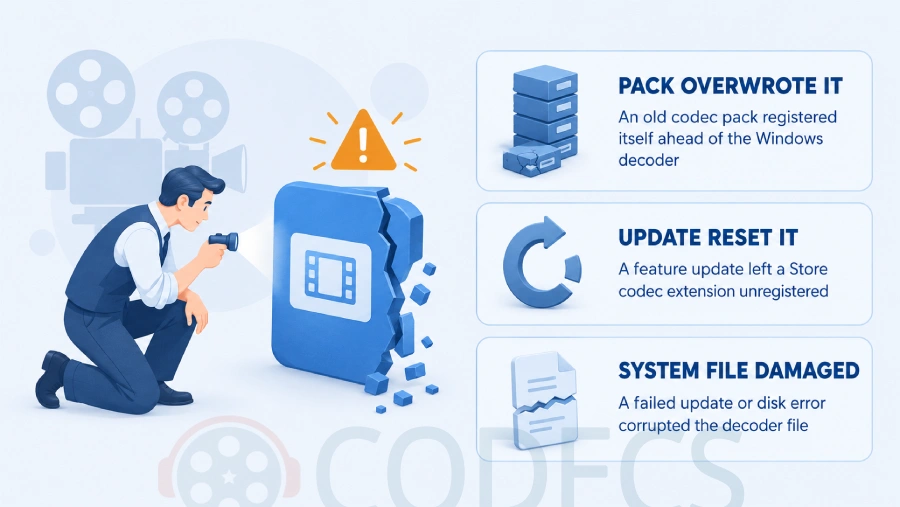
- A codec pack or old player overwrote it. Ancient packs, ffdshow and some players register their own filters ahead of the Windows ones, and a bad uninstall leaves dead entries behind.
- A Windows update reset it. A feature update can leave a Store codec extension unregistered for your account, and version 24H2 removed the AC-3 decoder from clean installs on purpose.
- A system file is damaged or a feature is off. A failed update or disk error can corrupt a decoder file, and on some PCs the whole Media Features group has been switched off.
Fix 1: Repair the Media Player app
The quickest reset touches only the app, not the codecs, so try it first. It takes under a minute and loses no files.
- Open Settings, then Apps, then Installed apps.
- Find Media Player, open its menu (the three dots) and choose Advanced options.
- Click Repair, then test the file - if it still fails, come back and click Reset.
- Do the same for Windows Media Player Legacy if you use it, or run Settings, System, Troubleshoot, Other troubleshooters, Windows Media Player.
On Windows 10 the path is Settings, Apps, Apps & features, and the entry may be called Movies & TV instead of Media Player.
Fix 2: Restore the built-in codecs with SFC and DISM
The decoders Windows ships with - H.264, MPEG-4, VC-1, WMV, VP8, MP3, AAC, FLAC, WMA and the rest - are ordinary system files. System File Checker rebuilds any that are damaged from Windows' own component store, which is the modern equivalent of the old "reinstall default codecs" wizard.
- Right-click Start and choose Terminal (Admin) on Windows 11, or Windows PowerShell (Admin) on Windows 10.
- Type sfc /scannow and press Enter, then wait for it to reach 100 percent.
- If it reports files it could not repair, run DISM /Online /Cleanup-Image /RestoreHealth, then run sfc /scannow again.
- Restart the PC and test the file.
DISM needs an internet connection because it pulls clean copies from Windows Update. On a slow link it can take twenty minutes, and it is normal for the progress bar to sit at 20 percent for most of that.
Fix 3: Re-register the Store codec extensions
HEVC, AV1, VP9, MPEG-2, HEIF and the Web Media codecs are not system files. They are small Store apps, and like any Store app they can end up installed but unregistered for your account after an upgrade or a new user profile.
- Open Settings, Apps, Installed apps and look for entries such as HEVC Video Extensions, AV1 Video Extension and VP9 Video Extensions.
- Open Advanced options on each one and click Repair, then Reset if needed.
- If an extension is missing from the list, open Terminal (Admin) and run the command below to re-register every video extension already on the disk.
Get-AppxPackage -AllUsers *VideoExtension* | ForEach-Object { Add-AppxPackage -DisableDevelopmentMode -Register "$($_.InstallLocation)\AppxManifest.xml" }
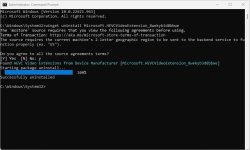
If the command finds nothing, the extension is gone rather than unregistered. The Media Foundation Codecs bundle reinstalls all of Microsoft's video and image extensions in one go, and for H.265 specifically the HEVC Video Extensions from Device Manufacturer is the free version of the listing the Store charges for.
Fix 4: Turn Media Features off and on again
Media Features is the Windows component that holds Media Foundation, Windows Media Player and the codec plumbing between them. Switching it off and back on reinstalls the whole group.
- Press Windows + R, type optionalfeatures and press Enter.
- Untick Media Features, click OK and restart.
- Open the same window, tick Media Features again, click OK and restart once more.
On a Windows N edition the box is not there at all, because N ships without media components. Install the Media Feature Pack instead - Settings, System, Optional features, View features on Windows 11, or Settings, Apps, Optional features, Add a feature on Windows 10.
Fix 5: Remove the codec pack that took over, then install one cleanly
If the trouble started after installing or removing a codec pack, an old player or ffdshow, the default codecs are probably fine and something else is answering first. This is the one fix that involves a download.
- Uninstall every codec pack and every standalone DirectShow filter from Installed apps, then restart.
- Install the K-Lite Codec Pack and accept the defaults - the Standard edition is enough.
- Open its Codec Tweak Tool from the Start menu, run Fixes, and let it remove any broken codec registrations it finds.
Why this works. K-Lite registers LAV Filters alongside the Windows decoders instead of replacing them, and the Codec Tweak Tool is the only common utility that can find and delete a dead registration left by something you uninstalled years ago.
The AC-3 case: a default codec Windows removed on purpose
If video plays with no sound and the file is an MKV, a TV recording or a DVD rip, check whether the audio is AC-3, also called Dolby Digital. Starting with Windows 11 version 24H2, clean installs no longer include the AC-3 decoder, so no amount of resetting brings it back.
PCs that were upgraded from an earlier version keep it, and some manufacturers preinstall it. On a clean install, either play the file in VLC Media Player, which carries its own AC-3 decoder, or install the K-Lite Codec Pack so every player on the PC gets it back.
What Windows 11 and 10 include by default
Use this to decide whether you are resetting something or installing something. It is based on Microsoft's own codec list as of May 2026.
| Codec | Status in Windows 11 and 10 | If it is missing |
|---|---|---|
| H.264, MPEG-4 Part 2, H.263, VC-1, WMV, VP8, VP9, Motion JPEG, DV | Built in | Reset with Fix 2 or Fix 4 |
| MP3, AAC, FLAC, ALAC, WMA, WAV, AMR, GSM 6.10, ADPCM, G.711 | Built in | Reset with Fix 2 or Fix 4 |
| HEVC (H.265), AV1, MPEG-2, HEIF, Ogg Vorbis and Theora | Free Store extensions, except the paid HEVC listing | Re-register with Fix 3, or reinstall from the links there |
| AC-3 (Dolby Digital) | Built in before 24H2, removed from clean 24H2 and later installs | VLC or the K-Lite Codec Pack |
| DTS, TrueHD, E-AC-3 and other surround formats | Never included | VLC or the K-Lite Codec Pack |
Still on Windows XP or 2000? The original method
This is the procedure this page was first written for in 2004, and it still works on those systems. It reinstalls the classic ACM and VCM codecs - Microsoft ADPCM, IMA ADPCM, GSM 6.10, G.711, RLE, Video 1, Cinepak and Indeo - from the copies Windows keeps on the disk.
- Open Start, Control Panel, Add Hardware, click Next, choose "Yes, I have already connected the hardware" and click Next again.
- Pick "Add a new hardware device" at the bottom of the list, click Next, then choose "Install the hardware that I manually select from a list (Advanced)".
- Select "Sound, video and game controllers", click Next, then choose "(Standard system devices)" under Manufacturer and click Have Disk.
- Click Browse, open C:\Windows\System32, select mmdriver.inf and click Open, then OK - click "Continue Anyway" if a logo warning appears.
- Pick the codec you need from the list, such as Microsoft ADPCM Audio Codec or IMA ADPCM Audio Codec, and click Next - one at a time, and keep the Windows CD handy.
- For video codecs, repeat from step 3 and choose "Video Codecs" under Model, then restart when you are done.
Do not use this on Windows 10 or 11. The same wizard still exists there under Device Manager, Action, Add legacy hardware, but it only knows about a handful of 1990s codecs and can leave duplicate entries. Fix 2 rebuilds the same files with none of the risk.
Quick questions
Can I reinstall the Windows codecs without downloading anything?
Yes. Fixes 1 to 4 use only what is already on the PC - the app repair button, System File Checker, DISM and the Media Features switch. A download is only needed if a Store extension has been deleted or you want a codec Windows never included.
What does error 0xc00d5212 mean?
Media Player opened the file but has no decoder for one of the streams inside it. Most often the file is HEVC from a phone or camera, which needs the HEVC extension, but it can also be a damaged or unregistered built-in codec, which Fix 2 and Fix 3 repair.
Why did my videos lose their sound after updating to Windows 11 24H2?
Clean installs of 24H2 and later do not include the AC-3 (Dolby Digital) decoder, so MKV files and TV recordings with AC-3 audio go silent. Upgraded PCs usually keep it. VLC or the K-Lite Codec Pack restores it for every player.
Do I have to reinstall Windows to reset the codecs?
No. SFC and DISM rebuild damaged codec files from Windows' own component store, and toggling Media Features reinstalls the whole media stack. A full reinstall is never needed for a codec problem.
Is it safe to install the K-Lite Codec Pack over the built-in codecs?
Yes. It adds DirectShow decoders alongside the Windows ones rather than replacing them, and its Codec Tweak Tool can remove the pack cleanly later. The problems come from stacking several packs, so uninstall any old one first.
Does this guide work on Windows 10?
Yes. Every fix applies to Windows 10 as well as Windows 11; only the Settings paths differ slightly, and the note under each fix gives the Windows 10 route.
Resetting the default codecs is a five-minute job, not a reinstall of Windows.
If the built-in decoders are fine and it is the file that needs more, download the K-Lite Codec Pack and let it fill the gaps, or tell us which fix worked if you have been through this.