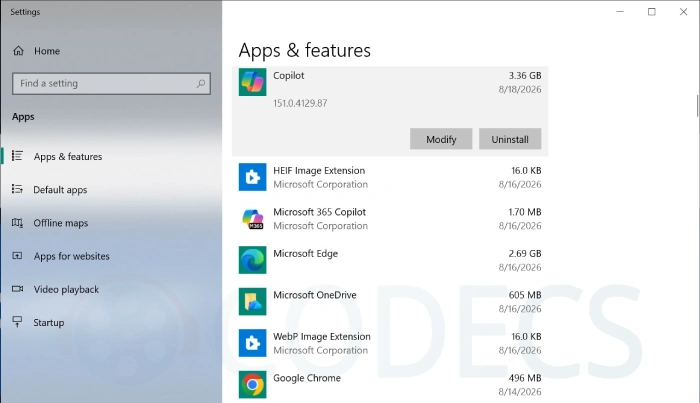
An app called Copilot appeared on Windows 10 machines this week, and Windows says it is using 3.36 GB.
Nobody clicked anything to get it.
It arrived through an update, installed itself quietly, and turned up in the app list with a size that made a lot of people look twice.
Here is what it actually is, why it is that big, and how to get rid of it.
What Actually Landed on Your PC
Open Settings, then Apps, then Apps and features, and sort the list by install date. Two entries turn up on affected machines, and they are not the same thing.
The first is Copilot, the consumer AI assistant, and it is the one carrying the enormous size figure. The second is Microsoft 365 Copilot, usually well under 2 MB, which is the small launcher Microsoft has been pushing to Microsoft 365 users since it resumed automatic installs in mid-2026.
The big one shows Modify and Uninstall buttons rather than the three-dot menu a Store app gets. That is a useful tell, and it matters later when you try to reclaim the space.
Worth knowing. The version string on the large entry looks like a browser version, four numbers long. That is not a coincidence.
Why It Is So Big
In April 2026 Microsoft rebuilt the Copilot desktop app. The old version was a small native Windows app that ran on well under 100 MB of memory.
The replacement is a web app with a complete browser engine packed inside it. Rather than borrow the Microsoft Edge WebView2 Runtime that is already on your machine, the app ships its own copy of the Edge and Chromium components it needs.
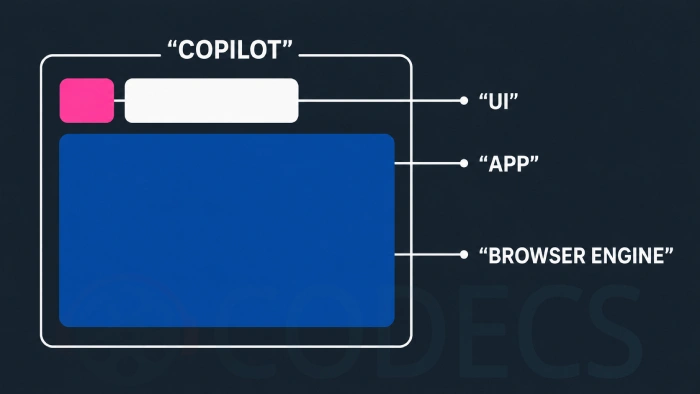
Windows Latest measured that embedded browser package at roughly 850 MB when the change first rolled out, with idle memory use around 500 MB and active use climbing towards 1 GB. So a large app was expected. A 3.3 GB one was not.
The likeliest explanation for the gap is ordinary update mess: an old version folder left in place beside the new one, plus cached runtime data that builds up as you use it. Microsoft has not published a figure, so treat that as a reasonable guess rather than a confirmed answer.
The size Windows shows for a desktop-installed app is a number the installer wrote into the registry when it ran. It is often wrong. Paste %LocalAppData% into the File Explorer address bar, find the Copilot folder, right-click it and choose Properties to see what is really on your drive.
How to Remove It on Windows 10
The straightforward route takes about a minute and needs no tools.
- Press Win + I to open Settings, then choose Apps.
- On the Apps and features list, set Sort by to Install date so the newest arrivals sit at the top.
- Click the Copilot entry, then click Uninstall and confirm.
- Do the same for Microsoft 365 Copilot if it is there - it is a separate app and a separate uninstall.
- Restart the PC, then check the app list again to confirm both are gone.
If you would rather use a command, open Windows PowerShell as administrator and run winget list to see the exact package IDs on your machine. The Store build usually removes with winget uninstall --id Microsoft.Copilot_8wekyb3d8bbwe.
For the Store-packaged version there is also a PowerShell one-liner: Get-AppxPackage -AllUsers | Where-Object {$_.Name -like '*Microsoft.Copilot*'} | Remove-AppxPackage -AllUsers. Run it from an administrator prompt.
Why the Space May Not Come Back
This is the part that catches people out. Apps installed through the Microsoft Store use a packaging format where removing an app is not the same as deleting it.
Microsoft's own engineering blog spelled this out in 2026: removing a package always unregisters it, but deleting the files underneath is conditional. The app vanishes from your list while the payload can stay on disk.
Desktop-installer entries, the ones with a Modify and Uninstall button, normally do delete their files properly. They still leave scattered caches and registry entries behind.
If your free space barely moved after the uninstall, that is the reason, and it is fixable. Revo Uninstaller Free exists specifically to sweep up the files and registry keys a standard uninstall walks away from.
For the leftover caches, any of the free drive cleaners will do the job.
- BleachBit - open source and the most thorough of the three.
- Wise Disk Cleaner - the gentlest one-click option if you would rather not think about it.
- CCleaner - the name most people already know, and still free.
Microsoft also ships its own free cleanup tool, and it is genuinely decent. Microsoft PC Manager clears junk files, trims startup entries and frees memory, with no paid tier waiting at the end.
Still short on space? Old driver packages are the other quiet hoarder on a Windows 10 machine that has been upgraded a few times. Driver Store Explorer lists what is safe to delete and usually finds several gigabytes.
How to Stop It Coming Back
Uninstalling solves today. Blocking solves next month, because Windows updates and Store updates are both routes back in.
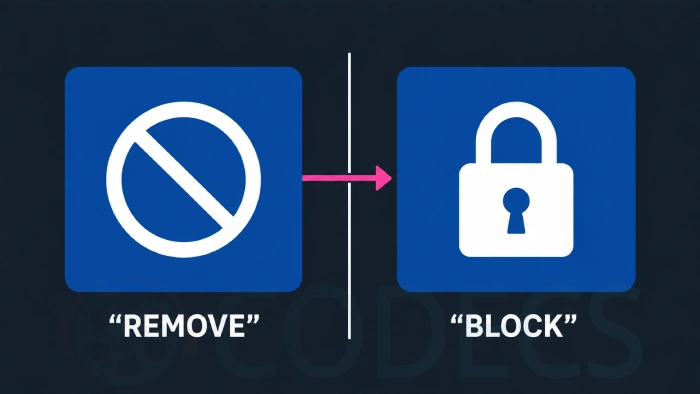
Start with the Store, since it is the easiest lever and it works on every edition. Open Microsoft Store, go to Settings, and turn off App updates.
Next, the registry key. Open regedit, navigate to HKEY_CURRENT_USER\Software\Policies\Microsoft\Windows\WindowsCopilot, creating those keys if they do not exist, then create a DWORD called TurnOffWindowsCopilot and set it to 1.
The catch. Microsoft has marked that policy for near-term deprecation and now tells administrators to use AppLocker instead. It still works today, but do not treat it as permanent.
On Windows 10 Pro, Enterprise and Education, AppLocker is the option Microsoft actually endorses. Add a publisher rule for package name MICROSOFT.COPILOT from Microsoft Corporation, version * and above, and Windows will refuse both to install it and to launch it.
If You Are on Windows 10 Home
Home has no Group Policy editor and no AppLocker, so the clean block is off the table. What is left still works, it just needs revisiting.
Turn off Store app updates, apply the registry key above, and put a note in your calendar to check the app list after each Patch Tuesday. It takes ten seconds and it is the only reliable way to catch a reinstall early.
To make the recheck painless, keep a removal script handy. Win11Debloat is a small PowerShell script that strips preinstalled apps on both Windows 10 and Windows 11, and re-running it is faster than clicking through Settings again.
If you would rather have the tweaks in a window than a terminal, CrapFixer collects a pile of the same Windows cleanup and privacy switches into one small portable toolbox.
One more thing. Windows 10 Extended Security Updates stop in October 2026, so this particular tug of war has a limited runway. If you are weighing up the jump on hardware Microsoft says is unsupported, FlyOOBE is the tool people use for it.
If You Actually Wanted an AI Assistant
None of this is an argument against AI tools. It is an argument against software that installs itself and helps itself to your drive.
If you want an assistant on the desktop, install one you chose. The ChatGPT desktop app is the obvious comparison, and it is a fraction of the size.
If you would rather not install anything at all, every one of these assistants runs perfectly well in a browser tab. Mozilla Firefox handles them fine, and there are plenty more in our web browser downloads.
The AI browser experiment has had a rocky year, mind you, as anyone following what happened to ChatGPT Atlas will recognise.
Quick questions
Is it safe to uninstall Copilot?
Yes. It is an ordinary application, not a system component, and nothing else in Windows depends on it. Removing it does not affect Windows Update, security patches or any other Microsoft app.
Why does it say 3.36 GB when reports say the app is under 1 GB?
The figure Windows shows for a desktop-installed app comes from the installer itself and is often inaccurate. Check the real folder size in File Explorer before assuming the number is right.
I uninstalled it but got no disk space back. What now?
Store-packaged apps can be removed without their files being deleted. Run Revo Uninstaller Free to clear the leftovers, then a cleaner such as HDCleaner for the caches.
Will it come back after the next Windows update?
It can. Turning off Microsoft Store app updates and applying the registry key above stops most reinstalls, but check your app list after each monthly update to be sure.
Does any of this work on Windows 11?
The uninstall steps and the registry key are the same on Windows 11, with the app list at Settings, Apps, Installed apps instead. AppLocker rules also apply identically on Pro and above.
Is there an all-in-one tool that does the cleanup for me?
Kudu Cleaner bundles more than fifteen cleanup and optimisation tools in one open-source package with no ads. Browse the rest in Other Tools.
Reclaim the space, then keep it
Uninstall the app first, then run a cleaner over what it left behind - start with the free drive cleaners and see how much comes back, or tell us what you found if Copilot has already turned up on your machine.


How to Stream With VLC: Open a Stream URL or ...
5/5This is amazing! I could no longer afford cable so I cut the cord and started watching Hulu, Youtube, ...
Read More →Don't Open a .xmpeg File Before Reading This
3/5It's never a good sign when the potential malware you downloaded has the EXACT same filename as the example. ...
Read More →Free Popular IPTV Playlist: Where to Get Fres...
3/5How can you create a DSTV channels on IPTV?
Read More →