MX Player refuses to play the sound on a film and shows "This audio format (EAC3) is not supported" - here is why, and how to get the audio back.
The short version: MX Player ships without the licensed Dolby decoders, and you add them back with a free add-on called the custom codec.
The part most guides skip is that the add-on has to match the version of MX Player you are running.
The fix in one line. Grab the current MX Player Custom Codec, then load the zip from Settings, Decoder, Custom codec.
Why MX Player cannot play EAC3
EAC3, also written E-AC-3 and sold as Dolby Digital Plus, is the audio track on a huge share of streaming rips, Blu-ray remuxes and 4K files. It is a licensed format, and the licence costs money per install.
The Play Store build of MX Player leaves those decoders out to avoid that cost. Nothing is broken on your phone and nothing is wrong with your file - the player simply has no legal decoder for that track.
The custom codec is a separate download that puts the missing decoders back. It covers EAC3, AC3, DTS, DTS-HD, MLP and TrueHD in one go, so it usually fixes several formats you had not run into yet.
Step 1: check your MX Player version first
This is the step that saves you an hour of frustration, so do it before you download anything.
Open MX Player, tap the three-dot menu, then Help and About, and note the version number. Then compare it against the version of the codec pack you are about to install.
Version mismatch is the number one reason this fails. A codec pack built for an older MX Player will be rejected by a newer app build, and the error message you get is often the same unhelpful "not supported" line.
The codec packs are maintained separately from the app and always lag behind it a little. When MX Player pushes a major update, there is usually a gap of days or weeks before a matching pack appears.
Our MX Player Custom Codec page lists every build we host, newest first, so you can pick the one closest to your app version rather than guessing.
Which codec version do you need?
Here is how the packs line up with the app, newest first. If you arrived here looking for the old 1.87.0 aio zip, it is still on the download page - it just is not the right pack any more unless you are running an equally old MX Player.
| Codec pack | Archive name | Use it with |
|---|---|---|
| 2.7.0 (current) | aio-v2.7.0_r0.zip | The newest MX Player builds. Start here. |
| 2.5.x | aio-v1.87.0_r6.zip | Fallback if 2.7.0 is rejected. |
| 1.90.1 | mx_aio.zip | MX Player on the 1.90 branch. |
| 1.87.0 r4 | aio-v1.87.0_r4.zip | Older 1.88 and 1.90 builds. The long-time favourite. |
The naming is confusing because the pack version and the app version are not the same number and never have been. Match by what the download page says a pack is for, not by matching digits.
Step 2: download the right codec file
Each pack comes in five flavours: one all-in-one archive, plus four builds for specific processor types.
- All-in-one (aio) - every architecture in one archive, around 25 MB. Pick this if you are not sure.
- neon64 - ARM 64-bit, which covers almost every Android phone sold in the last several years.
- neon - ARM 32-bit, for older or budget devices.
- x86 and x86_64 - Intel-style chips, rare on phones but common in Android emulators and a few tablets.
Do not unzip it. MX Player expects the zip file exactly as downloaded and will pick the correct library out of it by itself.
If you would rather match your processor exactly and save the storage, our guide on choosing the right MX Player custom codec walks through how to find your device architecture.
Step 3: load the codec into MX Player
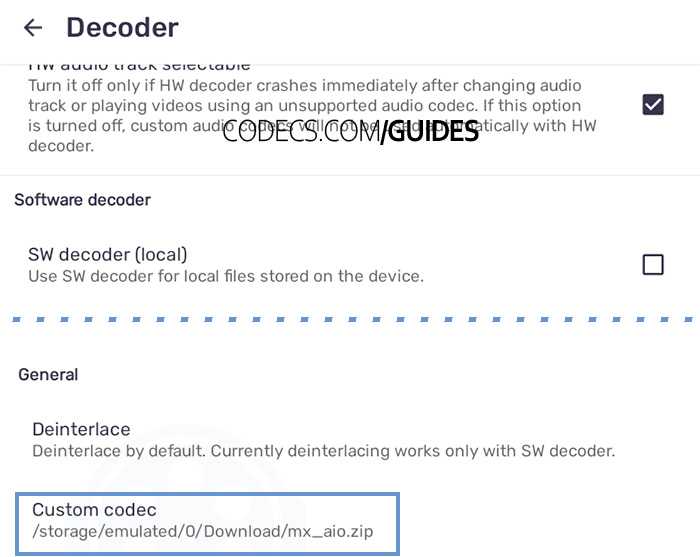
- Open MX Player and go to Settings.
- Tap Decoder and scroll to the bottom.
- Tap Custom codec.
- Browse to your Downloads folder and select the zip file you just saved.
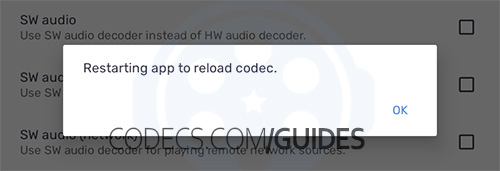
MX Player normally shows "Restarting app to reload codec" and closes itself. If it does not restart on its own, close it fully from your recent apps list and open it again.
Now play the file that failed. If the audio comes through, you are done, and every AC3, DTS and TrueHD file on your device is fixed too.
It still says EAC3 is not supported
Work through these in order. The first two account for the large majority of cases.
The codec version does not match your app. Go back to the download page and try the next pack down the list, or the next one up. This is unglamorous but it is what actually works.
The app updated in the background. Android may have quietly updated MX Player after you installed the codec, which silently invalidates it. Check the version again and reload the codec.
MX Player never restarted. A half-applied codec behaves exactly like no codec. Force stop the app from your Android settings, then reopen it.
You are on hardware decoding. In Settings, Decoder, turn on software decoding for audio and try the file again - the custom codec is a software decoder, so hardware mode can bypass it entirely.
The file has more than one audio track. Tap the audio icon during playback and switch tracks. Some releases carry a working AAC track alongside the EAC3 one.
If none of that works, roll the app back. Installing an older MX Player build that pairs with an available codec pack is a legitimate fix, and plenty of people run an older version for exactly this reason.
When to stop fighting and switch
The custom codec is worth the effort if you like MX Player's gestures and subtitle handling. It is not worth a whole evening.
The tell is simple: if you have tried two codec versions and both were rejected, a matching pack does not exist for your app build yet, and no amount of retrying will conjure one.
At that point you have two clean options. Use a player that decodes EAC3 out of the box - our roundup of the best media players for EAC3 playback covers the Android ones that need no setup at all.
Or, if it is one stubborn file rather than your whole library, re-encode the audio track to something universal. Our guide on how to convert EAC3 audio shows the quickest route.
Quick questions
Is the MX Player custom codec free?
Yes. It is a free add-on and there is no paid tier, no account and no unlock. Anything charging you for it is not the real thing.
Which file do I download if I do not know my phone's processor?
Take the all-in-one archive. It carries every architecture and MX Player picks the right one automatically, at the cost of roughly 25 MB of storage.
Is the 1.87.0 aio zip still the one to use?
Not any more, unless you are running an old MX Player to match. It was the go-to pack for a long time, so it is still what most people search for, but newer app builds will reject it. Work down from the current pack instead.
Why did my custom codec stop working after an MX Player update?
The pack is tied to the app build it was made for, so a major app update invalidates it. Reload a codec version that matches the new app, or roll the app back until a matching pack is published.
Do I need to unzip the codec file?
No. Point MX Player at the zip exactly as you downloaded it. Extracting it first is a common cause of the codec not loading.
Does the codec fix DTS and TrueHD as well?
Yes. The same pack adds AC3, EAC3, DTS, DTS-HD, MLP and TrueHD together, so one install usually clears several formats at once.
Is downloading a codec zip safe?
It is safe from a source you trust, and ours are virus-checked. Avoid random mirrors and anything bundled inside a modified MX Player APK.


How to Stream With VLC: Open a Stream URL or ...
5/5This is amazing! I could no longer afford cable so I cut the cord and started watching Hulu, Youtube, ...
Read More →Don't Open a .xmpeg File Before Reading This
3/5It's never a good sign when the potential malware you downloaded has the EXACT same filename as the example. ...
Read More →Free Popular IPTV Playlist: Where to Get Fres...
3/5How can you create a DSTV channels on IPTV?
Read More →