Two tools inside Hypic do the whole job - one blurs whatever you paint over, the other cuts your subject out completely.
Hypic - Photo Editor & AI Art is a free Android app, and both of these features are free with no watermark and no export limit.
A blurred background pushes your subject forward and hides a messy room behind it.
A cutout goes further and removes the background entirely, leaving a transparent image you can drop onto anything else.
Android only. Hypic is a phone app, and the version on this site is an Android APK. If you are on a PC, skip to the last section for the desktop equivalents.
Open Your Photo
Install the app, open it and pick the photo you want to work on. The main editing toolbar appears along the bottom of the screen.
If you have not installed it yet, download the Hypic APK first. It is worth running the file through the free APK Checker before you install it.
Our walkthrough on installing an APK safely covers the permission prompts Android will show you along the way.
Find the Blur Tool
This is the part that catches people out, because the blur is not where you would expect it. Swipe along the bottom toolbar, tap Cleanup, then tap Mosaic.
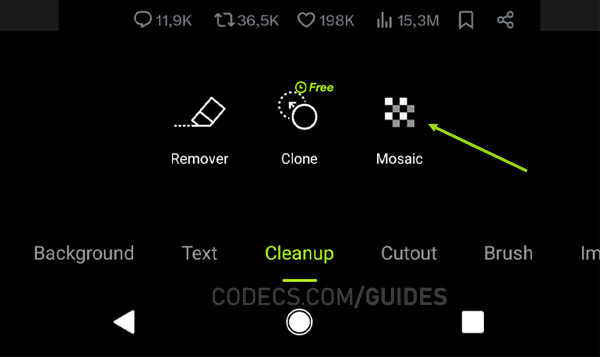
Mosaic sounds like it should only do the pixelated censoring effect, and that is why most people scroll straight past it. The blur brush lives inside it.
Paint the Blur Where You Want It
Inside Mosaic, choose Blur. Then use your finger as a brush and paint over whatever you want softened.
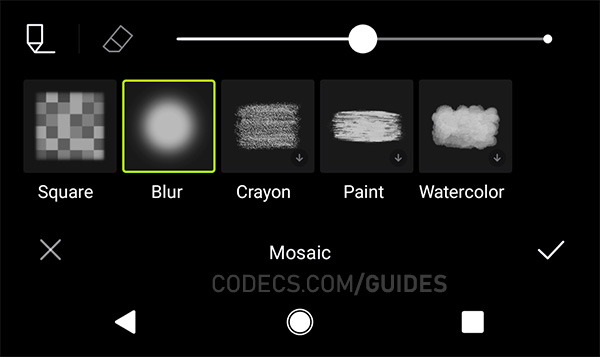
Because it is a brush rather than an automatic effect, you are not limited to the background. You can blur a face, a number plate, a logo on a shirt, or one distracting object while leaving everything else sharp.
Go over an edge by accident and the eraser puts it back. Nothing here is permanent until you commit it.
When it looks right, tap the tick in the bottom-right corner to apply.
Brush slowly around the edges of your subject. The most common giveaway of a phone-made blur is a soft halo where the brush overlapped the person, and going slowly at the boundary is the whole trick to avoiding it.
Removing the Background Completely
If you want the background gone rather than softened, go back to the toolbar and pick Cutout instead.
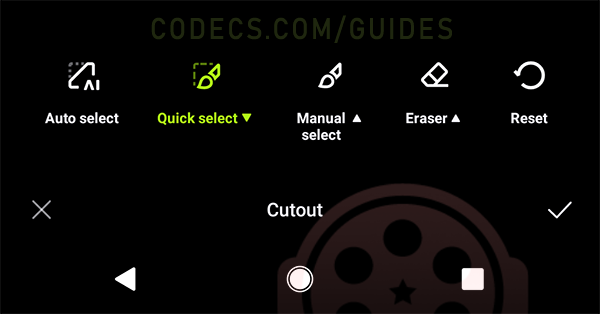
Tap Auto select and the app finds your subject on its own, usually in a second or two. On a clear photo with good separation between subject and background, that is often the entire job done.
Where it struggles is fine detail - hair, glasses frames, the gap between an arm and a body. Three tools fix that: Quick select adds a whole region, Manual select lets you draw precisely, and Eraser takes away anything the AI grabbed by mistake.
Zoom in before you refine. Edges that look clean at full-screen size often are not once the image is on someone else's display.
Save and Share
Tap Save when you are happy. Hypic can also post straight to social apps from the share sheet if the image is going out immediately.
Save a cutout as PNG rather than JPEG. JPEG has no transparency, so a JPEG cutout arrives with a white box behind your subject and the entire effect is lost.
If the finished image needs a signature or a watermark before you post it, the free watermark image maker does that in a browser without installing anything else.
If Hypic Is Not the Right Fit
Hypic is built for speed rather than precision, and a few jobs want a different tool.
- You want layered, reversible edits. Snapseed is the better choice, with proper selective adjustments and a full edit history.
- You shoot RAW. Adobe Lightroom for Android handles DNG and NEF properly, and RapidRAW covers it on a desktop.
- You want no telemetry. Image Toolbox is open source and strong on batch work, though it has no AI cutout.
- The photo is simply too low-resolution. No amount of blurring rescues it - Remini upscales first, then come back here.
On a PC, Microsoft Photos has its own background removal built in and needs nothing installed.
There are more desktop options in the graphics and editing tools category, and in the free image viewers for Windows listing if you only need to look rather than edit.
Everything else Hypic does for Android sits in the Android APK section, and if the AI side is what interests you, there is a separate guide on creating digital art with AI.
Quick questions
Is background removal in Hypic actually free?
Yes. Both Mosaic blur and Cutout are free with no watermark, no export limit and no cap on how many times you use them.
Why is the blur tool hidden inside Cleanup and Mosaic?
Hypic groups blur with its pixelation and object-removal tools rather than with the filters. It is not obvious, and it is the single thing people most often give up looking for.
Is there a Hypic version for Windows or Mac?
The version on this site is the Android app. On a desktop, Microsoft Photos has background removal built in, or use one of the editors in our graphics category.
Why does my cutout have a white background when I share it?
It was saved as JPEG, which cannot store transparency. Save the cutout as PNG instead and the background stays properly empty.
Can I blur just a face or a number plate instead of the background?
Yes, and that is what makes the brush useful. It applies blur wherever you paint, so it works just as well for hiding one detail as for softening everything behind your subject.
The APK will not install. What now?
Android blocks installs from unknown sources until you allow them for the app doing the installing. Our guide on APKs that will not open at all covers the other causes.
Two tools, a couple of minutes, and a photo that looks like it was taken on a better camera than it was.
Get Hypic for Android and try it on a photo with a messy background, or tell us how you got on if you have used it before.


How to Stream With VLC: Open a Stream URL or ...
5/5This is amazing! I could no longer afford cable so I cut the cord and started watching Hulu, Youtube, ...
Read More →Don't Open a .xmpeg File Before Reading This
3/5It's never a good sign when the potential malware you downloaded has the EXACT same filename as the example. ...
Read More →Free Popular IPTV Playlist: Where to Get Fres...
3/5How can you create a DSTV channels on IPTV?
Read More →