Windows 11 ships two media players, and a codec pack only teaches one of them anything new - which is why your file still will not open.

You installed a codec pack, restarted, opened your video, and Windows still refuses to play it.
Nothing is broken.
You are using the one of Windows 11's two media players that cannot see what you just installed.
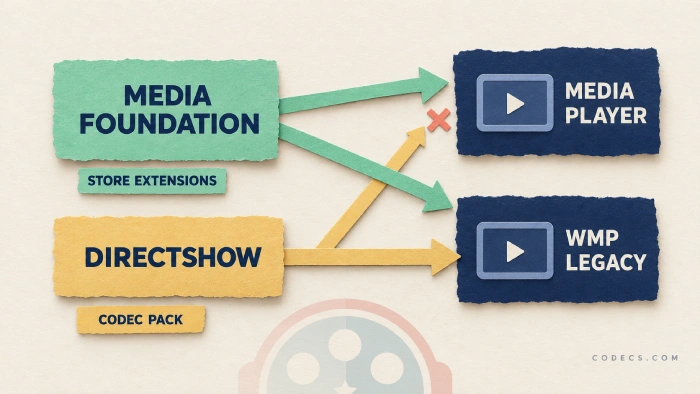
Windows 11 has the new Media Player app and the older Windows Media Player Legacy. The new app reads only Microsoft's own Media Foundation decoders plus extensions from the Microsoft Store.
Legacy reads those too, and it can also fall back on DirectShow decoders - which is exactly what a codec pack installs. So a codec pack widens Legacy and does nothing at all for the new app.
If you want one download that helps both, install the Media Foundation Codecs bundle and skip the rest of this page.
Two players, two decoder systems
Windows has two separate systems for turning a compressed video back into pictures. The old one is called DirectShow and dates to the late nineties; the modern one is called Media Foundation.
The new Media Player app is built entirely on Media Foundation. It never loads a DirectShow decoder, no matter what you install.
Windows Media Player Legacy is the classic desktop player, and it works the other way round. It uses the decoders Windows ships, and when it meets something it does not recognise it goes looking for a DirectShow decoder to do the job.
That single difference explains almost every "why does it play here but not there" complaint on Windows 11.
How to tell which one you have open. The new app has a dark rounded window with a sidebar down the left. Legacy has the old square window with a menu bar and skins, and its title bar says Windows Media Player Legacy.
Which player plays what
This is the practical version. Where the two players differ, the table says so.
| Format | Media Player (new) | WMP Legacy | What fixes it |
|---|---|---|---|
| MP4 or MOV with H.264 | Plays | Plays | Built in |
| MKV with H.264 | Plays | Plays | Built in |
| MP3, AAC, FLAC, ALAC, WAV, WMA | Plays | Plays | Built in |
| HEVC or H.265 | Needs an extension | Needs the right extension | Free HEVC extension, see below |
| AV1 | Needs an extension | Not confirmed | AV1 Video Extension, free |
| VP9 or WebM | Needs an extension | Not confirmed | VP9 Video Extensions, free |
| OGG, Vorbis, Theora | Needs an extension | Codec pack works | Web Media Extensions, free |
| MPEG-2, older .mpg and .vob | Paid extension | Codec pack works | Codec pack is the cheaper route |
| AC-3 Dolby Digital audio | Dropped from 24H2 | Codec pack works | Codec pack, or another player |
| DTS audio | No | Codec pack works | Codec pack, or another player |
| DVD video disc | No | No | Another player, nothing else |
| RealMedia and other oddities | No | Codec pack works | Codec pack, or another player |
Two of those cells say "not confirmed" on purpose. Store extensions are built for Media Foundation, and only the HEVC one has been properly tested in Legacy, so this page will not guess about the others.
If you want the full format list for Windows Media Player rather than the two-player comparison, the codecs and file types Windows Media Player supports covers it in detail.
Why your codec pack looks like it did nothing
A codec pack installs DirectShow filters. That is what the format has always meant, and it is what every well known pack still does.
So when you install K-Lite Codec Pack and then open a file in the new Media Player app, the app never even looks at what you installed. The file fails exactly as it did before.
Open the same file in Windows Media Player Legacy and it plays. The pack was fine; the player was the wrong one.
The trap this creates. People uninstall a working codec pack and install a second one, then a third, because the app they are testing in can never be fixed by any of them. Stacking packs is how you end up with conflicting filters and a machine that plays fewer files than it started with.
The extensions route, which is the one that fixes both
Microsoft publishes its missing decoders as small Store packages: HEVC, AV1, VP9, MPEG-2 and the Web Media Extensions for OGG. These plug into Media Foundation, which is why the new app picks them up immediately.
Installing them one at a time through the Store is slow and two of them cost money there. The Media Foundation Codecs bundle collects the free ones in a single install.
HEVC is the one with a catch, and it is worth knowing before you pay for anything.
There are two HEVC packages. The paid one in the Store works in the new app but has been reported not to decode in Legacy, while HEVC Video Extensions from Device Manufacturer is free and works in both.
That is a tested finding rather than something Microsoft documents, so treat it as a strong tip and not a guarantee. If you want to check it worked in Legacy, open Help, then About, then Technical Support Information, and look for HEVCDECODER_STORE.dll in the list.
When the answer is a different player entirely
Some things neither Windows player will ever do. DVD discs are the clearest case - the new app never had disc playback and Legacy lost it years ago.
DTS audio and the older oddball formats are the same story from the other direction. A codec pack can teach Legacy to handle them, but it cannot help the new app at all.
VLC media player sidesteps the entire argument. It carries its own decoders and ignores both of Windows' decoder systems, so nothing you install or fail to install in Windows changes what it opens.
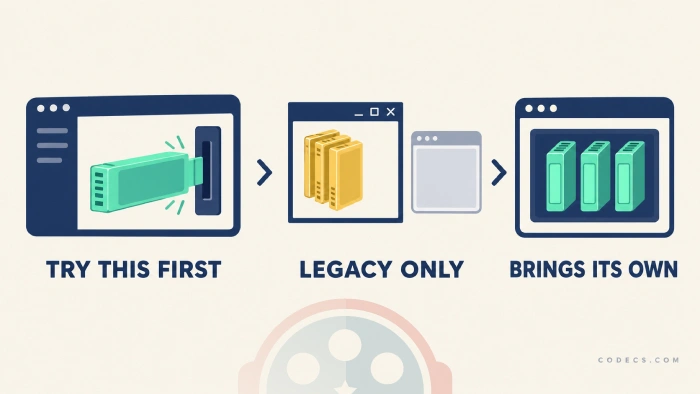
So which one should you actually install. Start with the extensions, because they fix the new app, File Explorer thumbnails and the Photos app in one go. Add a codec pack only if you have deliberately chosen to live in Legacy, and keep a player that carries its own decoders around for discs and surround audio.
How to turn Windows Media Player Legacy back on
Legacy is not installed by default on a new Windows 11 machine, but it is one screen away and it costs nothing.
- Open Settings, go to System, then Optional features. On older Windows 11 builds it lives under Apps instead.
- Next to Add an optional feature, click View features.
- Type
mediain the search box and tick Windows Media Player Legacy. - Click Next, then Install, and give it a minute to finish.
- Search the Start menu for Windows Media Player Legacy. The new app keeps the plain Media Player name, so the two are easy to tell apart.
Both players can sit on the same machine at once, and they do not interfere with each other. Our Windows Media Player page covers what each version can still do, including CD burning and tag editing.
Worth knowing before you settle in. Microsoft has been quietly narrowing Legacy rather than removing it - caption support was cut off in a test build in August 2026, and the Sync tab went years ago. Legacy is a compatibility fallback, not somewhere to build a habit.
Quick questions
Which media player am I actually using?
If the window is dark with rounded corners and a sidebar down the left, it is the new Media Player app. If it is the old square window with a menu bar, it is Windows Media Player Legacy, and its title bar says so.
Will a codec pack ever work with the new Media Player app?
No. The app is built on Media Foundation and never loads DirectShow filters, which is all a codec pack installs. Extensions from the Microsoft Store are the only thing that widens it.
Is the HEVC extension free or paid?
Both exist. The paid one sits in the Store under HEVC Video Extensions, and the free one is HEVC Video Extensions from Device Manufacturer, which is the same decoder and also works in Legacy.
My Dolby Digital audio stopped working after an update. Why?
AC-3 is no longer included with Windows as of version 24H2. Some prebuilt PCs still have it because the manufacturer added it, and on the rest a codec pack in Legacy or a player that carries its own decoders will get the sound back.
Should I uninstall the new Media Player app and just use Legacy?
Not worth it. The new app is the one still getting security updates, and File Explorer, Photos and everything else on Windows use the same Media Foundation decoders it does, so fixing those fixes the app for free.
Do I need both players installed?
Only if you burn CDs, edit tags in bulk, or rely on a format that needs a codec pack. For plain playback, extensions plus the new app cover almost everything.
If a format on your machine behaves differently from the table above, say so in the comments - the Legacy column has two cells nobody has properly tested, and a reader with the file in front of them settles it faster than we can. Leave a comment and we will update the page.
If you only do one thing after reading this, install the Media Foundation Codecs bundle. It is the only fix that reaches both players and the rest of Windows at the same time.


Latest comments
AllInteresting development with the Fire TV Stick 4K — losing Kodi sideloading is a big deal for a lot of users. For those ...
News: The New Fire TV Stick 4K Can't Run Kodi - Here's Which Fire Stick Still Can 3 commentsThanks genius, it worked for me. v2.4.149.0 on windows 10
Guide: How to Download HEVC Video Extension for Free 181 commentsXMediaRecode gives only the option to Copy (No convert) in Audio Mode drop down. I am trying to convert/recode the EAc3 ...
Team replied Guide: How to Convert EAC3 Audio to AC3 or AAC With XMedia Recode 1 comment