The free Kindle Comic Converter turns your comics into books that fill the Kindle Colorsoft's screen in full color - then you just copy them over with a USB cable.
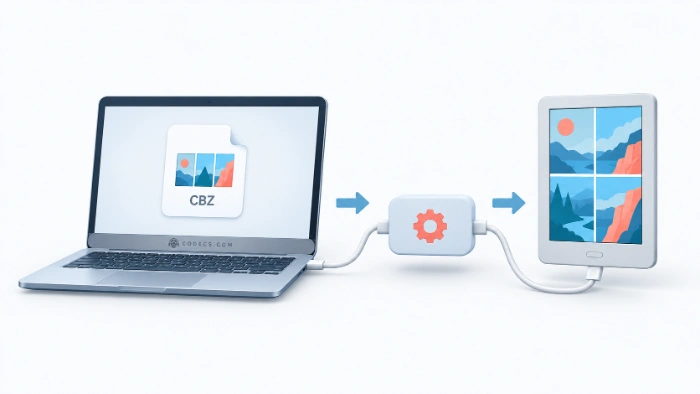
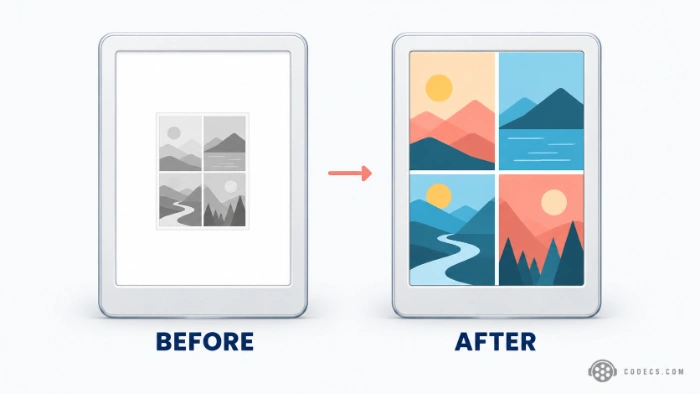
Copied straight onto a Colorsoft, most CBZ, CBR or PDF comics show up small, boxed in by white margins, or not at all.
Kindle Comic Converter, or KCC, fixes that by rebuilding each page for your exact screen.
It is free for Windows, macOS and Linux, and the whole job takes about five minutes the first time.
What You Need
- A Kindle Colorsoft - the 2024 or the new 2026 model, and its USB-C cable.
- Your comics as files - CBZ, CBR, PDF or a folder of images, without DRM copy protection.
- Three free programs: Kindle Comic Converter, 7-Zip to open comic archives, and Amazon's Kindle Previewer, which KCC uses to build Kindle files.
Comics you bought in the Kindle Store are already made for the Colorsoft. They do not need converting, and their copy protection would not allow it anyway.
Not sure a download is complete or in the right order? Flip through it first in ConvertICO's free CBR viewer, which opens CBR and CBZ files right in your browser without uploading them.
How to Convert Your Comics
- Install the three programs. Install Kindle Comic Converter, 7-Zip and Kindle Previewer, then restart KCC so it finds the other two.
- Add your comics. Drag your CBZ, CBR or PDF files, or a folder of page images, into the KCC window.
- Choose Kindle Colorsoft as the device. This one setting sizes every page to your screen, and it is the same for the 2024 and 2026 models.
- Keep it in color. If your pages come out grey, turn on the option that stops KCC converting images to grayscale - hover over each option to read what it does.
- Turn on manga mode for manga. It sets right-to-left reading, so pages and split spreads come out in the right order.
- Leave the format on MOBI and convert. KCC saves the finished book next to your original file.
KCC also has an option to reduce the faint rainbow pattern some color E Ink screens show on fine detail. It is worth trying on busy, colorful artwork.
How to Copy Comics to Your Colorsoft
- Connect the Kindle by USB. On Windows it appears in File Explorer; on a Mac you may need Amazon's USB File Transfer app.
- Open the
documentsfolder. Drag your new.mobifiles straight into it. - Eject and open the book. Your comics appear in the library next to your other books.
Do not send them through Calibre or email:
KCC's own help pages warn that editing its files in Calibre, even just the title, can break the full-screen layout. Amazon's Send to Kindle email no longer accepts MOBI files at all, so a direct USB copy is the only safe route.
If Something Looks Wrong
- Wide white margins or slow page turns. The file was changed on the way, so convert it again and copy it straight into
documents. - A blank page now and then. It is a known Colorsoft quirk, worse when you flip quickly - go back a few pages, or close and reopen the book.
- Colors look inverted. Turn off dark mode on the Kindle.
- Panels are too small to read. Open the Aa menu while reading and switch on panel view, which zooms into one panel at a time.
Reading a long series? A Kindle Click remote lets you turn pages without touching the screen.
Quick questions
Can the Kindle Colorsoft read CBZ files?
Not directly. Convert them to MOBI with the free Kindle Comic Converter, then copy them to the Kindle over USB.
Why are my comics black and white on the Colorsoft?
The converter may have turned them grey. In Kindle Comic Converter, choose the Kindle Colorsoft profile and turn on the option that keeps images in color, then convert again.
Can I email comics to my Kindle Colorsoft?
Not converted ones. Send to Kindle does not accept MOBI files, so copy KCC's output into the documents folder over USB instead.
Does this work with manga?
Yes. Turn on manga mode in Kindle Comic Converter, and pages and double-page spreads will read right to left.
Where can I get comics without DRM?
DRM-free comic bundles and public-domain collections both work. Our guide to free ebooks you can download legally lists good places to start.
The bottom line
Convert with Kindle Comic Converter, pick the Colorsoft profile, keep color on and copy the file over USB. Still deciding which model to get? Here is which Colorsoft to buy, plus free ebooks and comics you can download legally.


Latest news comments
AllThe Vega OS shift is the biggest Firestick story of 2026. Anyone buying now needs to know: 4K Max = sideloading works, plain 4K = ...
News: The New Fire TV Stick 4K Can't Run Kodi - Here's Which Fire Stick Still Can 3 commentsBrave just enabled it by default for stable users yesterday (1.97). Not specified is chromeOS will be passively gaining decode capability too, and ...
News: JPEG XL Is Back in Chrome: What It Means and How to Open JXL Files 2 commentsI didn't know it was EU, AND france. That doesn't sound like a good idea. Related to coding or privacy.
News: Meet Qwant: The Private, EU-Built Alternative to Google 1 comment