This article was inspired by a comment on our Windows Movie Maker reviews page: "I just installed Windows Movie Maker, but I can't see FLV extension movies. What can I do?"
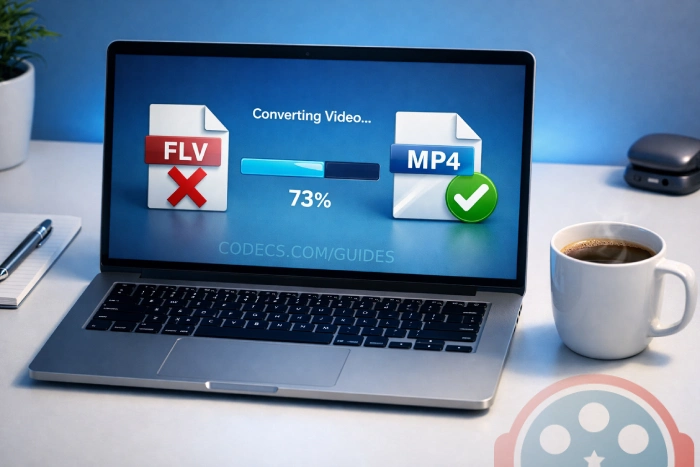
You have a folder full of old FLV files. Maybe they're screen recordings from 2010. Maybe they're downloaded YouTube clips from back when that was the only option. You double-click one and nothing happens.
Sound familiar? You're not alone. FLV - Flash Video - was once the backbone of internet video. Today it's a digital fossil. But your files don't have to be.
Here's what actually happened to FLV, why it died, and exactly how to rescue your old videos before they become truly unplayable.
What's Actually Inside an FLV File?
FLV is a container format - a wrapper that holds video and audio streams together. Think of it like a shipping box. The box itself isn't the product. What matters is what's inside.
Most FLV files contain one of two video codecs: Sorenson Spark (an early H.263 variant) or On2 VP6. For audio, they typically use MP3. Some later FLV files actually contain H.264 video and AAC audio - the same codecs used in modern MP4 files.
This is an important detail. If your FLV file contains H.264/AAC, converting it to MP4 can be done without any quality loss using a tool like FFmpeg. The video data stays identical - you're just changing the box.
Why FLV Died - And It's Not Coming Back
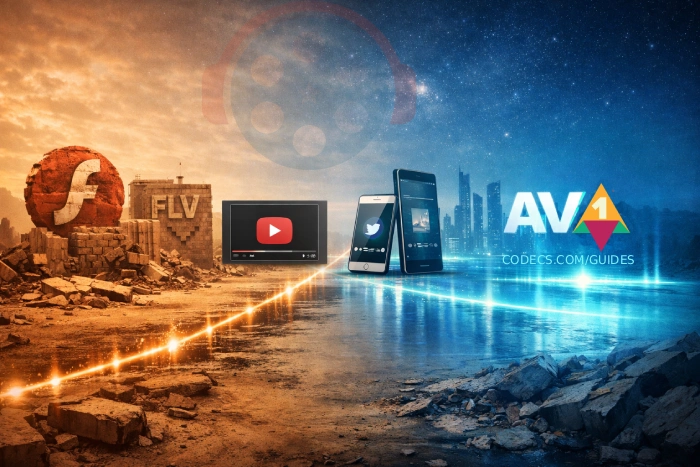
FLV didn't just fall out of fashion. It was killed. Here's the timeline:
2010: Apple's Steve Jobs publishes "Thoughts on Flash," refusing to support it on iPhone and iPad. This was the beginning of the end.
2015: YouTube switches from Flash to HTML5 as its default player. The biggest FLV consumer on the planet walked away.
2017: Adobe announces Flash Player's end-of-life for December 2020.
2020: Flash Player officially discontinued. Major browsers remove Flash support entirely.
2021-present: FLV exists only in old file archives. No major platform creates or distributes FLV content.
The core problem wasn't just Adobe's decision. Flash had deep security vulnerabilities that made it a favorite attack vector for malware. It also destroyed battery life on mobile devices and couldn't run on most phones.
Modern browsers don't just ignore Flash - they actively block it. Even if you found a way to install Flash Player today, Chrome, Firefox, and Edge would refuse to run it.
FLV vs MP4 vs WebM: The Numbers Don't Lie
Let's compare FLV against the formats that replaced it. This isn't even close.
| Feature | FLV | MP4 (H.264) | WebM (VP9) |
|---|---|---|---|
| Browser Support | ✗ None | ✓ Universal | ✓ Universal |
| Mobile Playback | ✗ No | ✓ Native | ✓ Native |
| Hardware Decoding | ✗ No | ✓ Yes | ✓ Yes |
| 4K / HDR | ✗ No | ✓ Yes | ✓ Yes |
| Compression Efficiency | Poor | Good | Excellent |
| Active Development | ✗ Dead | ✓ Active | ✓ Active |
An FLV file encoded with VP6 at 720p might be 50MB. The same video re-encoded as MP4 with H.264 could be 30MB at better visual quality. And with modern codecs like H.265 or AV1, you'd be looking at 15-20MB.
There's no scenario where FLV makes sense for new content in 2026.
How to Play FLV Files Right Now (Without Flash)
If you just need to watch an FLV file, don't waste time with conversion. Two tools handle this instantly.
Option 1: VLC Media Player plays virtually every format ever created, including FLV. Just drag the file into VLC and it works. No codecs to install, no configuration needed.
Option 2: Install the K-Lite Codec Pack and your Windows media players (including Windows Media Player and MPC-HC) will gain FLV support automatically. K-Lite includes the LAV Filters that decode FLV's internal codecs.
If you only need to play a few FLV files occasionally, go with VLC. If you deal with lots of legacy video formats regularly, the K-Lite Codec Pack is the better long-term investment - it adds support for dozens of formats system-wide.
How to Convert FLV to MP4 (The Right Way)
Playing FLV files is a temporary fix. Converting them to MP4 is the permanent solution. Here's how to do it properly depending on your comfort level.
Fastest Option: Convert Online (No Install)
If you just need to convert a few FLV files and don't want to install anything, ConvertICO's FLV to MP4 converter handles it directly in your browser. Upload your FLV, pick MP4 as output, and download the result. No signup, no software.
This is the fastest path from "I have an FLV" to "I have an MP4." It works on any device with a browser - including Chromebooks and tablets where you can't install desktop tools.
Online (ConvertICO): Best for 1-5 small files. No install, works anywhere, instant results.
Desktop (HandBrake/FFmpeg): Best for large files, batch conversion, or when you need precise quality control. No upload/download wait times.
For Beginners: HandBrake
HandBrake is free, open-source, and handles FLV conversion with zero learning curve. Here's the process:
- Download and install HandBrake from the link above.
- Open HandBrake and drag your FLV file into the window.
- Under "Format," select MP4. The default H.264 preset works perfectly.
- Click "Start Encode." Your MP4 file will appear in the output folder.
HandBrake re-encodes the video, which means slight quality loss but universal compatibility. For old FLV files with VP6 or Sorenson codecs, this is your only option.
For Advanced Users: FFmpeg (Lossless Remux)
If your FLV file contains H.264 video and AAC audio (common in post-2008 FLV files), you can remux it to MP4 with zero quality loss using FFmpeg:
ffmpeg -i input.flv -c copy output.mp4That single command copies the video and audio streams without re-encoding. The process takes seconds, not minutes. The output file is byte-for-byte identical in quality.
If the FLV contains VP6 or Sorenson video (and the remux fails), fall back to re-encoding:
ffmpeg -i input.flv -c:v libx264 -crf 20 -c:a aac -b:a 192k output.mp4
The -crf 20 setting gives you excellent quality. Lower numbers mean higher quality (and bigger files). Most people find CRF 18-22 to be the sweet spot.
Is There ANY Reason to Keep FLV Files?
Honestly? Almost none. But there are two edge cases worth mentioning.
Archival purposes: If you're preserving original files exactly as they were distributed, keeping the FLV alongside a converted MP4 makes sense. Digital archivists generally prefer preserving source formats.
Embedded Flash projects: Some old interactive Flash applications (.swf files) reference FLV files directly. If you're maintaining legacy Flash content in an isolated environment, the FLV files need to stay in their original format.
For everyone else - convert and move on. Your videos will be safer, more accessible, and take up less storage in a modern format.
What Format Should You Use Instead?
MP4 (H.264/AAC) is the safest universal choice. It plays everywhere - phones, browsers, smart TVs, game consoles. If you're unsure, pick MP4.
MKV (H.265/HEVC) gives you better compression for large video libraries. You'll save 30-50% storage compared to H.264 at the same quality. The tradeoff is slightly less universal support, though the K-Lite Codec Pack handles it on Windows.
WebM (VP9/AV1) is ideal for web publishing. It's royalty-free and increasingly supported. AV1 in particular offers the best compression available today, though encoding is slower.
FLV is dead. It died with Flash in December 2020 and it's not coming back. No modern platform creates FLV content. No modern browser plays it natively. The codecs inside most FLV files are two decades old.
But your videos don't have to die with the format. Use VLC to play them now. Use ConvertICO for quick online conversion, or HandBrake and FFmpeg for batch jobs. And stop saving anything as FLV - there's no reason left.


Best Way to Get VidMate APK - Fast, Free, and...
5/5The demand for feature-rich video editing applications continues to grow across the digital content industry. Filmora Mod APK is ...
Read More →Free Popular IPTV Playlist: Where to Get Fres...
2/5where can i goet fox news M3u* link please someone post here
Read More →How to Download HEVC Video Extension for Free
5/5its works! thank you all!
Read More →