Ventoy turns one USB stick into a boot menu, so you copy ISO files onto it like any other file and pick which one to start.
What makes this different
Every other tool writes one image and claims the whole stick, so a second operating system means starting again.
Ventoy is installed once and never again.
After that the drive behaves like ordinary storage: drag an ISO on, delete one you are finished with, and the boot menu updates itself.
What you need
- A USB stick of 8GB or more, though 32GB upwards is where this gets useful.
- Ventoy, which is free and runs from the folder you unzip it into.
- The ISO files you want on it.
- About ten minutes, plus however long the copying takes.
Step 1: install Ventoy onto the stick
The Install button erases the drive completely. This is the one step in the whole process that destroys data, and it only happens once - after this you never format the stick again.
- Unzip Ventoy and run Ventoy2Disk.exe. On Linux it is Ventoy2Disk.sh or the web interface instead.
- Pick your stick from the Device dropdown. Check it twice, because the next click wipes whatever is selected.
- Open the Option menu and switch on Secure Boot Support before you install, unless you already know your machine boots with Secure Boot off.
- Click Install and confirm the two warnings. It takes a few seconds, not minutes.
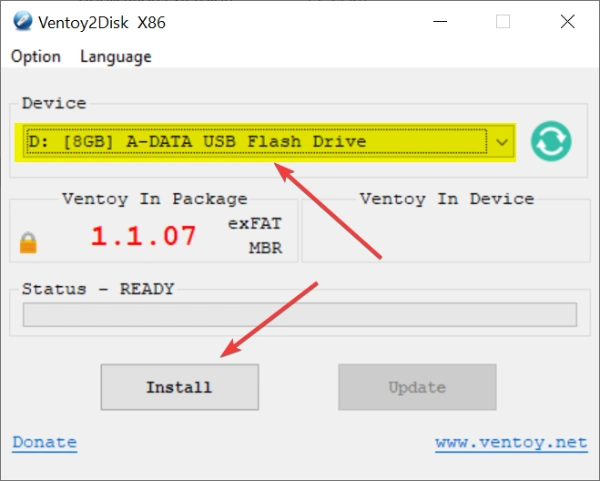
When it finishes, Windows shows the stick as a normal drive again. Ventoy has quietly taken a small hidden partition for itself and left the rest to you.
Step 2: copy your ISO files on
Drag them across in Explorer. That is the whole step, and there is nothing to configure afterwards.
Folders work and are worth using once you have more than a handful - something like Windows, Linux and Rescue. Ventoy shows the folder structure in its menu, so you browse into them the same way.
The stick is formatted as exFAT, so a Windows ISO over 4GB copies across without the file-size problem that FAT32 tools run into.
Step 3: boot it
Restart and tap the boot menu key as the logo appears - Esc or F9 on HP, F12 on most Dell, Lenovo and Toshiba machines, F12 or F2 on Acer, Esc or F8 on ASUS, F11 on MSI, and the Option key on a Mac.
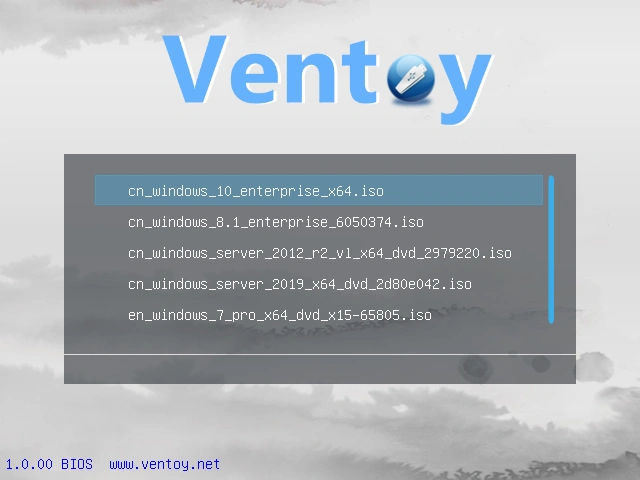
Choose the USB drive and Ventoy lists everything you copied on. Arrow keys to pick, Enter to boot, and the chosen system starts exactly as it would from its own dedicated stick.
The Secure Boot screen that catches people out
The first time you boot Ventoy on a machine with Secure Boot switched on, a blue MOK manager screen appears instead of the menu. This is expected, not a failure.
Follow the prompts to enrol the key. It is a one-off per computer, and every boot after that goes straight to the Ventoy menu.
If you get an error screen rather than the blue one, Ventoy's Secure Boot support does not suit that firmware. Turn Secure Boot off in the BIOS and it will boot normally - some machines also need 'Allow Microsoft 3rd Party UEFI CA' switched on, which is worth trying first.
Worth knowing once it is working
- Updating Ventoy does not wipe the stick. Ventoy2Disk offers Upgrade alongside Install, and your ISOs survive it.
- Not every image boots. The tested list is enormous, but test yours on the actual machine before you rely on it in an emergency.
- Keep the originals somewhere else. The stick is a convenience, not an archive, and replacing an outdated image means overwriting one file.
- The free space is still yours. Ordinary files sit alongside the ISOs and Ventoy ignores them.
When a single-image stick is still the better answer
Ventoy earns its place when you carry several systems. For one installer that has to work first time on unfamiliar hardware, a dedicated stick written with Rufus removes a layer that can go wrong.
The Ubuntu bootable USB guide covers that route, and the Windows recovery drive guide covers the rescue stick every machine should have somewhere.
The rest of the bootable-USB tools are on the SSD and USB tools page.
Quick questions
Does installing Ventoy erase my USB drive?
Yes, once. The Install step formats the whole stick, so move anything off it first - but you never have to format it again after that.
How many ISO files can I put on one stick?
As many as fit. There is no limit in Ventoy itself, so a 128GB stick will happily hold a dozen installers and rescue images.
Why do I get a blue screen asking about keys?
That is the MOK manager, and it is Secure Boot doing its job. Follow the prompts once per machine and it never appears again.
Can I still use the drive for normal files?
Yes. Ventoy only looks for bootable images, and everything else on the stick is ignored and works as usual.
Will it boot a Windows installer over 4GB?
Yes. The stick is exFAT rather than FAT32, so the large install file that trips up other tools copies across normally.
Do I have to reinstall Ventoy to update it?
No. Ventoy2Disk has an Upgrade option that leaves your ISO files and the rest of the drive untouched.


How to Stream With VLC: Open a Stream URL or ...
5/5This is amazing! I could no longer afford cable so I cut the cord and started watching Hulu, Youtube, ...
Read More →Don't Open a .xmpeg File Before Reading This
3/5It's never a good sign when the potential malware you downloaded has the EXACT same filename as the example. ...
Read More →Free Popular IPTV Playlist: Where to Get Fres...
3/5How can you create a DSTV channels on IPTV?
Read More →