Stuck with an AVIF file your apps refuse to open? Here is the fastest free way to convert AVIF to JPG, PNG, or WebP - no upload, no watermark, batch-ready.
Why You Keep Getting AVIF Files (And Can't Use Them)
Chrome, Firefox, and Edge now save many web images as AVIF by default.
The format saves bandwidth - up to 50% smaller than JPEG at the same quality - but older apps, work software, printers, and most photo editors still choke on it.
So you right-click "Save image as", get a .avif file, and suddenly nothing opens it. The fix takes under a minute with a free tool.
This guide covers three methods: a desktop batch converter (best for many files), a browser-based converter (no install), and a free Photoshop-tier alternative for advanced users. Pick the one that fits your workflow.
Install Converseen, drag your AVIF files in, pick JPG or PNG from the "Convert to" dropdown, hit Convert. Done. Full walkthrough below.
Method 1: Converseen (Best for Batch Conversion)
Converseen is a free, open-source batch image converter for Windows, Linux, and macOS. It handles 100+ formats through ImageMagick - AVIF, HEIC, WebP, PNG, JPEG, TIFF, and the rest - and processes thousands of files at once.
No watermarks. No upload. No subscription. The full workflow takes four clicks.
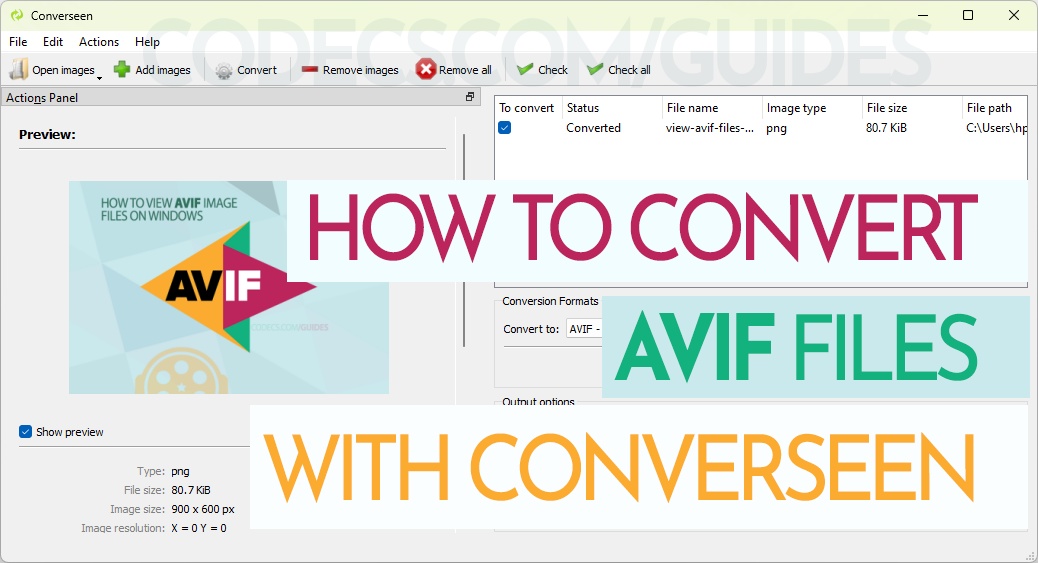
Step 1: Download and Install Converseen
Grab the latest version from the Converseen download page. The installer is under 60 MB and runs through in seconds.
Launch it. The interface looks utilitarian but every control you need is on one screen.
Step 2: Add Your AVIF Files
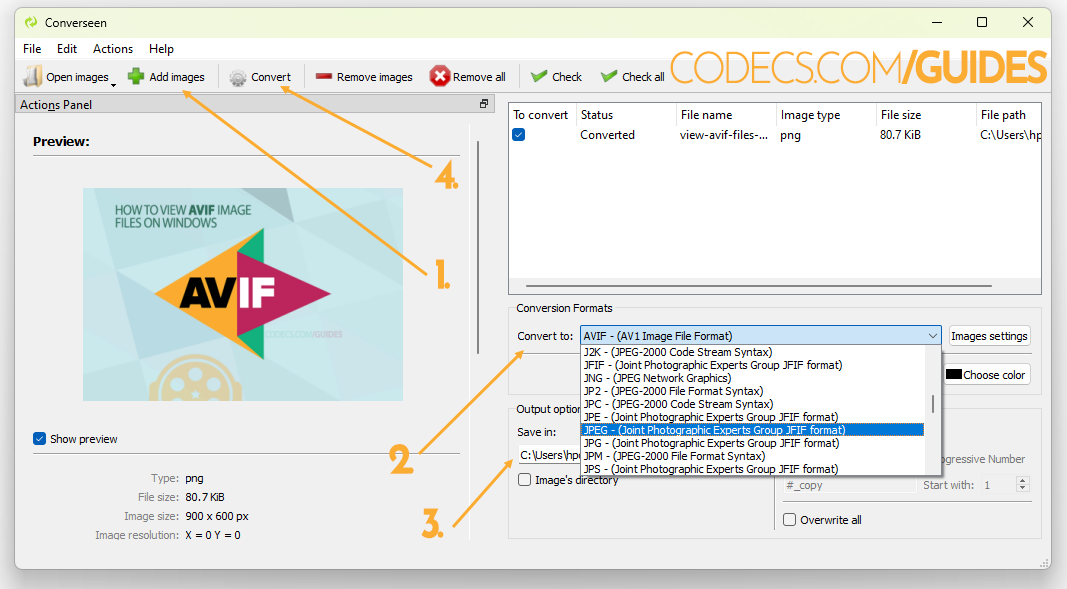
Click "Add images" at the top-left (step 1 in the image below). Browse to your AVIF files and select them - hold Ctrl or Shift to pick multiple.
Drag-and-drop works too. Drop a whole folder of AVIFs in and Converseen will queue them all.
Step 3: Pick Your Output Format
On the right side, find the "Convert to" dropdown (step 2). Pick the format you want:
- JPEG/JPG - universal compatibility, smaller files, slight quality loss. Best for photos.
- PNG - lossless, supports transparency, larger files. Best for screenshots and graphics.
- WebP - smaller than JPEG, good quality, supported by all modern browsers.
- TIFF - lossless, big files, what print shops usually want.
Step 4: Choose Output Folder and Convert
At the bottom, click "Browse" next to "Save in" and pick where your converted files should land (step 3). A dedicated folder keeps things tidy.
Then hit Convert (step 4). A few seconds per file on a modern machine. Batch jobs of 100+ images finish faster than reading this paragraph.
Converseen can also resize, rename, rotate, and compress during conversion. Tick the boxes in the left panel before hitting Convert to handle everything in one pass.
Method 2: Online Converter (No Install Needed)
If you only need to convert a handful of files and want to avoid downloads, a browser-based converter is the fastest path. The ConvertICO AVIF tool runs entirely in your browser - your files never upload to a server.
Drag your AVIF file onto the drop zone, pick JPG or PNG, hit convert, and the result downloads automatically. No account. No watermark. No size limit.
This route is best for one-off conversions or work computers where you can't install software. For dozens of files, Converseen on the desktop is faster.
Method 3: XnConvert (Power-User Alternative)
XnConvert handles over 500 image formats and 80+ editing operations in a single batch pass. It is overkill for a simple AVIF-to-JPG job but excellent if you need to resize, watermark, recolor, or strip EXIF data during the conversion.
Workflow is similar: add files, set output format under the "Output" tab, click Convert. The full walkthrough in the XnConvert quick guide applies identically to AVIF files.
Free for personal and commercial use, available for Windows, Mac, and Linux, and the same developer makes the XnView image viewer if you want a matching browser.
What If You Just Want to View AVIF Files?
Conversion is overkill if you just need to look at the image once. Windows can show AVIF thumbnails and previews natively once you install the right codec.
The full setup is covered in View AVIF Files on Windows - 3 Instant Solutions. Five minutes of setup and your Photos app, File Explorer, and most viewers handle AVIF without converting anything.
Common AVIF Conversion Problems (And Fixes)
"Converseen says the file is corrupted"
Older Converseen versions (pre-0.12) shipped without proper AVIF support. Update to 0.15 or later from the download page - HEIC, HEIF, and AVIF all work natively now without extra dependencies.
"The converted JPG looks worse than the AVIF"
That is expected. AVIF compresses better than JPEG at the same quality, so converting often increases file size while losing some detail. For archival, pick PNG (lossless) instead of JPEG.
"I get an AVIF every time I save a web image"
That is the browser, not the site. In Chrome, right-click the image and use "Copy image" then paste into an image editor - this often gives you PNG. Or use a browser extension that forces JPEG/PNG on saves.
"My image editor doesn't open AVIF at all"
Most older Photoshop, GIMP, and Affinity versions need a plugin. AVIF support arrived in Photoshop 24.x and is built into recent GIMP and Affinity releases. The underlying libavif library is what powers AVIF reading and writing in most apps - if your software is recent, AVIF support should already be there.
For most people: install Converseen, drag in the AVIF, pick JPG or PNG, convert. Two minutes including the download. It is free, batch-ready, and works on Windows, Mac, and Linux.
If you handle a few AVIFs occasionally, the online converter is faster than installing anything. If you need to resize and process hundreds of images at once, XnConvert is the heavy lifter.


Don't Open a .xmpeg File Before Reading This
3/5It's never a good sign when the potential malware you downloaded has the EXACT same filename as the example. ...
Read More →Free Popular IPTV Playlist: Where to Get Fres...
3/5How can you create a DSTV channels on IPTV?
Read More →How to Download HEVC Video Extension for Free
5/5Does anyone have the HEVC Video Extensions as an .exe file and can provide a download link?
Read More →