The whole answer is three settings, and you can copy them from the table below without reading anything else.
LAME MP3 Encoder is free, and it is what most other MP3 tools use underneath.
You almost never run it directly.
You pick a program that uses it, and type one number into one box.
The rest of this page explains where that box is in each program, and what the number means.
The Settings, in One Table
Set the mode to VBR, then set the quality number. That is the whole job.
| What you are encoding | Quality | Average bitrate | Channels |
|---|---|---|---|
| Music, everyday listening | V2 | About 190 kbps | Stereo |
| Music you want to keep for good | V0 | About 245 kbps | Stereo |
| Podcast with two or more voices | V4 | About 165 kbps | Stereo |
| Podcast with one voice | V6 | About 115 kbps | Mono |
| Audiobook | V6 | About 115 kbps | Mono |
If you only remember one thing, remember V2. It sounds the same as the original to almost everyone, on almost everything, and it is the setting most people should use for music.
What the V Number Means
VBR means variable bitrate. The encoder spends more data on complicated moments and less on simple ones, which gives you better sound for the same file size.
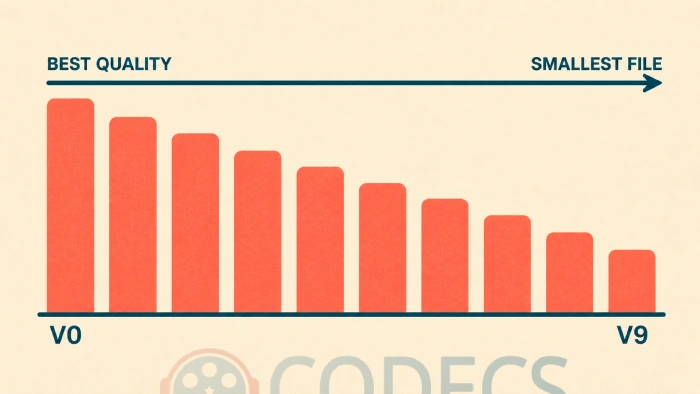
The quality number runs from V0 to V9. Lower is better quality and a bigger file. That is backwards from what most people expect, and it is the single thing readers get wrong.
Some programs hide the numbers behind names instead. They are the same scale, so if your program offers words rather than numbers, use this:
| Preset name | Same as | Use it for |
|---|---|---|
| Insane | 320 kbps, fixed | Almost nobody. It is bigger, not better |
| Extreme | V0 | Music you are archiving |
| Standard | V2 | Music, the normal choice |
| Medium | V4 | Podcasts |
For a longer look at why variable beats fixed, our VBR versus CBR guide goes through it properly.
Stereo or Mono
Mono merges the left and right channels into one, which roughly halves the file size.
Use it for a single speaking voice, where there is nothing in the stereo image to lose. Audiobooks and one-host podcasts are the clear cases.
Do not use it for music, or for a podcast recorded with hosts placed left and right. Merging those is very audible.
LameXP
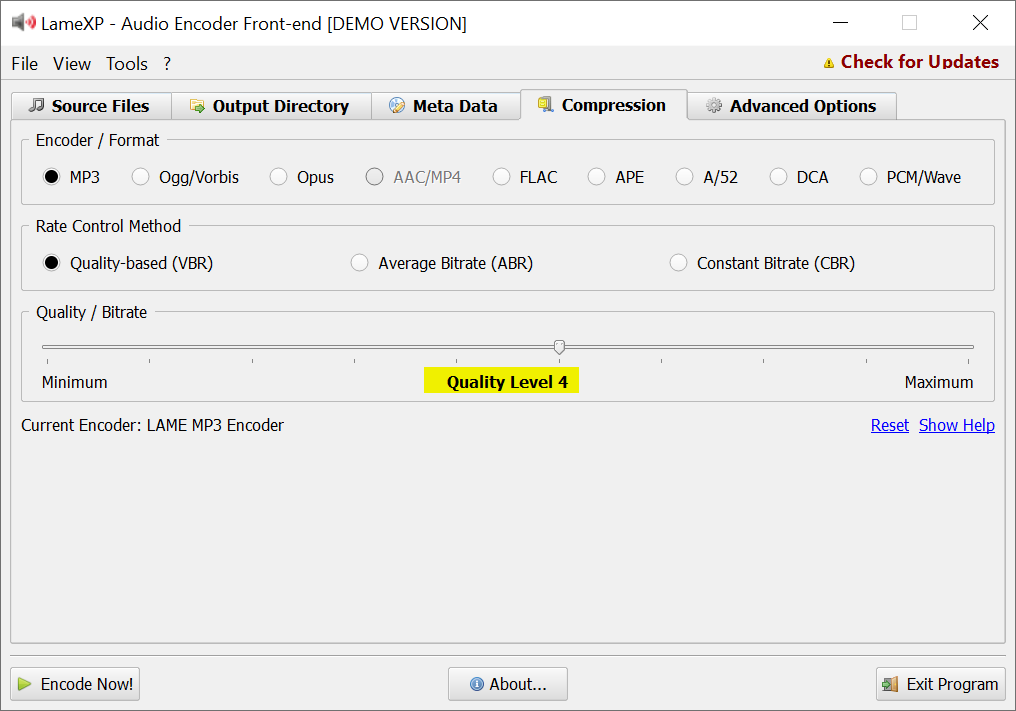
LameXP is the easiest of the four, and LAME is already inside it.
- Open LameXP and drag your audio files into the window.
- Open the Compression tab and choose MP3 (LAME Encoder) from the list.
- Set Rate Control Mode to VBR.
- Move the quality slider to your number from the table above.
- For mono, open Advanced Options and set Channel Mode to Mono.
- Open the Output Directory tab, pick a folder, then click Encode Now at the bottom left.
winLAME
winLAME walks you through it one screen at a time, which suits people who would rather not see every option at once.
- Click Add Files, choose your audio, then click Next.
- Choose LAME MP3 Encoder as the output format.
- Pick Standard for music or Medium for podcasts, using the preset table above.
- For an audiobook, set VBR quality to 6 and switch the channel mode to mono.
- Choose your output folder and click Finish.
Audacity
Use Audacity when you need to cut, trim or clean the audio before converting it.
- Open your file and edit it.
- Go to File, then Export, then Export as MP3.
- Set Bit Rate Mode to Variable.
- Choose Quality 2 for music, 4 for podcasts, or 6 with Channel Mode set to Mono for audiobooks.
- Click Save, and fill in the track details if you want them.
Audacity on Linux still needs LAME separately. Audacity 3.2 and later include MP3 export on Windows and Mac with nothing to install, but Linux builds do not, so install LAME MP3 Encoder if the MP3 option is missing there.
CDex, for Music CDs
CDex rips a CD straight to MP3, so you skip the WAV step entirely.
- Open the settings and find the encoder section, then choose the LAME MP3 encoder.
- Set the mode to VBR and the quality to 2, which is the right setting for music.
- Put the CD in, tick the tracks you want, and click Extract.
EZ CD Audio Converter does the same job with a more modern interface if you prefer.
Sample Rate - Only Worth Checking If Yours Is Unusual
Most audio is already at 44.1 kHz or 48 kHz, and both encode to MP3 without you doing anything. If that is your situation, skip this section.
It matters if your source is something less common, such as a 96 kHz studio master or an old 22 kHz recording. Aim for 44.1 kHz for music, and 48 kHz if the audio will sit alongside video.
LAME will convert the rate for you. Doing it yourself first simply gives you control over how, which is worth having on a large batch.
The free X Sample Rate Converter handles this in the browser using FFmpeg, and its Windows app adds the soxr engine and drag-and-drop.
If Something Sounds Wrong
The MP3 sounds worse than expected. Move to a lower number, V2 instead of V4. Check the source file too, because encoding cannot add back quality that was never there.
The files are too big. Move to a higher number, or switch voice-only content to mono.
An old player will not play the files. Some older hardware struggles with variable bitrate. Switch to CBR at a fixed 192 kbps.
There is no MP3 option in Audacity. On Windows and Mac, update to 3.2 or later. On Linux, install LAME separately.
Which Tool Should You Install?
| Tool | Best for | Pick it when |
|---|---|---|
| LameXP | Converting a pile of files | You want every option visible at once |
| winLAME | Occasional conversions | You would rather be asked one thing at a time |
| Audacity | Editing, then converting | You need to trim or clean the audio first |
| CDex | Music CDs | The audio is still on a disc |
| LameDropXPd | Drag, drop, done | You want no interface and nothing installed |
If you would rather not install anything at all, our online audio converter handles small jobs in the browser.
On a Mac, use LAME for Mac. On a Windows ARM machine, there is a native LAME for Windows ARM64 build.
To check a finished file plays cleanly before you delete the source, VLC Media Player opens anything and shows you the real bitrate under Tools, then Codec Information.
The rest sit in the audio encoders section.
Quick questions
What is the best LAME setting for music?
V2 in VBR mode, which averages around 190 kbps. It sounds the same as the source to almost everyone. Use V0 instead only if you are archiving and want the extra headroom.
Is V0 worth it over V2?
For listening, almost never - the files are about a third larger for a difference most people cannot hear. For a library you may re-encode from later, V0 is the safer keep.
Is 320 kbps better than V0?
Not in any way you will hear. Fixed 320 kbps spends the same data on silence as on a full orchestra, so you get a larger file for no gain. VBR is the better use of the same space.
Do I need to install LAME separately?
Usually not. LameXP and winLAME include it, and Audacity includes it on Windows and Mac.
Our installing LAME guide covers the cases where you do need it separately.
Does LAME 4.0 change any of these settings?
No. Version 4.0 arrived in July 2026, the first major release since 2017, and it is a security and housekeeping update rather than a sound-quality change. Every number on this page still applies.
Should I convert FLAC to MP3 at all?
Only for devices that need it, since the conversion cannot be undone. Keep the FLAC files as your originals. Our FLAC versus MP3 guide covers the trade-off, and the foobar2000 conversion guide shows a good way to batch it.
What about converting WAV files?
Same settings apply, since WAV is uncompressed and makes an ideal source. Our WAV to MP3 guide walks through that specific case.


Latest comments
AllInteresting development with the Fire TV Stick 4K — losing Kodi sideloading is a big deal for a lot of users. For those ...
News: The New Fire TV Stick 4K Can't Run Kodi - Here's Which Fire Stick Still Can 3 commentsThanks genius, it worked for me. v2.4.149.0 on windows 10
Guide: How to Download HEVC Video Extension for Free 181 commentsXMediaRecode gives only the option to Copy (No convert) in Audio Mode drop down. I am trying to convert/recode the EAc3 ...
Team replied Guide: How to Convert EAC3 Audio to AC3 or AAC With XMedia Recode 1 comment