Nvidia Broadcast, the free webcam and microphone cleaner for RTX graphics cards, can now fix videos you have already recorded.
Version 2.3 adds a File Processor mode for saved clips, plus two beta tools that upscale video to 4K and add extra frames.
It is free, but it only accepts one kind of video file, and that catch decides whether it works for you.
What's New in Broadcast 2.3
- File Processor mode. Broadcast's noise removal and video effects now work on clips you already recorded, and Nvidia says some run at higher quality than they do live.
- 4K upscaling (beta). RTX Video Super Resolution sharpens webcam video and saved files up to 4K, and works best with good lighting.
- Frame generation (beta). It lifts a webcam to 60 fps, or doubles or quadruples the frame rate of a saved file.
- Four Studio Voice profiles. Default, Bright, Full and Warm change how your microphone sounds.
- AI agent control. AI assistants can change settings and queue files through a local MCP server - actions stay on your PC.
The update also supports the new RTX Spark laptops, but live webcam effects and file processing can't run at the same time.
Which Nvidia Cards Can Use It
| Feature | Minimum graphics card |
|---|---|
| Broadcast itself (noise removal, backgrounds, File Processor) | GeForce RTX 2060, Quadro RTX 3000 or TITAN RTX |
| 4K upscaling (beta) | GeForce RTX 3060 |
| Frame generation (beta) | GeForce RTX 40 series |
GTX cards are not supported, because Broadcast relies on the AI cores only RTX cards have. AMD and Intel graphics can't run it at all.
That means RTX 30 owners get upscaling but not frame generation. You also need 8 GB of RAM and Windows.
The Catch: It Only Takes H.264 MP4 Files
File Processor accepts .mp4, .m4a, .mp3 and .wav files, and the video inside must be H.264 (8-bit) with AAC audio in stereo. Fragmented MP4 files are refused too.
That rules out a lot of modern video. iPhone clips are usually HEVC, many downloads are AV1 or VP9, and screen recorders often save MKV.
Not sure what is inside your file? Our free codec checker tells you in seconds, with nothing to install.
How to Convert a Video So Broadcast Accepts It
- Open the file in HandBrake, the free open-source video converter.
- Choose the "Fast 1080p30" preset. It saves an H.264 MP4 with stereo AAC audio, which is exactly what Broadcast wants.
- Skip any preset with HEVC, H.265 or AV1 in its name - Broadcast will refuse the result.
- Click Start Encode, then load the new MP4 into Broadcast's File Processor.
Downscaling a 4K phone clip to 1080p first is fine here, because Broadcast's upscaler takes it back up. If you prefer a simpler screen, Shutter Encoder does the same job with its H.264 function.
Recording in OBS?
In OBS Studio, set the recording format to MPEG-4 (.mp4) rather than Fragmented MP4, and pick an H.264 encoder such as NVIDIA NVENC H.264. Already recorded to MKV with H.264? File, then Remux Recordings, turns it into an MP4 in seconds without re-encoding.
Is 4x Frame Generation Worth It?
Treat it as an experiment for now. Unlike frame generation in games, Broadcast gets no motion data from a game engine, so fast action is where the invented frames are most likely to smear.
For talking-head clips, tutorials and slow camera moves, 2x is the safer choice. Keep your original file until you have watched the result.
Who Should Look Elsewhere
Open Task Manager, go to Performance and click GPU 0. The card's name sits in the top-right corner, and if it says GTX, Radeon or Intel, Broadcast won't run on your PC.
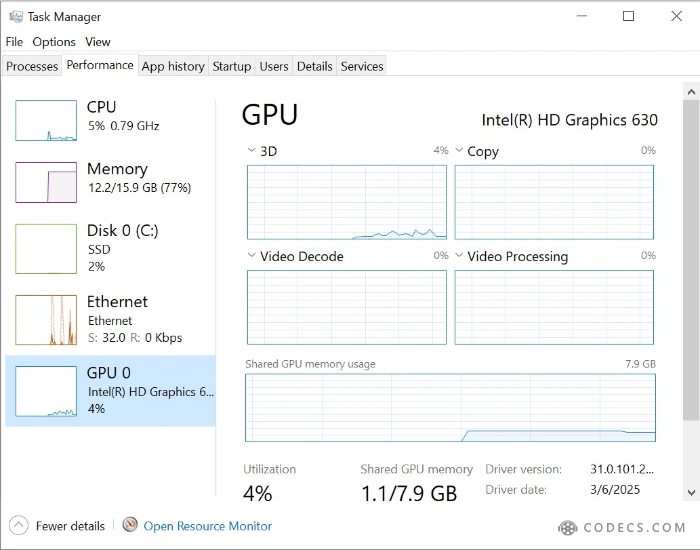
The PC above has Intel HD Graphics 630, so it can't run Broadcast. A card name starting with GeForce RTX means you're good to go.
If you only want videos to look sharper while you watch them, you don't need a new file at all. RTX owners can switch on Nvidia's Super Resolution during playback in VLC Media Player.
Quick questions
Is Nvidia Broadcast free?
Yes. It is free software from Nvidia, but it only works on PCs with an Nvidia RTX graphics card.
Why does File Processor reject my video?
It only accepts H.264 (8-bit) video with AAC audio, in a normal MP4. HEVC, AV1, MKV and fragmented MP4 files need converting first, for example with HandBrake.
Does Nvidia Broadcast work on a GTX card?
No. Nvidia lists the GeForce RTX 2060 as the minimum, and 4K upscaling needs at least an RTX 3060.
Can I upscale and use my webcam at the same time?
Not with saved files. Live effects and File Processor can't run at the same time, so process files when you aren't on a call.
Where can I check the full release notes?
Nvidia's Broadcast FAQ lists every requirement and limit for the new features.
Broadcast 2.3 turns a webcam tool into a free video fixer - as long as you feed it H.264.
Get your clips ready with HandBrake, or tell us how the upscaler looked on your videos.


Latest comments
AllFree M3U Playlist for TiviMate: Legal Lists That Load Cleanl...
The link isn't working. https://www.free-codecs.com/guides/free-epg-urls-for-iptv.htm
The New Fire TV Stick 4K Can't Run Kodi - Here's Which Fire ...
The Vega OS shift is the biggest Firestick story of 2026. Anyone buying now needs to know: 4K Max = sideloading ...
JPEG XL Is Back in Chrome: What It Means and How to Open JXL...
Brave just enabled it by default for stable users yesterday (1.97). Not specified is chromeOS will be passively gaining decode ...