You can make a Windows 11 install USB for free in two ways, and the right one depends on your PC.
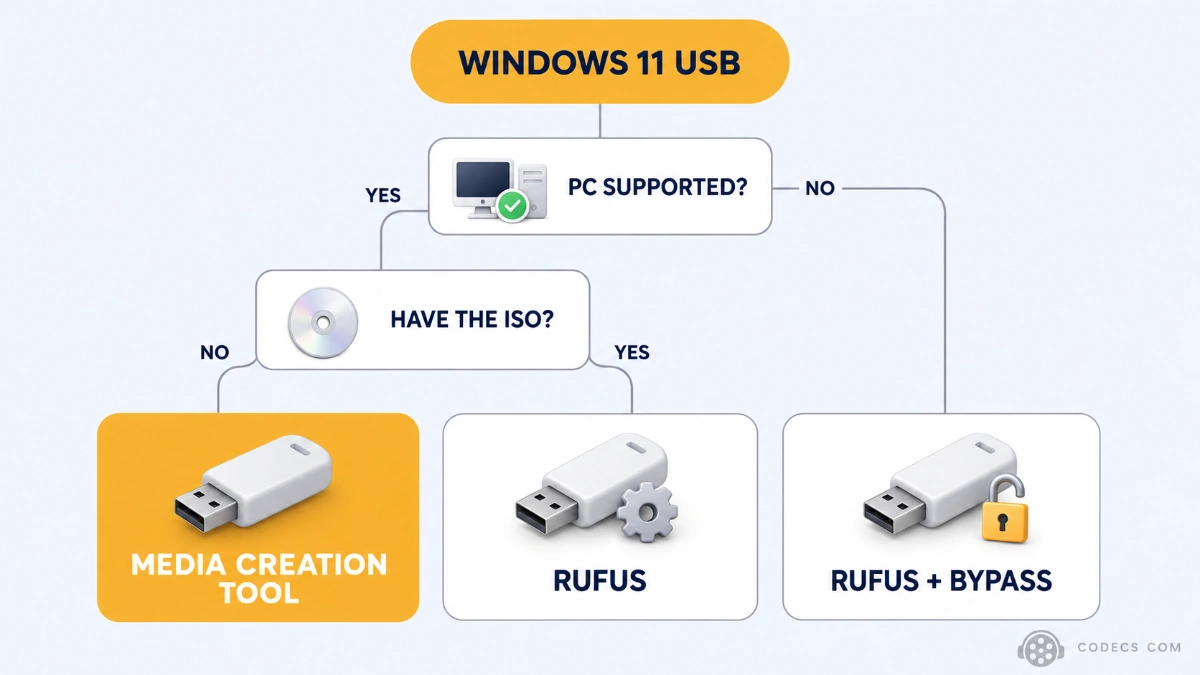
On a normal, recent PC, Microsoft's own Media Creation Tool is the simplest route, because it downloads Windows and writes the stick in one go.
On an older PC, or if you already have the ISO file or want a local account, Rufus is the better tool.
Both are free, both need a USB stick of 8GB or more, and both erase everything on that stick.
Media Creation Tool or Rufus: Which One Do You Need?
| What matters | Media Creation Tool | Rufus |
|---|---|---|
| Made by | Microsoft | An independent developer, open source |
| Gets Windows for you | Yes, it downloads while it writes | Yes, through its DOWNLOAD button, or use an ISO you already have |
| Older PCs without TPM 2.0 | No, setup stops at the hardware check | Yes, one tick box removes the check |
| Skip the Microsoft account | No | Yes, it can create a local account |
| Best for | A supported PC and a first-time installer | Older PCs, existing ISOs and custom setups |
The two sticks install the same Windows 11 - Rufus just lets you change how setup behaves. If the PC passes Microsoft's checks and you have no special wishes, either one will do.
Not doing a clean install at all? To upgrade the PC you are sitting at and keep your files, you do not need a USB stick - the Windows 11 Installation Assistant does it in place.
What You Need First
- A USB stick of at least 8GB. A 16GB stick gives you room to spare.
- A working Windows 10 or 11 PC to make the stick on, with an internet connection.
- A backup of anything on the stick, because both tools wipe it completely.
- A backup of the target PC's files too, if you plan a clean install on it.
You do not need a new product key. A PC that already ran Windows 10 or 11 activates again by itself once it goes online, as long as you install the same edition.
Method 1: Microsoft's Media Creation Tool
- Download the tool. Open Microsoft's Windows 11 download page and click Download Now under Create Windows 11 Installation Media.
- Run it and accept the terms. Windows asks for administrator permission first - say yes.
- Choose the media for another PC. If the tool asks what you want to do, pick Create installation media for another PC.
- Check language and edition. The recommended options match this PC, so untick them only if the target PC needs a different language.
- Pick USB flash drive. Select your stick in the list and click Next.
- Wait, then click Finish. It downloads Windows 11 while it writes the stick, so the time depends on your connection.
One limit to know:
The Media Creation Tool only makes installers for standard Intel and AMD PCs. For a Snapdragon or other Arm laptop, Microsoft offers a separate Arm64 ISO on its download site.
Method 2: Rufus
- Get Rufus. Download Rufus - it is a small portable file that runs without installing.
- Get the Windows 11 ISO. Use the ISO from Microsoft's site, or click the small arrow next to SELECT in Rufus, switch it to DOWNLOAD and fetch it from there.
- Pick your stick and the ISO. Choose the stick under Device, then click SELECT and open the ISO.
- Leave the defaults alone. GPT and UEFI (non CSM) are right for Windows 11, so click START.
- Choose your extras. A Windows User Experience box opens with optional tweaks - Rufus remembers your last choices, so read what is already ticked before you click OK.
- Confirm and wait. Click OK on the warning that the stick will be erased, and Rufus shows READY when it is done.
If the DOWNLOAD option is missing, open Rufus's settings and turn on Check for updates, then restart it. Our Windows 11 ISO and update guide shows the manual download from Microsoft step by step.
What the extras box can do:
One tick box removes the TPM, Secure Boot and RAM checks for older PCs - our guide to installing Windows 11 on unsupported hardware explains when that is wise. Others skip the Microsoft account, create a local account and turn off automatic BitLocker encryption.
The newer Quality of Life option removes OneDrive, Outlook, Teams and Copilot at install time. Here is what the Quality of Life option really removes.
One tip from Rufus's own developer: feed it Microsoft's ISO, not an ISO saved by the Media Creation Tool. The tool rebuilds its ISO differently each time, so it cannot be checked against Microsoft's official fingerprint.
How to Boot the PC From Your USB Stick
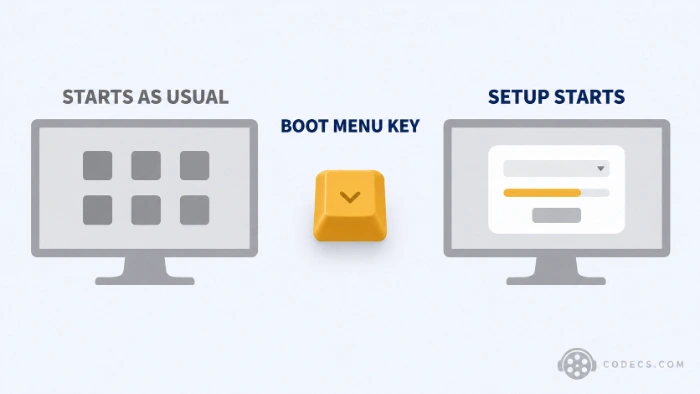
- Plug in the stick and restart. Use a port on the PC itself rather than a hub or keyboard.
- Tap the boot menu key. It is usually F12, F11, F8 or Esc, pressed straight after the power comes on - the startup screen often names it.
- Pick the USB entry. If it appears twice, choose the one marked UEFI.
- Start setup. Choose your language and keyboard, then Install Windows, and follow the prompts.
When asked for a product key during setup, click I don't have a product key. Windows activates later on its own if this PC had a licence before.
When It Does Not Work
- The Media Creation Tool closes or says 'We're not sure what happened'. Download the ISO from Microsoft instead and write it with Rufus - that route avoids the tool entirely.
- Rufus does not list your drive. It hides USB hard drives and SSDs on purpose, so tick List USB Hard Drives under Show advanced drive properties.
- The PC starts your old Windows anyway. Shut it down fully rather than restarting, then use the boot menu key again from cold.
- The USB stick is not in the boot menu. Try a different port, ideally on the back of a desktop, and check the stick is not plugged into a hub.
- A Secure Boot error appears with a Rufus stick. Turn on the option to trust Microsoft's third-party UEFI certificate in the BIOS, or switch Secure Boot off just for the install.
What Happened to the Windows USB/DVD Download Tool?
The old Windows USB/DVD Download Tool was made for Windows 7, and it never got a Windows 11 version. Microsoft's Windows 11 download page now points to the Media Creation Tool instead.
If a site still offers the old tool as a five-minute fix, skip it. The Media Creation Tool is its official successor, and Rufus does everything the old tool did with far more options.
Two More Tools Worth Knowing
If you keep several system images around, Ventoy turns one stick into a menu - copy ISO files onto it and pick one at boot, with no rewriting between them.
After a clean install, Windows plays MP4 but often not MKV, HEVC or older AVI files. The K-Lite Codec Pack puts the missing formats back in one install.
Quick questions
Is the Media Creation Tool free?
Yes. It is a free download from Microsoft, and so is Windows 11 itself on a PC with a Windows 10 or 11 licence.
What size USB stick do I need for Windows 11?
At least 8GB. A 16GB stick is a safer choice, and anything larger works too.
Will making the USB delete files on my PC?
No. Making the stick only erases the stick. A clean install from it is what wipes the PC's drive, so back up before you boot from it.
Is Rufus safe to use?
Yes. It is open source and digitally signed, and Windows shows Akeo Consulting as the verified publisher when you run it.
Can I use the same USB stick on more than one PC?
Yes. The stick is an installer, not a copy of one PC, so you can install Windows 11 on as many PCs as you have licences for.
Can I put Windows 11 and other ISOs on one stick?
Not with these two tools, which each use the whole stick. Ventoy is the free tool for keeping several ISOs on one drive.
The bottom line
Supported PC and no special wishes: use the Media Creation Tool. Older PC, an ISO in hand or a cleaner setup: use Rufus. Tell us which one you picked.


Latest reviews
AllThe New Fire TV Stick 4K Can't Run Kodi - Here's Which Fire ...
5/5The Vega OS shift is the biggest Firestick story of 2026. Anyone buying now needs to know: 4K Max = sideloading ...
JPEG XL Is Back in Chrome: What It Means and How to Open JXL...
5/5Brave just enabled it by default for stable users yesterday (1.97). Not specified is chromeOS will be passively gaining decode ...
Free Popular IPTV Playlist: Where to Get Fresh, Legal M3U Li...
5/5Hi! Thanks for creating this list, and I have a small question: why do the channels I used to ...