FFmpeg is the free engine behind most video and audio converters. Here is how to install it on Windows in a few minutes - and ten commands you will actually use.
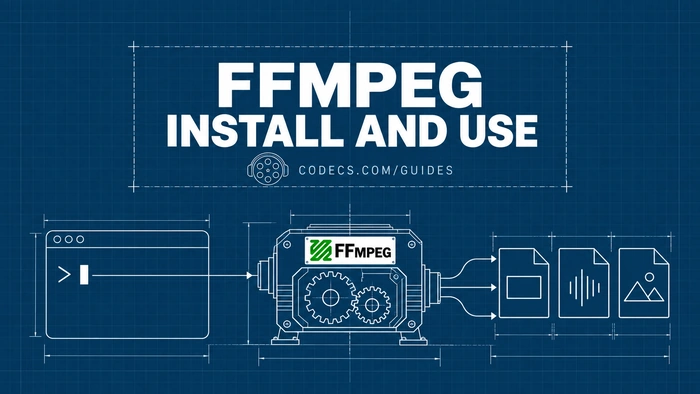
FFmpeg comes as three small programs: ffmpeg converts, ffprobe shows what is inside a file, and ffplay plays it.
There is no installer and no window. The goal of this guide is to let you type ffmpeg in any folder and have Windows find it - that is what adding it to PATH means.
Fastest way: one winget command
Windows 10 and 11 include winget, Microsoft's app installer. Open PowerShell or Command Prompt and run:
winget install -e --id Gyan.FFmpeg.Essentialswinget downloads the Essentials build and adds it to PATH for you. Close the window, open a new one, and jump to Check it works below.
Manual install: download and add to PATH
Prefer to know exactly where everything goes? This takes about five minutes.
- Download FFmpeg. On our FFmpeg page, pick the GyanD Essentials build. Take the .7z if you have 7-Zip, otherwise the .zip.
- Extract it and rename the folder. Right-click the archive, extract it, and rename the long folder name to FFmpeg.
- Move it to C:\FFmpeg. A short path with no spaces keeps commands and scripts simple. Inside, the bin folder holds ffmpeg.exe, ffprobe.exe and ffplay.exe.
- Open Environment Variables. Press the Windows key, type environment variables, and choose Edit environment variables for your account.
- Add the bin folder to Path. Under User variables, select Path, click Edit, then New, and type C:\FFmpeg\bin. Click OK on every window.
- Check it works. Open a new Command Prompt or PowerShell window and run the version command below.
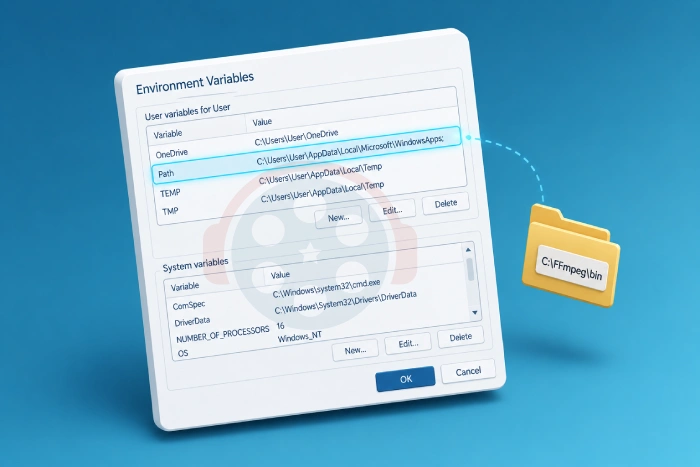
User or System variables?
User variables work for your account and need no admin rights. Use System variables only if every account on the PC needs FFmpeg.
Check it works
In a new terminal window - old ones do not see the change - type:
ffmpeg -versionA block of text starting with the FFmpeg version means you are done. "ffmpeg is not recognized" means PATH is not right yet - see the fixes further down.
10 FFmpeg commands you will actually use
Copy a command, change the file names, press Enter. Run it in the folder that holds your file.
1. Change MKV to MP4 without re-encoding
ffmpeg -i input.mkv -c copy output.mp4Takes seconds and loses nothing. Works when the video and audio inside are MP4-friendly, such as H.264 with AAC.
2. Convert any video to MP4 that plays everywhere
ffmpeg -i input.avi -c:v libx264 -crf 22 -c:a aac -b:a 192k output.mp4H.264 video with AAC sound plays on phones, TVs and browsers. Lower CRF means better quality and a bigger file.
3. Extract the audio as MP3
ffmpeg -i video.mp4 -map a -q:a 0 output.mp3-map a takes only the sound; -q:a 0 is the best MP3 quality.
4. Resize a video
ffmpeg -i input.mp4 -vf scale=1280:-2 output.mp41280 pixels wide, height worked out for you. Use scale=-2:720 to set the height instead.
5. Cut a clip without re-encoding
ffmpeg -i input.mp4 -ss 00:01:30 -to 00:02:45 -c copy output.mp4Instant and lossless. The cut starts at the nearest keyframe, so it can begin a second or two early.
6. Turn numbered images into a video
ffmpeg -framerate 30 -i frame%04d.png -c:v libx264 -pix_fmt yuv420p output.mp4%04d matches frame0001.png, frame0002.png and so on.
7. Save frames from a video
ffmpeg -i input.mp4 -vf fps=1 frame%04d.pngOne picture per second. Use fps=1/10 for one every ten seconds.
8. Remove the sound
ffmpeg -i input.mp4 -an -c:v copy output.mp4-an means no audio; the video is copied untouched.
9. Put new sound on a video
ffmpeg -i video.mp4 -i audio.mp3 -map 0:v -map 1:a -c:v copy -c:a aac -shortest output.mp4Keeps the picture from the first file and the sound from the second, and stops when the shorter one ends.
10. Shrink a video for sharing
ffmpeg -i input.mp4 -c:v libx264 -crf 28 -preset slow -c:a aac -b:a 128k output.mp4CRF 28 gives a much smaller file that still looks fine on a phone. Try 24 to 28.
Prefer buttons? Use a GUI
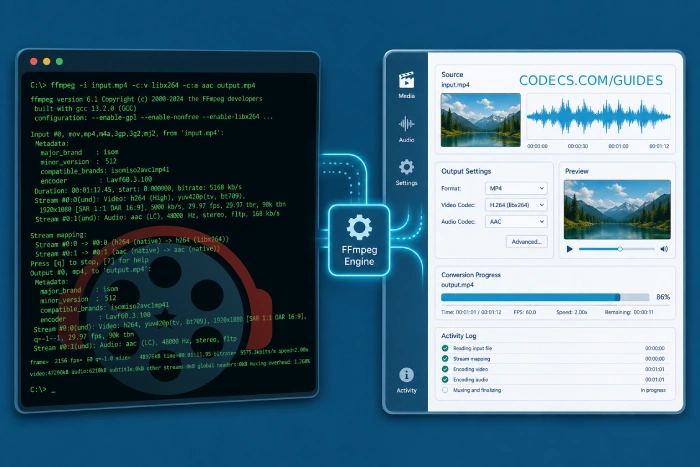
Free programs put the same engine behind a normal window:
- SmartFFmpeg - a small, portable FFmpeg front-end with one-click presets for common conversions.
- LosslessCut - trims and joins clips without re-encoding, so it is very fast and loses nothing.
Not sure which suits you? Our GUI vs CLI guide explains the trade-off.
Specialised front-ends for FFmpeg
For a few jobs, a dedicated tool builds the right FFmpeg command for you:
- X HEVC Encoder - H.265 video with ready presets (archive, streaming, 4K HDR, mobile), and it shows you the FFmpeg command it runs.
- X Audio Converter - WAV, FLAC, M4A and more to MP3, Opus and other formats, with tags kept.
- X Opus Encoder - batch encoding to Opus, the audio format chat and video apps use because it sounds better than MP3 at low bitrates.
Fix: "ffmpeg is not recognized as an internal or external command"
Windows cannot find FFmpeg. Check three things: you opened a new terminal after changing PATH, the entry points to the bin folder (C:\FFmpeg\bin, not C:\FFmpeg), and it is spelled exactly right.
Fix: "Unknown encoder"
Your build does not include that encoder. The Essentials build covers H.264, H.265, AAC, MP3 and Opus, but not extras such as libsvtav1. Download the Full build and replace the files in C:\FFmpeg\bin. For AV1, our rav1e and FFmpeg guide walks through it.
Fix: "Permission denied" or "No such file or directory"
Save to a folder you own, such as Desktop or Documents, not Program Files. If a file name has spaces, put it in quotes: ffmpeg -i "my video.mp4" out.mp4.
Fix: sound out of sync or jerky playback
Phone videos often use a changing frame rate. Re-encode instead of copying, and fix the frame rate and audio timing:
ffmpeg -i input.mp4 -r 30 -c:v libx264 -crf 22 -af aresample=async=1 -c:a aac output.mp4Quick questions
Is FFmpeg free and safe?
Yes. FFmpeg is free, open-source software. The Windows builds on CODECS.COM come from GyanD and BtbN, the two builders most Windows users rely on.
Essentials or Full build?
Essentials for almost everyone - it includes H.264, H.265, AAC, MP3 and Opus. Take Full if you need extras such as the SVT-AV1 or rav1e AV1 encoders.
Do I need admin rights to install FFmpeg?
No. FFmpeg is a set of portable programs, and adding it to your own User Path needs no admin rights.
Does FFmpeg have a window or buttons?
No, it runs by typed commands. If you prefer buttons, a GUI such as SmartFFmpeg, or HandBrake for video conversion, does the same kind of job.
How do I update FFmpeg?
Installed with winget, run winget upgrade Gyan.FFmpeg.Essentials. Installed by hand, download the new build and replace the files in C:\FFmpeg\bin - the Path setting stays as it is.
Does it work on Windows 10?
Yes. The steps are the same on Windows 10 and 11, on any 64-bit PC.
The bottom line
One winget command or five manual steps, then ffmpeg -version to check - and the ten commands above cover most everyday jobs. What do you use FFmpeg for? Tell us.


How to Stream With VLC: Open a Stream URL or ...
5/5This is amazing! I could no longer afford cable so I cut the cord and started watching Hulu, Youtube, ...
Read More →Don't Open a .xmpeg File Before Reading This
3/5It's never a good sign when the potential malware you downloaded has the EXACT same filename as the example. ...
Read More →Free Popular IPTV Playlist: Where to Get Fres...
3/5How can you create a DSTV channels on IPTV?
Read More →