Most driver problems on a working PC are caused by updating a driver - which is why the useful advice is not how to update all of them, but which two or three actually matter and which twenty to leave alone.
A driver is not an app. There is no new feature waiting for you.
It is the small piece of code that lets Windows talk to one piece of your hardware, and when it already talks fine, changing it can only go sideways.
So the whole job is knowing which handful genuinely benefit from being current, and having a way back when one of them does not.
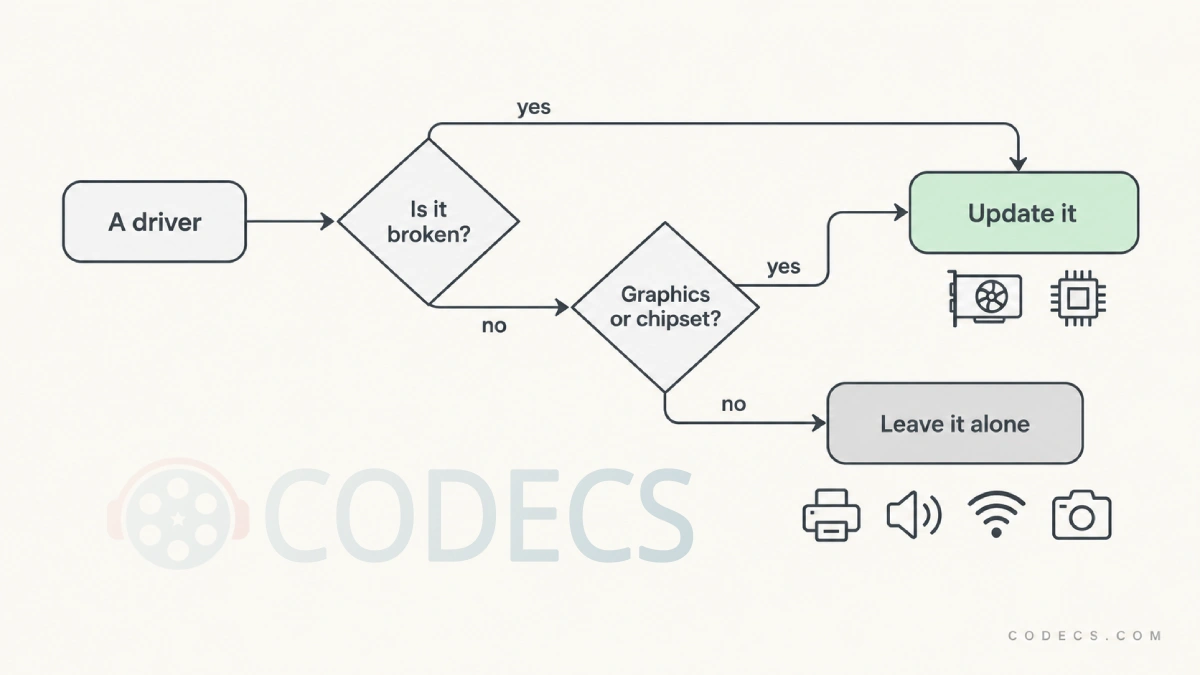
Let Windows Update handle almost everything. Get your graphics driver from NVIDIA, AMD or Intel directly. Install the chipset driver after a fresh install or a new build. Leave the rest alone unless something is actually broken - and make a restore point before you touch any of it.
The one rule that prevents almost every driver disaster
If it works, do not update it.
That sounds lazy, and it is the opposite. A driver update swaps out working code for newer code that has been tested on a thousand configurations - none of which is yours.
Most of the time nothing happens, which is exactly why people keep doing it. When something does happen, it is a black screen, a dead Wi-Fi adapter or a webcam that has stopped existing, and you now have to fix it on a machine that is worse than it was an hour ago.
There are four situations where updating is worth it. Everything outside this list can wait:
- Your graphics driver. This is the real one. Graphics drivers get genuine performance work, fixes for new games, and fixes for video playback and hardware decoding - which is why a stuttering 4K file is often a driver problem rather than a player problem.
- Your chipset driver, after a fresh Windows install or a new build. Windows ships generic versions of these and they are fine until they are not. See the section below - the symptoms are strange enough that nobody connects them to a driver.
- A device that is actually misbehaving. Sound cutting out, a mouse stuttering, a card reader nothing sees. A driver update is a reasonable first thing to try when a specific device is wrong.
- A security advisory that names your hardware. Rare for consumer gear, and when it happens it usually arrives through Windows Update anyway.
Printers, motherboard audio, network adapters, card readers, webcams, Bluetooth - if they work, they are done. There is no prize for having the newest one.
Before you touch anything: the two-minute safety net
This is the part people skip, and it is the difference between a bad driver being a five-minute annoyance and a bad driver being an evening.
- Make a restore point now. Press Start, type
restore point, open Create a restore point, pick your system drive, click Create and give it a name you will recognise. - Write down what you are replacing. In Device Manager, right-click the device, choose Properties, then the Driver tab. Note the Driver Version and Driver Date before you change anything.
- Know where the undo button lives. It is on that same Driver tab, and it is called Roll Back Driver. You want to have seen it once before you need it.
- Update one thing at a time. Two drivers at once means you do not know which one broke it, and you end up undoing both.
Do not rely on a restore point you made weeks ago. Since Windows 11 24H2, restore points are deleted automatically after 60 days. Older versions of Windows kept them until the disk space ran out, so plenty of advice written before 2025 still assumes they stay forever. Make a fresh one on the day you update, not at some point in the past.
Route 1: let Windows do it, which is fine more often than people admit
Windows Update installs drivers on its own, and for most hardware in most machines that is the right answer and the end of the story.
It is deliberately conservative. Microsoft ships the version that has been through testing rather than the version that came out on Tuesday, which is why it sometimes looks out of date and is usually the reason your PC is stable.
There is a second list that does not install itself, and almost nobody knows it is there:
- Open Windows Update. Start, then Settings, then Windows Update.
- Go into Advanced options. Check that Receive updates for other Microsoft products is on.
- Open Optional updates. It sits under Additional options. Expand Driver updates if the section is there.
- Take the ones you have a reason for. Not all of them. If a device is behaving, leave its entry unticked.
Route 2: get the graphics driver from the people who made the card
This is the one case where going around Windows Update is clearly better, and it is not close.
Graphics vendors ship updates constantly, and their own updater will always have a newer build than Windows Update does. Everything below assumes you already know which card you have - if you do not, Device Manager, then Display adapters, will tell you.
If you have an NVIDIA card, the NVIDIA App is the updater now. GeForce Experience was retired in December 2024, and in May 2026 the NVIDIA Control Panel went too - driver settings for GeForce cards live in the app and nowhere else. Any guide still telling you to open GeForce Experience was written before that and has not been touched since.
NVIDIA also ships two driver lines, Game Ready and Studio, and picking the wrong one is harmless but pointless. Our guide to which NVIDIA driver you actually need settles it in about a minute.
If you have an AMD card, AMD Software: Adrenalin Edition is both the driver and the control panel, and it checks for its own updates. One download covers the whole thing.
If you are on Intel graphics - which is most laptops and any desktop without a separate card - the Intel Graphics Driver package is the one to take. On a laptop, check the maker's support page first: some vendors ship a modified version and Intel's generic build can undo their tweaks.
A clean install beats an upgrade when things are already odd. All three vendors' installers offer a clean or custom option that wipes the previous driver's settings instead of installing over them. Use it if you are updating because something is wrong, rather than just because a new version exists.
The driver nobody thinks about, and the one that causes the strangest bugs
Chipset drivers are the ones that make your motherboard's own parts work - USB controllers, power management, sleep behaviour, how your CPU and storage are scheduled.
When they are missing or generic, nothing crashes. Things just go quietly wrong in ways nobody connects to a driver: USB devices dropping out, the machine waking itself at night, sleep not working, an SSD that benchmarks slower than it should, fans behaving oddly.
Windows installs a generic set and never mentions it. That is why a fresh install can feel subtly worse than the machine did before, with no error anywhere to point at.
On AMD, this is a real download you have to go and get. The AMD Ryzen chipset drivers package covers Ryzen and Threadripper boards, and it is the single most worthwhile install on a newly built or newly reinstalled AMD machine.
On Intel, it mostly arrives through Windows Update as the Chipset Device Software, so there is usually nothing to do. If Device Manager is showing unknown devices after a fresh install, that is when to go to your motherboard maker's support page.
When it goes wrong: undoing a driver in under a minute
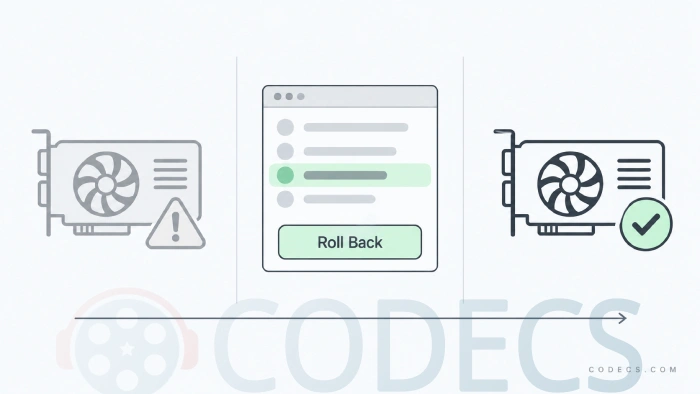
Windows keeps the previous driver package when it replaces one, precisely so you can put it back.
- Open Device Manager. Right-click the Start button and pick it from the menu.
- Find the device and open its properties. Right-click it, choose Properties, then the Driver tab.
- Click Roll Back Driver. Answer the reason prompt with anything, and let it restart if it asks.
If Roll Back Driver is greyed out, there is no previous package stored - usually because the new driver was installed by a vendor installer that cleaned up after itself. Download the older version from the vendor and install that instead; every vendor keeps an archive of previous releases.
Black screen after a graphics driver update? Hold the power button to force a shutdown, do it twice more, and Windows opens the recovery menu on the next boot. From there, Troubleshoot, Advanced options, Startup Settings, Restart, then press 5 for Safe Mode with Networking. Windows loads a basic display driver in Safe Mode, so you can see the screen well enough to roll back.
Do I need one of those driver updater programs?
Usually not, and the honest answer is more interesting than either of the ones you normally get.
Windows Update covers ordinary hardware. The graphics vendors cover graphics cards better than anyone else can. Between them, that is most of what is on a normal PC, and a program that scans for outdated drivers is mostly finding ones that are outdated and working perfectly.
There are three situations where one earns its place, and they are narrow but real:
| Situation | Why a driver tool helps |
|---|---|
| Fresh install, no network driver | You cannot download a network driver on a machine with no network. An offline driver pack on a USB stick is the only way out of that loop. |
| Hardware old enough that the maker is gone | The support page has been taken down or the company no longer exists. A large driver archive may still have the file. |
| A laptop full of unknown devices | Six yellow marks in Device Manager and no idea what any of them are. Identifying them one at a time is the slow way to do it. |
For the offline case, this is the tool. Snappy Driver Installer Origin is free, portable and fully offline - you download the driver packs once on a working machine, carry them on a USB stick, and run it on the machine with no network. No account, no paid tier, no nagging.
Whatever you use, the rule from the top of the page still applies. A scan that reports thirty outdated drivers is not a list of thirty problems, and ticking all of them is how a working PC becomes a broken one.
Afterwards: the gigabytes nobody tells you about
Every time a driver is replaced, Windows keeps the old package in a hidden folder called the driver store. It never removes them.
On a machine that has been through a few years of graphics driver updates, that folder can hold several gigabytes of versions nothing will ever load again. You can see the scale of it yourself - open a Command Prompt and run:
pnputil /enum-driversClearing it by hand is risky, because deleting a package that is actually in use takes the device with it.
The safe way to clean it up. Driver Store Explorer lists every package in the store with its device, date and size, has a Select Old Drivers button that ticks only the superseded ones, and refuses to delete anything currently in use. It is about a megabyte and it routinely frees several gigabytes on a machine that has never been cleaned.
Quick questions
Do I need to update my drivers at all?
For most hardware, no - Windows Update already handles it, and a driver that works does not get better by being replaced.
The exceptions are your graphics driver, your chipset driver after a fresh install, and any device that is actually misbehaving.
How often should I update my graphics driver?
Every couple of months is plenty, unless a game or an app you use has just been released and the vendor has shipped a driver specifically for it.
There is no benefit to installing every release the day it appears, and doing so is how people meet the occasional bad one.
Is it safe to use a driver updater program?
The tools themselves are fine. The risk is what you do with the results - a scan that lists thirty outdated drivers is not thirty problems, and updating all of them at once is the fastest way to break a machine that was working.
Use one for a specific reason, take the drivers you have a reason for, and make a restore point first.
My PC broke right after a driver update. What now?
Device Manager, right-click the device, Properties, Driver tab, Roll Back Driver. That is the whole fix, and it takes under a minute.
If you cannot see the screen, force three failed boots with the power button to reach the recovery menu, then start in Safe Mode and roll back from there.
Should I uninstall the old driver before installing a new one?
Not normally - installers replace the previous version themselves, and removing it first just leaves the device without a driver in between.
Do use the installer's clean or custom option if you are updating because something is already wrong, since that clears settings a normal install would carry over.
Where does Windows actually keep drivers?
In the driver store, a protected folder that holds every driver package ever installed, including the ones that have been superseded.
It is not meant to be edited by hand. Run pnputil /enum-drivers to see what is in it, and use a tool built for the job if you want to clear the old ones out.
The bottom line
Update your graphics driver, install the chipset driver on a fresh build, and leave the rest of them alone. Make a restore point on the day you do it, change one thing at a time, and learn where Roll Back Driver lives before you need it.
Done that way, a driver update is a five-minute job with a five-minute undo, rather than the reason your evening disappears.


Latest comments
What readers are saying AllI used [link] on tivimate with the Usa m3u Playlist. I cannot get the guide to work.
Team replied Guide: Free EPG URLs for IPTV: TV Guide Links That Still Work 2 comments[link] Epg is not working on this one.
Team replied News: Free USA IPTV Playlist: The American TV That Is Really Free 1 commentSi mund te shikoj te gjitha kanalet e DigitAlb dhe Tring me url pa pagese ne Iptv Player?
Team replied Guide: Free Popular IPTV Playlist: Where to Get Fresh, Legal M3U Links in 2026 20 comments