You drop a video onto a slide and PowerPoint answers with 'cannot insert a video from the selected file'.
It almost always means the same thing: PowerPoint cannot read what is inside the file, whatever the file is called.
The good news is that you can usually find out which part is the problem in about a minute.
Work through these six in order.
The first one is not a fix at all - it is the check that tells you which of the other five you actually need, and skipping it is why people try four things that were never going to help.
1. First, Find Out What Is Actually Inside the File
A file called .mp4 is a box. The video and audio inside that box can be encoded a dozen different ways, and PowerPoint only reads some of them.
So an .mp4 that your phone plays perfectly can still be refused, because the box is fine and the contents are not. This is the single most common reason people get stuck.
The quickest way to look inside is MediaInfo. Open your file with it and read two lines: the video format and the audio format.
If you already have VLC Media Player, it does the same job. Open the file, then Tools > Codec Information.
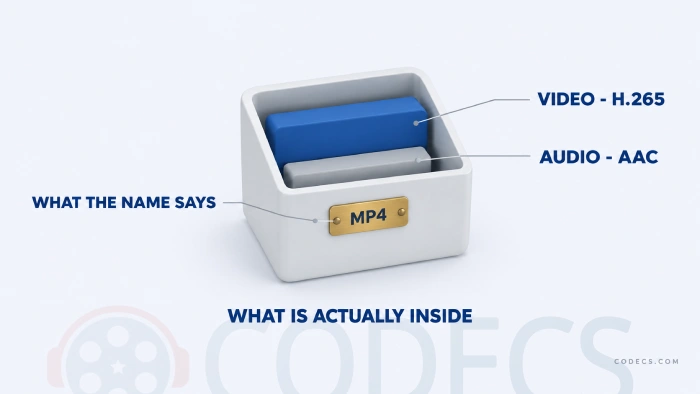
PowerPoint's safe combination on every version and both platforms is H.264 video with AAC audio, in an MP4 container. Anything else is where the trouble starts.
Write down what MediaInfo told you. The next five sections each answer a different result.
2. Convert It to MP4 with H.264 and AAC
If the video says H.265, HEVC, AV1, VP9, MPEG-4 Visual or anything you do not recognise, converting is the fastest way out. It also fixes audio problems in the same pass.
HandBrake is free and does this in three clicks. Open your file, pick the Fast 1080p30 preset, and press Start Encode.
That preset already produces MP4 with H.264 and AAC, so there is nothing else to set. A two-minute clip takes a minute or two on an average laptop.
Prefer to use what you have? VLC converts too. Go to Media > Convert / Save, add your file, and choose the Video - H.264 + MP3 (MP4) profile.
For audio files. Use .m4a with AAC encoding. That is the one audio format Microsoft recommends for PowerPoint on both Windows and Mac.
3. If It Is a WebM File, Install Web Media Extensions
This one catches people out because the advice online is years behind. WebM is on Microsoft's supported list for Windows PowerPoint - it just needs one free component that Windows does not ship with.
Microsoft's own wording is that Web Media Extensions has to be installed for WebM with Vorbis audio to insert and play. It is a small free package, and it fixes Ogg and Vorbis playback everywhere else on the machine at the same time.
Grab Web Media Extensions, install it, restart PowerPoint and try again. No conversion needed.
4. If It Is H.265 or HEVC, Add the Free HEVC Extension
Newer phones, drones and screen recorders default to H.265 because the files are half the size. Windows does not decode it out of the box, so PowerPoint refuses it.
Microsoft sells one version of the extension and gives away another. The free one is the device-manufacturer build, and it does the same job.
Install the free HEVC Video Extensions, restart PowerPoint, and the same file should drop straight in. If you would rather not install anything, convert it with HandBrake instead - fix 2 covers that.
5. If the Error Mentions a 64-bit Codec, That Is a Different Problem
Read your error message again. If it says "verify that the necessary (64-bit) codec for this media format is installed", PowerPoint is telling you something more specific than "I cannot read this".
It is asking Windows for a decoder that matches Office's own architecture, and not getting one back. Converting the file works, but installing the decoder fixes every file at once.
That is its own short job, so it has its own page: the 64-bit codec fix, which walks through the free decoder set and takes about 90 seconds.
6. When It Is Not the Codec at All
Sometimes the file is fine and something around it is in the way. Three things are worth ruling out, and all three are quick.
- The file is in OneDrive or Dropbox and is not really on your PC. Right-click it in File Explorer and choose "Always keep on this device", then wait for the sync to finish.
- The path is long, or has accented or unusual characters in it. Copy the video to something short and plain such as C:\Videos\clip.mp4 and insert it from there.
- Your presentation is still an old .ppt file. Go to File > Save As, choose PowerPoint Presentation (.pptx), reopen it, and try again.
One more, and it mostly affects Europe. If you are on a Windows 10 or 11 N or KN edition, your copy of Windows shipped with the media components stripped out, so PowerPoint has nothing to decode with at all.
The fix is Microsoft's free Media Feature Pack. Open Settings > Apps > Optional features > Add a feature, search for it, install, and restart.
What PowerPoint Actually Accepts in 2026
Microsoft's supported-format list has been trimmed, and a lot of the advice still circulating online is out of date. Here is where it stands now on Windows.
| Format | Status on Windows | What to do |
|---|---|---|
| MP4 / M4V with H.264 and AAC | Recommended | Nothing. This is the target. |
| MOV | Supported | Usually works. Convert if the video inside is H.265. |
| WebM | Supported, with a component | Install Web Media Extensions. |
| M4A, AAC, MP3, WAV | Supported audio | Nothing. M4A with AAC is the safest. |
| WMV, ASF, AVI, MPEG-2, WMA, AIFF, 3GPP | Deprecated | Convert to MP4. Do not build a deck on these. |
| MKV, FLV | Not on the list | Convert to MP4. |
| MID, MIDI | No longer supported | Convert to MP3 or WAV. |
Microsoft's supported-formats page says support for Windows Media Video, Windows Media Audio, MPEG-2, AVI, AIFF and 3GPP is limited and deprecated in PowerPoint version 2505 and above. Plenty of older guides still recommend converting to WMV. That advice has quietly expired.
The full list lives on Microsoft's supported file formats page, and it does change, so it is worth a look if your format is not in the table.
Cannot Open the Presentation at All?
Occasionally the video is innocent and the deck itself is the problem. If PowerPoint will not open the file, or you are on a machine without Office, it helps to check the presentation is intact before you spend an hour on codecs.
The PPTX File Viewer opens a presentation in your browser and shows the slide thumbnails, speaker notes and file details. If it renders there, the deck is fine and the video is your problem.
Quick questions
What video format does PowerPoint accept?
MP4 with H.264 video and AAC audio is the combination Microsoft recommends, and it works on every supported version of PowerPoint on Windows and Mac. MOV and WebM are also supported on Windows, WebM with the Web Media Extensions package installed.
Why does PowerPoint reject my MP4?
Because MP4 is a container, not a codec. If the video inside it is H.265, AV1 or VP9, PowerPoint cannot read it even though the file extension looks right. Check with MediaInfo, then convert it with HandBrake.
Can PowerPoint play MKV files?
No. MKV is not on Microsoft's supported list and no codec pack changes that, because the refusal is at the container level rather than the codec level. Convert it to MP4 and it will insert without complaint.
Will installing a codec pack fix this?
Often, yes, if the error names a 64-bit codec and the file is in a container PowerPoint accepts. Our 64-bit codec guide covers which one to install and why most of the packs advertised for PowerPoint are not worth downloading.
Does this error mean my video file is corrupted?
Rarely, but it is worth two minutes to rule out. Try playing it in VLC - if VLC cannot play it either, re-download or re-export the file before troubleshooting anything else.
If you only do one thing, do the check in step one. Knowing whether you are looking at an H.265 video or a broken file path saves you trying five fixes for a problem you do not have.
Download HandBrake and convert your clip to MP4, or tell us which file it was if none of the six sorted it.


Latest comments
AllFree M3U Playlist for TiviMate: Legal Lists That Load Cleanl...
The link isn't working. https://www.free-codecs.com/guides/free-epg-urls-for-iptv.htm
The New Fire TV Stick 4K Can't Run Kodi - Here's Which Fire ...
The Vega OS shift is the biggest Firestick story of 2026. Anyone buying now needs to know: 4K Max = sideloading ...
JPEG XL Is Back in Chrome: What It Means and How to Open JXL...
Brave just enabled it by default for stable users yesterday (1.97). Not specified is chromeOS will be passively gaining decode ...