Usually yes - but look at how big it is first, because that number tells you whether you are deleting Windows leftovers or your own files.
Disk Cleanup calls it Previous Windows installation(s), and on disk it is a folder called Windows.old.
It is not a backup you made - it is what your old Windows was, kept on the side in case the upgrade went badly.
Most of the time it is safe to remove and worth the space, and just occasionally it is the only copy of your things.
What Windows.old Actually Is
When Windows upgrades in place, or when you reset the PC, it does not wipe the old installation. It moves it aside into a folder called Windows.old and builds the new one around it.
That folder is what makes the Go back option work. It is also where anything that failed to transfer to the new install ends up sitting.
Windows deletes it by itself after about ten days. So if you are not short of space today, doing nothing is a perfectly good plan.
Check the Size Before You Touch Anything
This is the step every other guide skips, and it is the one that matters.
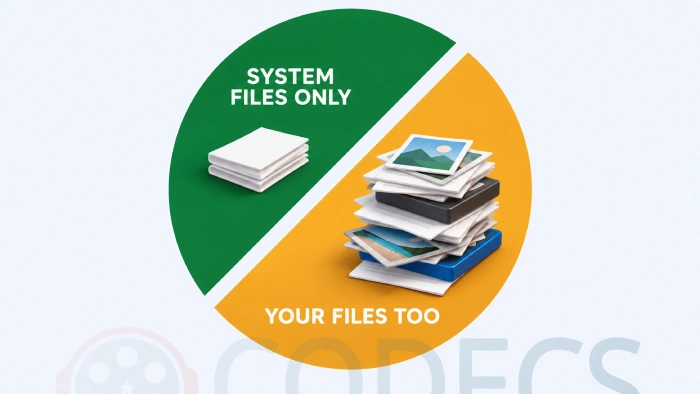
Twenty or thirty gigabytes. That is a normal Windows.old - system files, drivers, program folders. Nothing in there is irreplaceable and you can clear it with a clear conscience.
Hundreds of gigabytes. That is not system files. A folder that size means your old user profile came along for the ride - documents, photos, downloads, possibly a whole media library.
Microsoft's own advice on this is to look inside before you delete, precisely because Windows.old is the last resort for anything that did not make it across.
How to Look Inside It
Windows.old is a hidden folder, so the first job is to make it visible. In File Explorer, open the View menu, go to Show, and switch on Hidden items.
Now open C:\Windows.old\Users and go into the folder with your name on it.
You are looking at your old Desktop, Documents, Pictures and Downloads. Check that whatever is in there also exists in the live versions of those folders.
If anything is only in Windows.old, get it out first. Copy it somewhere else before you delete the folder, and if this is the moment you have realised you have no second copy of anything, our guide to making sure those files exist somewhere else is the more urgent job.
Nothing there at all? Then you have nothing to delete - either the ten days have passed and Windows has already cleared it, or this PC was cleanly installed rather than upgraded, in which case it was never created in the first place.
What You Give Up by Deleting It
Two things, and only two.
The rollback. Once Windows.old is gone, Go back to the previous version of Windows disappears as an option. If the new build is behaving, that hardly matters.
The safety net for stray files. Anything that quietly failed to migrate is in that folder and nowhere else, which is the whole reason for checking first.
How to Delete It Properly
Not by dragging it to the Recycle Bin. Windows.old belongs to the system account, so Explorer will simply refuse and you will waste ten minutes fighting permissions.
The Settings route. Open Settings, then System, then Storage, then Temporary files. Tick Previous Windows installation(s), leave anything you are unsure about unticked, and click Remove files.
The Disk Cleanup route, if that is the dialog you are already looking at. Search the Start menu for Disk Cleanup, pick your system drive, then click Clean up system files - the entry does not appear until you do.
Either way it takes a few minutes and the space comes back immediately.
If You Want Longer Than Ten Days to Decide
The rollback window is adjustable. Open Command Prompt or Terminal as administrator and check what you have with this.
DISM /Online /Get-OSUninstallWindow
To extend it, set a new number of days - the default is 10, the maximum is 60 and the minimum is 2.
DISM /Online /Set-OSUninstallWindow /Value:60
This only works while the original window is still open. Once the ten days have passed Windows.old is already gone, there is nothing left to extend, and DISM answers with Error 1168 Element not found - so this is a thing to do the day after an upgrade, not the week after.
Note that extending the window does not protect the folder from cleanup tools. Disk Cleanup and Storage Sense will still remove it if you ask them to.
What Else Is Eating Your Drive
If clearing Windows.old did not get you far enough, the space is usually in one of four places.
- Temporary files, browser caches and update leftovers, which is what a cleaner like CCleaner is for. BleachBit and Wise Disk Cleaner do the same job if you prefer something lighter.
- Programs you stopped using years ago - Revo Uninstaller removes what the normal uninstaller leaves behind.
- Preinstalled apps you never asked for, which is a separate job covered in our guide to stripping out the preinstalled apps.
- A media library sitting on the system drive, where the real answer is usually moving it to an external drive rather than deleting anything.
The rest of what is worth having is on our Drive Cleaners page.
Quick questions
Is it safe to delete Previous Windows installations?
In most cases yes, once you are happy the new Windows is working and your files are all present. The exception is a folder running to hundreds of gigabytes, which almost certainly contains your old user profile and deserves a look inside first.
Why is mine 500GB when everyone says it should be 20GB?
Because your old user profile went into it. That happens with an in-place upgrade or a reset on a machine where documents, photos or a media library were sitting on the system drive.
Can I just delete the Windows.old folder in File Explorer?
No, and it is not worth the fight. The folder is owned by the system account, so Explorer refuses - use Storage settings or Disk Cleanup instead and it goes cleanly.
There is no C:\Windows.old on my PC - what does that mean?
Usually that it has already gone, since Windows clears it automatically about ten days after an upgrade. Switch on Hidden items in File Explorer to be certain, and if Disk Cleanup does not list Previous Windows installation(s) either, there is nothing left to delete.
Will it come back if I delete it?
Not from this upgrade. A new Windows.old is created the next time Windows upgrades in place or you reset the PC, and that one is deleted automatically after about ten days too.
Do I need it if I already have a backup?
Much less, which is rather the point. If your files are already copied somewhere else, Windows.old is only holding the rollback option and you can clear it as soon as the new build looks healthy.
What if I delete it and then something is missing?
There is no undo, which is why the check comes first. Once the folder is removed the files in it are gone unless they exist in a backup or somewhere else on the machine.
Look inside it once, then clear it and take the space back.
Everything else for a crowded drive is on our Drive Cleaners page.
Leave a comment telling us how big yours turned out to be - we are curious how common the enormous ones really are.


Free Popular IPTV Playlist: Where to Get Fres...
4/5شكرا ولكن هل ممكن ان اجد روابط للقنوات الرياضية المشفرة
Read More →EAC3 Audio Not Supported in MX Player? Fix It
4/5EAC3 Audio Not Supported in MX Player? Fix It
Read More →Best Way to Get VidMate APK - Fast, Free, and...
5/5The demand for feature-rich video editing applications continues to grow across the digital content industry. Filmora Mod APK is ...
Read More →