Windows 11's November update replaces the old AutoPlay pop-up with a modern one that can remember what you want, so plugging in your phone finally stops asking the same question every time.
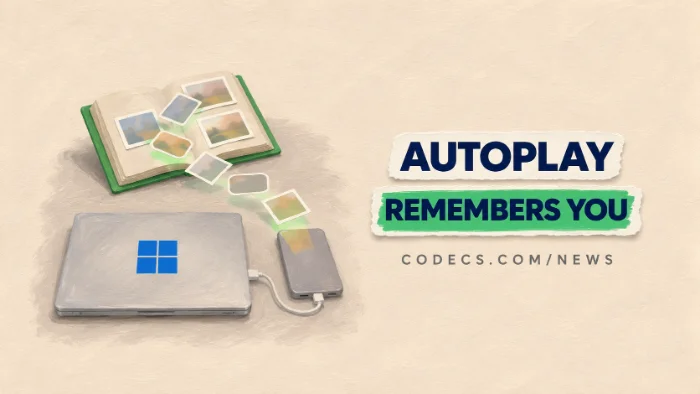
The new dialog arrives with KB5132061, the November security update for Windows 11 25H2 and 26H2.
It is rolling out gradually, so you may not see it straight after installing.
Here is what changed, how to set it up, and how to get your phone photos and videos onto your PC without a fight.
What Is Different About the New AutoPlay
The old pop-up sat in the top-right corner and asked what to do every single time you connected a phone, USB stick or memory card. It had no way to save your answer from the pop-up itself.
- Centred on screen. It now opens in the middle, with rounded corners and dark mode to match the rest of Windows 11.
- Always or just this once. Pick an action and choose Always, and Windows does it automatically next time without asking.
- Easy to find again. If you miss the pop-up, the AutoPlay notice now stays in Notification Center.
Update will not install?
Some PCs that took October's optional preview update saw KB5132061 fail with errors 0x800f0989, 0x800f0993 or 0x80070306. Microsoft says it is sending an automatic fix, so check Windows Update again before trying anything drastic.
How to Set What Happens When You Plug In Your Phone
You can choose from the new pop-up, or set everything in one place ahead of time.
- Open Settings and go to Bluetooth & devices > AutoPlay.
- Make sure Use AutoPlay for all media and devices is turned on.
- Pick a default for Removable drive, Memory card and your phone, if it is listed.
- Choose Import photos and videos if you want them copied, or Open folder to view files if you prefer to drag them yourself.
Changed your mind about an Always choice? Come back to this same screen and pick a different action.
Getting Photos Off an iPhone or Android Phone
AutoPlay only appears once Windows can actually see your phone's storage. If nothing pops up, the phone is usually the one saying no.
- iPhone. Unlock the phone and tap Trust or Allow when it asks - your pictures are in the DCIM folder under Internal Storage.
- Android. Pull down the notification shade and switch the USB mode from Charging only to File transfer.
- Use a data cable. Some cheap cables only charge, and Windows will never see the phone through them.
When Imported Photos or Videos Won't Open
Modern phones save photos as HEIC and videos as HEVC (H.265), which squeeze files to about half the size. Copying them works fine, but your PC still needs a way to open them.
- HEIF Image Extensions - lets Windows show HEIC photos, mostly needed on Windows 10 and older Windows 11 PCs.
- HEVC Video Extensions - Microsoft's free H.265 codec, so phone videos play in the built-in Media Player.
- VLC Media Player - plays HEVC and almost anything else with no extra codec at all.
For quick browsing of a big import, ImageGlass is a fast free viewer that opens HEIC once Windows supports it.
iPhone shortcut:
On the iPhone, go to Settings > Photos and set Transfer to Mac or PC to Automatic. The phone then converts photos and videos to more common formats as they copy, so they open anywhere.
Still stuck with a clip that plays black or silent? Our phone videos won't play on your PC guide walks through every fix.
Quick questions
Which update brings the new AutoPlay pop-up?
KB5132061, the November 2026 security update for Windows 11 25H2 and 26H2. It is rolling out gradually, so it can take a while to appear even after the update installs.
How do I stop AutoPlay asking every time?
Choose an action in the new pop-up and select Always, or set a default in Settings > Bluetooth & devices > AutoPlay.
How do I turn AutoPlay off completely?
Go to Settings > Bluetooth & devices > AutoPlay and switch off Use AutoPlay for all media and devices.
Why doesn't AutoPlay appear when I plug in my phone?
The phone is usually locked, set to charge only, or waiting for you to tap Trust or Allow. Unlock it, allow access, and use a proper data cable.
Why won't my phone photos open after I copy them?
They are probably HEIC photos or HEVC videos. Install the free HEIF and HEVC extensions, or use VLC for the videos.
The bottom line
The new AutoPlay is a small change that saves a click every time you plug in your phone. Set it once, and keep the HEIC and HEVC extensions handy so everything you import actually opens.






Latest news comments
What readers are saying AllI was having the same error issue with the dead playlist link the other guy above did. Thank you so much for ...
Team replied News: Free USA IPTV Playlist: The American TV That Is Really Free 2 commentsInteresting development with the Fire TV Stick 4K — losing Kodi sideloading is a big deal for a lot of users. For those ...
News: The New Fire TV Stick 4K Can't Run Kodi - Here's Which Fire Stick Still Can 3 commentsBrave just enabled it by default for stable users yesterday (1.97). Not specified is chromeOS will be passively gaining decode capability too, and ...
Team replied News: JPEG XL Is Back in Chrome: What It Means and How to Open JXL Files 1 comment