Ever wonder what your computer is quietly sending to the internet while you are just sitting there? You can actually watch it happen - and you do not need to be a hacker to do it.

Your PC chats with the internet constantly. Updates, background apps, browser tabs, that one program you installed last year - they all send and receive little packets of data without telling you.
Usually it is harmless. Sometimes it is not.
The good news: a free tool called Wireshark lets you see every one of those conversations in plain view.
This guide gets you from "I have no idea" to "oh, so that is what was happening" in a few minutes.
Step 1: Install Wireshark
Download Wireshark and run the installer. When it offers to install something called "Npcap", say yes - that is the small helper that actually lets Wireshark see your network traffic. Click through the rest with the default options.
Reboot if it asks. Done.
Step 2: Pick your connection and start listening
Open Wireshark. You will see a list of network connections, each with a little wiggly line next to it - that line is live activity, and it is your best clue. Pick the one that is moving and is not called "loopback".
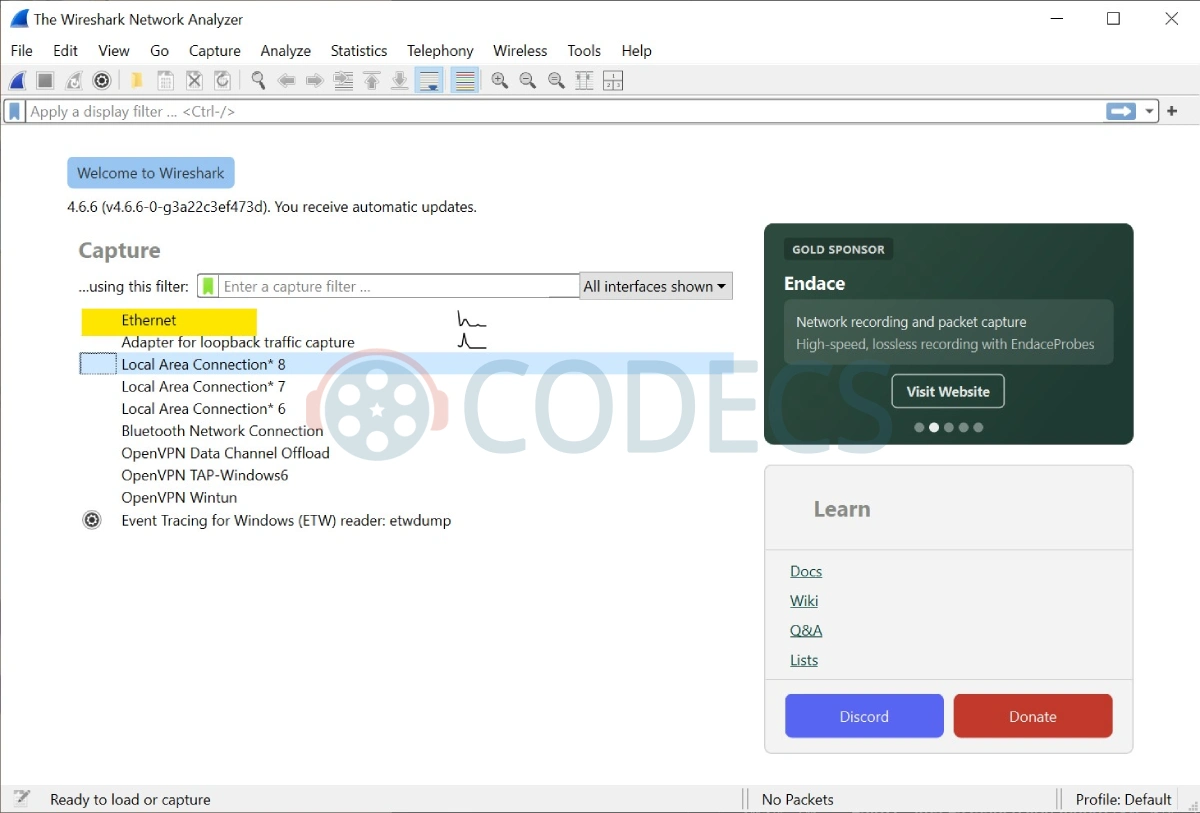
On a laptop that is usually "Wi-Fi"; on a desktop with a network cable it is usually "Ethernet".
Double-click it. Lines start scrolling immediately, and you are now watching your PC's live internet traffic.
Step 3: Make sense of the scroll
It looks chaotic, but you only need three columns to start:
- Source and Destination - who is talking to whom. Your PC's address is one side; the other side is wherever it is connecting to.
- Protocol - the "language" being used, like TLS (secure web traffic), DNS (looking up website names), or QUIC (used by Chrome and YouTube).
- Info - a short plain-text summary of what that packet is doing.
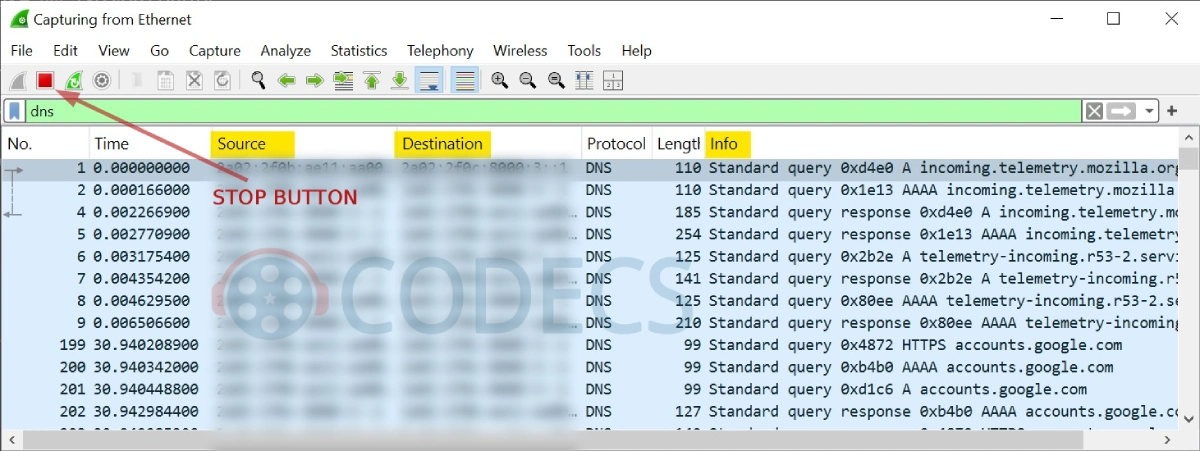
A live capture on a wired (Ethernet) connection, narrowed to DNS traffic using the "dns" filter (top bar). The Source and Destination columns show the long IPv6 addresses your PC and your router use; the Info column reveals the website names being looked up - here, Firefox telemetry and a Google sign-in. This is exactly the kind of plain-readable clue Step 5 talks about.
Let it run for thirty seconds, then stop the capture with the red square button so the screen stops moving.
Step 4: Find out who your PC is talking to
Here is the genuinely useful trick. In Wireshark, click Statistics at the top, then Conversations, then the TCP or IPv4 tab.
This gives you a clean list of every destination your PC contacted, sorted by how much data went back and forth. No scrolling required. If one mystery address is sending or receiving a lot, that is your cue to investigate.
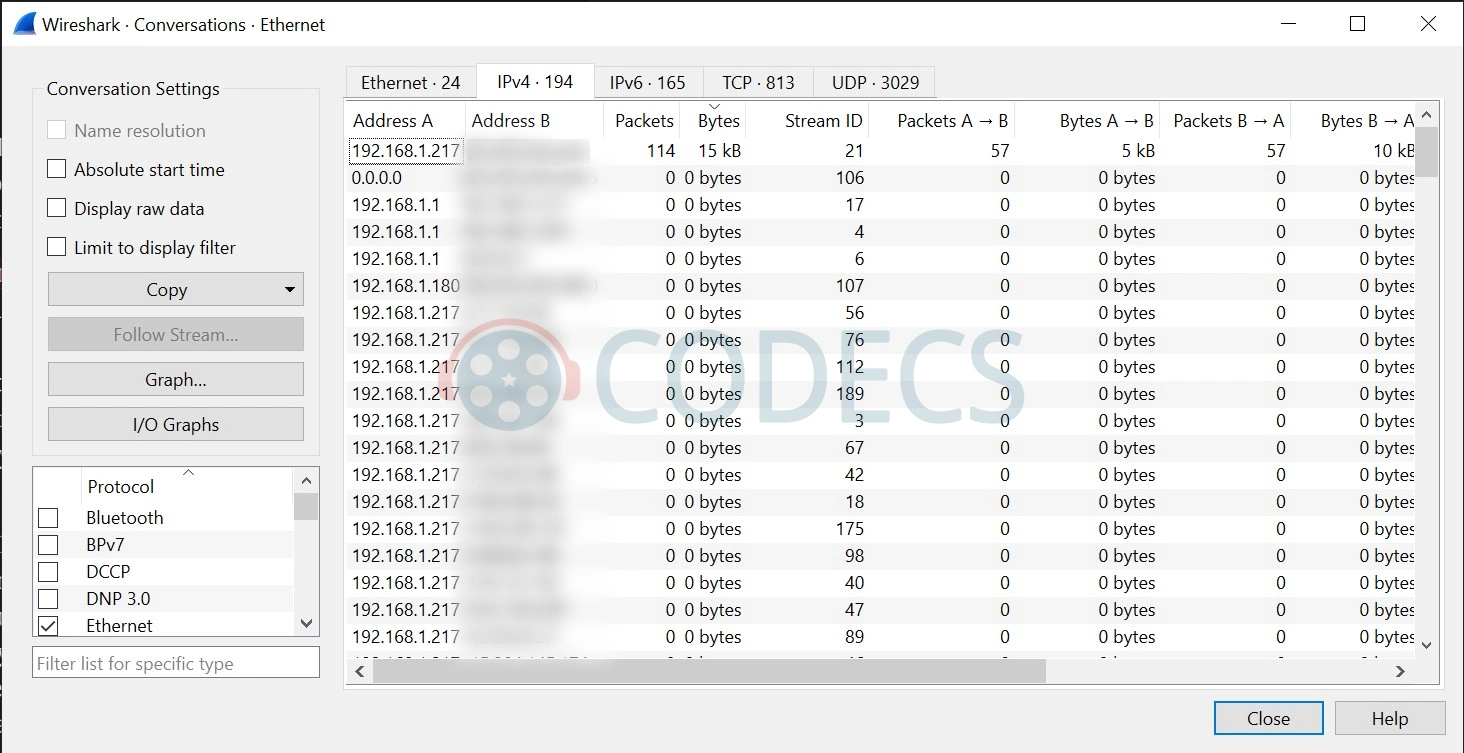
Statistics > Conversations gives you this: every destination your PC contacted, on one screen. Sort by the Bytes column and the busiest connection jumps to the top - here, one conversation moved 15 kB while everything else sat quiet. The external addresses are hidden here for privacy; on your own PC you will see the real ones.
Occasionally you will find something you did not expect, and now you know.
Step 5: Filter out the noise (optional but lovely)
The bar near the top is a filter box. Type a word, press Enter, and Wireshark hides everything else. A few beginner-friendly ones to try:
-
dns- shows only the website-name lookups, a quick way to see which sites your PC is reaching for. -
http- shows unencrypted web requests, which are increasingly rare and worth a curious look. -
tls- shows secure connections, which is most normal browsing.
When should you actually worry?
Most traffic is boring and legitimate. Be a little curious if you see steady traffic to an unfamiliar destination while you are not actively doing anything, or a program you do not recognize generating constant chatter.
Wireshark will not remove anything for you - it is a window, not a guard. But knowing what is there is the first step. From there, a good cleanup tool or a careful look at your installed programs usually sorts it out.


Don't Open a .xmpeg File Before Reading This
3/5It's never a good sign when the potential malware you downloaded has the EXACT same filename as the example. ...
Read More →Free Popular IPTV Playlist: Where to Get Fres...
3/5How can you create a DSTV channels on IPTV?
Read More →EAC3 Audio Not Supported in MX Player? Fix It
4/5EAC3 Audio Not Supported in MX Player? Fix It
Read More →