Half the people who cannot open a ProRes file on Windows do not need to download anything at all, and the other half need one of exactly three things.
The confusion comes from two formats with almost the same name behaving in completely opposite ways.
ProRes opens on Windows today, with software you very likely already have.
ProRes RAW opens in almost nothing, and that is the one people are usually holding.
Check this before you download anything. If your file is ordinary ProRes, a free player opens it straight away and no codec purchase is needed. If it is ProRes RAW, keep reading - there are three ways to open it and all of them are free.
First, Work Out Which One You Have
Both formats use the same .mov file extension and neither says which it is in the filename, so guessing is genuinely hard.
Drop the file into our Codec Finder and it will tell you in a second. It reads only the first few kilobytes of the file inside your browser, so nothing is uploaded anywhere.
You are looking for one word. If the codec comes back as ProRes, ProRes 422 or ProRes 4444, you have the easy one. If it says ProRes RAW, you have the awkward one.
ProRes Already Plays on Windows
This surprises people, because half the internet will try to sell you a ProRes codec pack for Windows.
You do not need one. VLC Media Player carries its own decoders rather than borrowing the ones Windows ships with, and ProRes has been among them for years.
Install it, open the file, and it plays. If you only need to watch the clip, check it, or scrub through it, you are done and you can stop reading here.
ProRes RAW Is the One That Refuses
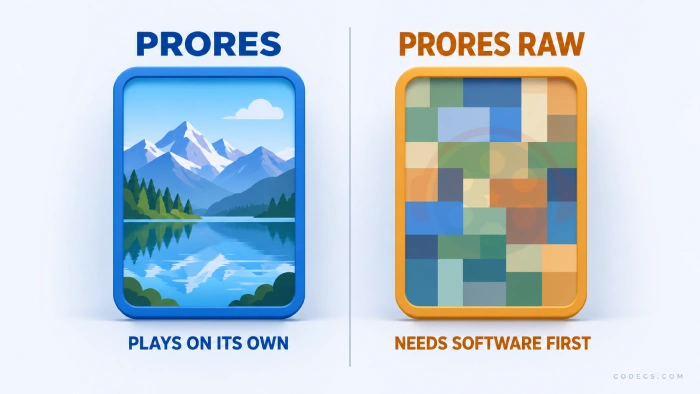
ProRes RAW is not really a video format in the way ProRes is. It is the unprocessed readout from the camera sensor, stored more or less as the sensor saw it.
That is wonderful if you are grading footage, because almost nothing has been thrown away yet. It is useless to a media player, because there is no finished picture inside the file to show you.
Something has to develop it first, the way a photo editor develops a RAW still. That is why a player opens it and shows you nothing, and it is why there is no simple codec download that makes it behave like an MP4.
If you got here from a new iPhone, it is worth knowing that the everyday formats have a much easier answer - our piece on why your new iPhone's videos will not play covers those.
Route One: Apple's Free Component, If You Have Adobe
Apple publishes a small free component that teaches Windows to decode ProRes RAW, and we host it as Apple ProRes RAW for Windows.
It is tiny, it is genuinely free, and it needs 64-bit Windows 10 or newer. Install it and your ProRes RAW footage imports and plays back properly.
It only works inside four Adobe applications. Apple's own documentation lists After Effects, Media Encoder, Premiere Pro and Premiere Rush, and nothing else. It will not make your files play in VLC, it will not give you thumbnails in File Explorer, and it does nothing whatsoever if you do not have one of those four installed.
So this is the right answer if you already pay for Adobe, and completely the wrong one if you do not.
Route Two: Convert It With FFmpeg, No Subscription Needed
This is the route almost nobody mentions, and for a lot of readers it is the best one.
FFmpeg has decoded ProRes RAW natively since version 8.0, released in August 2025. It is free, it needs no editor, and the build on our download page is well past that.
Once it is installed, one command turns a ProRes RAW clip into an MP4 that anything will open:
ffmpeg -i clip.mov -c:v libx264 -crf 18 -preset slow -c:a aac clip.mp4
Replace clip.mov with your filename, and expect it to take a while on long footage. The result plays in Windows Media Player, on a phone, or anywhere you send it.
This is for watching and sharing, not for grading. Converting RAW to MP4 bakes in the colour and throws away the latitude that was the whole reason to shoot RAW. If you plan to grade the footage properly, use route one or route three instead and keep the original files.
Route Three: DaVinci Resolve
DaVinci Resolve added ProRes RAW decoding in version 20.2, and it is a full editing and colour suite rather than a component bolted onto somebody else's software.
The free edition is unusually generous - no watermark, no time limit, no export cap and no account to create.
Blackmagic has not spelled out whether ProRes RAW decoding is in the free build or the paid Studio version, so test one clip before you plan a project around it. It costs nothing to find out.
| Route | What it needs | Use this when |
|---|---|---|
| Apple ProRes RAW for Windows | 64-bit Windows 10 or newer, plus a paid Adobe app | You already subscribe to Adobe |
| FFmpeg | Nothing else, and one typed command | You only need to watch or send the footage |
| DaVinci Resolve | A large free download and a reasonably modern PC | You want to edit or grade without paying a subscription |
Quick questions
Will VLC play ProRes RAW?
No. VLC opens ordinary ProRes without any help, but ProRes RAW needs software that can develop the sensor data first, and no ordinary media player does that today.
Is Apple ProRes RAW for Windows really free?
Yes, it is a free download from Apple. The catch is not the price, it is that it only does anything inside four Adobe applications, and those are not free.
Do I need a Mac to deal with these files?
No. That used to be the honest answer and it is now out of date. All three routes on this page run on Windows.
Why are my ProRes files so enormous?
Because that is the point of the format. Apple's own guidance puts ProRes at up to thirty times the size of the equivalent HEVC, since it is built for editing rather than for storage or streaming.
How do I check what my file actually is?
Use the Codec Finder. It reads the file header in your browser and names the codec, without sending your footage to a server.
Can I convert ProRes RAW and still grade it afterwards?
Not really. Once it is converted to MP4 the colour is baked in and most of the flexibility is gone, so keep your original files if grading is the plan.
Find out which of the two formats you are holding, and the rest of this takes about five minutes.
If you want to see what else Windows does and does not decode on its own, our video codecs for Windows section covers the rest of them.
Download Apple ProRes RAW for Windows if Adobe is your route, or tell us which one worked so the next person reading this knows.


Free Popular IPTV Playlist: Where to Get Fres...
4/5شكرا ولكن هل ممكن ان اجد روابط للقنوات الرياضية المشفرة
Read More →EAC3 Audio Not Supported in MX Player? Fix It
4/5EAC3 Audio Not Supported in MX Player? Fix It
Read More →Best Way to Get VidMate APK - Fast, Free, and...
5/5The demand for feature-rich video editing applications continues to grow across the digital content industry. Filmora Mod APK is ...
Read More →