Every "HEVC encoder" is really the same engine - x265 - wrapped in a different interface. The only real choice is which wrapper suits you. Here are the free ones that are actually worth installing.
Encoding video to HEVC (H.265) shrinks it to about half the size at the same quality. The catch on Windows is that "install an HEVC encoder" is not one download - it is a dozen tools that all use the same handful of engines underneath.
This page cuts through that. Every tool below is free, all of them encode to H.265, and each is the right answer for a different kind of person.
Most people want HandBrake - free, popular, preset-driven, nothing to configure. If you want to pick between software and GPU encoders in one window, use X HEVC Encoder. If you live on the command line, x265 itself is the engine everything else is built on.
First, the thing nobody tells you
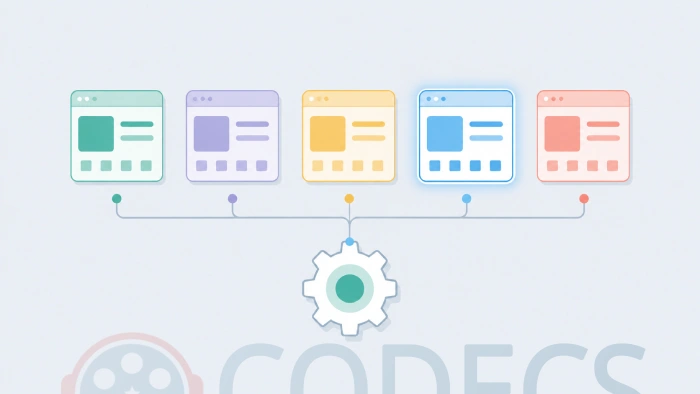
There is no single "best HEVC encoder", because almost none of these tools are encoders. They are front-ends. The actual compression is done by one of a few engines:
- x265 - the software engine behind nearly everything. Best quality per file size, slower.
- NVENC / AMF / QSV - hardware encoders built into NVIDIA, AMD and Intel chips. Five to ten times faster, slightly larger files at the same setting.
- Kvazaar - an open-source alternative to x265, useful when licensing rules out x265.
So the question is never "which encoder is best". It is "which interface puts the right engine in reach for the way I work". That is what the table sorts out.
The free HEVC encoders worth using
| Tool | Best for | Engine(s) | Interface |
|---|---|---|---|
| HandBrake | Most people - the default pick | x265, QSV, NVENC, AMF | Presets, point and click |
| X HEVC Encoder | Switching between software and GPU encoders | x265, Kvazaar, NVENC, AMF, QSV | One-window GUI, shows the command |
| VidCoder | Batch-converting many files at once | x265, QSV, NVENC, AMF | HandBrake engine, cleaner batch UI |
| XMedia Recode | Changing container or trimming without re-encoding | x265, hardware | Detailed, many options |
| x265 Encoder | Scripting and full control | x265 (it is the engine) | Command line only |
HandBrake - the default answer
HandBrake is free, open-source, and the tool most people should start with. It hides the complexity behind ready-made presets - pick "H.265 MKV 1080p" or a device preset, drop your video in, and press Start.
For quality, set the encoder to H.265 (x265) and use Constant Quality around RF 20-22 - visually lossless for most content, at roughly half the original size. It handles NVIDIA, AMD and Intel hardware encoding too, if you want speed over the last few percent of compression.
The current release is 1.11.2. Pick it up from the HandBrake download page.
X HEVC Encoder - all the engines, one window
Where HandBrake decides the encoder for you, X HEVC Encoder puts every option in a single dropdown - libx265, x265, Kvazaar, NVENC, AMF and QSV - and auto-detects which your PC supports. It even shows the exact command it is about to run, which is rare in a graphical tool and handy when something goes wrong.
It is a small portable app and needs FFmpeg alongside it. That is the trade for its flexibility: it is the best pick when you want to compare encoders or switch between software and hardware without learning a new tool each time.
VidCoder and XMedia Recode - the specialists
VidCoder uses the same engine as HandBrake but wraps it in a cleaner interface for queuing lots of files. If your job is "convert this whole folder overnight", it is the tidier choice.
XMedia Recode is the one to reach for when you do not actually want to re-encode - changing an MP4 into an MKV, trimming, or swapping audio tracks. It exposes a lot of options, which is a strength once you know what you are looking for.
x265 - the engine itself
x265 is the open-source engine every tool above relies on. Downloading it directly gives you the command-line binary - powerful, scriptable, and completely unfriendly if you are not comfortable in a terminal.
Do not download x265 expecting a program with buttons. It has none. If you found this page wanting "an HEVC encoder" and you are not writing scripts, one of the graphical tools above is what you actually want. x265 is for automation and fine control, not everyday encoding.
Software or hardware - which engine to pick
Every tool here lets you choose, so it is worth knowing the trade:
- Software (x265, Kvazaar) - best quality for the file size, and the right choice for anything you want to keep long-term. Slower, and it works your CPU hard.
- Hardware (NVENC, AMF, QSV) - five to ten times faster and easy on the CPU, at the cost of slightly larger files for the same quality. Ideal for quick exports, recorded gameplay, or bulk jobs where time matters more than the last few percent.
For a 4K HDR master, use software. For turning around a folder of clips this afternoon, use hardware. Most tools let you switch with one setting.
Steer clear of "free HEVC converter" sites that are really paid. A common trap: a slick installer that encodes a watermarked or time-limited clip, then demands a licence to finish. Everything on this page is genuinely free and open-source, with no watermark, trial limit or forced upgrade. If a tool asks for payment to remove a watermark, it does not belong on this list.
Want the exact FFmpeg settings instead of a GUI? The interactive HEVC encoding settings guide builds the precise x265 command for your goal - archival, streaming, HDR or mobile - with a live preview you can copy straight into a terminal.
Before you encode a whole library
Two quick checks save a lot of wasted time. First, make sure the devices you will play these files on can actually decode HEVC - the guide to whether your PC can play H.265 covers what to look for. Second, if you are encoding for speed, confirm your GPU supports hardware HEVC with the HEVC hardware support checker.
Encode a single test file first, play it on your target device, and only then batch the rest. It is far cheaper than re-encoding a library because the TV in the living room could not open the result.
Quick questions
What is the best free HEVC encoder for Windows?
For most people, HandBrake - free, open-source, and preset-driven, so there is nothing to configure. If you want to switch between software and GPU encoders in one window, X HEVC Encoder. Both use the same x265 engine underneath; they just present it differently.
Is HandBrake really free, with no watermark?
Yes. HandBrake is open-source under the GPL, with no cost, no watermark, no trial limit and no feature paywall. Any "HEVC encoder" that watermarks the output or asks for payment to finish is not one of the free tools on this page.
Software or hardware encoding - which should I use?
Software (x265) for anything you want to keep - it gives the best quality per file size. Hardware (NVENC, AMF, QSV) for speed - it is five to ten times faster with slightly larger files. Most tools let you pick with one setting.
Do I need to install a codec to encode HEVC?
No - the encoders here bring their own. You only need Microsoft's HEVC extension to play the files afterward in Windows apps like Movies & TV, and even that is optional if you use a player like VLC that decodes HEVC itself.
Why is my HEVC encode so slow?
You are almost certainly using software (x265) on the slow presets, which is normal - it is trading time for quality. Switch the encoder to your GPU (NVENC, AMF or QSV) for a large speed jump, or use a faster x265 preset if you want to stay on software.


EAC3 Audio Not Supported in MX Player? Fix It
4/5EAC3 Audio Not Supported in MX Player? Fix It
Read More →Free Popular IPTV Playlist: Where to Get Fres...
4/5Bonjour je peux avoir le lien M3U. Les codes playlist 2026 des chaînes en français et africainses
Read More →Best Way to Get VidMate APK - Fast, Free, and...
5/5The demand for feature-rich video editing applications continues to grow across the digital content industry. Filmora Mod APK is ...
Read More →