If you set up Windows 11 with a Microsoft account, your drive is probably already encrypted - and nobody told you.
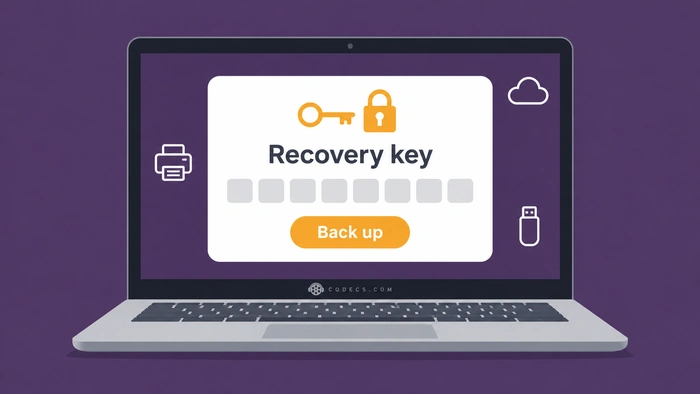
That is BitLocker, and most of the time you will never notice it.
The trouble starts when a BIOS update, a Secure Boot change or a new drive setup makes your PC ask for a 48-digit recovery key you have never seen.
This guide shows you how to check whether it is on, where the key already lives, and how to keep a copy you can actually reach - it takes about five minutes.
Why Windows Turned It On Without Asking
Microsoft calls the automatic version device encryption, and it is not the same as someone choosing to enable BitLocker. When you finish setup and sign in with a Microsoft account, or a work or school account, Windows encrypts the system drive and quietly uploads the recovery key to that account.
Since Windows 11 version 24H2, Microsoft dropped two of the old hardware requirements, so far more PCs qualify - including laptops and desktops running Windows 11 Home. Setup does not show a screen explaining any of this, which is why so many people only find out on the day the blue recovery screen appears.
If you are curious why setup pushes so hard for a Microsoft account in the first place, our look at how Windows 11 setup turned into an endurance test covers it.
Nobody can recover a lost key for you.
Microsoft Support cannot retrieve, reset or recreate a BitLocker recovery key. If the key is lost and you cannot undo whatever triggered the recovery screen, the only way back into the PC is a full reset, and every file on the drive goes with it.
Check Whether Your Drive Is Encrypted
Three ways, from quickest to most certain. Any one of them is enough.
- Look in File Explorer. In This PC, a small padlock on the C: drive means BitLocker is on, and a yellow warning mark on it means the key has not been backed up yet.
- Open Settings. Go to Settings, then Privacy & security, then Device encryption - if the switch is On, your drive is encrypted.
- Ask Windows directly. Right-click the Start button, choose Terminal (Admin), run the command below and look for Protection Status: Protection On.
manage-bde -status C: 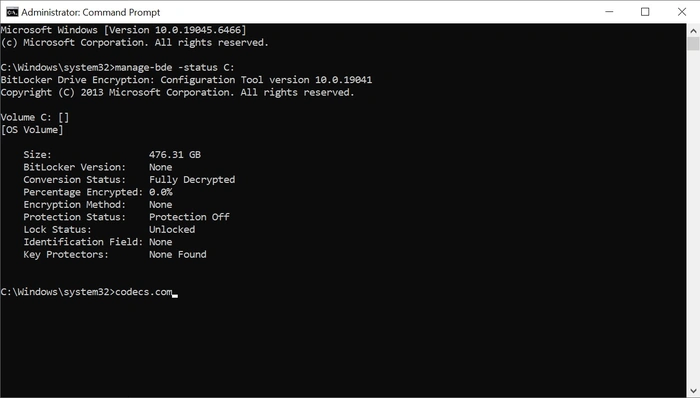
The screenshot shows a drive that is not encrypted: Fully Decrypted and Protection Off. An encrypted drive reads Fully Encrypted and Protection On, and Command Prompt run as administrator gives the same answer as Terminal.
No Device encryption page in Settings and no padlock in File Explorer usually means the drive is not encrypted. The command above gives the final answer either way.
Where Your Recovery Key Already Lives
If Windows turned encryption on by itself, the key was saved somewhere automatically. Check these places in this order.
- Your Microsoft account. Sign in at account.microsoft.com/devices/recoverykey with the same account you use on the PC - this is where most home PCs keep it.
- A work or school account. Company and school PCs usually back it up to the organisation - sign in at aka.ms/aadrecoverykey or ask your IT team.
- A printout or a USB file. Only if you or someone else turned BitLocker on by hand and chose to print or save the key.
One trap catches a lot of people: the key sits in the account of whoever set the PC up. If a shop, a relative or a previous owner signed in during setup, the key is in their account, not yours.
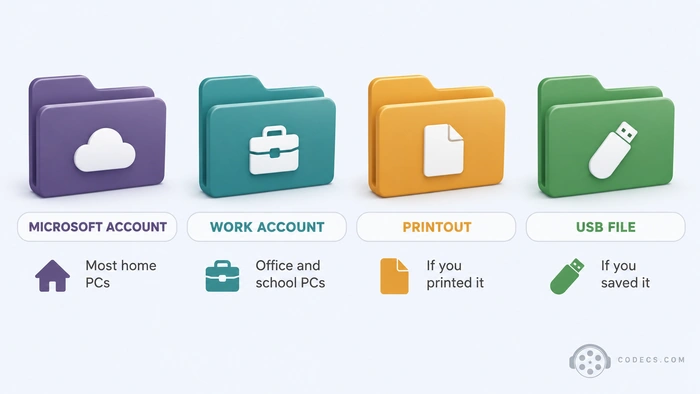
The account page can list several keys if you have owned more than one PC. Each has a Key ID - on the recovery screen, Windows shows the first characters of the ID it needs, so match those and ignore the rest.
Make Your Own Copy Right Now
Relying on one online account is the weak spot. If you ever lose access to that account, the key goes with it, so keep a second copy somewhere you control.
- Open Terminal as administrator. Right-click the Start button and choose Terminal (Admin).
- Show the key. Run the command below and find the section called Numerical Password.
- Copy the ID and the Password. The Password is the 48-digit recovery key, in eight groups of six digits - copy both lines exactly.
- Store it off this PC. A password manager on your phone, a printout in a drawer, or a text file on a USB stick all work - never on the encrypted drive itself.
manage-bde -protectors -get C:On Windows 11 Pro there is also a menu route. Search the Start menu for Manage BitLocker, choose Back up your recovery key, then pick Save to your Microsoft account, Save to a file or Print the recovery key.
Do it on every PC you look after.
Each PC has its own key, so a parent's laptop set up with your account needs checking too. While you are at it, back up Windows 11 itself - a saved key protects access to your files, not the files themselves.
Before a BIOS Update or Dual Boot, Suspend It First
BitLocker stores its key inside the PC's security chip, the TPM, and only releases it if the start-up process looks exactly as it did before. Change anything in that chain and Windows asks for the recovery key instead.
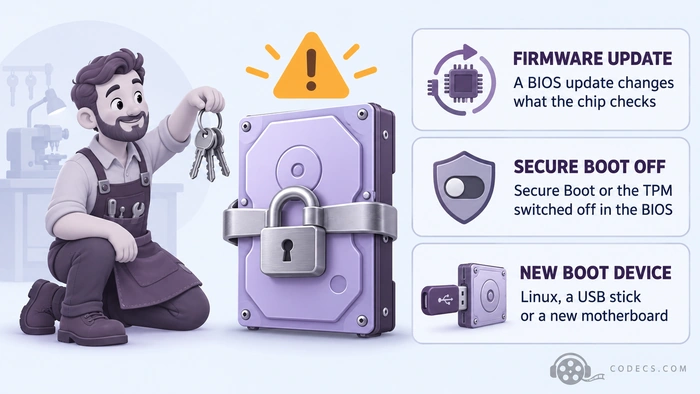
The usual triggers are all things people do on purpose:
- Updating the BIOS or UEFI firmware.
- Turning off Secure Boot or the TPM, or clearing the TPM.
- Changing the boot order, or booting Linux or a USB stick - see our dual boot guide before you try it.
- Moving the drive to another PC, or replacing the motherboard.
Suspending BitLocker leaves the drive encrypted but lets the next start-up through without asking for the key. On Windows 11 Pro, open Manage BitLocker and choose Suspend protection. On any edition, run this in Terminal (Admin):
manage-bde -protectors -disable C: -RebootCount 1Protection switches itself back on after the next restart, so you do not have to remember. If the update needs more than one restart, raise the number to 2 or 3.
Stuck on the Recovery Screen Right Now?
- Note the Key ID. The blue screen shows the ID of the key it wants - write down the first eight characters.
- Use another device. On a phone or another PC, open account.microsoft.com/devices/recoverykey and sign in.
- Try every likely account. If nothing matches, try the accounts of anyone who helped set the PC up, and any work or school account.
- Type the 48 digits. The dashes are added for you, so only the numbers matter.
If a firmware change caused it and the key is nowhere, undo the change first - switch Secure Boot or the TPM back on in the BIOS and restart. That alone often clears the screen.
If nothing works, the last resort is a reset from a USB recovery drive, which wipes the drive. A system image made earlier is what gets your files back after that.
Should You Turn It Off?
For a laptop that leaves the house, keep it on. If the laptop is stolen, encryption is the difference between losing a device and losing your documents, photos and saved passwords as well.
For a desktop that stays at home, and especially one you tinker with, turning it off is a reasonable choice. Just make it a decision rather than an accident.
- Windows 11 Home. Settings, Privacy & security, Device encryption, switch it Off.
- Windows 11 Pro. Search Start for Manage BitLocker and choose Turn off BitLocker.
Turning it off decrypts the drive in the background and deletes nothing. It can take an hour or more on a large drive, so keep a laptop plugged in until it finishes.
Installing Windows fresh?
Rufus can stop device encryption before it starts. When you write the USB stick, tick Disable BitLocker automatic device encryption in the Windows User Experience box - our Rufus install guide walks through that dialog.
Quick questions
Is BitLocker on by default in Windows 11?
Often, yes. Device encryption switches on automatically when you set up a supported PC with a Microsoft account or a work or school account, and since version 24H2 far more PCs are supported.
Does Windows 11 Home have BitLocker?
Home does not get the full BitLocker controls, but it does get device encryption, which is BitLocker underneath. It locks the drive the same way and asks for the same 48-digit recovery key.
Can Microsoft give me my recovery key?
No. Microsoft Support cannot see, reset or recreate a recovery key. If it was saved to a Microsoft account, only someone signed in to that account can see it.
Why did my PC ask for a BitLocker key after a BIOS update?
A firmware update changes the start-up measurements the TPM checks, so it refuses to release the key. Suspending BitLocker before the update avoids it.
Why is there a yellow warning icon on my C: drive?
The drive is encrypted but the key has not been backed up, which happens when you set up Windows with a local account. The data is encrypted but not yet protected, and signing in with a Microsoft account or turning encryption off clears the icon.
Does BitLocker encrypt my USB sticks?
Not automatically. Device encryption covers the system drive and internal drives only - an external drive is encrypted only if you turn on BitLocker To Go for it yourself, which needs Windows 11 Pro.
The bottom line
Check for the padlock, save the 48-digit key somewhere off the PC, and suspend BitLocker before any firmware change. Was your drive encrypted without you knowing? Tell us in the comments.


How to Stream With VLC: Open a Stream URL or ...
5/5This is amazing! I could no longer afford cable so I cut the cord and started watching Hulu, Youtube, ...
Read More →Don't Open a .xmpeg File Before Reading This
3/5It's never a good sign when the potential malware you downloaded has the EXACT same filename as the example. ...
Read More →Free Popular IPTV Playlist: Where to Get Fres...
3/5How can you create a DSTV channels on IPTV?
Read More →