Dual booting is not hard - but three things go wrong for almost everyone, and two of them happen before Linux is even installed.
Windows and Linux will share one SSD quite happily.
What they will not do is sort out the boot menu, the disk encryption or the clock on their own.
This guide does the whole job in order, and stops at each of the three points where people normally get stuck.
Do these three things first
Skipping this section is how a two-hour job turns into a weekend.
Your Windows drive may already be encrypted. Since the 24H2 release, Windows 11 switches on Device Encryption during setup on most new machines, Home edition included, when you sign in with a Microsoft account. Resizing a partition or changing a firmware setting can then make Windows demand a 48-digit recovery key at the next boot.
Search the Start menu for Manage BitLocker and look at your C: drive. If it says on, click Back up your recovery key and save it to your Microsoft account or a printout, then choose Suspend protection before you start.
Second, back up anything you cannot lose. Partitioning is routine and it is also the one operation that eats a whole drive when it goes wrong, so follow our guide to creating a system image for Windows 10 or 11 first.
Third, turn off Fast Startup. Open Control Panel, Power Options, Choose what the power buttons do, click Change settings that are currently unavailable, and untick Turn on fast startup.
Why Fast Startup matters more than it sounds. It does not really shut Windows down, it hibernates it. Linux sees a drive that is still in use and will either refuse to open your Windows files or damage them, so this switch is not optional on a dual-boot machine.
What you need
- An SSD with at least 60GB free after Windows - 100GB is more comfortable.
- A USB stick of 8GB or more, which will be wiped.
- A Linux ISO. Ubuntu, Linux Mint and Fedora are the three that give beginners the least trouble.
- Two hours, and your BitLocker recovery key somewhere safe.
Not sure the drive is up to it? Our comparison of a USB stick against an SSD covers the speeds you can actually expect from each.
Step 1: Install Windows first
If Windows is already installed and working, skip straight to step 2.
Install Windows before Linux, every time. The Windows installer writes its own boot entry and puts itself at the top of the list, so doing it second buries the Linux boot menu you just set up.
- Make the installer USB with Microsoft's Media Creation Tool, Rufus or Ventoy.
- Boot from it and pick your SSD when the installer asks where to put Windows.
- Do not use the whole drive - leave at least 60GB unallocated for Linux.
- Finish setup, then let Windows Update run until it stops finding things.
Step 2: Make room on the SSD
If you already left unallocated space, skip to step 3.
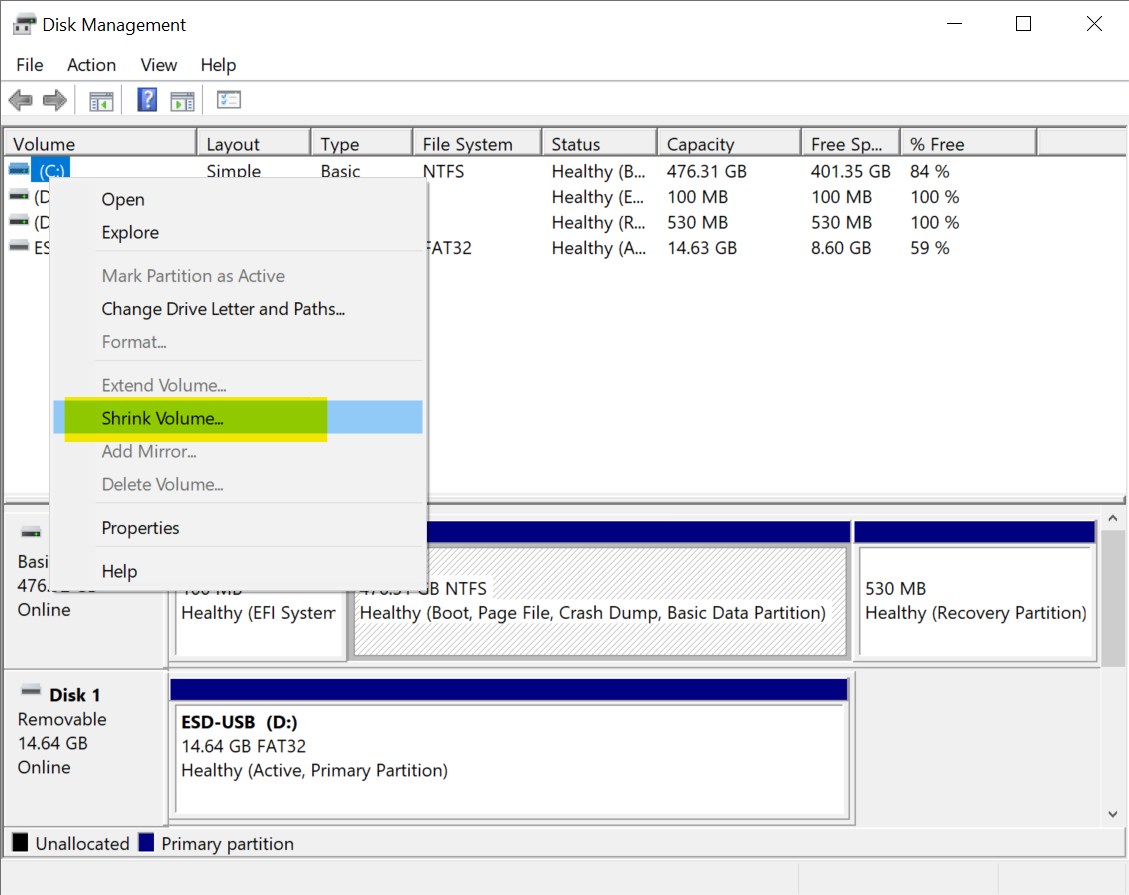
Press Windows and X together, open Disk Management, right-click your Windows partition and choose Shrink Volume. Enter the amount to free up in megabytes - 60000 is roughly 60GB - and leave the freed space unallocated rather than formatting it.
Windows often offers far less space than you have free. That is not a bug: it will not move certain system files, and it stops shrinking at the last one of them.
The fix is to move those files out of the way for ten minutes. Open Command Prompt as administrator and run:
powercfg /h off
Then turn off System Protection under System, About, System protection, and set the page file to None under Advanced system settings, Performance, Advanced, Virtual memory. Reboot, shrink, and switch all three back on afterwards.
Step 3: Make the Linux USB
Any of these three will do it, and the right one depends on what else you are carrying on the stick.
| Tool | What it does | Use it when |
|---|---|---|
| Rufus | Writes one ISO to one stick, with full control of the partition scheme | You want the simplest reliable route. Choose GPT and UEFI |
| Ventoy | Sets the stick up once, then you copy ISO files onto it like any other file | You want Windows and Linux on one stick, or you will be trying several distributions |
| balenaEtcher | Writes one ISO to one stick, with almost no options to get wrong | You are making the stick on a Mac or on Linux rather than on Windows |
Step-by-step versions of the first two live here: making a bootable Ubuntu USB with Rufus, and putting several ISOs on one stick with Ventoy.
Leave Secure Boot alone. Ubuntu, Mint, Fedora, Debian and openSUSE all boot with it switched on. Turning it off is what triggers the BitLocker recovery prompt, so only do it if your distribution actually refuses to start.
Step 4: Install Linux
Boot from the USB. On most machines that means tapping F12, F9 or Esc as the PC starts, but the reliable route on Windows 11 is Settings, System, Recovery, Advanced startup, Restart now, then Use a device.
When the installer asks where to put Linux, the easy answer is Install alongside Windows Boot Manager. It finds your unallocated space and sets everything up for you, and for most people it is the right choice.
If you pick manual partitioning instead, you need three things and one warning.
- Root. Mount point /, ext4, 40GB or more.
- Home. Mount point /home, ext4, the rest of your space - optional, but it survives a Linux reinstall.
- The EFI partition. Windows already made one - set its mount point to /boot/efi and use it as it is, nothing more.
Do not tick the format box on the EFI partition. That small FAT32 partition holds the Windows boot files as well as the Linux ones. Formatting it wipes Windows out of the boot menu and you will be rebuilding it from a recovery drive.
You probably do not need a swap partition. Ubuntu, Mint and Fedora all create a swap file automatically now, and a separate partition only helps if you want Linux to hibernate.
Step 5: Make the boot menu show Windows
This is the one that catches people, and it is not your fault.
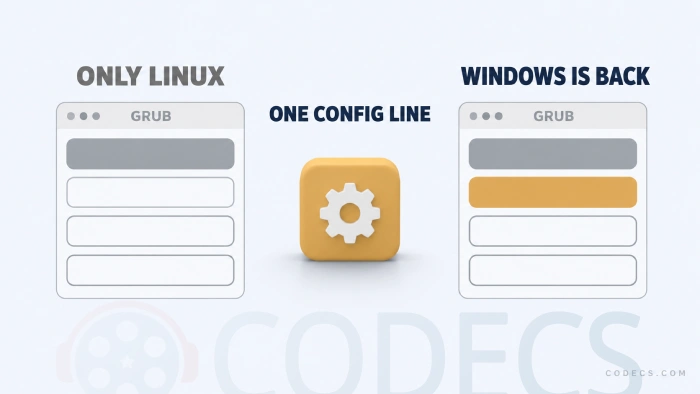
GRUB, the Linux boot menu, stopped scanning for other operating systems by default back in 2021, for security reasons. So on a fresh install it often lists Linux and nothing else, and Windows looks as though it has been deleted.
It has not. Boot into Linux, open a terminal and run:
echo "GRUB_DISABLE_OS_PROBER=false" | sudo tee -a /etc/default/grub
Then rebuild the menu with whichever command matches your distribution:
- Ubuntu, Mint, Debian. sudo update-grub
- Fedora. sudo grub2-mkconfig -o /boot/grub2/grub.cfg
- Arch and most others. sudo grub-mkconfig -o /boot/grub/grub.cfg
Watch the output. A line mentioning Windows Boot Manager means it worked, and Windows will be waiting in the menu after you reboot.
Step 6: Fix the clock
Sooner or later one of the two systems will be several hours out.
The cause is a disagreement rather than a fault: Linux assumes the PC's hardware clock is set to universal time, and Windows assumes it is set to your local time.
The cleaner fix is to bring Windows into line. Open Registry Editor, go to HKEY_LOCAL_MACHINE\SYSTEM\CurrentControlSet\Control\TimeZoneInformation, create a new DWORD (32-bit) value called RealTimeIsUniversal and set it to 1.
The quicker fix is to bring Linux into line instead, with timedatectl set-local-rtc 1 --adjust-system-clock. It works, but systemd's own documentation discourages it because daylight saving changes can then be applied twice.
What breaks later, and what to do about it
Windows jumps the queue after a big update. Feature updates sometimes put Windows Boot Manager back at the top of the firmware boot order, so the PC stops showing the menu. Go into your UEFI settings and move the Linux or GRUB entry back to first place.
Windows appears and then disappears again. Run the rebuild command from step 5 after any major Windows update. That is the whole fix, and it takes ten seconds.
Nothing boots at all. This is what a Windows recovery drive is for, and it is worth making one before you start rather than after.
If you would rather not repartition at all
Dual booting is not the only way to run two systems, and it is the only one that touches your Windows drive.
You can put the second system on an external drive instead and leave the internal SSD completely alone, which our guide to running Windows from an external SSD walks through - the same approach works for Linux, and most distributions will install to a USB drive without complaining.
It is slower over USB, and it is completely reversible, which is the trade.
Quick questions
Will dual booting slow my PC down?
No. Only one system runs at a time, so each one gets the whole machine. You lose disk space, not speed.
Can Windows and Linux share my files?
Linux reads and writes your Windows drive with no extra software, as long as Fast Startup is off. Windows cannot read Linux partitions without a third-party tool, so a shared folder on the Windows side is the simpler arrangement.
How much space does Linux actually need?
A desktop Linux install fits in about 25GB, but that leaves nothing for your own files or updates. Give it 60GB if you can, and 100GB if you plan to use it properly.
Do I have to turn Secure Boot off?
Almost certainly not. The mainstream distributions are signed and boot with it enabled, and leaving it on also avoids triggering a BitLocker recovery prompt.
Can I remove Linux later and get the space back?
Yes. Delete the Linux partitions in Windows Disk Management, extend the Windows partition back over the free space, then repair the Windows boot entry from a recovery drive so the machine stops looking for GRUB.
Is it safer to use two separate drives?
It is, if your PC has room for a second one. Each system gets its own drive and its own boot files, so a mistake in one cannot reach the other.
Two systems on one SSD is a settled, ordinary setup - it only feels fragile because the three things that break it are never mentioned until after they break.
Download Ventoy and put both installers on one stick, or tell us which step tripped you up if you have done this before.


How to Stream With VLC: Open a Stream URL or ...
5/5This is amazing! I could no longer afford cable so I cut the cord and started watching Hulu, Youtube, ...
Read More →Don't Open a .xmpeg File Before Reading This
3/5It's never a good sign when the potential malware you downloaded has the EXACT same filename as the example. ...
Read More →Free Popular IPTV Playlist: Where to Get Fres...
3/5How can you create a DSTV channels on IPTV?
Read More →