Windows plays a video file in three stages, and almost every playback fault is one stage failing while the other two work perfectly.

Work out which stage, and the fix is usually one free download rather than an afternoon.
Guess wrong, and you install three things that were never going to help.
The three stages are the splitter, the decoder and the renderer, and each one fails in a way you can recognise.
The Three Stages
A video file is a box with several things inside it: a video track, one or more audio tracks, and often subtitles.
The splitter opens that box and hands each track to whatever deals with it. It is the only stage that cares whether your file is an MP4, an MKV or an AVI.
The decoder takes the compressed video track and rebuilds it into ordinary frames. It is the only stage that cares whether the video inside is H.264, HEVC or AV1.
The renderer takes those frames and puts them on your display, handling scaling, colour and timing on the way.
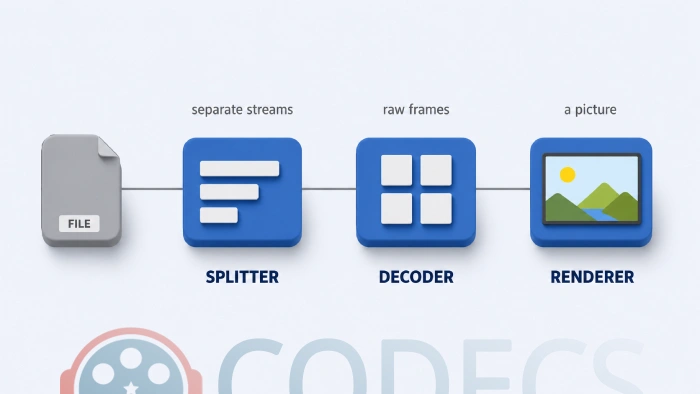
That split is worth holding onto, because the container and the codec are different things and they break differently - our guide to codecs and containers covers that distinction on its own.
Why the compression is worth so much. Two hours of uncompressed 1080p at 24 frames a second works out at roughly 537GB, so a 2GB download of the same film has been squeezed by about 270 times.
Which Stage Broke
Start here. The symptom narrows it down further than most people expect.
| What you see | Stage | What to do about it |
|---|---|---|
| The player refuses to open the file at all | Splitter | Install a codec pack, or open the file in a player that carries its own splitters |
| Sound plays, the picture stays black, the timeline runs | Decoder | Find out which video codec the file uses, then install that one decoder |
| Picture plays, no sound at all | Decoder, on the audio side | Check the audio track list first, then the decoder for that format |
| Picture is washed out, banded or oddly scaled | Renderer | Switch renderer, and leave your decoders alone - for grey HDR, see how to fix washed-out HDR |
| Video plays sideways or upside down | Renderer | Switch renderer, because the rotation flag is being ignored |
| Playback stutters and the CPU sits near maximum | Decoder | Turn on hardware decoding rather than changing anything else |
| Playback stutters and the CPU is idle | Renderer | Try a different renderer or a different output mode |
| Subtitles are missing or in the wrong place | Neither | Subtitles are a separate filter again, and nothing above will move them |
When It Is the Splitter
The tell is that nothing happens. No window, no black frame, no timeline, or an error naming the file rather than a format.
Your system knows the extension but has nothing that can open the box, which is why MKV files defeated Windows Media Player for so many years.
The blunt fix works well here: the K-Lite Codec Pack installs splitters for everything ordinary along with the decoders behind them.
The precise fix is LAV Filters, which handles splitting and decoding in one set of filters and is what most codec packs install anyway.
When It Is the Decoder
The tell is that the file opens and something is missing. Sound with a black picture, picture with no sound, or a codec not supported message naming a format.
The box opened. What was inside it could not be read.
Find out what is actually in the file before installing anything, because installing five decoders in the hope that one helps is how filter conflicts start.
MediaInfo lists every stream and its codec, and our Codec Finder does the same job in a browser.
If you would rather see what is already registered on the machine, our guide to which codecs are installed covers the tools for that.
Stuttering is a decoder problem more often than a renderer one. If your processor is close to maximum during playback, the video is being decoded in software, and no renderer will change that.
The fix there is hardware decoding, which hands the work to your graphics card - our guide to turning hardware decoding on walks through the settings.
DXVA Checker confirms whether it is genuinely running, which matters because a decoder falls back to software silently when the card cannot take a format.
For the mechanics underneath, see how D3D11 decoding works.
When It Is the Renderer
The tell is that everything plays and it looks wrong. The frames arrived; the last stage mishandled them.
Washed-out HDR, banding in dark scenes, mushy upscaling from a DVD to a 4K panel, combing on interlaced material, or video that plays rotated.
MPC Video Renderer is the sensible default on Windows 10 and 11, and madVR is the enthusiast option that asks a great deal more of your graphics card.
Our roundup of which renderer to pick compares them properly, and there is a separate walkthrough for configuring MPC Video Renderer once you have chosen.
A renderer will not make an unplayable file play. It is the last stage in the chain, so if the file never opened or never decoded, nothing has reached the renderer for it to draw.
The Two That Get Confused
Two symptoms look identical from the sofa and come from opposite ends of the chain.
Stuttering. Check your processor during playback. Near maximum means decoding, close to idle means the renderer or the display path.
Audio out of sync. A constant offset that never changes is the renderer or the audio output. Drift that grows steadily through a file is usually the source, a variable frame rate or broken timestamps, and no renderer will correct it.
If it is subtitles rather than audio that will not line up, that is a third component again - DirectVobSub and the rest, and our guide to out-of-sync subtitles covers it.
Where Codec Packs and Filters Fit
A codec pack is not one thing. It is a bundle containing splitters, decoders and usually a renderer, which is why it fixes so many different symptoms at once.
That is also why it is the wrong first move when you already know which stage is at fault. Installing a whole pack to fix one missing decoder leaves you with filters you did not need and conflicts you cannot see.
MPC Video Decoder is a good example of a single-stage filter. It handles H.264, HEVC, MPEG-2, MPEG-4 Part 2 and VC-1, and it does not touch AV1 or VP9 at all.
Its companion is not what the name suggests. MPC Video Renderer shares a family name and a project, but it is a renderer for modern displays rather than a matching decoder, and the two are useful independently.
If none of this is familiar, that is a reasonable sign to install a pack and stop thinking about it. If you want the chain itself explained rather than diagnosed, how compression actually works is the longer read.
Quick questions
What is the difference between a decoder and a renderer?
A decoder turns compressed video back into ordinary frames. A renderer takes those finished frames and draws them on your screen, handling scaling, colour and timing.
My video plays with sound but no picture. Which one is it?
The decoder. The file opened and the audio track was readable, so the splitter did its job and the video codec is the part your system cannot handle.
Will a new renderer fix a file that will not open?
No. The renderer is last in the chain, so a file that never opened has not reached it. That symptom belongs to the splitter.
Why does the same file play on one computer and not another?
Because the two machines have different filters registered. One has a splitter or decoder for that format and the other does not, and the file itself is identical.
Do I need a codec pack or a single filter?
A single filter if you know which stage is at fault, because it is cleaner and easier to undo. A pack if you deal with a lot of unfamiliar files and would rather not diagnose each one.
Where do subtitles fit into all this?
They are a separate filter again, sitting alongside the renderer rather than inside it. Nothing you change about decoders or renderers will move a subtitle track.
The symptom tells you the stage, the stage tells you the download, and one filter chosen deliberately beats three installed hopefully.
Get LAV Filters if the answer turned out to be the splitter or the decoder, and tell us which stage it was so the table above gets better.


Latest comments
AllI used [link] on tivimate with the Usa m3u Playlist. I cannot get the guide to work.
Team replied Guide: Free EPG URLs for IPTV: TV Guide Links That Still Work 2 comments[link] Epg is not working on this one.
Team replied News: Free USA IPTV Playlist: The American TV That Is Really Free 1 commentSi mund te shikoj te gjitha kanalet e DigitAlb dhe Tring me url pa pagese ne Iptv Player?
Team replied Guide: Free Popular IPTV Playlist: Where to Get Fresh, Legal M3U Links in 2026 20 comments