Installing a codec lets you see an iPhone photo. Converting it lets everyone else see it too - which is the difference between fixing your own PC and being able to send the picture to your mother.
iMazing Converter is free, it is about twelve megabytes, and it does two jobs: HEIC photos to JPG or PNG, and HEVC video to MP4.
It has no account, no watermark and no paid tier waiting at the end.
Here is how to use it, what it does to your metadata, and the two situations where something else is the better answer.
If you only want to look at the files on your own PC, you do not - two free Windows components will do it, and our guide to opening HEIC and HEIF photos on Windows covers that route instead.
Convert when the file has to leave your machine - an email, an upload, a print shop, a relative on an old laptop. That is what this page is for.
Why iPhone files arrive in formats Windows dislikes
Since iOS 11, iPhones have saved photos as HEIC and video as HEVC. Both are roughly half the size of the older formats at similar quality, which is why Apple switched and why your phone has room for 4,000 photographs.
A HEIC file is two things stacked together, and this is the part that trips everybody up: the container is HEIF, and the picture inside it is compressed with HEVC. Windows needs a handler for both halves, which is why installing one extension and finding it still does not work is such a common experience.
Converting sidesteps the whole question. A JPG needs nothing installed anywhere, on any machine, ever.
What iMazing Converter does
It is made by DigiDNA, the Swiss company behind the iMazing device manager, and it exists because their support inbox kept filling up with this question.
- HEIC photos to JPG or PNG.
- HEVC video to MP4 using H.264, which plays on essentially anything.
- Batches - drop in a folder's worth and walk away.
- EXIF metadata kept or stripped, your choice, which includes the GPS coordinates.
- Colour profiles preserved, wide-gamut included, so skies do not shift.
Converting a batch, start to finish
Under a minute once it is installed.
- Install it. Download iMazing Converter and run the installer - it is a small file and there is nothing to configure.
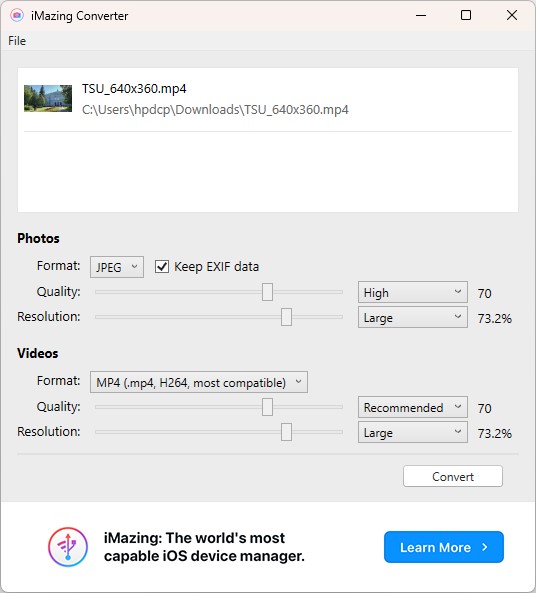
- Drag your files in. Drop HEIC photos or HEVC videos straight onto the window. Select as many as you like; it queues them.
- Pick the output format. JPG for photographs, which is what you want nine times in ten. PNG only if you need transparency. MP4 for video.
- Click Convert. Choose where the converted files should go, and it works through the queue.
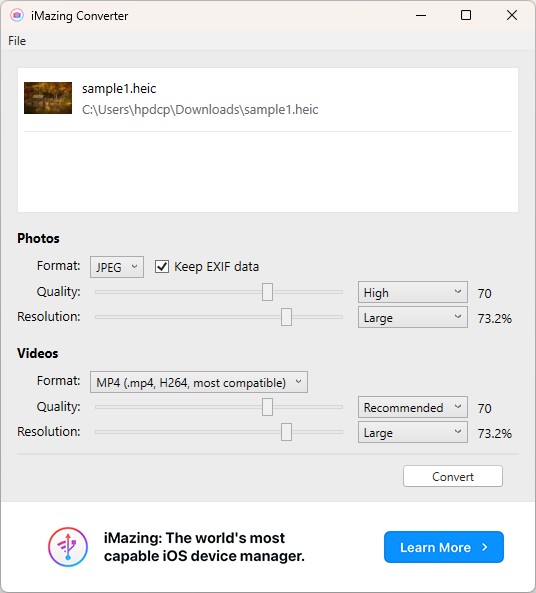
Video takes longer than photos, and how much longer depends on your processor rather than on the app. A few minutes of 4K is a coffee, not a lunch.
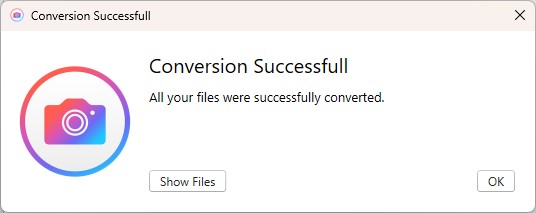
When it finishes it tells you so, and the originals are untouched - conversion writes new files rather than replacing anything.
The settings worth a look
Most people never open these, and one of them is worth thirty seconds of your attention.
Your photos know where you were standing. Every picture your phone takes carries GPS coordinates in its EXIF data, and a converted copy keeps them unless you say otherwise. That is fine for a family album and less fine for a photograph you are about to post publicly. The EXIF setting lets you strip it - decide before you convert, not after you have uploaded.
Quality controls the compression. The default is sensible; push it up if the photographs are going to be printed, down if you are emailing forty of them.
Resolution resizes during the conversion, which saves doing it as a second pass.
Presets save a combination you use repeatedly. Worth setting up once if this is a monthly chore rather than a one-off.
When something else is the better tool
If you only want to view them, install the two components instead. HEIF Image Extensions handles the container and HEVC Video Extensions from Device Manufacturer decodes the picture inside it. You need both, and that second one is the free edition - Microsoft charges for the other one in the Store, and it is the identical package.
If the batch is enormous or the rules are fiddly, our guide to converting HEIC files with XnConvert covers a tool built for pipelines - renaming patterns, folder watching, several operations chained together.
If you want it in Explorer's right-click menu, CopyTrans HEIC converts without opening an app at all, which suits the occasional single file.
If you cannot install anything, on a work machine or a Chromebook, the HEIC to JPG converter at Convertico runs in the browser and does not upload the photograph anywhere.
Quick questions
Is iMazing Converter really free?
Yes - no account, no watermark, no trial that expires. DigiDNA make their money from the iMazing device manager; the converter exists to answer a question their support team got tired of answering.
Does converting HEIC to JPG lose quality?
A little, once. Both formats are lossy, so re-encoding discards a second helping of detail - invisible at normal quality settings, and the file gets bigger rather than smaller because JPG is the less efficient format.
Keep the originals on your phone or in iCloud and treat the JPGs as the copies you send out.
Will the converted photos still have the date and location?
Yes, unless you turn EXIF off before converting. That includes the GPS coordinates, which is worth thinking about for anything going somewhere public.
Can I stop my iPhone producing HEIC in the first place?
Yes. Settings, then Camera, then Formats, then Most Compatible - the phone shoots JPEG and H.264 from then on, at the cost of roughly double the storage.
There is also Settings, Photos, Transfer to Mac or PC, Automatic, which converts on the way out and leaves the originals on the phone untouched.
My HEVC videos will not convert. What now?
Check the file actually is HEVC and not ProRes - newer iPhones shoot ProRes on the Pro models, and that is a different format with a different answer.
If it is HEVC and still fails, convert a single short clip first. A whole batch failing usually means one bad file stopping the queue.
Does it work on a Mac?
There is a macOS build on the Mac App Store. This guide and the download on our listing are the Windows version.
The bottom line
Convert when the file has to work on somebody else's machine, and install the two Windows components when it only has to work on yours. iMazing Converter is the shortest route to the first one: drag in, pick JPG, convert.
Turn EXIF off first if the photographs are going anywhere public.




How to Stream With VLC: Open a Stream URL or ...
5/5This is amazing! I could no longer afford cable so I cut the cord and started watching Hulu, Youtube, ...
Read More →Don't Open a .xmpeg File Before Reading This
3/5It's never a good sign when the potential malware you downloaded has the EXACT same filename as the example. ...
Read More →Free Popular IPTV Playlist: Where to Get Fres...
3/5How can you create a DSTV channels on IPTV?
Read More →